Outcome
Each piece of work sits in the record built for it, every active opportunity has a next action, and nothing is tracked twice.
Navigation path
CRM > Pipelines or Tasks
Access
Free CRM with no time limit: 100 stored contacts and 10 active opportunities for your company, plus companies, pipelines, manual tasks and notes, CSV import, and Email Scripts. Paid plans add automations, reports, automated matching, calendar integration, domain connections, and email sending.
On this page
Before you start
Data, sources, and access to prepare
- A real opportunity, assignment pursuit, represented listing, follow-up action, or current lease
Choose the lifecycle record for the work
For a seller with multiple properties, create one property opportunity per property. A contact and property name are required; a listing or marketing document is optional. Track its address, property type, asking price, motivation, timing, owner, stage, tasks, discussions, and files separately. From the opportunity, use Create or link listing when representation progresses. This retains the same property history and does not publish anything.
Assignment, Listing, Deal, task, or lease
Start with the real-world object you are managing.
What are you tracking?
Assignment
Engagement to win a mandate or search
Listing
Represented property through marketing and closing
Deal
Expected transaction and compensation
Task
Discrete next action
Current lease
Tenancy and expiration reminder source
- What are you tracking?Assignmentpursuing engagement
- What are you tracking?Listingrepresenting property
- What are you tracking?Dealtransaction expected
- What are you tracking?Taskone action
- What are you tracking?Current leaseoccupancy obligation
Assignment
- Use it for
- Pursuit before a signed or secured engagement
- Do not use it for
- A transaction already being forecast for revenue
Listing
- Use it for
- Represented property preparation, marketing, negotiation, and close
- Do not use it for
- A buyer or tenant opportunity without a represented listing
Deal
- Use it for
- Transaction stage, value, close date, GCI, offers, splits, and parties
- Do not use it for
- A simple reminder
Task
- Use it for
- One owned action with an optional due time
- Do not use it for
- A full opportunity lifecycle
Current lease
- Use it for
- Tenant occupancy, economics, expiry, and notice window
- Do not use it for
- A generic one-time follow-up
Open the right board or task page
- 1
Open the record family
CRM > Pipelines or CRM > Tasks
In the Pipeline selector, choose a pipeline under Deals (such as Sales Pipeline), Representation opportunities, or Listing progress, or open Tasks or Lease expirations.
Expected result: The selected workspace loads with its own filters and view controls.
If this step does not work
If the wrong pipeline opens, use CRM navigation rather than changing a record to fit it.
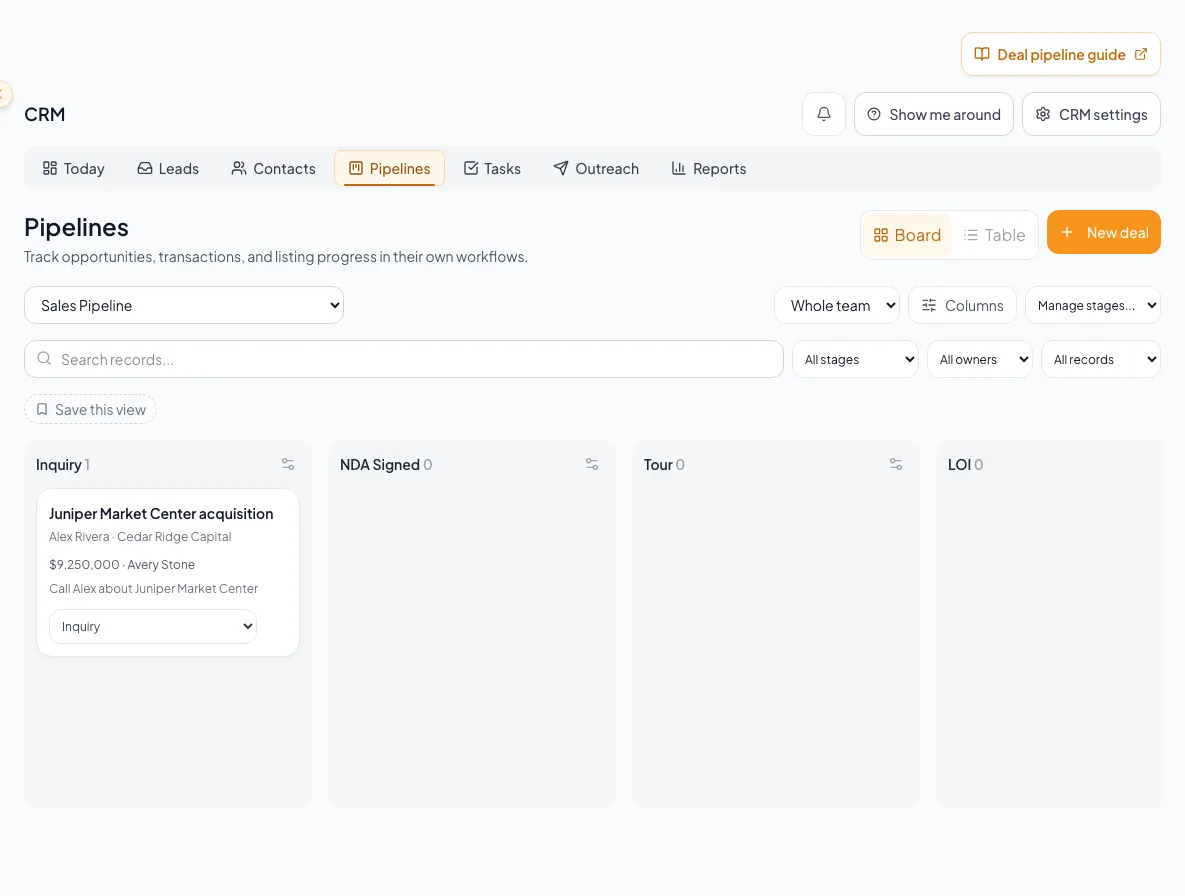
Choose the correct pipeline type and view, then distinguish a pipeline record from the tasks used to advance it. - 2
Choose board or list where offered
Pipeline page > view toggle
Use Table for sortable detail or Board for stage-oriented work. New users start in Table; saved preferences are retained.
Expected result: The same records appear in the selected view.
If this step does not work
If a saved view preference seems stale, switch once and reload. Confirm no filters changed.
- 3
Choose columns and save a view
Pipeline toolbar > Columns and Save this view
Choose useful columns from Columns.
Expected result: Table and Board share the same filtered records and stage changes. Pipeline, scope, filters, and sorting remain in the URL.
If this step does not work
A saved view applies within your current permissions and never moves a record to a different pipeline.
- 4
Set record scope
Page controls > scope
Select My records or Whole team.
Expected result: Counts and records show your own records or the whole company’s.
If this step does not work
Admins, the account owner, and Coordinators see both choices. Members see only their own records, so the selector is hidden for them.
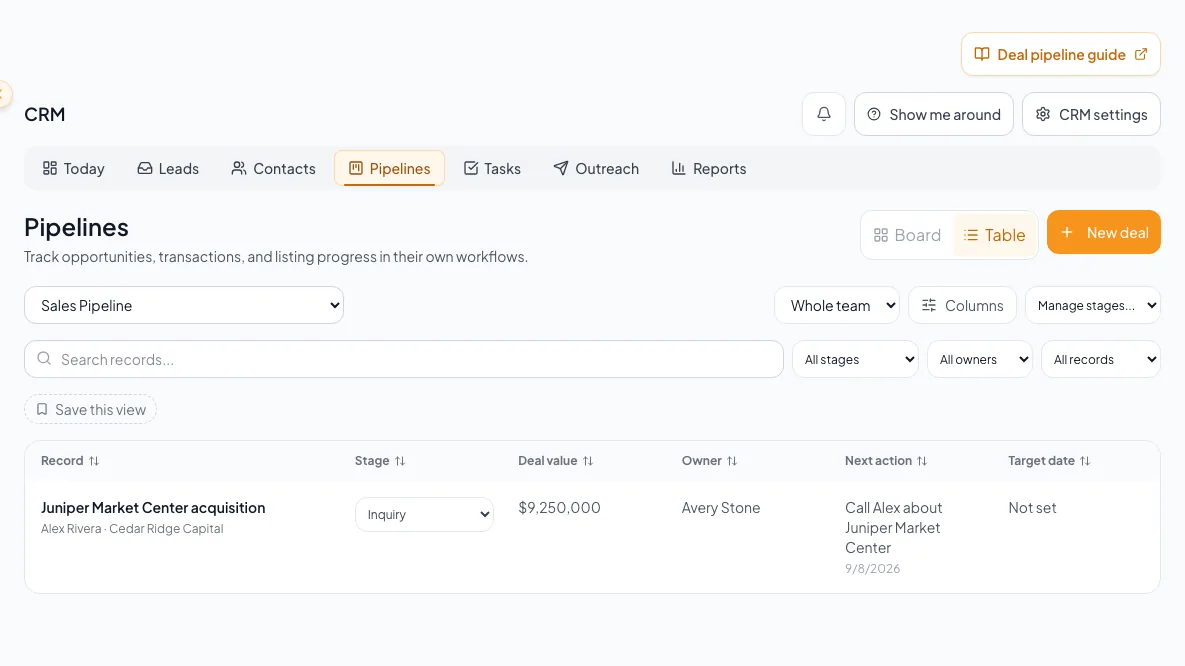
Use Deals, Assignments or Listings for the record you are tracking. - 5
Set the Deal pipeline
Page controls > Pipeline
Select the Deal pipeline, such as Sales Pipeline or Business Brokerage.
Expected result: Counts and records reflect the selected pipeline.
If this step does not work
If Business Brokerage is missing, an Admin can add it from the Team page.
- 6
Open one deal
CRM > Pipelines > Deals > board card or list row
Select the deal title.
Expected result: The deal workspace opens with its economics, parties, offers, notes, and activity.
If this step does not work
Representation opportunities and listing-progress rows open dedicated workspaces with their own updates, files, and next actions.
Pair stage truth with the next action
- 1
Move only after a real milestone
Pipeline board or record controls
Use the available stage control to move the record after the real event occurs.
Expected result: The record enters the intended active or terminal stage and stage age resets appropriately.
If this step does not work
On pointer devices, drag the card. On touch devices, use the stage selector. If moved incorrectly, return it to the factual active stage. Use Reopen for Won or Lost records.
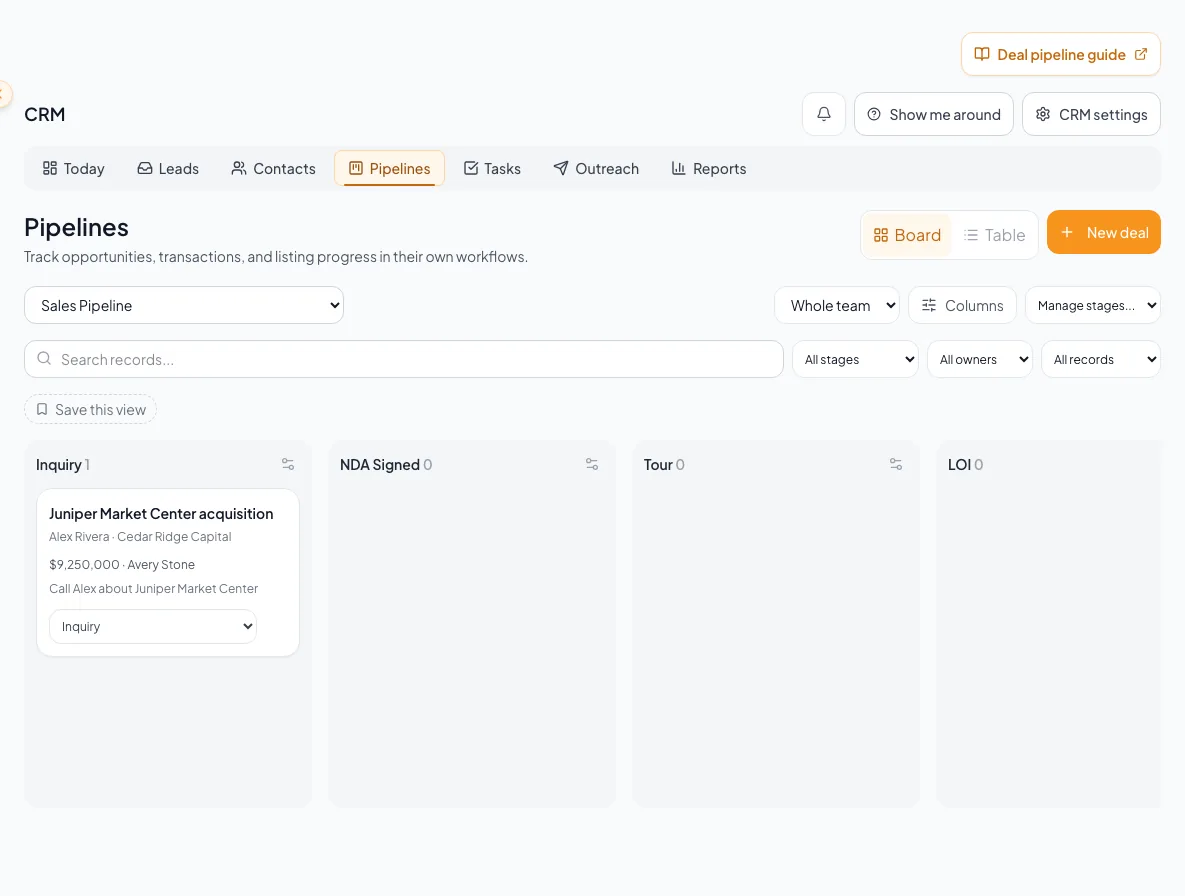
Move a pipeline card to the intended stage and check its final position. - 2
Create the next follow-up
Record context or CRM > Tasks
Add a clear title, due time, and assignee.
Expected result: The task appears in To do and in linked context when created from a contact.
If this step does not work
To link the task to a person, create it from that contact’s Tasks tab instead.
- 3
Close terminal work explicitly
Pipeline record > terminal controls
Confirm Won or Lost only when the lifecycle is complete.
Expected result: Terminal work is guarded from accidental board movement.
If this step does not work
Return an accidental outcome to factual state through the supported Reopen action.
- 4
Reopen resumed work
Terminal opportunity or listing > Stage
Choose an active stage when terminal work resumes.
Expected result: A Reopen confirmation appears before the record returns to active work.
If this step does not work
Confirm Reopen only when the lifecycle should resume. Cancel to retain the current terminal state.
Link a task to a contact
Tasks created from CRM > Tasks have a title, due time, and assignee. To tie a follow-up to a person, create it from the contact’s Tasks tab so it shows on their record and in your task list.
Resolve record-choice and stage problems
A record seems to belong in two pipelines
Likely cause: A mandate, represented listing, and expected transaction can coexist but describe different lifecycle objects.
- Name the real-world object for each record.
- Link context where supported.
- Keep values and stages specific to each lifecycle.
- Avoid duplicate Deal records for one contact and suite.
A stage cannot be deleted
Likely cause: The stage may be protected, terminal, capture-critical, or in use.
- Open stage administration with the required role.
- Choose a valid destination for in-use records when offered.
- Review the moved-record count before confirming.
- Keep required system stages.
A terminal card will not move
Likely cause: Won and Lost require the explicit Reopen workflow.
- Open the record.
- Select Reopen if the opportunity resumed.
- Then move it through active stages based on real milestones.
Final verification
- Each piece of work is tracked in the record type that matches it, with no duplicate Deal for the same contact and suite.
- Every active opportunity has a dated next action.
- Stages reflect milestones that actually happened.
Related tasks
A CRM that already knows your listings
Track buyers, tenants and deals right next to the OMs, listings and Deal Rooms you build in CREBuilder. Free to start.
No credit card required.