Outcome
Every pitch and every active listing has its own board, moving through stages your way, with nothing lost when you close, reopen, or retire a stage.
Navigation path
CRM > Pipelines > Representation opportunities or Listing progress
Access
Free CRM with no time limit: 100 stored contacts and 10 active opportunities for your company, plus companies, pipelines, manual tasks and notes, CSV import, and Email Scripts. Paid plans add automations, reports, automated matching, calendar integration, domain connections, and email sending.
On this page
Before you start
Data, sources, and access to prepare
- A real assignment pursuit or represented listing
- Pipeline administration authority for stage changes
Keep the two lifecycles distinct
Assignment
- Starts when
- You pursue an owner engagement, tenant search, or other mandate
- Tracks until
- The pursuit is won, lost, or no longer active
- Related Deal
- Create or maintain a Deal when a specific expected transaction should be forecast.
Listing
- Starts when
- Your team represents a property and prepares or markets it
- Tracks until
- The listing reaches its terminal outcome
- Related Deal
- A Deal can represent the expected transaction and economics separately.
Related does not mean interchangeable
An Assignment, Listing, and Deal can all relate to one business opportunity but answer different questions. Keep each stage and value specific to its own lifecycle.
Create and work a board record
- 1
Open the right pipeline
CRM > Pipelines > grouped pipeline selector
Choose the lifecycle before creating the record.
Expected result: The appropriate board or list loads.
If this step does not work
If the record already exists in another view, open it instead of creating a duplicate.
- 2
Choose the pipeline definition
Pipelines > grouped pipeline selector
Select the pipeline that matches the work.
Expected result: The selected custom stages apply to newly created records.
If this step does not work
If the pipeline you need is missing, ask an Admin to add it.
- 3
Open the record form
Pipelines > New opportunity or New listing
Select New opportunity or New listing.
Expected result: The account’s entry form opens. New opportunity may open Start lead; listing progress opens the listing form.
If this step does not work
Cancel if the selected pipeline does not match the work.
- 4
Enter the operating fields
Start lead, opportunity, or listing form
Complete the required fields in the form shown.
Expected result: Start lead requires contact, purpose, and lead details. The opportunity editor uses contact and property details; the listing form uses listing details.
If this step does not work
Leave an optional value blank instead of inventing it.
- 5
Save the board record
Opportunity or listing form > create action
Select Start lead in the lead form, Save opportunity in the opportunity editor, or Create in the listing form.
Expected result: The record appears in the selected starting stage.
If this step does not work
If the save fails, correct the highlighted field and retry once.
- 6
Use Board or Table
Pipelines > view toggle
Choose Board for stage movement or Table for sortable scanning.
Expected result: The same permitted records appear in the chosen view.
If this step does not work
If a filter or scope changed, restore it before comparing counts.
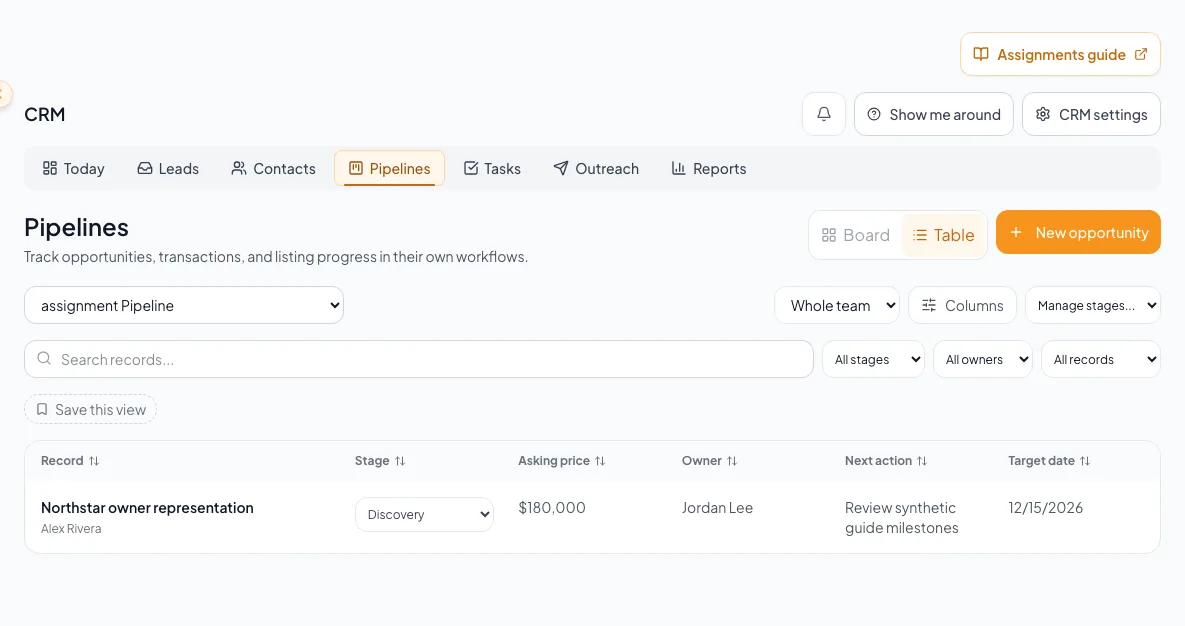
Choose Assignment or Listing based on the actual engagement and follow the distinct stages and ownership expectations. - 7
Open the record workspace
Pipeline record name
Select the opportunity or listing name.
Expected result: The dedicated workspace opens with its stage, details, Updates, and Files.
If this step does not work
If a required value is unknown, leave it blank rather than entering a placeholder.
- 8
Edit the operating details
Record workspace > Property details or Edit listing details
Select the record edit action.
Expected result: The form contains the current property details and supports explicit Save and Cancel.
If this step does not work
If the change fails, reload and verify persistence before re-entering it.
Move, close, reopen, and administer stages
- 1
Move after the milestone
Assignment or Listing board
Drag the card or use the touch stage control only after the real lifecycle event.
Expected result: The card enters the factual stage and age indicators update.
If this step does not work
If the server rejects the move, reload and inspect the current persisted stage.
- 2
Review the terminal guard
Stage movement to Won or Lost
Read the terminal-state guard.
Expected result: The confirmation explains the terminal stage being selected.
If this step does not work
Cancel if the work is not actually finished.
- 3
Confirm the terminal outcome
Stage movement to Won or Lost > Confirm
Select Confirm.
Expected result: The record becomes terminal; returning it to active work requires Reopen confirmation.
If this step does not work
If confirmed in error, open the card and use Reopen. Do not create a replacement record.
- 4
Start reopening the record
Terminal record > Reopen
Select an active stage using the record stage control.
Expected result: The Reopen confirmation explains that this resumes work on the existing record.
If this step does not work
If Reopen is unavailable, ask the record owner or an Admin.
- 5
Choose the reopened stage
Terminal record > Reopen confirmation
Select Reopen to confirm the chosen active stage.
Expected result: The existing record returns to active work with its history intact.
If this step does not work
Choose the stage that matches the current factual milestone.
- 6
Select the stage to remove
Pipeline stage administration
Select the unused stage.
Expected result: The removal workflow identifies any records that must move.
If this step does not work
Protected, terminal, or capture-critical stages may not be removable. Keep them and choose a different administration action.
- 7
Choose the record destination
Pipeline stage administration > destination
Select a valid destination stage for the affected records.
Expected result: The workflow shows where the records will move.
If this step does not work
Do not choose a destination with a different lifecycle meaning merely to continue.
- 8
Review the affected count
Pipeline stage administration > review
Review the number of records that will move.
Expected result: The scope of the stage removal is clear before confirmation.
If this step does not work
Cancel if the count is unexpected and inspect the source stage.
- 9
Confirm stage removal
Pipeline stage administration > Delete stage
Select Delete stage.
Expected result: Records move to the destination and the unused stage is removed.
If this step does not work
If confirmation fails, reload the administration page and verify that no partial change occurred.
Terminal states require an explicit return path
Board movement closes active work, but reopening is a separate guarded action.
Active stage
Won or Lost confirmation
Terminal record
Explicit Reopen
- Active stageWon or Lost confirmationmove
- Won or Lost confirmationTerminal recordconfirm
- Terminal recordExplicit Reopenresume
- Explicit ReopenActive stagereturn
Get more detail and fix stage problems
Dedicated property workspaces
Select an opportunity or listing name to open its workspace. Opportunities keep property details, tasks, Updates, and Files together. Create or link listing connects the same property history without publishing it.
You cannot change stages
Likely cause: Only Admins and the account owner manage pipeline stages (or the only active user on the account). Coordinators and Members cannot.
- Ask an Admin to make the change under Settings > CRM > Pipelines & stages.
- Keep protected stages in place.
A stage delete asks where to move records
Likely cause: The stage is in use and cannot disappear while records still reference it.
- Choose a factual destination.
- Review the moved-record count.
- Cancel if one destination would misstate different records, then move them individually first.
You need more context than the card shows
Likely cause: The pipeline shows a compact summary of the record.
- Select its name to open the dedicated workspace.
- Review property details, Updates, Files, and the next action there.
- For an opportunity, use Tasks to assign a property-specific follow-up.
Final verification
- The record belongs to the intended Assignment or Listing lifecycle and pipeline.
- Its saved details, factual stage, and next action match the actual work.
- If you selected a terminal outcome or reopened the record, its resulting state matches that confirmed decision.
- If you intentionally removed an unused stage, the affected records moved to the reviewed destination. Normal record work does not require stage removal.
A CRM that already knows your listings
Track buyers, tenants and deals right next to the OMs, listings and Deal Rooms you build in CREBuilder. Free to start.
No credit card required.