Outcome
Your CRM is set up with the right pipeline, starter scripts, and reminders, and you have a short daily routine that turns every new inquiry into a dated next step.
Navigation path
CRM > Today
Access
Free CRM with no time limit: 100 stored contacts and 10 active opportunities for your company, plus companies, pipelines, manual tasks and notes, CSV import, and Email Scripts. Paid plans add automations, reports, automated matching, calendar integration, domain connections, and email sending.
On this page
Before you start
Data, sources, and access to prepare
- A free or paid CREBuilder account with CRM access
- A decision about whether the company handles property deals, business sales, or both
Start free, with no document or credit card
The CRM is free for as long as you use it: 100 stored contacts and 10 active opportunities for your company, with no trial clock and no card on file. Choose Create Free Account in the site footer, or Start My CRE CRM on the CRM feature page. After sign-up, the Dashboard welcome dialog offers Explore CRM; select it to open your workspace. (The main Get Started Free button starts a marketing document instead.)
- 1
Open CRM
Main navigation > CRM
Select CRM.
Expected result: The workspace opens. A free account sees its company usage and limits above the CRM.
If this step does not work
If access cannot be verified, select Try again. Confirm that you are signed in to the intended company.
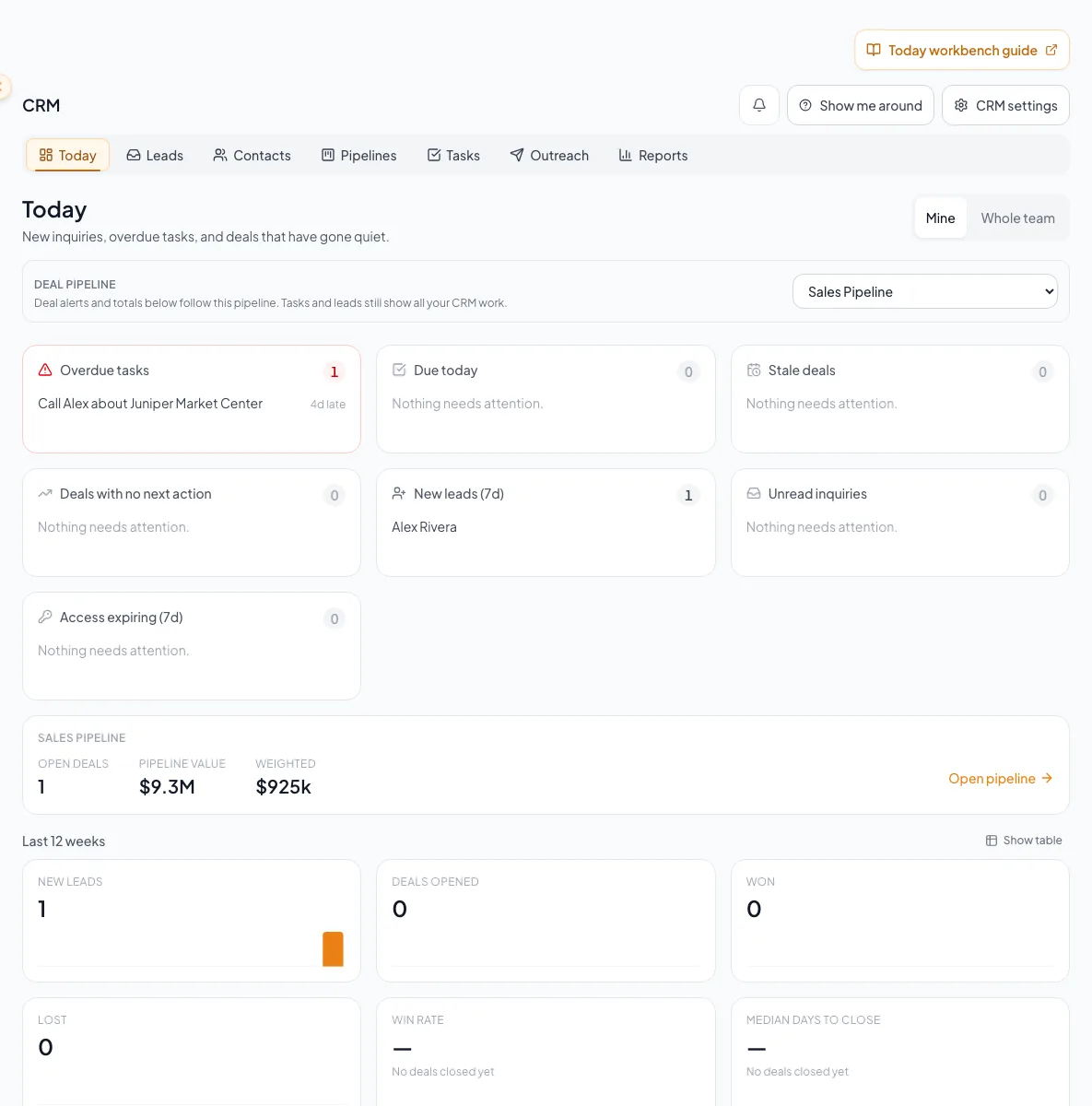
Orient the team to the CRM record model, access boundaries, navigation, CRM settings, and first-run configuration before importing data. - 2
Review company usage
CRM > Free CRM banner
Read the contact and active-opportunity counts.
Expected result: You can compare current usage with the shared 100-contact and 10-active-opportunity limits.
If this step does not work
At a limit, your saved records stay fully usable; upgrade under Settings > Billing & plan when the company needs more room.
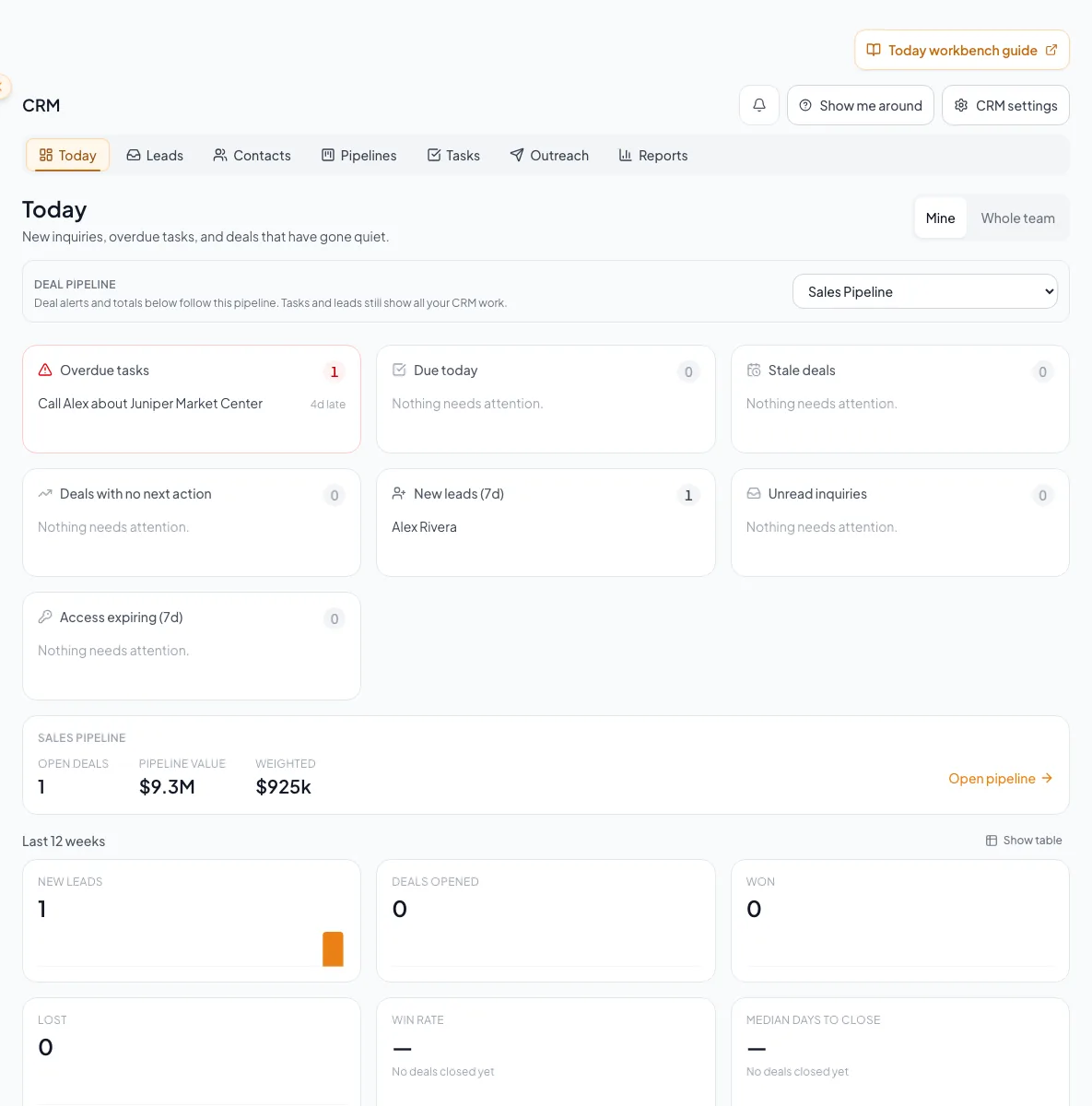
Use Mine or Whole Team to filter records within your existing permissions.
What is free, and what paid plans add
Free: add or import contacts within the cap, organize companies, track pipelines, create tasks and notes, and write Email Scripts. Paid plans add automations and autoresponders, automated task and lease reminders, calendar integration, reports, automated matching, domain connections, dedicated lead forwarding, CRM email sending, the email-app handoff, NDA invitations, and Email Blasts. Hosted sending through CREBuilder Mail also needs company sending set up under Settings > Email & sending.
The 100-contact cap includes archived contacts, so archiving does not free a slot. The 10-active-opportunity cap counts active Deals, Representation opportunities, and stand-alone active Listings together; a won Representation opportunity and its linked Listing count once. Free access never expires and never schedules a charge.
Start with the CRM record model
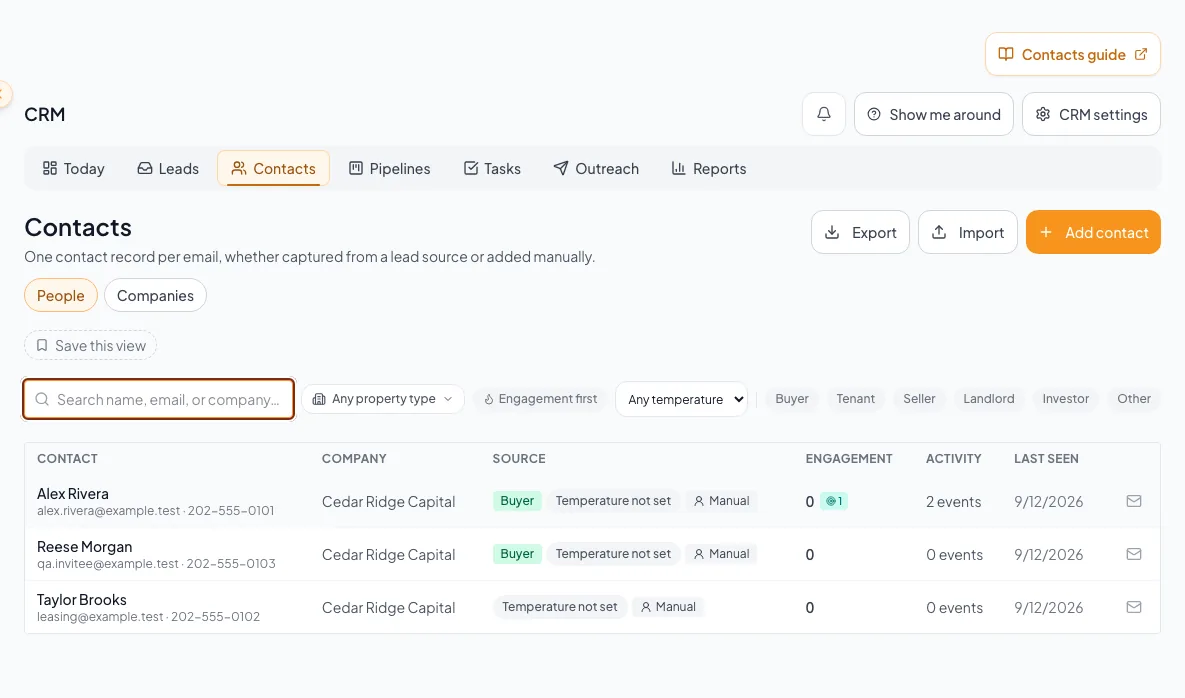
CREBuilder keeps one contact per email address, so every inquiry, NDA, note, and deal for the same person lands on one record. Active leads are the opportunities you pursue with that person. Inbox holds incoming activity, and Completed holds finished opportunities. One person can have several independent pieces of business.
How activity becomes follow-up
Captured engagement resolves to one person, appears in Leads, and can then drive requirements, tasks, or pipeline work.
Inquiry, NDA, room, manual entry, or import
One contact record
Matched by email address
Lead activity
Source and property context
Requirement, task, or pipeline record
- Inquiry, NDA, room, manual entry, or importOne contact recordresolve
- One contact recordLead activitysurface
- Lead activityRequirement, task, or pipeline recordqualify
Start a lead from the existing person
Start lead creates an opportunity linked to a contact. Search existing contacts first, choose a purpose and pipeline stage, and add a first task. A seller can have several properties, each with its own stage and temperature. Add contact remains available when you only need a person in the contact book.
Know where each job belongs
Today
- Use it for
- Prioritized queues and 12-week operating trend
- Primary record
- Tasks, leads, deals, and grants
Leads
- Use it for
- Triage inquiry, NDA, email, forwarded, and manual activity
- Primary record
- Activity tied to a person
Contacts
- Use it for
- People, Companies, requirements, fit, and history
- Primary record
- Person or company
Pipelines
- Use it for
- Deals, Representation opportunities, and Listing progress in Table or Board view
- Primary record
- Pipeline record
Tasks
- Use it for
- Follow-ups and lease-expiration work
- Primary record
- Task or current lease
Outreach
- Use it for
- Team Email Scripts and personal Automations
- Primary record
- Script or rule
Reports
- Use it for
- Pipeline, source, activity, forecast, and performance summaries
- Primary record
- Aggregated CRM data
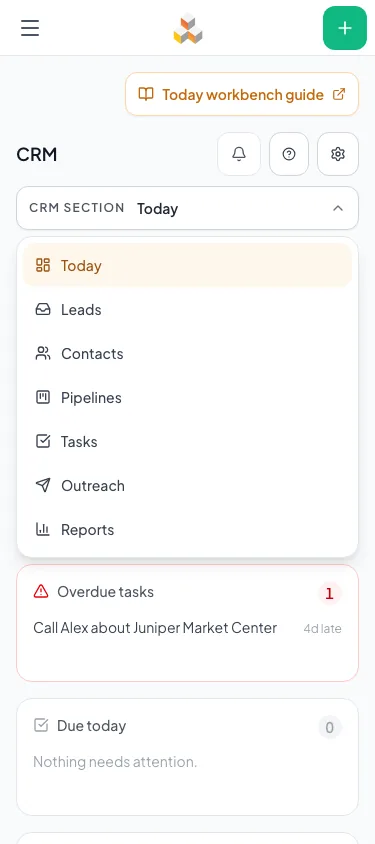
Find CRM settings
Select CRM settings in the CRM header, or open Settings > Workspace > CRM. The page has four sections with real controls, so you do not bounce between pages. Each section has its own link you can bookmark.
Lead forwarding
- What you can do there
- Copy your private forwarding address for LoopNet, BizBuySell, or Crexi inquiries, read the Gmail setup note, and open the lead inbox.
- Who can change it
- Each paid user, for their own address
Pipelines & stages
- What you can do there
- Add the Business sales pipeline beside Property deals, then choose a workflow and pipeline and select Edit stage to rename a stage or change its win probability and days to stalled.
- Who can change it
- Deal stages: Admin, Brokerage Admin, or Single Agent. Opportunities and Listing progress use the permissions shown for that workflow; a sole active user can also qualify there.
Preferences
- What you can do there
- Set My time zone, set the Company time zone when you can edit it, and enable or turn off reply and mention alerts on this device.
- Who can change it
- Everyone for their own zone and device; company managers for the company zone
Email & follow-up
- What you can do there
- Read the shared sending status card and open Email & sending, the Sending plan section under Add sending capacity, Email Blasts, Email Scripts, or Automations.
- Who can change it
- Everyone
One sending setup for every CRM email
Contact conversations, NDA invitations, and automated emails send through CREBuilder Mail using the company setup in Settings > Email & sending. Property campaigns use the Email Blasts composer. Email Scripts are different: they open a draft in Gmail, Outlook, or your default mail app, and you record the send with Mark as sent.
Complete the free CRM tour
- 1
Review free capacity
CRM setup > Your free CRM is ready
Select Continue.
Expected result: The tour explains manual tasks and notes and identifies paid features.
If this step does not work
Choose Skip the tour if you want to work directly in CRM.
- 2
Open the contact book
CRM setup > Plan your next step
Select Add or import contacts.
Expected result: Contacts opens so you can add a person or import a CSV within the company cap.
If this step does not work
Choose Explore the CRM to dismiss the tour without opening Contacts.
Complete first-run configuration for a paid account
Review how contacts arrive and Start lead
- Who can use it
- Everyone
- Effect
- Shows how listing inquiries, NDA signatures, identified Deal Room activity, and manual entries become contacts. Anonymous Free Access downloads do not create contacts.
Add Business sales
- Who can use it
- Admins and the account owner (or the only user on the account)
- Effect
- Adds a Business Brokerage pipeline beside your Sales Pipeline. It never replaces a pipeline or moves existing Deals.
Open starter Email Scripts
- Who can use it
- Everyone with CRM access
- Effect
- The starter library is added automatically when the company library is first opened, including during the paid tour. Nothing is sent.
Install suggested task rules
- Who can use it
- Paid users, for their own contacts
- Effect
- Creates personal reminder rules for the contacts that user owns.
Set up CREBuilder Mail
- Who can use it
- Paid accounts
- Effect
- Turns on hosted automation email and NDA invitations once company sending is set up and ready under Settings > Email & sending.
- 1
Confirm CRM access
Main navigation > CRM
Open CRM.
Expected result: Today or the first-run setup loads.
If this step does not work
Free accounts get a short two-step tour (above). The pipeline, reminder, and Mail steps below are part of the paid tour.
- 2
Review how contacts arrive
CRM setup > Your CRM fills itself
Read how listing inquiries, NDA signatures, and identified Deal Room activity can create contacts automatically. Anonymous Free Access downloads do not create contacts.
Expected result: You know that contacts are people, active leads are opportunities, and Inbox is incoming activity.
If this step does not work
Review the record model above before importing contacts.
- 3
Choose the optional Business Sales pipeline
CRM setup > Set up your deal pipelines
Select Business sales if your company also sells businesses.
Expected result: Business sales is highlighted. Property deals stays included as your Sales Pipeline.
If this step does not work
This step appears only for Admins, the account owner, or the only user on the account, and only until Business sales is added. Otherwise the wizard skips it.
- 4
Apply the pipeline choice
CRM setup > Set up your deal pipelines
Select Continue.
Expected result: If you chose Business sales, a Business Brokerage pipeline appears beside your Sales Pipeline. Existing Deals stay where they are.
If this step does not work
If adding the pipeline fails, an Admin can add it later under Settings > CRM > Pipelines & stages.
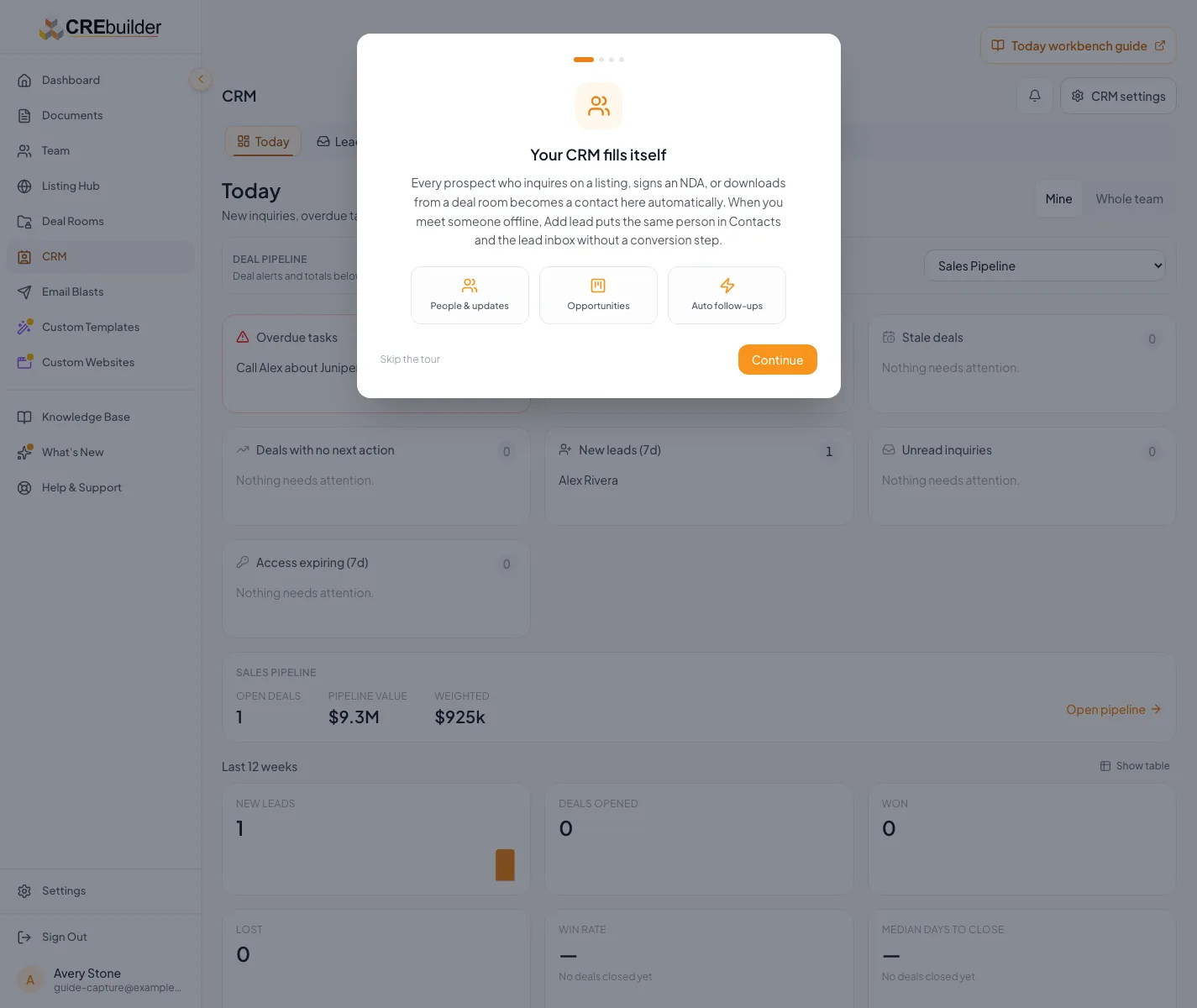
Choose the CRM setup option that fits your work within your current access. - 5
Review starter scripts
CRM setup > Email scripts, ready to send or Plan your outreach
Read the starter-library introduction.
Expected result: You know where shared scripts live. Free accounts can write scripts; sending comes with a paid plan.
If this step does not work
Admins, the account owner, and Coordinators can update the library later under Outreach > Email Scripts.
- 6
Choose useful task reminders
CRM setup > Never let a lead go cold
Select the suggested reminder cards you want to enable.
Expected result: Only the selected task rules are prepared for creation.
If this step does not work
Deselect a rule that does not match your workflow.
- 7
Enable the selected task rules
CRM setup > Never let a lead go cold
Select Turn on & continue, or Continue if no reminders are selected.
Expected result: The selected personal task rules are created and the final setup page opens.
If this step does not work
If rule creation fails, review Automations before creating replacements to avoid duplicates.
- 8
Review hosted Mail readiness for a paid account
CRM setup > final page > Set up CREBuilder Mail
Select Set up CREBuilder Mail when the paid-account control is available and hosted email is required.
Expected result: Settings opens Email & sending > Sender & setup and names the exact verification, address, agreement, or activation action still needed.
If this step does not work
Free accounts must upgrade before sending. Keep hosted email rules disabled until Settings reports Ready to send.
- 9
Finish setup
CRM setup > final page
Select Explore the CRM.
Expected result: First-run setup closes so you can work with contacts, tasks, and pipelines.
If this step does not work
If setup is already dismissed, use the normal CRM navigation. Free users can choose Add or import contacts from their shorter tour.
Set ownership and scope expectations before data entry
Your role sets what you can see
Filters and saved views narrow the records your role can already see. They never widen access.
Team role
Whole team or your own records
Pipeline, filters, and saved views
Records you see and edit
- Team roleWhole team or your own recordssets ceiling
- Whole team or your own recordsPipeline, filters, and saved viewslimits
- Pipeline, filters, and saved viewsRecords you see and editnarrows
Before adding real data
- Name a responsible owner for every imported or manual contact.
- Decide who manages company pipelines and team scripts.
- Explain that automation rules belong to their creator.
- Confirm company address and Mail agreement before hosted outreach.
- Use fictional contacts for the first rule test.
Run the daily sequence
A reliable daily review
- 1
Set Today scope
Main navigation > CRM > Today > scope
Choose My work or Company work.
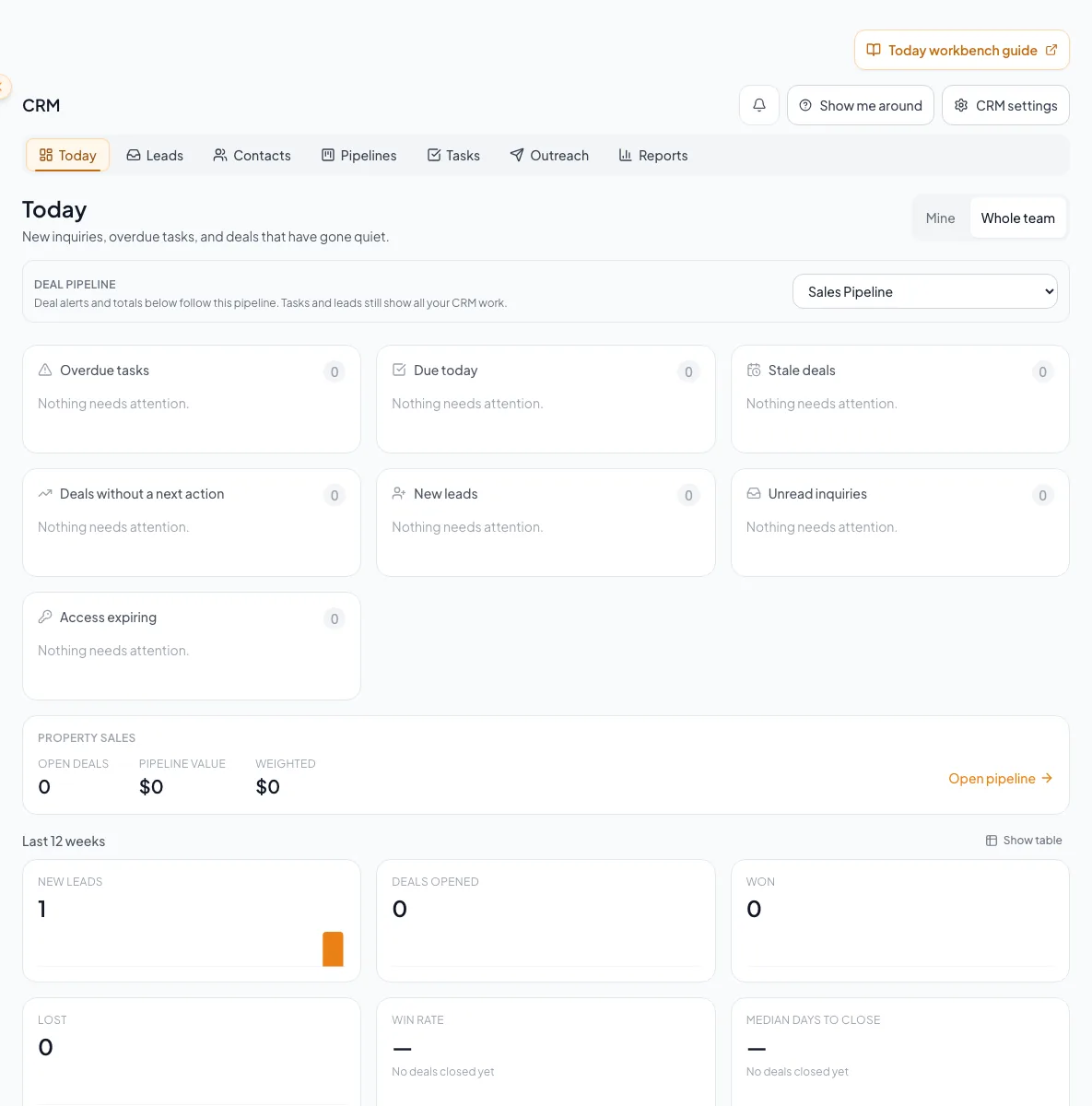
Expected result: The queues show your own work or the whole company’s. Members see only My work, so the selector is hidden for them.
If this step does not work
If the page fails, select Retry. An error panel is not an empty queue.
- 2
Set the Deal pipeline
CRM > Today > Deal pipeline
Select the applicable Deal pipeline when more than one exists.
Expected result: Deal totals show the chosen pipeline.
If this step does not work
Confirm the company pipeline configuration if an expected choice is absent.
- 3
Open an urgent task
Today > Overdue tasks or Tasks today
Open the next task that requires review.
Expected result: The task context and due state are visible.
If this step does not work
If a teammate is missing from assignment choices, confirm your role and company membership.
- 4
Complete finished work
Open task > Complete
Select Complete only when the task work is finished.
Expected result: The item leaves the active group.
If this step does not work
Use Undo after completion or choose Reopen task in Completed if it was checked accidentally.
- 5
Reschedule unfinished work
Open task > due date
Enter a new due date when follow-up remains.
Expected result: The unfinished task has a clear owner and due time.
If this step does not work
Do not mark unfinished work complete solely to clear Today.
- 6
Open new activity
Today > New leads or Unread inquiries
Open the source event.
Expected result: The source, property context, and contact are visible.
If this step does not work
If the same person appears twice, merge the duplicates before adding follow-up.
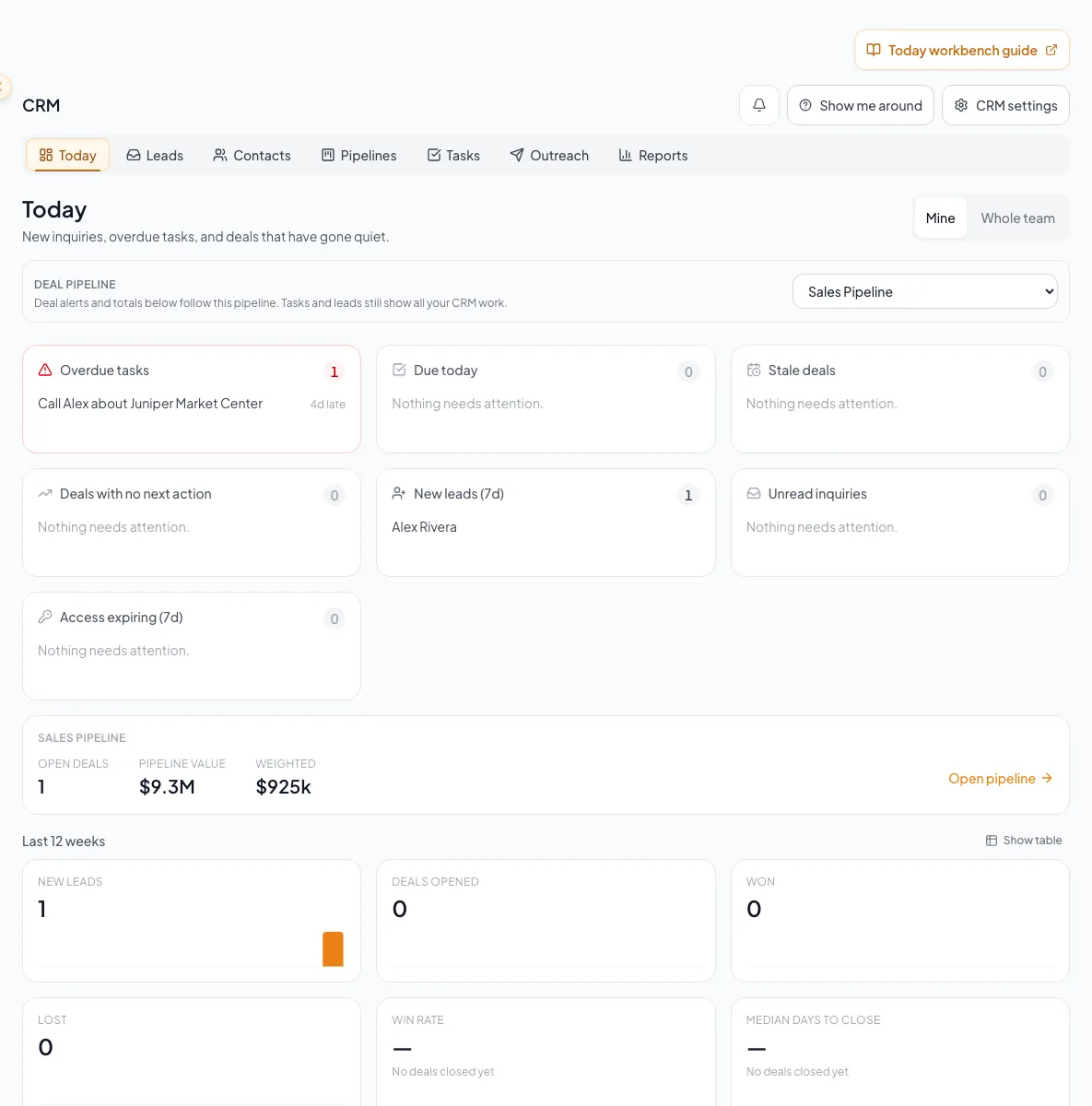
Review the next actions for priority records in Today. - 7
Confirm the person
Lead or inquiry activity
Compare the contact with the source event.
Expected result: The activity is on the right contact.
If this step does not work
Fix a mismatched contact before adding follow-up.
- 8
Add qualification context
Contact workspace
Add useful tags or requirements.
Expected result: The contact records the relevant interests and qualification context.
If this step does not work
Remove an accidental tag before continuing.
- 9
Record the next action
Contact workspace > Updates or Tasks
Create one clear next action.
Expected result: The contact timeline shows the next step.
If this step does not work
Use a note instead of a pipeline record when the lead is not yet qualified.
- 10
Advance a real pipeline milestone
CRM > Pipelines
Move a Deal, Assignment, or Listing only when the real-world milestone occurred.
Expected result: The stage and stage age match the actual opportunity.
If this step does not work
To resume a terminal opportunity or listing, choose an active stage and confirm Reopen.
- 11
Add the pipeline next action
Pipeline record > Next action
Enter the immediate next action.
Expected result: The record’s next-action indicator reflects the intended follow-up.
If this step does not work
Create a task when the action also needs an owner and due date.
- 12
Send the external email for a paid account
Your email app
Send the message you prepared from the contact’s Email tab.
Expected result: Your email app confirms the send.
If this step does not work
On a free account, keep the work as a script or manual task until you upgrade. A draft or copied message is not a send.
- 13
Return to the contact
CRM > Contact workspace > Email > Use your email app
Open the same contact’s email activity.
Expected result: The Mark as sent control is available for confirmation.
If this step does not work
Compare the recipient before recording the activity.
- 14
Record the sent email
Contact Email modal > Mark as sent
Select Mark as sent.
Expected result: An email-sent activity appears only after you confirm the real send.
If this step does not work
Close without marking if delivery did not occur.
Know who sees what, and fix common problems
CRM access follows the role shown under Settings > Team. On a solo account, the account owner has the same CRM access as an Admin.
Admin (and the solo account owner)
- CRM records they see and work
- Every contact, lead, deal, and task in the company. Scope selectors offer your own work or the whole team.
- Company settings
- Can transfer record ownership, edit pipeline stages, delete teammates’ shared saved views, delete tags, and add the Business sales pipeline under Settings > CRM.
Coordinator (free seat)
- CRM records they see and work
- Every contact, lead, deal, and task in the company, with the same whole-team scope choices as an Admin. Can also manage the team Email Scripts library.
- Company settings
- Cannot transfer ownership, edit pipeline stages, or change other shared CRM settings.
Member
- CRM records they see and work
- Only the records they own, plus contacts they can open through a deal they own (view only). No whole-team scope.
- Company settings
- None, except that the only active user on an account can set up pipelines.
Common orientation problems
A queue or report looks empty
Likely cause: The selected scope, pipeline, or filter may exclude the expected record.
- Check whether you are viewing your own work or the whole team.
- Confirm the selected Deal pipeline.
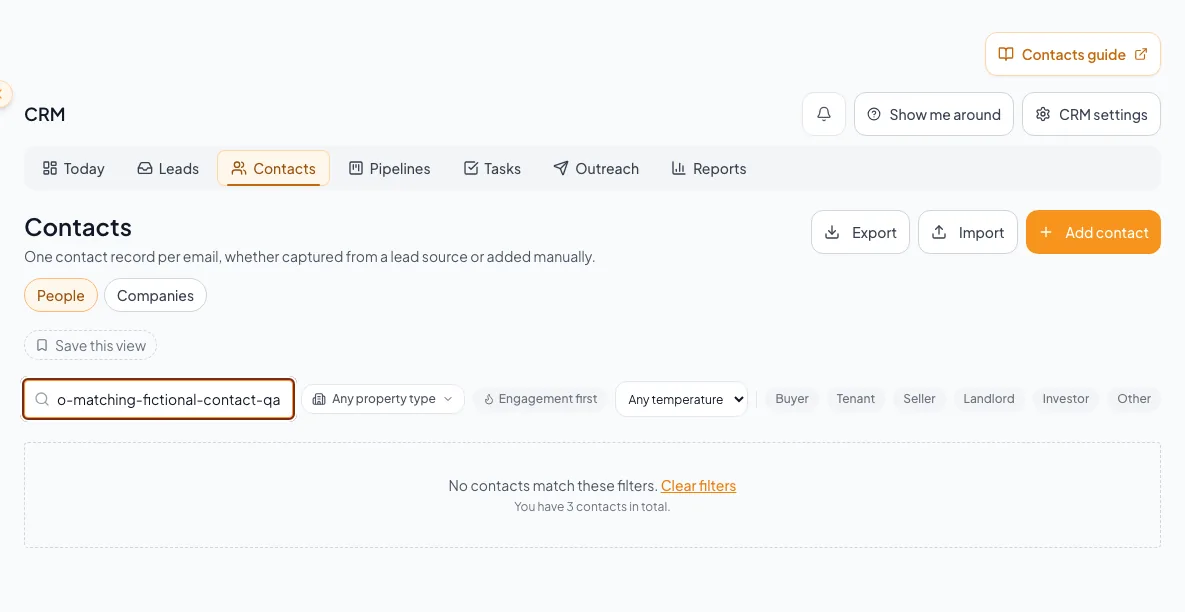
- Open the destination page and clear filters.
- If an error is shown, use Retry before concluding that no records exist.
You can open a record but cannot edit it
Likely cause: A Member can view a contact through a deal they own without owning the contact.
- Check the displayed owner.
- Ask the owner or an Admin to make the change or transfer ownership.
- Keep working on the existing record instead of creating a duplicate.
Business sales is not offered during setup
Likely cause: Only Admins and the account owner can add pipelines, or Business sales is already added.
- Check the Deal pipeline selector for Business Brokerage.
- Ask an Admin to add it under Settings > CRM > Pipelines & stages.
- On an account with a single active user, that user can add it. Coordinators cannot.
A contact-email rule cannot run
Likely cause: Hosted contact-email actions require a paid plan, company sending set up through CREBuilder Mail, the current agreement, a complete company address, and all send gates.
- Upgrade if the company is using free CRM.
- Open Settings > Email & sending > Sender & setup.
- Complete the displayed readiness actions.
- Re-enable the rule only after Mail is ready.
Final verification
- The CRM opens with the scope your role allows and shows your company’s usage.
- Your pipeline choice, scripts, and reminder rules are saved, and existing Deals stayed where they were.
- Each contact you reviewed has its activity and an owned, dated next action when follow-up is needed.
- If you used Use your email app, you selected Mark as sent only after the email actually went out. Setup and daily review do not require sending an email.
Related tasks
A CRM that already knows your listings
Track buyers, tenants and deals right next to the OMs, listings and Deal Rooms you build in CREBuilder. Free to start.
No credit card required.