Outcome
Each new prospect is in the CRM once, with their company, relationship, and search criteria ready for matching.
Navigation path
CRM > Contacts > People > Add contact or Start lead
Access
Free CRM with no time limit: 100 stored contacts and 10 active opportunities for your company, plus companies, pipelines, manual tasks and notes, CSV import, and Email Scripts. Paid plans add automations, reports, automated matching, calendar integration, domain connections, and email sending.
On this page
Before you start
Data, sources, and access to prepare
- A valid contact email
- Enough source context to assign relationship types and ownership
Choose Add contact or Start lead
Both paths create or reuse one person
Add contact saves a person. Start lead saves a distinct opportunity linked to that person, plus its optional first task, together.
Add contact
Start lead
One contact per email
Opportunity and next action
- Add contactOne contact per emailcreate or reuse
- Start leadOne contact per emailcreate or reuse
- Start leadOpportunity and next actionadd once
| Use | When |
|---|---|
| Add contact | You need the person in CRM without recording a new lead event. |
| Start lead | You are pursuing a specific purchase, sale, lease, or other piece of business with an existing or new contact. |
Start an opportunity from an existing contact
Use CRM > Leads > Start lead, or Start lead in a contact record. Existing contact is selected first. Search by name or email and review any existing active opportunities shown below the selected person. Open the matching opportunity when the work already exists.
- 1
Choose the person
Start lead > Contact
Select the existing person from the contact search results.
Expected result: The selected contact and any existing active opportunities are visible.
If this step does not work
For a duplicate-email conflict, use the existing-contact action when permitted. Do not change email casing to create another person.
- 2
Describe this piece of business
Start lead > Opportunity
Complete the opportunity fields for the selected purpose, property, and pipeline.
Expected result: Seller and Landlord use representation opportunities; other purposes use a Deal pipeline. No published listing is required.
If this step does not work
Select a suitable open stage in the chosen pipeline. Closed stages cannot be used to start a lead.
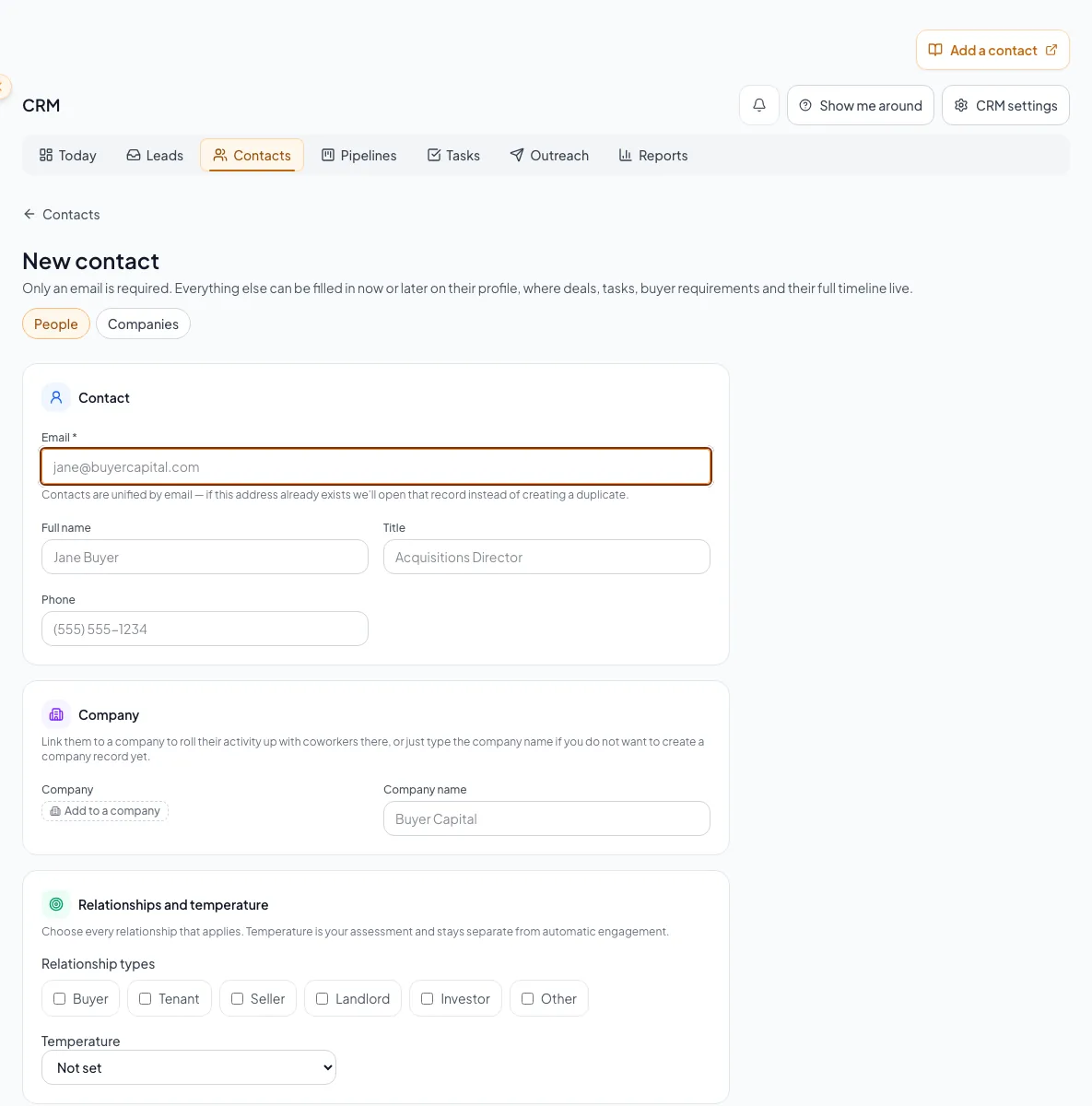
Choose Add Contact for a known relationship or Add Lead for unqualified interest, then enter the correct source details. - 3
Set the next action
Start lead > Next action
Enter the first task with its date and time when follow-up is already planned.
Expected result: The opportunity has its own qualification and follow-up context.
If this step does not work
Leave unknown amounts and temperature unset. Property value and expected commission are separate amounts.
- 4
Save and verify
Start lead > Start lead
Select Start lead once.
Expected result: The contact, property opportunity, and optional first task persist together. Retrying the same submission does not create another opportunity.
If this step does not work
Keep the form open after a failed request and retry. If an opportunity already exists, open it before starting another submission.
Temperature belongs to this opportunity
New leads start with temperature Not set. Changing automatic Engagement never changes lead temperature. The contact retains its separate Relationship temperature.
After a buyer or tenant lead is saved, use its Requirements tab to create a specific search or explicitly link an existing contact requirement. Email started inside an opportunity stays in that opportunity. Older contact conversations remain accessible from the contact Email tab without being assigned to a property automatically.
Enter identity and company information
- 1
Search the email first
CRM > Contacts > People
Search the exact email address before opening a create form.
Expected result: You know whether the person is already in your CRM.
If this step does not work
If an existing record appears, open and update it instead of creating a variant.
- 2
Open the correct form
People > Add contact
Choose Add contact when you only need to save the person.
Expected result: The contact form opens.
If this step does not work
If you chose the wrong entry, cancel before saving and reopen the correct one.
- 3
Enter base details
Add contact form
Enter email, identity, company choice, relationship types, and an optional initial note.
Expected result: The form is ready to show any conditional requirements.
If this step does not work
If the company already exists, select it rather than typing a loose duplicate name.
Email Required
Identifies the person; used to find an existing contact or create a new one
- Format
- Valid email address
- Units
- Not applicable
- Save behavior
- Normalized and stored when Add contact completes successfully.
- Downstream effect
- Finds the existing contact or creates a new one, so the same email never becomes two people.
Name Recommended
First and last name shown across CRM
- Format
- Plain text
- Units
- Not applicable
- Save behavior
- Stored when Add contact completes successfully.
- Downstream effect
- Labels the person across People, Leads, tasks, pipelines, and activity.
Title and phone Optional
Contact context and direct phone
- Format
- Plain-text title plus formatted phone number
- Units
- Not applicable
- Save behavior
- Stored when Add contact completes successfully.
- Downstream effect
- Adds professional context and a direct calling channel to the contact.
Company Optional
Existing linked company, a new company, or a loose company name
- Format
- Selected company or plain text
- Units
- Not applicable
- Save behavior
- Stored when Add contact completes successfully.
- Downstream effect
- Links or labels the firm used for contact organization and rollups.
Relationship types Recommended
Buyer, Tenant, Seller, Landlord, Investor, or Other; more than one may apply
- Format
- One or more supported relationship options
- Units
- Not applicable
- Save behavior
- Stored when Add contact completes successfully.
- Downstream effect
- Controls which requirement panel can appear.
Temperature Optional
Your manual assessment of the relationship
- Format
- Not set, Cold, Warm, or Hot
- Units
- Not applicable
- Save behavior
- Saved with the contact after server confirmation.
- Downstream effect
- Available in Contacts filters. Lead temperature is set separately on each opportunity. Automatic Engagement changes do not change this value.
Initial note Optional
Source or qualification context
- Format
- Plain text
- Units
- Characters
- Save behavior
- Created in the timeline after the base contact save succeeds; verify it appears before closing.
- Downstream effect
- Preserves the initial source or qualification context as contact activity.
- Requirement
- Required
- What it means
- Identifies the person; used to find an existing contact or create a new one
- Format
- Valid email address
- Units
- Not applicable
- Save behavior
- Normalized and stored when Add contact completes successfully.
- Downstream effect
- Finds the existing contact or creates a new one, so the same email never becomes two people.
Name
- Requirement
- Recommended
- What it means
- First and last name shown across CRM
- Format
- Plain text
- Units
- Not applicable
- Save behavior
- Stored when Add contact completes successfully.
- Downstream effect
- Labels the person across People, Leads, tasks, pipelines, and activity.
Title and phone
- Requirement
- Optional
- What it means
- Contact context and direct phone
- Format
- Plain-text title plus formatted phone number
- Units
- Not applicable
- Save behavior
- Stored when Add contact completes successfully.
- Downstream effect
- Adds professional context and a direct calling channel to the contact.
Company
- Requirement
- Optional
- What it means
- Existing linked company, a new company, or a loose company name
- Format
- Selected company or plain text
- Units
- Not applicable
- Save behavior
- Stored when Add contact completes successfully.
- Downstream effect
- Links or labels the firm used for contact organization and rollups.
Relationship types
- Requirement
- Recommended
- What it means
- Buyer, Tenant, Seller, Landlord, Investor, or Other; more than one may apply
- Format
- One or more supported relationship options
- Units
- Not applicable
- Save behavior
- Stored when Add contact completes successfully.
- Downstream effect
- Controls which requirement panel can appear.
Temperature
- Requirement
- Optional
- What it means
- Your manual assessment of the relationship
- Format
- Not set, Cold, Warm, or Hot
- Units
- Not applicable
- Save behavior
- Saved with the contact after server confirmation.
- Downstream effect
- Available in Contacts filters. Lead temperature is set separately on each opportunity. Automatic Engagement changes do not change this value.
Initial note
- Requirement
- Optional
- What it means
- Source or qualification context
- Format
- Plain text
- Units
- Characters
- Save behavior
- Created in the timeline after the base contact save succeeds; verify it appears before closing.
- Downstream effect
- Preserves the initial source or qualification context as contact activity.
Required means the field is needed to complete or support this workflow. Some screens allow a draft to save before every required item is complete. The steps and troubleshooting call out controls the product actively blocks.
Capture requirements for the selected relationships
| Relationship | Optional requirement fields |
|---|---|
| Buyer or Investor | Label, property types, markets, minimum/maximum SF, minimum/maximum price, minimum cap rate |
| Tenant | Property types, markets, SF range, rent range per SF/year, NNN/FS/MG, term range, target occupancy, minimum TI, must-haves |
| Seller or Landlord | No acquisition or lease requirement panel on this form |
| Other | Use the initial note and add a requirement later if the role becomes clear |
- 1
Choose relationships
Add contact form > Relationship types
Select every applicable relationship: Buyer, Seller, Investor, Tenant, Landlord, or Other.
Expected result: The workspace shows the union of relevant sections. Buyer and Investor use acquisition requirements; Tenant uses space requirements and current leases; Seller and Landlord use property opportunities.
If this step does not work
Removing a relationship hides its sections while preserving saved information and active matching or reminders. Open History & saved details to access saved information.
- 2
Enter bounded criteria
Conditional requirement section
Add known property types, markets, ranges, economics, timing, and must-haves.
Expected result: The saved requirement can drive filters and fit scoring.
If this step does not work
Leave unknown fields blank. A false range can exclude otherwise useful matches.
- 3
Verify person identity
Add contact form
Compare the email and ownership with the intended person.
Expected result: The form is safe to submit without creating a known duplicate.
If this step does not work
If the email already exists, cancel and open the existing contact.
- 4
Save the person
Add contact form > Create contact
Select the create action once.
Expected result: CREBuilder opens the contact. Use Start lead there when you have a specific opportunity to pursue.
If this step does not work
If an existing contact opens instead, review it before adding new data.
Verify base save and optional follow-up data
The form opens an existing person
Likely cause: That email already belongs to a contact, possibly an archived one.
- Review the existing record and owner.
- Open the existing person and review their opportunities before starting another lead.
- Update the existing person if authorized.
- Do not vary the email casing or add aliases to force a duplicate.
The contact saved but the note or requirement did not
Likely cause: Optional note and requirement writes occur after the base contact and can fail independently.
- Read the toast carefully.
- Open the new contact workspace.
- Add only the missing note or requirement.
- Do not recreate the person.
You cannot select a teammate as owner
Likely cause: Ownership choices are role and company scoped.
- Save under a permitted owner if appropriate.
- Ask an Admin to transfer ownership.
- Do not create the record in another company context.
Final check
- Email matches the real person.
- No duplicate contact was created.
- Company link is correct.
- Relationship types and manual temperature reflect current context.
- Ranges use consistent units.
- Initial note and requirement are visible.
A CRM that already knows your listings
Track buyers, tenants and deals right next to the OMs, listings and Deal Rooms you build in CREBuilder. Free to start.
No credit card required.