Outcome
Your team shares one library of proven emails, each personalized in a click and logged on the contact once it is sent.
Navigation path
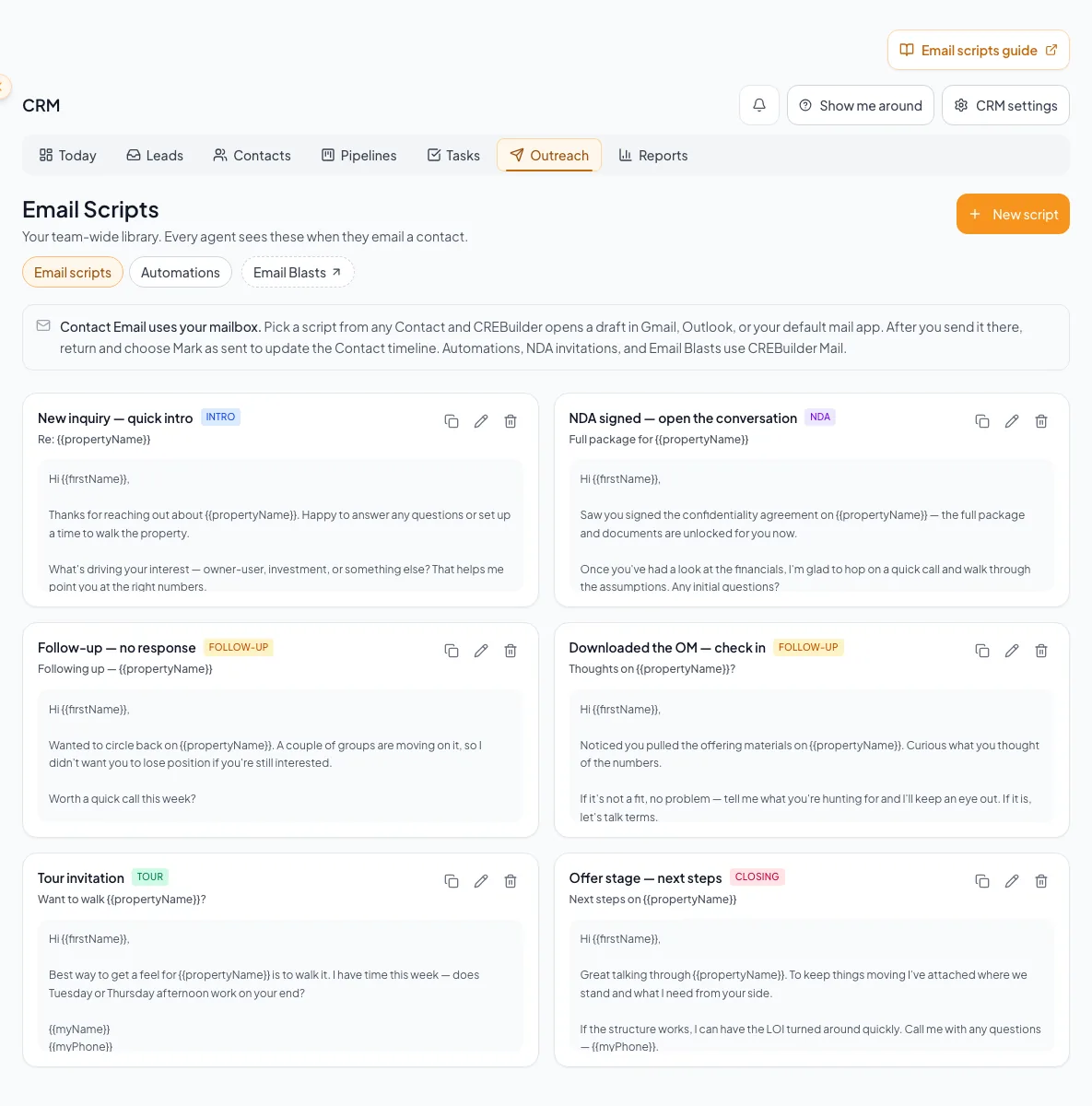
CRM > Outreach > Email Scripts
Access
Free CRM with no time limit: 100 stored contacts and 10 active opportunities for your company, plus companies, pipelines, manual tasks and notes, CSV import, and Email Scripts. Paid plans add automations, reports, automated matching, calendar integration, domain connections, and email sending.
On this page
Before you start
Data, sources, and access to prepare
- CRM access to prepare scripts
- A paid plan and permitted contact for the contact email handoff
- A configured external mail client or webmail session for external sending
Understand the team library
Prepare scripts for free; send after upgrading
Free CRM includes reading and preparing scripts within your role permissions. Opening the contact email handoff and sending CRM email require a paid plan. Creating or saving a script never sends a message.
Read, copy, and use a script
- Members
- Yes
- Admins, account owner, and Coordinators
- Yes
Create, edit, or delete team scripts
- Members
- No
- Admins, account owner, and Coordinators
- Yes
Starter script purposes
- New inquiry: quick intro
- NDA signed: open the conversation
- Follow-up: no response
- Downloaded the OM: check in
- Tour invitation
- Offer stage: next steps
Categories keep the library scannable
Use Introduction, Follow-up, NDA, Tour, or Closing for a script. A clear name, subject, and message are required.
Use supported merge tokens
Preview every merge
A token can be blank when its source field is missing. Read the composed subject and message before opening the external draft.
Scripts use your mail app; everything else uses CREBuilder Mail
Choosing a script from a contact opens a draft in Gmail, Outlook, or your default mail app, and you return to select Mark as sent. Contact conversations, NDA invitations, automations, and Email Blasts send through CREBuilder Mail using the company setup under Settings > Email & sending. The Email Scripts page explains this above the library.
{{firstName}} Optional
Contact first name
- Format
- Literal, case-sensitive {{firstName}} token
- Units
- Not applicable
- Save behavior
- The token is stored only after Add to team library or Save for the whole team succeeds; editing a merged draft does not change the saved script.
- Downstream effect
- When the script is selected, the draft replaces it automatically with the first word of the contact full name, or “there” when no usable name exists.
{{fullName}} Optional
Contact full name
- Format
- Literal, case-sensitive {{fullName}} token
- Units
- Not applicable
- Save behavior
- The token is stored only after Add to team library or Save for the whole team succeeds; editing a merged draft does not change the saved script.
- Downstream effect
- When the script is selected, the draft replaces it automatically with the contact full name, falling back to the first-name replacement.
{{companyName}} Optional
Contact company name
- Format
- Literal, case-sensitive {{companyName}} token
- Units
- Not applicable
- Save behavior
- The token is stored only after Add to team library or Save for the whole team succeeds; editing a merged draft does not change the saved script.
- Downstream effect
- When the script is selected, the draft replaces it automatically with the contact company name or blank text when that source value is missing.
{{propertyName}} Optional
Selected property context when supplied
- Format
- Literal, case-sensitive {{propertyName}} token
- Units
- Not applicable
- Save behavior
- The token is stored only after Add to team library or Save for the whole team succeeds; editing a merged draft does not change the saved script.
- Downstream effect
- When the script is selected, the draft replaces it automatically with the supplied property context or “the property” when none is supplied.
{{myName}} Optional
Signed-in sender name
- Format
- Literal, case-sensitive {{myName}} token
- Units
- Not applicable
- Save behavior
- The token is stored only after Add to team library or Save for the whole team succeeds; editing a merged draft does not change the saved script.
- Downstream effect
- When the script is selected, the draft replaces it automatically with the signed-in user’s first and last names or blank text when both are missing.
{{myCompany}} Optional
Sender company name
- Format
- Literal, case-sensitive {{myCompany}} token
- Units
- Not applicable
- Save behavior
- The token is stored only after Add to team library or Save for the whole team succeeds; editing a merged draft does not change the saved script.
- Downstream effect
- When the script is selected, the draft replaces it automatically with the signed-in user’s company name or blank text when it is missing.
{{myPhone}} Optional
Sender phone
- Format
- Literal, case-sensitive {{myPhone}} token
- Units
- Not applicable
- Save behavior
- The token is stored only after Add to team library or Save for the whole team succeeds; editing a merged draft does not change the saved script.
- Downstream effect
- When the script is selected, the draft replaces it automatically with the signed-in user’s phone number or blank text when it is missing.
{{firstName}}
- Requirement
- Optional
- What it means
- Contact first name
- Format
- Literal, case-sensitive {{firstName}} token
- Units
- Not applicable
- Save behavior
- The token is stored only after Add to team library or Save for the whole team succeeds; editing a merged draft does not change the saved script.
- Downstream effect
- When the script is selected, the draft replaces it automatically with the first word of the contact full name, or “there” when no usable name exists.
{{fullName}}
- Requirement
- Optional
- What it means
- Contact full name
- Format
- Literal, case-sensitive {{fullName}} token
- Units
- Not applicable
- Save behavior
- The token is stored only after Add to team library or Save for the whole team succeeds; editing a merged draft does not change the saved script.
- Downstream effect
- When the script is selected, the draft replaces it automatically with the contact full name, falling back to the first-name replacement.
{{companyName}}
- Requirement
- Optional
- What it means
- Contact company name
- Format
- Literal, case-sensitive {{companyName}} token
- Units
- Not applicable
- Save behavior
- The token is stored only after Add to team library or Save for the whole team succeeds; editing a merged draft does not change the saved script.
- Downstream effect
- When the script is selected, the draft replaces it automatically with the contact company name or blank text when that source value is missing.
{{propertyName}}
- Requirement
- Optional
- What it means
- Selected property context when supplied
- Format
- Literal, case-sensitive {{propertyName}} token
- Units
- Not applicable
- Save behavior
- The token is stored only after Add to team library or Save for the whole team succeeds; editing a merged draft does not change the saved script.
- Downstream effect
- When the script is selected, the draft replaces it automatically with the supplied property context or “the property” when none is supplied.
{{myName}}
- Requirement
- Optional
- What it means
- Signed-in sender name
- Format
- Literal, case-sensitive {{myName}} token
- Units
- Not applicable
- Save behavior
- The token is stored only after Add to team library or Save for the whole team succeeds; editing a merged draft does not change the saved script.
- Downstream effect
- When the script is selected, the draft replaces it automatically with the signed-in user’s first and last names or blank text when both are missing.
{{myCompany}}
- Requirement
- Optional
- What it means
- Sender company name
- Format
- Literal, case-sensitive {{myCompany}} token
- Units
- Not applicable
- Save behavior
- The token is stored only after Add to team library or Save for the whole team succeeds; editing a merged draft does not change the saved script.
- Downstream effect
- When the script is selected, the draft replaces it automatically with the signed-in user’s company name or blank text when it is missing.
{{myPhone}}
- Requirement
- Optional
- What it means
- Sender phone
- Format
- Literal, case-sensitive {{myPhone}} token
- Units
- Not applicable
- Save behavior
- The token is stored only after Add to team library or Save for the whole team succeeds; editing a merged draft does not change the saved script.
- Downstream effect
- When the script is selected, the draft replaces it automatically with the signed-in user’s phone number or blank text when it is missing.
Required means the field is needed to complete or support this workflow. Some screens allow a draft to save before every required item is complete. The steps and troubleshooting call out controls the product actively blocks.
Create a script and use it with a contact
- 1
Enter the team script
CRM > Outreach > Email Scripts
Fill in a unique name, category, subject, and message for the script.
Expected result: The editor contains the reusable message and its library details.
If this step does not work
Members can copy a script for one-time use. Ask an Admin or Coordinator to add or change library scripts.
Create and maintain scripts for one-to-one outreach, then verify the sender, recipients, content, and permission boundary. - 2
Save the team script
CRM > Outreach > Email Scripts > Save
Select Save.
Expected result: The script appears for all CRM users in the company library.
If this step does not work
Use a distinct purpose-specific name so teammates can find the right script. If saving fails, keep the text and read the error before retrying.
- 3
Open contact Email
CRM > Contacts > People > contact > Email > Use your email app
Choose the saved script or start a custom message.
Expected result: Supported tokens merge into a reviewable subject and body.
If this step does not work
If a token is blank or wrong, close and correct the source record or edit the draft before handoff.
- 4
Open the external draft
Contact Email modal
Choose Outlook, an approved default mail app, or Copy based on your workflow.
Expected result: A draft or copied message is ready in the external sending tool.
If this step does not work
If a provider blocks the handoff, use Copy and manually address a new message.
- 5
Verify the external message
External mail client > draft
Review the recipient, subject, and message content.
Expected result: The external draft is ready for an intentional send.
If this step does not work
Correct any merge or recipient problem before sending.
- 6
Send the external message
External mail client > Send
Select Send.
Expected result: The external client accepts the message for delivery.
If this step does not work
If the client reports a failure, do not mark the message as sent in CRM.
- 7
Return to CRM
Contact Email modal
Return to the open Contact Email modal.
Expected result: The CRM confirmation control is available.
If this step does not work
If the modal closed, reopen the contact timeline before recording the outcome.
- 8
Record the completed send
Contact Email modal > Mark as sent
Select Mark as sent.
Expected result: The contact timeline records the send only after confirmation.
If this step does not work
If you did not send, close without marking. A draft is not a send.
Maintain scripts without harming active outreach
You cannot create or delete a script
Likely cause: Only Admins, the account owner, and Coordinators can change the team library.
- Use the script if it already exists.
- Copy and personalize it for one message.
- Ask an Admin or Coordinator to make the change.
A token rendered blank
Likely cause: The source contact, property, user, or company field is missing.
- Edit the outgoing draft immediately.
- Update the contact or profile field the token reads from.
- Preview the script with another contact before broad team use.
The timeline says sent but the message stayed a draft
Likely cause: Mark as sent was selected without completing the external send.
- Verify the external Sent folder.
- Add a corrective timeline note if the send did not occur.
- Complete the message only if still appropriate.
Deleting a script affects teammates
Likely cause: Scripts are shared team content.
- Confirm the script is obsolete for the whole company.
- Copy any required content first.
- Prefer editing the existing script when its purpose remains the same.
Final verification
- The selected script and inserted values produce the intended message for the correct contact.
- The draft has been reviewed for the actual recipient, property facts, links, sender identity, and signature.
- If you sent through your email app, verify that client's send result before using Mark as sent in CRM.
- If you used Mark as sent after an actual send, the contact timeline records the confirmation. Preparing or editing a script does not require sending it.
A CRM that already knows your listings
Track buyers, tenants and deals right next to the OMs, listings and Deal Rooms you build in CREBuilder. Free to start.
No credit card required.