Outcome
You can find any contact in seconds, reuse saved segments, clean up duplicates, and archive people without losing their history.
Navigation path
CRM > Contacts > People
Access
Free CRM with no time limit: 100 stored contacts and 10 active opportunities for your company, plus companies, pipelines, manual tasks and notes, CSV import, and Email Scripts. Paid plans add automations, reports, automated matching, calendar integration, domain connections, and email sending.
On this page
Before you start
Data, sources, and access to prepare
- CRM access
- Permission to read the contacts you expect to find
Read the People list
Useful list signals
Person and email Required
Identifies the person and prevents duplicate contacts
- Format
- Name plus normalized email address
- Units
- Not applicable
- Save behavior
- No direct entry in the People list. Edit the contact workspace and complete its save action.
- Downstream effect
- Normalized email is the primary identity key used for duplicate prevention.
Company Optional
Linked firm or retained loose company name
- Format
- Selected company or plain-text company name
- Units
- Not applicable
- Save behavior
- No direct entry in the People list. Save the company relationship from the contact workspace.
- Downstream effect
- Supports company filtering, organization, and company rollups.
Source Calculated
How the contact first or most relevantly entered CRM
- Format
- Not applicable
- Units
- Not applicable
- Save behavior
- No direct entry. The display updates automatically from the contact’s recorded creation, capture, or import source.
- Downstream effect
- Provides acquisition context but does not establish consent by itself.
Engagement Calculated
Automatic score from qualifying prospect activity, separate from manual temperature
- Format
- Not applicable
- Units
- Not applicable
- Save behavior
- No direct entry. The signal recalculates automatically when qualifying contact engagement and activity change.
- Downstream effect
- The default People list uses the current signal to emphasize hotter contacts.
Fit Calculated
Property match context from active requirements
- Format
- Not applicable
- Units
- Not applicable
- Save behavior
- No direct entry. Fit recalculates automatically from saved active requirements and eligible property data.
- Downstream effect
- Explains property relevance but does not grant email permission.
Last seen and activity Calculated
Recent engagement timing and volume
- Format
- Not applicable
- Units
- Not applicable
- Save behavior
- No direct entry. The values recalculate automatically when qualifying contact activity is recorded.
- Downstream effect
- Helps prioritize a human review using current engagement recency and volume.
Person and email
- Requirement
- Required
- What it means
- Identifies the person and prevents duplicate contacts
- Format
- Name plus normalized email address
- Units
- Not applicable
- Save behavior
- No direct entry in the People list. Edit the contact workspace and complete its save action.
- Downstream effect
- Normalized email is the primary identity key used for duplicate prevention.
Company
- Requirement
- Optional
- What it means
- Linked firm or retained loose company name
- Format
- Selected company or plain-text company name
- Units
- Not applicable
- Save behavior
- No direct entry in the People list. Save the company relationship from the contact workspace.
- Downstream effect
- Supports company filtering, organization, and company rollups.
Source
- Requirement
- Calculated
- What it means
- How the contact first or most relevantly entered CRM
- Format
- Not applicable
- Units
- Not applicable
- Save behavior
- No direct entry. The display updates automatically from the contact’s recorded creation, capture, or import source.
- Downstream effect
- Provides acquisition context but does not establish consent by itself.
Engagement
- Requirement
- Calculated
- What it means
- Automatic score from qualifying prospect activity, separate from manual temperature
- Format
- Not applicable
- Units
- Not applicable
- Save behavior
- No direct entry. The signal recalculates automatically when qualifying contact engagement and activity change.
- Downstream effect
- The default People list uses the current signal to emphasize hotter contacts.
Fit
- Requirement
- Calculated
- What it means
- Property match context from active requirements
- Format
- Not applicable
- Units
- Not applicable
- Save behavior
- No direct entry. Fit recalculates automatically from saved active requirements and eligible property data.
- Downstream effect
- Explains property relevance but does not grant email permission.
Last seen and activity
- Requirement
- Calculated
- What it means
- Recent engagement timing and volume
- Format
- Not applicable
- Units
- Not applicable
- Save behavior
- No direct entry. The values recalculate automatically when qualifying contact activity is recorded.
- Downstream effect
- Helps prioritize a human review using current engagement recency and volume.
Required means the field is needed to complete or support this workflow. Some screens allow a draft to save before every required item is complete. The steps and troubleshooting call out controls the product actively blocks.
Filter and save a working view
- 1
Search for a person or firm
CRM > Contacts > People
Enter a name, email, or company in Search.
Expected result: The list narrows to matching contacts.
If this step does not work
If no results appear, clear filters and search the exact email before creating a new person.
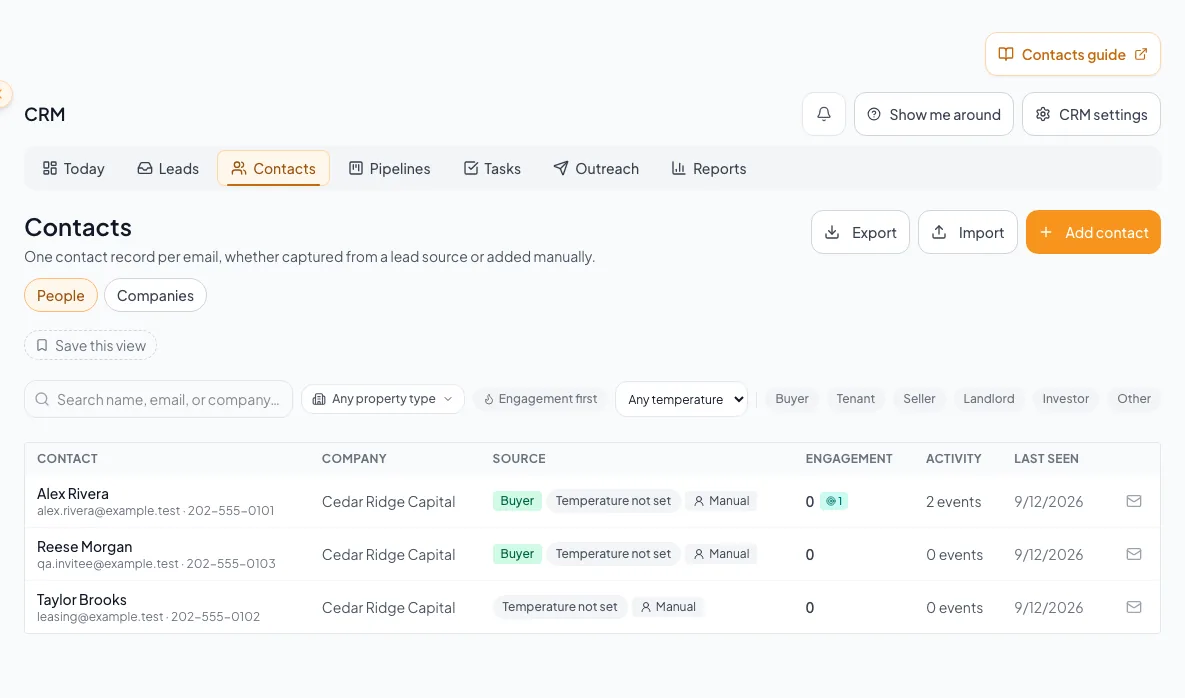
Search, filter, sort, save views, merge, tag, export, and archive only the contact records within your access. - 2
Apply segmentation filters
People > Filters
Select the criteria that define the intended segment: interested property type, relationship type, temperature, tags, property requirements, or company.
Expected result: Filter chips and the result count reflect the selected criteria.
If this step does not work
If the result is unexpectedly empty, remove filters one at a time. A true empty state differs from filtered no results.
- 3
Name the saved view
People > Save this view > Name this view
Enter a distinct name for the current filters.
Expected result: The name is ready to save.
If this step does not work
Use a name that says what the segment is for.
- 4
Choose saved-view availability
People > Save this view > Share with team
Select Share with team for a team view, or leave it clear to keep the view private.
Expected result: After you select Save, the view keeps these filters with the sharing you chose.
If this step does not work
Teammates who open a shared view still see only the contacts their role allows.
- 5
Reopen a saved view
People > saved view chips
Select the saved name.
Expected result: The filters run against today’s data, so new matching contacts appear automatically.
If this step does not work
A saved view is a set of filters, not a frozen list. If results changed, the underlying contacts changed.
- 6
Verify restored filters
People > active filter chips
Compare the restored filters with the saved-view definition.
Expected result: The filters match what you saved.
If this step does not work
Reapply the intended view if a filter is missing.
Shared views respect each person’s access
A saved view stores filters, not records. A teammate who opens a shared view sees only the contacts their role allows.
Use high-impact contact actions safely
Merge duplicates
- What happens
- The selected keeper receives supported activities, deals, tasks, signatures, and tags. The duplicate is archived.
- Verification
- Open the keeper and confirm the combined timeline and relationships.
Export CSV
- What happens
- Exports the contacts you can see, with formula-like values neutralized so the file opens safely in Excel.
- Verification
- Open the downloaded file and confirm scope and row count before sharing.
Archive
- What happens
- Removes the contact from active views while retaining CRM history.
- Verification
- Search active contacts to confirm removal, then retain the record link in any audit note.
- 1
Inspect possible duplicates
People > Merge duplicates
Compare exact emails, names, companies, and timelines before choosing a keeper.
Expected result: Only genuinely duplicate identities are selected.
If this step does not work
If identities are uncertain, cancel and add a note instead of merging.
- 2
Select the record to keep
Merge duplicates dialog
Select the record that should remain.
Expected result: The dialog identifies the keeper and duplicate.
If this step does not work
Cancel if either identity is uncertain.
- 3
Confirm the merge
Merge duplicates dialog > Merge N into 1
Select Merge N into 1, where N is the displayed duplicate count.
Expected result: Related supported records move to the keeper and the duplicate leaves active lists.
If this step does not work
If an expected relationship is absent, stop further cleanup and report the specific record IDs to support.
- 4
Apply the export scope
People > scope and Filters
Set the required scope and filters.
Expected result: The visible result count represents the intended permitted export.
If this step does not work
Narrow the query if the count is broader than intended.
- 5
Download the contact CSV
People > Export
Select Export.
Expected result: The browser downloads the current permitted export.
If this step does not work
If the export is broader than intended, delete the local copy securely before trying again.
- 6
Review archive impact
Contact workspace > Archive confirmation
Read the complete confirmation.
Expected result: The historical retention and active-list removal are understood.
If this step does not work
Cancel if the person should remain in active work.
- 7
Archive the contact
Contact workspace > Archive confirmation
Select Archive.
Expected result: The contact is retained historically but removed from active People results.
If this step does not work
A later CSV import will not reactivate an archived contact. Adding the person again with Add contact will.
Resolve list and record problems
No contacts appear
Likely cause: The CRM may be empty, filters may exclude all rows, or the request may have failed.
- Read the empty-state message.
- Clear every filter and saved view.
- Select Retry if an error is present.
- Confirm role scope before importing.
A duplicate merge is unavailable
Likely cause: You may not be able to edit one of the records, or no matching duplicate pair exists.
- Check ownership for both contacts.
- Ask an authorized owner to perform the merge.
- Never alter emails just to force a merge.
An archived person reappeared after manual Add Contact or Add Lead
Likely cause: Adding a contact manually with an archived person’s email reactivates that existing record.
- Open the existing record.
- Review why it was archived.
- Archive it again only if renewed activity should not return it to active work.
Final verification
- The People scope, search, and filters show the permitted contacts you intend to manage.
- The intended contact retains the correct identity, owner, company links, tags, and saved changes.
- If you exported contacts, the downloaded file contains only the permitted rows represented by the reviewed result count.
- If you intentionally archived a contact, that person leaves active People results while historical context remains. Contacts you still need stay active.
A CRM that already knows your listings
Track buyers, tenants and deals right next to the OMs, listings and Deal Rooms you build in CREBuilder. Free to start.
No credit card required.