Outcome
Your follow-ups run on their own: the right task, alert, or email fires once per qualifying event and steps aside once you have already reached out or the contact signs.
Navigation path
CRM > Outreach > Automations
Access
A paid CREBuilder plan is required. Company role and record scope still apply.
On this page
Before you start
Data, sources, and access to prepare
- CRM entitlement
- A clear business event and desired owner action
- A paid plan, company sending set up through CREBuilder Mail, and the current agreement for contact-email actions
Choose from the current trigger and action set
| Trigger group | Events |
|---|---|
| Leads | Inquiry received; NDA invitation sent |
| Deal Room | NDA signed; room viewed; OM viewed; OM downloaded; file downloaded; access requested |
| E-signature | Agreement sent; signed; completed; declined |
| Meetings | Tour; meeting |
Create task
- Destination
- Your CRM task list
- Prerequisite
- Paid plan and owned active contact
Send alert
- Destination
- Your own inbox
- Prerequisite
- Paid plan and owned active contact
Email contact
- Destination
- Hosted CREBuilder Mail to the contact
- Prerequisite
- Paid plan, company sending activated, current agreement, compliance address, quota, no suppression, and review acceptance
Rules are personal
Each user sees and manages only their own rules. A rule processes that user’s owned, non-archived contacts. Creating a team-shared script does not create a team-wide automation.
All automation actions require a paid plan
Free CRM supports tasks and notes that you create manually. Creating or running task rules, alert rules, contact-email rules, and autoresponders requires a paid plan. Contact-email actions also require approved Mail setup. Existing rules do not run while the company lacks paid access.
Build a rule in three steps
- 1
Choose an action or recipe
CRM > Outreach > Automations
Select a recipe in Respond faster, Chase what stalled, Stay in the loop, or After a meeting or a signature, or start a custom task, alert, or contact-email rule.
Expected result: The wizard opens with an action and any recipe defaults visible.
If this step does not work
If the business owner is unclear, cancel and define the desired response before creating a rule.
- 2
Choose the trigger
Automation wizard > Trigger
Select one supported event.
Expected result: The rule displays the event that can qualify future activity.
If this step does not work
Choose the factual source event for the intended response.
- 3
Set the delay
Automation wizard > Delay
Enter 0 to 90 days or 0 to 2160 hours.
Expected result: The rule displays a valid delay.
If this step does not work
Zero means the next automatic check rather than instantly, so allow a short wait.
- 4
Enter the automation content
Automation wizard > Content
Enter the task title, alert text, or email subject and body for the selected action.
Expected result: The review shows the exact output content.
If this step does not work
For email, complete Mail setup first.
- 5
Set the outreach guard
Automation wizard > Skip if already reached out
Choose whether later outreach should suppress the action.
Expected result: The review shows the outreach guard behavior.
If this step does not work
Do not weaken the guard merely to make a test fire.
- 6
Set the signature guard
Automation wizard > Stop once they sign
For an Email the contact rule, choose whether an applicable signature should suppress the email. Task and alert rules do not show this control.
Expected result: The final review shows the signature guard behavior.
If this step does not work
Use the guard when the action no longer makes sense after signing.
- 7
Save the rule
Automation wizard > Create rule
Select Create rule.
Expected result: The rule appears in the library.
If this step does not work
If the save fails, correct the highlighted field and retry once.
- 8
Confirm the rule is active
CRM > Outreach > Automations > rule card
Check the rule toggle.
Expected result: An enabled rule offers Pause this rule on its toggle.
If this step does not work
If it is paused, verify prerequisites before using the toggle labeled Resume this rule.
- 9
Create a safe qualifying event
Controlled CRM contact activity
Create a fictional or otherwise safe qualifying event owned by you.
Expected result: The event becomes eligible for the active rule.
If this step does not work
Do not use a live contact merely to test the rule.
- 10
Verify the test output
Tasks, inbox, contact timeline, or hosted Mail status
Inspect the normal destination after the delay and polling pass.
Expected result: The task, alert, or accepted email appears once.
If this step does not work
If nothing appears, verify event time, ownership, active contact state, rule creation time, guards, Mail readiness, and delay before recreating the rule.
Understand timing, lookback, and guard behavior
From activity to one guarded action
The service polls for eligible facts and executes a rule at most once for each rule and source activity.
Owned contact activity
Trigger time and rule eligibility
Delay plus polling pass
Outreach, signature, suppression, quota, Mail gates
Task, alert, or accepted hosted email
- Owned contact activityTrigger time and rule eligibility
- Trigger time and rule eligibilityDelay plus polling pass
- Delay plus polling passOutreach, signature, suppression, quota, Mail gates
- Outreach, signature, suppression, quota, Mail gatesTask, alert, or accepted hosted emailpass once
| Rule behavior | Exact meaning |
|---|---|
| Task lookback | Task rules can consider qualifying activity from the previous 14 days. |
| Email and alert start boundary | They do not apply to activity that occurred before the rule was created. |
| Skip if already reached out | Skips when later note, call, meeting, tour, email-sent, or task-completed activity shows follow-up. |
| Stop once they sign | Available for Email the contact rules. Stops the email on the applicable NDA-signed or agreement-signed fact. |
| Deduplication | One action per rule and qualifying source activity. |
| Hosted email completion | The contact timeline records the automated email only after CREBuilder Mail accepts it. Held or unconfirmed sends are not recorded as sent. |
Pause, resume, replace, and troubleshoot rules
- 1
Review the rule card
CRM > Outreach > Automations
Read action, trigger, delay, guards, and active or paused state.
Expected result: You can explain what future activity the rule can affect.
If this step does not work
There is no current per-run execution log on this page. Verify outputs in Tasks, inbox, contact timeline, or hosted Mail status.
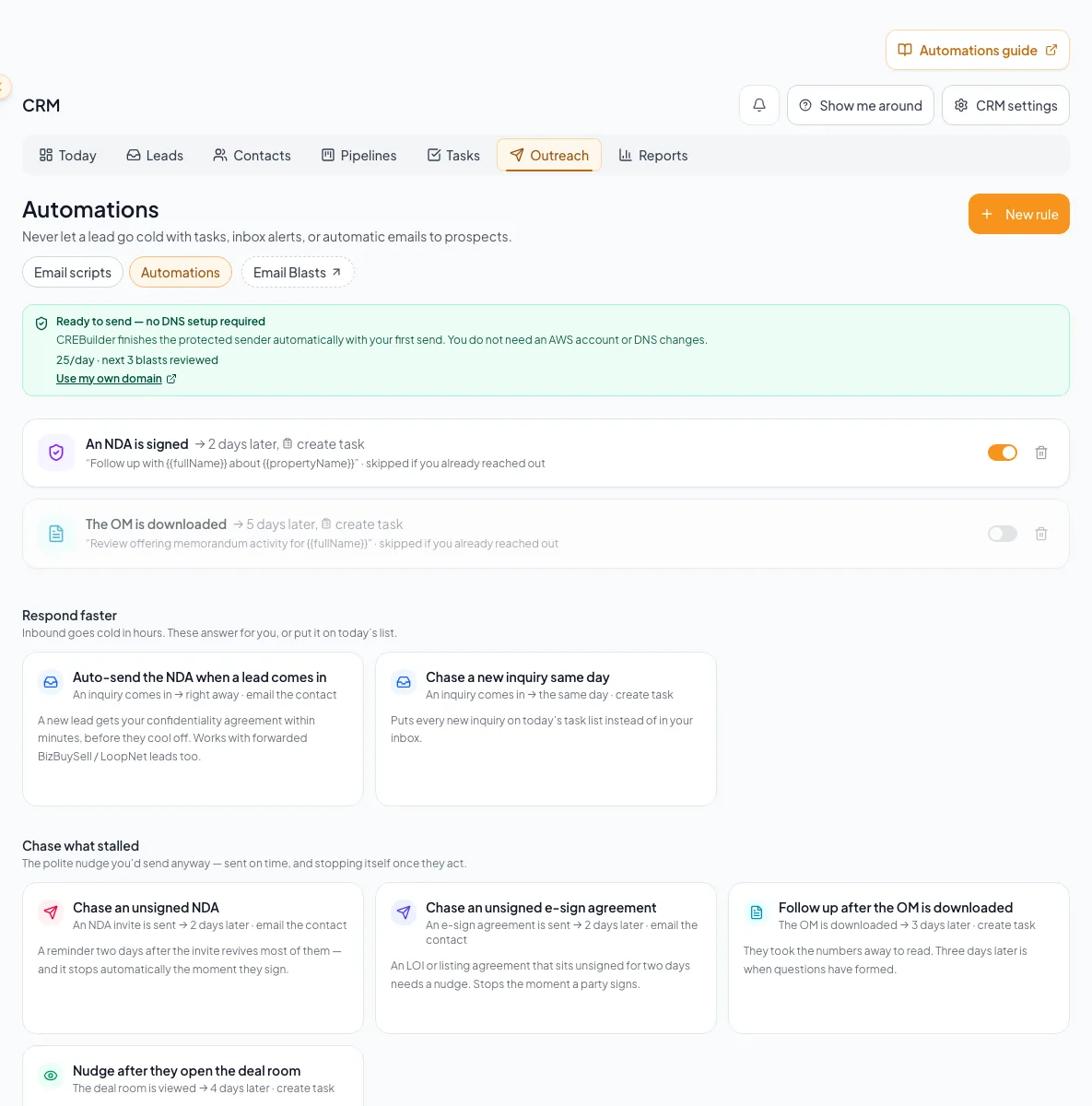
Create, test, pause, resume, and maintain an automation while documenting prerequisites and replacement limits. - 2
Pause before changing intent
Automation rule card
Turn off the rule using its toggle labeled Pause this rule when it should stop considering new eligible work.
Expected result: The card shows paused and no longer acts as an active rule.
If this step does not work
Pausing does not erase actions already created or a hosted send already held for review.
- 3
Document the replacement rule
Automation rule card and your review notes
Copy the rule action, trigger, delay, content, and guards into your review notes.
Expected result: The notes contain a complete replacement specification before deletion.
If this step does not work
The current UI has no edit flow. Do not delete until every value on the rule card is represented in the notes.
- 4
Delete the obsolete rule
Automation rule card > Delete
Delete the exact rule being replaced.
Expected result: The obsolete rule no longer considers new activity.
If this step does not work
Confirm the rule identity before deletion.
- 5
Create the replacement rule
CRM > Outreach > Automations > New rule
Create a new rule from the recorded replacement specification.
Expected result: The new rule appears with the intended configuration.
If this step does not work
Compare the new card with the replacement notes before testing.
- 6
Test the replacement rule
Controlled CRM contact activity
Run one fictional or otherwise safe qualifying event.
Expected result: The new rule produces its intended output once.
If this step does not work
Keep the rule paused and investigate if the result differs from the specification.
- 7
Verify resume prerequisites
Paused rule card and relevant settings
Check ownership behavior for tasks or alerts, or Mail approval, current terms, compliance address, quota, and suppression policy for contact email.
Expected result: Every prerequisite for future processing is ready.
If this step does not work
If terms changed or access was revoked, keep the rule paused until Settings shows ready.
- 8
Resume the rule
Paused rule card > rule toggle
Use the toggle labeled Resume this rule.
Expected result: The rule becomes active and future eligible events can be processed.
If this step does not work
If the state does not change, reload and verify the persisted status before retrying.
An expected action did not appear
Likely cause: The event may be pre-rule, outside task lookback, not owned, archived, already processed, delayed, or blocked by a guard.
- Compare event and rule creation times.
- Confirm contact owner and active state.
- Check delay plus the polling interval.
- Inspect later outreach or signature activity.
- For Mail, check access, agreement, address, quota, suppression, and held status.
You cannot find automation errors
Likely cause: The current UI has no execution log or error monitor.
- Verify task output, your inbox, contact timeline, and Email Blast or Mail status as applicable.
- Record the rule and source activity IDs for support.
- Do not repeatedly recreate a rule while a hosted outcome is pending.
A contact-email rule is held for review
Likely cause: Hosted Mail review policy applies to automated contact email too.
- Wait for the terminal outcome.
- Do not treat held as sent.
- The timeline shows the automated email only after CREBuilder Mail accepts it.
Final verification
- The selected automation rules have the intended task, alert, or contact-email action, trigger, delay, and guards.
- Each rule has the intended active or paused state, and a controlled test produces its expected output once.
- For a contact-email rule, Mail approval, current terms, compliance address, quota, and suppression prerequisites are ready. An accepted email outcome does not prove inbox delivery.
- CRM automation does not provide execution logs; inspect the normal task, alert, or email destination for the test result.
- If you intentionally deleted an obsolete rule, only that rule is removed. Rules still needed for follow-up remain available.
A CRM that already knows your listings
Track buyers, tenants and deals right next to the OMs, listings and Deal Rooms you build in CREBuilder. Free to start.
No credit card required.