Outcome
Everything about a relationship (notes, calls, tours, files, requirements, deals, and email) lives on one record, and you can reach the person with the right tool in a click.
Navigation path
CRM > Contacts > People > Select a contact
Access
Free CRM with no time limit: 100 stored contacts and 10 active opportunities for your company, plus companies, pipelines, manual tasks and notes, CSV import, and Email Scripts. Paid plans add automations, reports, automated matching, calendar integration, domain connections, and email sending.
On this page
Before you start
Data, sources, and access to prepare
- A contact you can open
- Current property and relationship context before outreach
Review the whole relationship before acting
Free CRM covers manual relationship work
Within the company caps, maintain contacts, notes, requirements, manual tasks, and pipeline records. Email, Reply, Send properties, Send NDA, and the email-app handoff require a paid plan. Hosted sending also requires company sending set up through CREBuilder Mail and the applicable sending checks. The sending examples below describe paid-account workflows.
Keep every contact method on one person
In Edit contact, use Add email or Add phone, label each entry, and select one primary address and number. Save changes to confirm them together. Search finds additional emails and phone numbers. Additional Emails and Additional Phones CSV columns accept semicolon-separated values. Export includes those values; imported additional methods receive the Other label. When starting a new CRM email conversation, choose a saved address. Existing conversations retain their original recipient.
Connect the people involved in each opportunity
Open a deal, representation opportunity or listing-progress record and use People involved > Add to link an existing contact. Choose Investor, Principal, Decision-maker or another role. Edit role changes their role; Remove only removes the association. The primary contact stays attached. Representation opportunities and listing progress also show People linked to this property for shared property relationships. Linking a person does not grant access to their private record. Their Deals & properties tab includes accessible opportunities where they are involved.
Change relationship temperature directly
Use Relationship temperature in Contact details to choose Not set, Cold, Warm, or Hot. The dropdown stays visible on mobile and saves automatically without opening Edit contact. Wait for confirmation; a failed or conflicting save does not overwrite the latest record. Engagement is calculated separately.
| Area | What to verify |
|---|---|
| Identity and company | Email, name, title, phone, multiple relationship types, manual temperature, linked company, and owner |
| Engagement summary | Views, downloads, NDA signatures, inquiries, and recorded emails |
| Updates | Formatted notes, calls, meetings, tours, attachments, replies, mentions, and edited indicators. Activity contains immutable captured events. |
| Conversations started in CREBuilder Mail, incoming replies, sender verification, unread markers, and sending status. | |
| Requirements and fit | Active purchase or lease needs and the reasons a property matches |
| Current lease | Premises, economics, expiry, notice window, and renewal task state |
| Deals & properties and Tasks | Separate seller opportunities for each property, linked listing progress, due dates, assignment, editing, and completion |
Counts are context, not a conclusion
An engagement count can help prioritize a review, but it does not prove intent, authority, consent, or delivery.
Update identity, tags, and activity
- 1
Review ownership and identity
Contact workspace > header and details
Confirm the person, company, owner, email, relationships, and temperature before editing.
Expected result: You are on the right contact and can edit it.
If this step does not work
If editing is disabled, ask the owner or an Admin. Keep working on this record rather than creating a new one.
- 2
Add useful tags
Contact workspace > Tags
Add only stable labels the team can apply consistently.
Expected result: The tags appear on the contact and can be used on the People list.
If this step does not work
If a tag was added incorrectly, remove it rather than adding an opposite tag.
- 3
Save contact details
Contact workspace > Edit contact
Select Save changes after completing the labeled contact fields.
Expected result: The server confirms the change before the form closes. Refreshing retains it.
If this step does not work
Cancel discards edits. A duplicate email conflict links to the existing contact only when you can access it; no merge occurs.
- 4
Choose the activity type
Contact workspace > Updates
Select Write an update, Log call, Log meeting, or Log tour.
Expected result: The matching activity form opens.
If this step does not work
Cancel if the selected type does not match the interaction.
- 5
Enter activity context
Updates composer
Write the complete activity context in the rich-text composer.
Expected result: The composer holds the complete content and up to ten attachments, each no larger than 25 MB.
If this step does not work
A teammate must already have access. A mention never grants access. Failed saves retain the draft.
- 6
Attach supporting files
Updates composer > Attach files
Select up to ten supporting files using Attach files.
Expected result: Images, PDFs, Office documents, CSV, and text can be attached. Each file must be 25 MB or smaller.
If this step does not work
Remove a staged file with its remove control before posting if you chose the wrong file.
- 7
Mention a teammate
Updates composer > Mention teammate
Choose an available teammate from Mention teammate.
Expected result: The selected teammate is included on the update and receives an in-app notification after posting.
If this step does not work
Only active teammates who already have access are offered.
- 8
Save the activity
Updates composer > Post update
Select Post update.
Expected result: The dated update appears with its author, full content, attachments, and reply action.
If this step does not work
If saving fails, retry the retained draft. Edits and replies do not repeat follow-up automations.
- 9
Collaborate on an update
Update card > Reply or action controls
Select Reply on the update you want to discuss.
Expected result: Authors and company managers can edit or delete discussion content. Deleting a post with replies leaves a placeholder and retains history.
If this step does not work
Captured downloads, signatures, and delivery evidence cannot be changed through discussion controls.
- 10
Write a reply
Update card > Reply composer
Write your reply in the expanded composer.
Expected result: Replies support formatting, files, and teammate mentions.
If this step does not work
Replies have one level and remain attached to their original update.
- 11
Post a reply
Reply composer > Reply
Select Reply to save the response.
Expected result: Mentioned teammates and existing discussion participants receive in-app notifications, excluding the author of the new reply.
If this step does not work
Saving a reply does not replay a broker follow-up automation.
- 12
Edit discussion content
Your update or reply > Edit update
Select Edit update on content you authored.
Expected result: A company manager can also moderate content. Save changes confirms the edited content and retains revision history.
If this step does not work
A conflicting edit requires refreshing before another save.
- 13
Delete discussion content
Your update or reply > Delete update
Select Delete update on the discussion content to remove.
Expected result: The confirmation explains what will be removed. A post with replies retains a placeholder.
If this step does not work
Downloads, signatures, and delivery evidence remain immutable.
- 14
Find discussions and notifications
Updates filters, Files tab, or CRM notification bell
Enter a phrase in Search updates.
Expected result: Files and notifications open the exact discussion. The bell supports read and unread status and refreshes while CRM is visible.
If this step does not work
Only permitted records and active teammate mentions are available. This release sends in-app discussion notifications.
- 15
Open a discussion notification
CRM notification bell
Select the relevant mention or reply notification.
Expected result: The exact discussion opens. Read and unread controls are available in the bell.
If this step does not work
A notification never grants access to its underlying record.
- 16
Create a next task
Contact workspace > Tasks
Add a clear action and due time for this person.
Expected result: The task appears on the contact and in the appropriate Tasks group.
If this step does not work
If no due time is known, use No due date deliberately and review that group later.
Keep email conversations with the contact
Open Email to see conversations started from this record and replies to them. Sending requires a paid plan. CREBuilder Mail uses the company setup in Settings > Email & sending, including suppression checks, review rules, and the shared allowance. The composer shows the sending status card, runs the audience sending check for this contact before Send email, includes your saved signature and company mailing address, and offers Schedule this email for a later local time; Mail review and sending checks still apply and blackout dates move to the next allowed day. Replies return to this CRM conversation. The workspace does not import your personal inbox. Paid users can use the email-app option shown in this tab when available. Free accounts show an upgrade message instead of sending controls.
- 1
Open a new email
Contact workspace > Email > New email
Select New email.
Expected result: The composer opens for this contact.
If this step does not work
Free accounts must upgrade first. Paid users can complete Mail setup or use the email-app option shown in the workspace.
- 2
Check the recipient
New email > To
Verify the displayed recipient address.
Expected result: The destination matches the person you intend to reach.
If this step does not work
Close and edit the contact if the address is wrong.
- 3
Enter the subject
New email > Subject
Enter a subject of no more than 200 characters.
Expected result: The subject appears in the composer.
If this step does not work
Shorten the subject if validation refuses it.
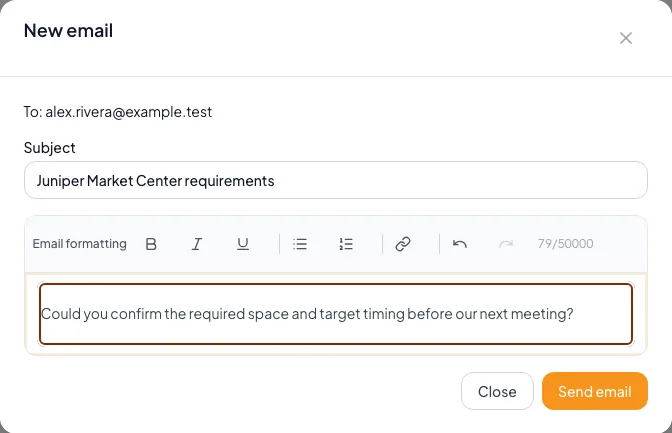
Check the contact recipient, subject and message before submitting email through CREBuilder Mail. The conversation keeps its original recipient when the contact email changes. - 4
Write the message
New email > Email message
Enter the message content.
Expected result: The formatting toolbar supports paragraphs, lists, emphasis, and links.
If this step does not work
Remove unsupported content if validation refuses the message.
- 5
Submit once
New email > Send email
Select Send email once.
Expected result: CREBuilder records the message and shows its status.
If this step does not work
Keep the composer open after an interrupted request.
- 6
Check the outcome
Email conversation > message status
Read the message status.
Expected result: Saved, held, sending, accepted, and unresolved outcomes remain distinguishable.
If this step does not work
Wait for pending or unresolved outcomes instead of creating another copy.
- 7
Recover an interrupted request
New email > Retry same send
Select Retry same send.
Expected result: CREBuilder picks up the same message without sending a second copy.
If this step does not work
Close the composer to inspect conversation history if the connection remains unavailable.
- 8
Resume an unsubmitted message
Email conversation > Submit saved message
Select Submit saved message after Mail setup is complete.
Expected result: The same saved message proceeds through the current Mail gates.
If this step does not work
A saved message has not been submitted; a pending message must wait for its own outcome.
- 9
Reply to received mail
Email conversation > received message > Reply
Select Reply.
Expected result: The composer retains the historical recipient and conversation context.
If this step does not work
Start a new email to reach a changed contact address.
- 10
Verify an unfamiliar sender
Email conversation > Verify sender
Verify the sender identity.
Expected result: You can decide whether this reply belongs in contact history.
If this step does not work
Leave the reply unaccepted when you cannot verify its source.
- 11
Accept a verified reply
Email conversation > Accept reply
Select Accept reply when you have verified its source.
Expected result: The reply enters contact activity once.
If this step does not work
Only people with contact edit permission can accept a reply.
- 12
Block an unwanted reply
Email conversation > Block reply
Select Block reply when the reply should remain excluded.
Expected result: The message remains identified as blocked.
If this step does not work
Failed attachment scans cannot be accepted from this control.
- 13
Search correspondence
Email > Search email conversations
Enter a word or phrase from the subject or message.
Expected result: Matching conversations appear.
If this step does not work
Clear the search to restore the complete permitted list.
- 14
Read older messages
Email conversation > Load earlier messages
Select Load earlier messages.
Expected result: The next page of earlier messages appears.
If this step does not work
This control appears only when more history is available.
- 15
Mark a conversation read
Email conversation > Mark read
Select Mark read.
Expected result: Your read marker covers the displayed history.
If this step does not work
A reply arriving afterward remains unread.
- 16
Keep a conversation unread
Email conversation > Mark unread
Select Mark unread.
Expected result: Your personal unread indicator returns.
If this step does not work
This does not change another teammate’s read marker.
- 17
Open the original reply
Email conversation > Download original with attachments
Select Download original with attachments.
Expected result: The complete received email downloads as an .eml file with its attachments.
If this step does not work
Open the downloaded file in an email application. Blocked messages cannot be downloaded here.
Accepted means handed to the mail provider
Accepted for sending means the mail provider accepted the message. It does not guarantee inbox delivery. Mail approval, failed sends, and unresolved delivery outcomes remain visible in the conversation.
Choose Email, Send properties, or Send NDA
Choose the outreach path
Each action sends differently and records activity differently.
Outreach need
One-to-one Email
CREBuilder Mail or your email app
Send properties
Opens Email Blast composer
Send NDA
Immediate hosted invitation
Verified timeline outcome
- Outreach needOne-to-one Emailpersonal message
- Outreach needSend propertieslisting campaign
- Outreach needSend NDAprotected access
- One-to-one EmailVerified timeline outcomeAccepted send or external confirmation
- Send propertiesVerified timeline outcomeaccepted by CREBuilder Mail
- Send NDAVerified timeline outcomeaccepted by CREBuilder Mail
- 1
Prepare an external message
Contact workspace > Email > Use your email app
Choose a team script or write the message.
Expected result: The Email modal contains the intended content for this person.
If this step does not work
Correct unresolved merge tokens before opening another mail client.
- 2
Open the external draft
Contact Email modal > delivery action
Open Outlook, an approved external mail app, or Copy.
Expected result: The external draft contains the intended person and personalized content.
If this step does not work
If the provider did not open, copy the content and address manually. Do not mark it sent yet.
- 3
Send in the mail client
Approved external mail client
Send the verified message.
Expected result: The mail client reports its send outcome.
If this step does not work
Do not continue to Mark as sent if delivery did not occur.
- 4
Return to the Email modal
CRM > Contact workspace > Email > Use your email app
Open the same contact’s Email modal.
Expected result: The recordkeeping control is available for the verified send.
If this step does not work
Compare the recipient before recording the activity.
- 5
Confirm the external send
Contact Email modal > Mark as sent
Select Mark as sent.
Expected result: An email-sent activity appears on the timeline.
If this step does not work
If you did not send, close without marking. Opening or copying is not delivery evidence.
- 6
Choose properties to send
Contact workspace > Send properties
Select matched properties or other completed documents.
Expected result: The selected property set is ready for the composer.
If this step does not work
Remove an unintended or outdated document before continuing.
- 7
Open the property composer
Send properties > Continue
Select Continue.
Expected result: The Email Blast composer opens with this contact prefilled for review.
If this step does not work
Nothing has been sent yet. If HTML download mode is active, switch to hosted Mail or understand that the prefilled person will not receive mail automatically.
- 8
Choose an NDA listing
Contact workspace > Send NDA
Select an eligible NDA-gated listing.
Expected result: The modal shows automatic versus approval access for that listing.
If this step does not work
If no listing is eligible, verify publication and access settings.
- 9
Review NDA access
Send NDA modal
Read the displayed automatic or approval access behavior.
Expected result: The invitation’s access path is understood before submission.
If this step does not work
Cancel if the selected access mode is not intended.
- 10
Submit the NDA invitation
Send NDA modal > Send NDA invite
Select Send NDA invite once.
Expected result: A hosted invitation is submitted or clearly held for review, with an outcome shown.
If this step does not work
If Mail setup, address, property eligibility, or contact email is missing, follow the steps in the dialog. Do not send it again while its status is unconfirmed.
Handle edge states and archive carefully
No property appears in Send properties
Likely cause: Only eligible completed documents are offered, or filters removed all results.
- Confirm the document is completed and permitted.
- Clear the matched-only choice if broader selection is appropriate.
- Open Property Hub to verify the source document.
No listing appears in Send NDA
Likely cause: The contact needs an email and the listing must use an eligible NDA gate.
- Confirm the contact email.
- Review Listing Hub or Deal Room access settings.
- Complete CREBuilder Mail readiness before retrying.
A hosted send is held for review
Likely cause: Review rules can hold an NDA invitation or campaign before it sends.
- Go by the status shown.
- Wait for approval or rejection.
- Do not send it again while the outcome is pending or unconfirmed.
You need to remove the person from active work
Likely cause: The relationship is inactive or the record was created in error.
- Review deals, tasks, suppressions, and timeline first.
- Use Archive from the contact workspace.
- Do not rely on a future import to revive the contact automatically.
Contact review check
- Identity and owner are correct.
- Every activity describes something that occurred.
- The active requirement reflects current needs.
- Tasks have responsible owners and useful due times.
- External email was marked sent only after actual sending.
- Hosted pending or unconfirmed outcomes were not duplicated.
A CRM that already knows your listings
Track buyers, tenants and deals right next to the OMs, listings and Deal Rooms you build in CREBuilder. Free to start.
No credit card required.