Outcome
Every permitted active lease has reliable source fields, appears in the correct horizon, and produces an owned renewal task when its notice window opens.
Navigation path
CRM > Tasks > Lease expirations
Access
Free CRM with no time limit: 100 stored contacts and 10 active opportunities for your company, plus companies, pipelines, manual tasks and notes, CSV import, and Email Scripts. Paid plans add automations, reports, automated matching, calendar integration, domain connections, and email sending.
On this page
Before you start
Data, sources, and access to prepare
- CRM entitlement
- A permitted contact
- Known lease expiration and notice requirements
Use the contact lease as the source record
Lease Expirations is derived from each contact’s Current space and lease record. It is not a separate list to edit. Active status and expiration date determine inclusion, while role scope follows contact visibility.
Property or building and address Recommended
Current occupied space shown in the expiration row
- Format
- Separate plain-text property name and street-address fields
- Units
- Not applicable
- Save behavior
- The values persist only after Add lease or Save succeeds in Current space and lease.
- Downstream effect
- Supplies the current-space summary and the property or address shown in the expiration queue.
City, state, and suite Optional
Location detail for distinguishing spaces
- Format
- Plain-text city, state code, and suite fields
- Units
- Not applicable
- Save behavior
- The values persist only after Add lease or Save succeeds in Current space and lease.
- Downstream effect
- Distinguishes the occupied space in the contact card and the expiration queue.
Square feet Optional
Current occupied area
- Format
- Whole number
- Units
- Square feet (SF)
- Save behavior
- The value persists only after Add lease or Save succeeds in Current space and lease.
- Downstream effect
- Appears in the current-space summary and expiration row; it does not drive notice timing.
Current rent and basis Optional
Rent context with NNN, FS, or MG basis
- Format
- Decimal currency amount plus NNN, FS, MG, or blank basis
- Units
- U.S. dollars per square foot per year
- Save behavior
- The values persist only after Add lease or Save succeeds in Current space and lease.
- Downstream effect
- Shows current rent in the expiration queue and rent with its basis on the contact card; neither value drives date inclusion.
Landlord Optional
Current ownership or landlord context
- Format
- Plain text
- Units
- Not applicable
- Save behavior
- The value persists only after Add lease or Save succeeds in Current space and lease.
- Downstream effect
- Provides landlord context on the saved contact card and expiration row.
Lease expiration Required
Date that drives horizon, sort order, countdown, and renewal timing
- Format
- Date in YYYY-MM-DD format
- Units
- Calendar date
- Save behavior
- The date persists only after Add lease or Save succeeds; changing a saved date re-arms renewal-task eligibility.
- Downstream effect
- Controls horizon inclusion, soonest-first order, days-out display, and renewal-task timing for an active lease.
Notice window Recommended
Months before expiration when the renewal tickler becomes eligible
- Format
- Whole number from 0 through 36; new records start at 12
- Units
- Months
- Save behavior
- The value persists only after Add lease or Save succeeds; the service clamps it to 0 through 36 and a saved change re-arms renewal-task eligibility.
- Downstream effect
- Sets when an active lease becomes eligible for the one-time renewal task; 0 disables the automatic tickler.
Status Required
Active, renewed, relocated, or expired
- Format
- Active, Renewed, Relocated, or Expired
- Units
- Not applicable
- Save behavior
- The selected status persists only after Add lease or Save succeeds in Current space and lease.
- Downstream effect
- Only Active leases enter the expiration queue and automatic renewal-task scan; other statuses retain the lease outside that active workflow.
Property or building and address
- Requirement
- Recommended
- What it means
- Current occupied space shown in the expiration row
- Format
- Separate plain-text property name and street-address fields
- Units
- Not applicable
- Save behavior
- The values persist only after Add lease or Save succeeds in Current space and lease.
- Downstream effect
- Supplies the current-space summary and the property or address shown in the expiration queue.
City, state, and suite
- Requirement
- Optional
- What it means
- Location detail for distinguishing spaces
- Format
- Plain-text city, state code, and suite fields
- Units
- Not applicable
- Save behavior
- The values persist only after Add lease or Save succeeds in Current space and lease.
- Downstream effect
- Distinguishes the occupied space in the contact card and the expiration queue.
Square feet
- Requirement
- Optional
- What it means
- Current occupied area
- Format
- Whole number
- Units
- Square feet (SF)
- Save behavior
- The value persists only after Add lease or Save succeeds in Current space and lease.
- Downstream effect
- Appears in the current-space summary and expiration row; it does not drive notice timing.
Current rent and basis
- Requirement
- Optional
- What it means
- Rent context with NNN, FS, or MG basis
- Format
- Decimal currency amount plus NNN, FS, MG, or blank basis
- Units
- U.S. dollars per square foot per year
- Save behavior
- The values persist only after Add lease or Save succeeds in Current space and lease.
- Downstream effect
- Shows current rent in the expiration queue and rent with its basis on the contact card; neither value drives date inclusion.
Landlord
- Requirement
- Optional
- What it means
- Current ownership or landlord context
- Format
- Plain text
- Units
- Not applicable
- Save behavior
- The value persists only after Add lease or Save succeeds in Current space and lease.
- Downstream effect
- Provides landlord context on the saved contact card and expiration row.
Lease expiration
- Requirement
- Required
- What it means
- Date that drives horizon, sort order, countdown, and renewal timing
- Format
- Date in YYYY-MM-DD format
- Units
- Calendar date
- Save behavior
- The date persists only after Add lease or Save succeeds; changing a saved date re-arms renewal-task eligibility.
- Downstream effect
- Controls horizon inclusion, soonest-first order, days-out display, and renewal-task timing for an active lease.
Notice window
- Requirement
- Recommended
- What it means
- Months before expiration when the renewal tickler becomes eligible
- Format
- Whole number from 0 through 36; new records start at 12
- Units
- Months
- Save behavior
- The value persists only after Add lease or Save succeeds; the service clamps it to 0 through 36 and a saved change re-arms renewal-task eligibility.
- Downstream effect
- Sets when an active lease becomes eligible for the one-time renewal task; 0 disables the automatic tickler.
Status
- Requirement
- Required
- What it means
- Active, renewed, relocated, or expired
- Format
- Active, Renewed, Relocated, or Expired
- Units
- Not applicable
- Save behavior
- The selected status persists only after Add lease or Save succeeds in Current space and lease.
- Downstream effect
- Only Active leases enter the expiration queue and automatic renewal-task scan; other statuses retain the lease outside that active workflow.
Required means the field is needed to complete or support this workflow. Some screens allow a draft to save before every required item is complete. The steps and troubleshooting call out controls the product actively blocks.
Create and maintain the current lease
- 1
Confirm the permitted contact
CRM > Contacts > select a person
Verify the selected person's identity and assigned owner.
Expected result: You know the tenancy update is permitted for the intended person.
If this step does not work
If you can view the contact through your Deal but cannot edit it, ask the contact owner, an Admin, or a Coordinator to update the lease.
- 2
Open the tenancy card
Contact workspace > Current space and lease
Open Current space and lease.
Expected result: The tenancy card shows existing leases or an Add control.
If this step does not work
If the section is unavailable, confirm CRM entitlement and the contact record before contacting support.
- 3
Add current space
Contact workspace > Current space and lease > Add
Enter the visible property, location, suite, SF, rent basis, landlord, expiration, notice months, and status fields that are known.
Expected result: A lease card appears on the contact.
If this step does not work
Do not invent missing economics. Save known facts and return when the source document is available.
- 4
Check the drivers
Current space and lease > saved card
Verify Active status, expiration date, and notice months against the source lease.
Expected result: The expiration pipeline and renewal service have usable inputs.
If this step does not work
If the lease already ended or the client moved, use the factual non-active status rather than changing the date to hide it.
- 5
Enter a changed term
Current space and lease > Edit
Correct the expiration or notice window.
Expected result: The editor contains the amended lease term.
If this step does not work
Use the signed lease amendment.
- 6
Save the changed term
Current space and lease > Edit > Save
Select Save.
Expected result: The lease reflects the amendment, and changing either driver re-arms renewal-task eligibility.
If this step does not work
Check for an older renewal task before relying on a newly re-armed tickler. Complete or update obsolete follow-up deliberately.
Deleting removes the source record
Use a factual renewed, relocated, or expired status when history should remain. Delete only the exact tenancy that was entered in error.
Read horizon and urgency correctly
From source lease to the expiration queue
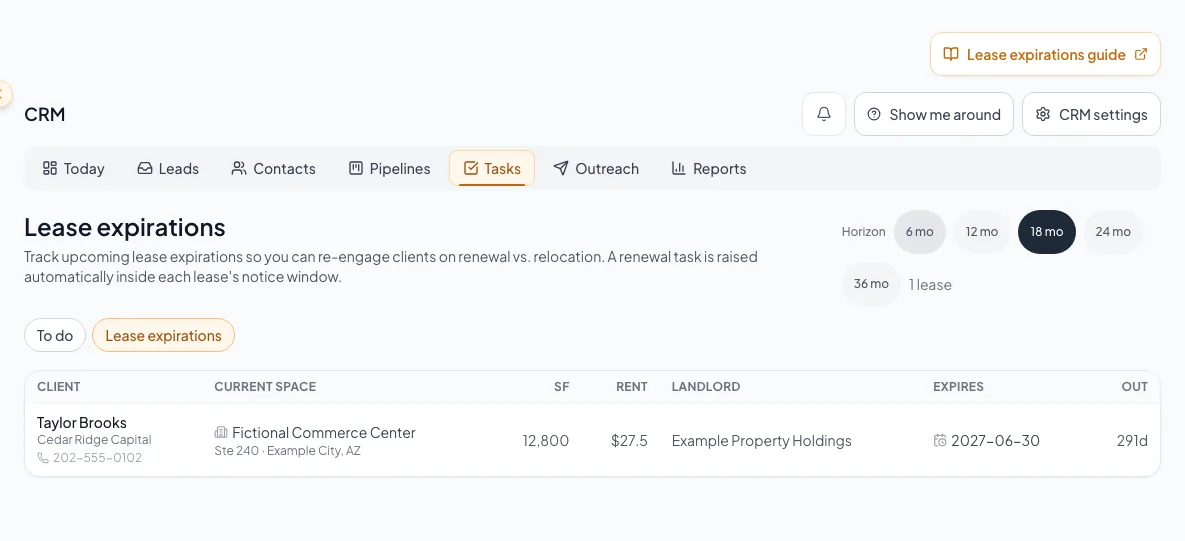
The selected horizon filters permitted active leases, then the page sorts soonest first and calculates days out in the user’s resolved local date.
Active lease with expiration
Permitted contact scope
6, 12, 18, 24, or 36 months
Soonest-first expiration queue
- Active lease with expirationPermitted contact scopeauthorize
- Permitted contact scope6, 12, 18, 24, or 36 monthsfilter
- 6, 12, 18, 24, or 36 monthsSoonest-first expiration queuesort and count
- 1
Open the expiration page
CRM > Tasks > Lease expirations
Wait for the page to finish loading before reading the total.
Expected result: The default 18 month horizon shows a count, rows, or a true empty state.
If this step does not work
If an error panel appears, select Retry. Never report an error as zero leases.
- 2
Choose a planning horizon
Lease expirations > Horizon
Select 6, 12, 18, 24, or 36 months for the operating question.
Expected result: The count and rows reload for that horizon.
If this step does not work
If a lease is missing, increase the horizon and inspect the contact source fields before adding another record.
Enter the source lease dates, confirm notice windows and reminder horizons, and resolve missing or inconsistent expirations. - 3
Prioritize by days out
Lease expirations table > Out
Work soonest rows first, using red at 90 days or less and amber at 180 days or less as urgency cues.
Expected result: The most time-sensitive active lease decisions receive follow-up first.
If this step does not work
A negative countdown means the active lease date has passed. Correct its status or date on the contact.
- 4
Open the client context
Lease expirations > Client
Select the client.
Expected result: The contact workspace opens from the expiration row.
If this step does not work
If the displayed contact is wrong, fix the source tenancy instead of working from the queue row alone.
- 5
Verify the source context
Contact > Current space and lease
Compare the current space and contact owner with the expiration row.
Expected result: The renewal or relocation work is tied to the correct person and tenancy.
If this step does not work
Stop if the source facts do not match the queue row and correct the tenancy first.
- 6
Set the next action
Contact workspace > Tasks or activity
Create or update the next action for the renewal or relocation conversation.
Expected result: The responsible person has one current follow-up.
If this step does not work
Check for an existing task before creating another.
Verify the renewal task and recover edge states
Automated lease follow-up requires a paid plan
The renewal service creates follow-up tasks only for paid companies. Free CRM keeps saved leases and manual tasks available. After a paid upgrade, an active lease still inside its notice window becomes eligible if its renewal task has not already been raised. Check existing tasks before creating a manual replacement.
- 1
Look for the renewal marker
Contact > Current space and lease
Check for renewal task raised on the saved lease card.
Expected result: The card confirms that the one-time tickler was claimed.
If this step does not work
The service runs periodically, so allow for its cadence before reporting a failure.
- 2
Verify the task itself
CRM > Tasks > To do
Search the responsible owner’s queue for the lease-renewal title and due date.
Expected result: An owned, actionable task is visible in CRM.
If this step does not work
A marker can exist without a task when no owner was available. Assign the contact, create a manual task, and escalate the tenancy identifier.
- 3
Update a changed source lease
Contact > Current space and lease > Edit
Save the corrected expiration or notice window.
Expected result: The source lease contains the amended dates and re-arms renewal eligibility when applicable.
If this step does not work
Use the signed lease amendment and check the saved value.
- 4
Reconcile the renewal task
CRM > Tasks > To do
Update any existing renewal task before the next background scan.
Expected result: The source facts and follow-up agree without two active tasks for the same decision.
If this step does not work
Complete or edit an obsolete task with a clear record. Do not delete evidence solely to clear a queue.
Lease Expirations is empty
Likely cause: No permitted active lease has an expiration on or before the selected horizon, or the request failed.
- Confirm the page is not showing an error.
- Increase the horizon.
- Open the contact tenancy card.
- Confirm Active status, expiration, ownership, and company.
A row remains active after expiration
Likely cause: The pipeline includes active records even when their expiration date is in the past.
- Open the contact.
- Confirm whether the client renewed, relocated, or expired.
- Update status or amended expiration using real facts.
The renewal marker exists but no task is found
Likely cause: The tickler claimed the lease but could not resolve an owner, or the task is outside the viewer’s scope or completed view.
- Check contact ownership.
- Check the intended owner’s active and completed tasks.
- Create a manual task for immediate coverage.
- Escalate the lease identifier if the source marker and task remain inconsistent.
A corrected expiration creates another renewal task
Likely cause: Changing expiration or notice months clears the one-time marker and re-arms the tickler.
- Review the prior task.
- Keep one current follow-up.
- Complete or revise obsolete work with a clear explanation.
Final verification
- Contact > Current space and lease: The card confirms that the one-time tickler was claimed.
- CRM > Tasks > To do: An owned, actionable task is visible in CRM.
- Contact > Current space and lease > Edit: The source lease contains the amended dates and re-arms renewal eligibility when applicable.
- CRM > Tasks > To do: The source facts and follow-up agree without two active tasks for the same decision.
- No blocking warning, failed status, or unresolved validation message remains in the completed workflow.
A CRM that already knows your listings
Track buyers, tenants and deals right next to the OMs, listings and Deal Rooms you build in CREBuilder. Free to start.
No credit card required.