Outcome
Your document presents one tenant and lease, remaining term, Price/SF, and cap rate on a Net Lease Summary.
Navigation path
Create New > Single Tenant Net Lease > Document wizard
Access
Document creation access
On this page
Before you start
Data, sources, and access to prepare
- One tenant
- Lease abstract and rent schedule
- Building SF and selling price
Confirm the asset is truly single-tenant
| Area | Net Lease behavior |
|---|---|
| Tenants | One tenant record |
| Occupancy and vacancies | No vacancy rows |
| Primary metric | Price/SF |
| Rent bases | SF/Yr or Annual |
| Lease types | NNN, Net, Ground Lease, Custom |
| Reimbursements | Hidden |
| Tenant Profiles | Hidden |
| Rent Roll label | Tenant & Lease |
Capture tenant and lease context
Rent bumps are presented, not projected
Tenant & Lease has no rent-increase or reimbursement inputs. With Full Financials, the cash flow holds base rent flat in every projected year unless an earlier growth rate was saved on the record. Put the bump schedule in the Rent Increases row so buyers see it, and check the projected base rent before you publish.
Suggested Net Lease property data
Tenant Required
Single occupant identity.
- Format
- Plain-text tenant name
- Units
- Not applicable
- Save behavior
- This Property Data row autosaves two seconds after the value stops changing; enter the modeled tenant separately in Tenant & Lease.
- Downstream effect
- Adds tenant identity to property facts but does not create or replace the dedicated Tenant & Lease record.
Credit Rating Optional
Tenant-credit fact with an appropriate source date.
- Format
- Plain-text rating, agency, and source date
- Units
- Not applicable
- Save behavior
- Property Data autosaves two seconds after the value stops changing.
- Downstream effect
- Adds sourced credit context to the Net Lease presentation without changing financial calculations.
Lease Type Recommended
NNN, Net, Ground Lease, or Custom.
- Format
- Plain-text supported lease type
- Units
- Not applicable
- Save behavior
- This Property Data row autosaves two seconds after the value stops changing; select the modeled type separately in Tenant & Lease.
- Downstream effect
- Adds narrative lease context but does not replace the dedicated lease-type selection.
Lease Term and Expiration Recommended
Contractual period.
- Format
- Plain text with calendar dates or stated term
- Units
- Dates and years
- Save behavior
- This Property Data row autosaves two seconds after the value stops changing; save modeled dates separately through Tenant & Lease Continue.
- Downstream effect
- Adds sourced term context without driving the calculated Remaining Term unless dates are also entered in Tenant & Lease.
Rent Increases Optional
Narrative source fact in Property Data.
- Format
- Plain text stating amount, cadence, and effective timing
- Units
- As stated in the lease source
- Save behavior
- Property Data autosaves two seconds after the value stops changing.
- Downstream effect
- Displays escalation context only; the dedicated Net Lease form does not model this row in cash flow.
Renewal Options Optional
Option terms.
- Format
- Plain text stating option count, length, and pricing basis
- Units
- Years and source-stated pricing basis
- Save behavior
- Property Data autosaves two seconds after the value stops changing.
- Downstream effect
- Displays option context without extending the calculated lease term or cash-flow model.
Tenant
- Requirement
- Required
- What it means
- Single occupant identity.
- Format
- Plain-text tenant name
- Units
- Not applicable
- Save behavior
- This Property Data row autosaves two seconds after the value stops changing; enter the modeled tenant separately in Tenant & Lease.
- Downstream effect
- Adds tenant identity to property facts but does not create or replace the dedicated Tenant & Lease record.
Credit Rating
- Requirement
- Optional
- What it means
- Tenant-credit fact with an appropriate source date.
- Format
- Plain-text rating, agency, and source date
- Units
- Not applicable
- Save behavior
- Property Data autosaves two seconds after the value stops changing.
- Downstream effect
- Adds sourced credit context to the Net Lease presentation without changing financial calculations.
Lease Type
- Requirement
- Recommended
- What it means
- NNN, Net, Ground Lease, or Custom.
- Format
- Plain-text supported lease type
- Units
- Not applicable
- Save behavior
- This Property Data row autosaves two seconds after the value stops changing; select the modeled type separately in Tenant & Lease.
- Downstream effect
- Adds narrative lease context but does not replace the dedicated lease-type selection.
Lease Term and Expiration
- Requirement
- Recommended
- What it means
- Contractual period.
- Format
- Plain text with calendar dates or stated term
- Units
- Dates and years
- Save behavior
- This Property Data row autosaves two seconds after the value stops changing; save modeled dates separately through Tenant & Lease Continue.
- Downstream effect
- Adds sourced term context without driving the calculated Remaining Term unless dates are also entered in Tenant & Lease.
Rent Increases
- Requirement
- Optional
- What it means
- Narrative source fact in Property Data.
- Format
- Plain text stating amount, cadence, and effective timing
- Units
- As stated in the lease source
- Save behavior
- Property Data autosaves two seconds after the value stops changing.
- Downstream effect
- Displays escalation context only; the dedicated Net Lease form does not model this row in cash flow.
Renewal Options
- Requirement
- Optional
- What it means
- Option terms.
- Format
- Plain text stating option count, length, and pricing basis
- Units
- Years and source-stated pricing basis
- Save behavior
- Property Data autosaves two seconds after the value stops changing.
- Downstream effect
- Displays option context without extending the calculated lease term or cash-flow model.
Required means the field is needed to complete or support this workflow. Some screens allow a draft to save before every required item is complete. The steps and troubleshooting call out controls the product actively blocks.
Complete the Net Lease workflow
Net Lease steps
- 1
Select Single Tenant Net Lease
Create New, Select Property Type
Choose Single Tenant Net Lease only for one-tenant assets.
Expected result: Tenant & Lease and Net Lease terminology activate.
If this step does not work
Use Retail, Office/Medical, or Industrial when multiple tenants or vacancies must be modeled.
- 2
Verify property economics
Property Details
Compare the building SF and price with your source.
Expected result: Price/SF uses inputs.
If this step does not work
Correct either input before adding tenant context if the metric is wrong.
- 3
Add tenant and lease facts
Property Data
Add sourced tenant, credit, lease-term, increase, and option facts.
Expected result: The narrative facts are supported by the source.
If this step does not work
Remove unsourced or stale credit claims.
- 4
Choose financial scope
Financial Scope
Choose Full Financials, Cap Rate & NOI, or Skip Financials.
Expected result: The matching financial path appears.
If this step does not work
Rent Roll Only is not available for this property type.
- 5
Complete Tenant & Lease
Tenant & Lease
Enter tenant name, SF, lease type, rent basis, dates, and notes.
Expected result: The single tenant saves and remaining term calculates.
If this step does not work
If Continue fails, confirm Tenant Name and SF greater than zero.
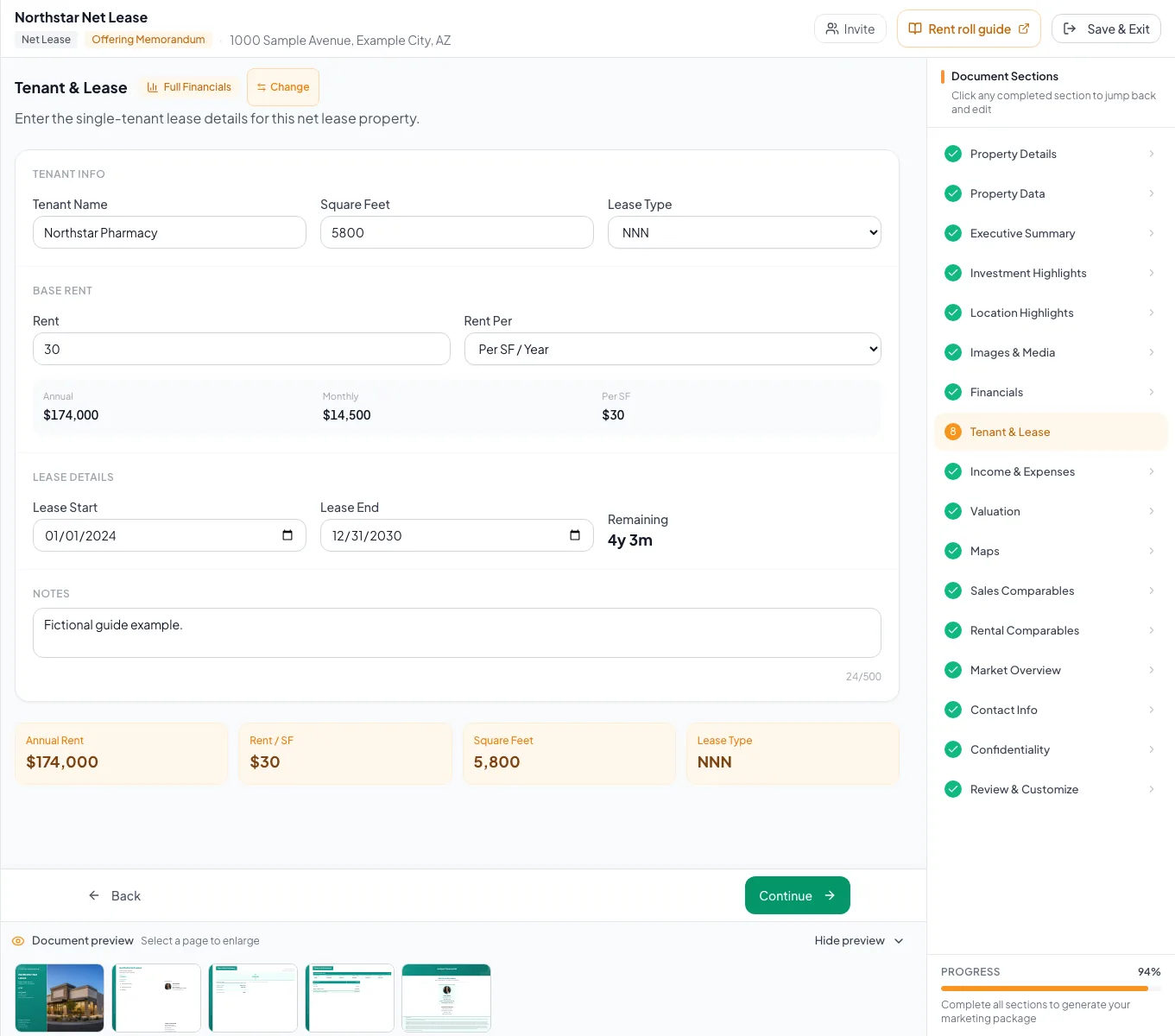
Review the populated net lease example and verify the units, property facts, and applicable model before preparing your own document. - 6
Complete valuation
Valuation
Enter full analysis assumptions or quick Cap Rate & NOI facts according to scope.
Expected result: The intended financial metrics save.
If this step does not work
Return to Financial Scope if the analysis depth is wrong.
- 7
Review Net Lease Summary
Review & Customize
Check tenant, credit context, lease dates, remaining term, Base Rent, Price/SF, and summary footnotes.
Expected result: The final page matches the lease abstract.
If this step does not work
Correct the underlying property, tenant, or valuation input.
Resolve Net Lease issues
A second tenant cannot be added
Likely cause: This property type is intentionally single-tenant.
- Confirm the asset classification.
- Change to a commercial multi-tenant type if needed.
Rent Roll Only is absent
Likely cause: Net Lease filters that scope option.
- Use Full Financials for Tenant & Lease plus analysis.
- Use Cap Rate & NOI for headline facts.
Remaining term says Expired
Likely cause: The saved lease end is before today.
- Verify the source lease end.
- Update only with a documented amendment or renewal.
- One-tenant classification confirmed
- SF and price match the source
- Credit facts sourced
- Lease structure and dates complete
- Remaining term checked
- Net Lease Summary reviewed
Related guides
Enter Single Tenant Net Lease financials
Enter one tenant and one lease, and CREBuilder annualizes the rent, counts down the remaining term, and builds a dedicated Net Lease Summary.
Open guideChoose and change the financial scope
Pick how much financial analysis your document shows, from a full cash flow to headline numbers only, and switch later without losing your data.
Open guideVerify financial pages before publishing
Do a final pass on the financial pages before you send: the right pages, the right labels, and numbers that tie out.
Open guideYour next OM, done this afternoon
Turn your property facts, photos and financials into a polished, branded offering memorandum. Most brokers finish in 30 to 90 minutes.
No credit card required.