Outcome
Your STNL document has one saved tenant with the right size, rent, lease type, and dates, and the Net Lease Summary shows the remaining term.
Navigation path
Document wizard > Rent Roll > Tenant & Lease
Access
A Single Tenant Net Lease document
On this page
Before you start
Data, sources, and access to prepare
- A Single Tenant Net Lease property type
- Tenant name, building area, rent, lease type, and dates
Use the dedicated one-tenant path
Net lease input and output
The property type replaces the generic roster with one tenant and a dedicated summary page.
Financial Scope
Full, Cap Rate & NOI, or Skip
Tenant & Lease
One tenant record
Valuation
Cash-flow analysis or quick facts
Net Lease Summary
Tenant and lease presentation
- Financial ScopeTenant & LeaseFull
- Tenant & LeaseValuation
- ValuationNet Lease Summary
Rent Roll Only is unavailable
Single Tenant Net Lease removes the Rent Roll Only scope. Use Full Financials for the tenant and detailed analysis, Cap Rate & NOI for headline facts, or Skip Financials.
Enter the lease record
| Rent basis | Annual calculation |
|---|---|
| SF/Yr | Entered rate x building SF |
| Annual | Entered amount |
Tenant Name Required
The single occupant presented in the summary.
- Format
- Plain text
- Units
- Not applicable
- Save behavior
- Saved with Tenant & Lease when Continue succeeds.
- Downstream effect
- Identifies the occupant on the dedicated Net Lease Summary.
Building SF Required
Area used by SF/Yr rent calculations.
- Format
- Positive number
- Units
- Square feet
- Save behavior
- Saved with Tenant & Lease when Continue succeeds.
- Downstream effect
- Multiplies SF/Yr base rent and supplies the area shown with the tenant record.
Lease Type Recommended
NNN, Net, Ground Lease, or Custom.
- Format
- Select one supported lease type
- Units
- Not applicable
- Save behavior
- Saved with Tenant & Lease when Continue succeeds.
- Downstream effect
- Labels the lease structure on the tenant record and Net Lease Summary.
Base Rent and Basis Recommended
Rent entered as SF/Yr or Annual.
- Format
- Currency amount plus SF/Yr or Annual basis
- Units
- Currency per SF per year or currency per year
- Save behavior
- Saved with Tenant & Lease when Continue succeeds.
- Downstream effect
- Calculates annual base rent using the selected basis and saved Building SF.
Lease Start and End Recommended
Dates used to display the lease period and remaining term.
- Format
- Two calendar dates
- Units
- Calendar dates
- Save behavior
- Saved with Tenant & Lease when Continue succeeds.
- Downstream effect
- Displays the contractual period and drives the calculated Remaining Term from the end date.
Notes Optional
Reader-facing lease context.
- Format
- Plain text
- Units
- Not applicable
- Save behavior
- Saved with Tenant & Lease when Continue succeeds.
- Downstream effect
- Adds the saved lease context to the tenant presentation without changing rent calculations.
Remaining Term Calculated
Time from today to lease end, or Expired.
- Format
- Read-only duration or Expired label
- Units
- Years and months relative to the current date
- Save behavior
- No direct entry. Recalculates automatically from the saved lease end date and current date.
- Downstream effect
- Shows current remaining-term context on the Net Lease Summary.
Tenant Name
- Requirement
- Required
- What it means
- The single occupant presented in the summary.
- Format
- Plain text
- Units
- Not applicable
- Save behavior
- Saved with Tenant & Lease when Continue succeeds.
- Downstream effect
- Identifies the occupant on the dedicated Net Lease Summary.
Building SF
- Requirement
- Required
- What it means
- Area used by SF/Yr rent calculations.
- Format
- Positive number
- Units
- Square feet
- Save behavior
- Saved with Tenant & Lease when Continue succeeds.
- Downstream effect
- Multiplies SF/Yr base rent and supplies the area shown with the tenant record.
Lease Type
- Requirement
- Recommended
- What it means
- NNN, Net, Ground Lease, or Custom.
- Format
- Select one supported lease type
- Units
- Not applicable
- Save behavior
- Saved with Tenant & Lease when Continue succeeds.
- Downstream effect
- Labels the lease structure on the tenant record and Net Lease Summary.
Base Rent and Basis
- Requirement
- Recommended
- What it means
- Rent entered as SF/Yr or Annual.
- Format
- Currency amount plus SF/Yr or Annual basis
- Units
- Currency per SF per year or currency per year
- Save behavior
- Saved with Tenant & Lease when Continue succeeds.
- Downstream effect
- Calculates annual base rent using the selected basis and saved Building SF.
Lease Start and End
- Requirement
- Recommended
- What it means
- Dates used to display the lease period and remaining term.
- Format
- Two calendar dates
- Units
- Calendar dates
- Save behavior
- Saved with Tenant & Lease when Continue succeeds.
- Downstream effect
- Displays the contractual period and drives the calculated Remaining Term from the end date.
Notes
- Requirement
- Optional
- What it means
- Reader-facing lease context.
- Format
- Plain text
- Units
- Not applicable
- Save behavior
- Saved with Tenant & Lease when Continue succeeds.
- Downstream effect
- Adds the saved lease context to the tenant presentation without changing rent calculations.
Remaining Term
- Requirement
- Calculated
- What it means
- Time from today to lease end, or Expired.
- Format
- Read-only duration or Expired label
- Units
- Years and months relative to the current date
- Save behavior
- No direct entry. Recalculates automatically from the saved lease end date and current date.
- Downstream effect
- Shows current remaining-term context on the Net Lease Summary.
Required means the field is needed to complete or support this workflow. Some screens allow a draft to save before every required item is complete. The steps and troubleshooting call out controls the product actively blocks.
Complete and save the form
Net lease steps
- 1
Choose the financial depth
Financial Scope
Select Full Financials, Cap Rate & NOI, or Skip Financials.
Expected result: The wizard shows the matching steps.
If this step does not work
Use Full Financials if Tenant & Lease and detailed financial analysis are required.
- 2
Enter tenant identity and size
Tenant & Lease
Enter Tenant Name and Building SF first.
Expected result: The two fields required by Continue are complete.
If this step does not work
If Continue later fails, confirm the name is not blank and SF is greater than zero.
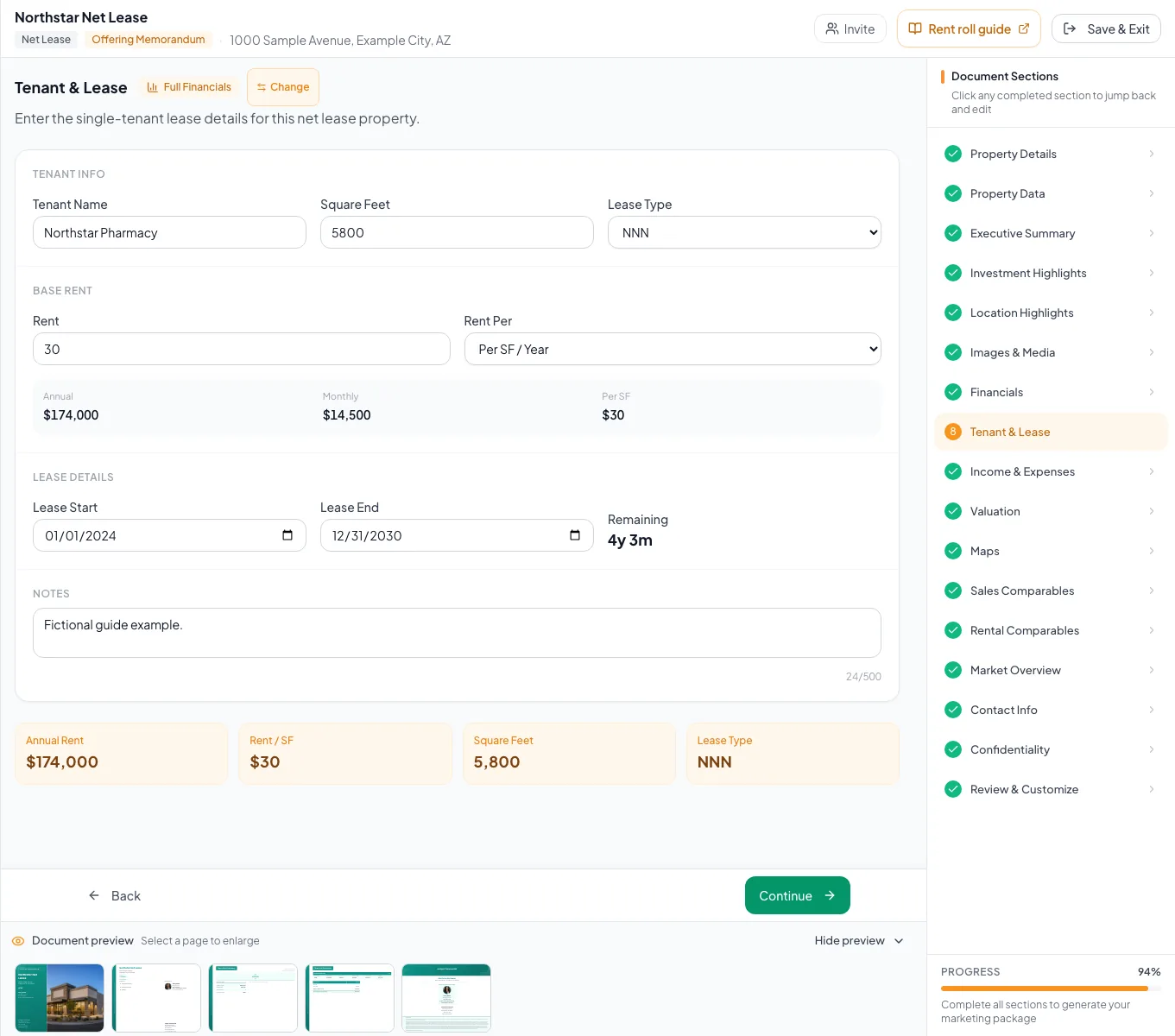
Complete the single-tenant net lease path with verified lease economics and only the financial options this workflow supports. - 3
Choose the lease structure
Tenant & Lease > Lease Type
Select the lease type supported by the lease abstract.
Expected result: The selected structure appears on the tenant record.
If this step does not work
Use Custom only when the listed lease types do not fit.
- 4
Enter base rent
Tenant & Lease > Base Rent
Enter base rent with the SF/Yr or Annual basis.
Expected result: Annual rent calculates from the chosen basis.
If this step does not work
If annual rent is wrong, compare the entered rate and building SF.
- 5
Enter dates and notes
Tenant & Lease
Add start and end dates plus concise notes.
Expected result: The remaining-term display updates relative to today.
If this step does not work
If the term shows Expired, verify the lease-end year and source document.
- 6
Continue to save
Bottom of Tenant & Lease
Select Continue after reviewing all fields.
Expected result: The single tenant saves and the wizard advances.
If this step does not work
The form saves on Continue, so remain on the page and retry after correcting required fields.
- 7
Verify output
Review & Customize, Net Lease Summary
Check tenant, rent, lease dates, remaining term, and key financial facts.
Expected result: The dedicated summary matches the source lease abstract.
If this step does not work
Return to Tenant & Lease or valuation for any mismatch.
Fix common net lease issues
Continue succeeds with rent or dates blank
Likely cause: The current gate checks only Tenant Name and Building SF.
- Treat rent, type, and dates as recommended completeness fields.
- Use the checklist before publishing rather than relying only on Continue.
Rent bumps or reimbursements are missing
Likely cause: Tenant & Lease has no rent-increase or reimbursement inputs. With Full Financials, the cash flow holds base rent flat in every projected year unless an earlier growth rate was saved on the record.
- Describe the bump schedule in the Rent Increases property-data row and in lease Notes so buyers see it.
- Check the projected base rent in Valuation before you publish.
- Enter landlord-paid expenses in Income & Expenses so NOI reflects the lease structure.
More than one tenant is needed
Likely cause: This property type intentionally uses the first single-tenant record.
- Confirm that Single Tenant Net Lease is the correct property type.
- Use Retail, Office/Medical, or Industrial for a multi-tenant property.
Net lease review
- One tenant with the correct name
- Building SF and annual rent match the lease
- Lease type and dates are complete
- Remaining term looks right
- Rent bumps are described for buyers
- Net Lease Summary appears in Review & Customize
Related guides
Build a Single Tenant Net Lease document
Market a single-tenant NNN asset with tenant and credit context, lease term, Base Rent, cap rate, and a dedicated Net Lease Summary.
Open guideChoose and change the financial scope
Pick how much financial analysis your document shows, from a full cash flow to headline numbers only, and switch later without losing your data.
Open guideVerify financial pages before publishing
Do a final pass on the financial pages before you send: the right pages, the right labels, and numbers that tie out.
Open guideYour next OM, done this afternoon
Turn your property facts, photos and financials into a polished, branded offering memorandum. Most brokers finish in 30 to 90 minutes.
No credit card required.