Outcome
Your document presents one property with each use as its own component and a combined NOI.
Navigation path
Create New > Mixed-Use > Document wizard
Access
Document creation access
On this page
Before you start
Data, sources, and access to prepare
- A single integrated property with at least two supported uses
- Source data separated by component
Distinguish Mixed-Use from multi-property
One property, multiple components
Mixed-Use keeps one subject property while component tags control financial sub-tables.
One Property
One address and core property record
Retail and Office
Commercial tenant inputs
Residential
Multifamily unit inputs
Industrial, Hotel, Storage
Component-specific inputs
Combined Document
Component-organized rent roll
- One PropertyRetail and Office
- One PropertyResidential
- One PropertyIndustrial, Hotel, Storage
- Retail and OfficeCombined Document
- ResidentialCombined Document
- Industrial, Hotel, StorageCombined Document
| Use Mixed-Use when | Use Multiple Properties when |
|---|---|
| One integrated property has several uses | Several buildings, parcels, or addresses need separate records |
| One subject-level address and property story | Each building needs its own address, type, and data |
| Financial rows should be grouped by component | Financial rows should be grouped by building or portfolio |
Use the six supported components
One projection choice
The Mixed-Use rent roll uses one global Cash Flow or Pro Forma selection for all active components. Non-hotel components then choose Unit-by-Unit or Unit Mix.
Retail Optional
Commercial retail tenant fields.
- Format
- Selectable component type
- Units
- Not applicable
- Save behavior
- The Rent Roll by Component selection persists with the Mixed-Use configuration; a component with saved rows cannot be deselected until those records are addressed.
- Downstream effect
- Opens Retail commercial tenant rows under the one global projection choice.
Office Optional
Commercial office tenant fields.
- Format
- Selectable component type
- Units
- Not applicable
- Save behavior
- The Rent Roll by Component selection persists with the Mixed-Use configuration; a component with saved rows cannot be deselected until those records are addressed.
- Downstream effect
- Opens Office commercial tenant rows under the one global projection choice.
Residential Optional
Multifamily unit fields.
- Format
- Selectable component type
- Units
- Not applicable
- Save behavior
- The Rent Roll by Component selection persists with the Mixed-Use configuration; a component with saved rows cannot be deselected until those records are addressed.
- Downstream effect
- Opens Residential unit inventory with its selected detail layout under the one global projection choice.
Industrial Optional
Commercial industrial tenant fields.
- Format
- Selectable component type
- Units
- Not applicable
- Save behavior
- The Rent Roll by Component selection persists with the Mixed-Use configuration; a component with saved rows cannot be deselected until those records are addressed.
- Downstream effect
- Opens Industrial commercial tenant rows under the one global projection choice.
Hotel Optional
Room Inventory fields.
- Format
- Selectable component type
- Units
- Not applicable
- Save behavior
- The Rent Roll by Component selection persists with the Mixed-Use configuration; saved hotel rows must be resolved before removing the component.
- Downstream effect
- Opens the specialized Hotel Room Inventory under the one global projection choice.
Storage Optional
Self-Storage unit fields.
- Format
- Selectable component type
- Units
- Not applicable
- Save behavior
- The Rent Roll by Component selection persists with the Mixed-Use configuration; a component with saved rows cannot be deselected until those records are addressed.
- Downstream effect
- Opens Storage unit inventory with its selected detail layout under the one global projection choice.
Retail
- Requirement
- Optional
- What it means
- Commercial retail tenant fields.
- Format
- Selectable component type
- Units
- Not applicable
- Save behavior
- The Rent Roll by Component selection persists with the Mixed-Use configuration; a component with saved rows cannot be deselected until those records are addressed.
- Downstream effect
- Opens Retail commercial tenant rows under the one global projection choice.
Office
- Requirement
- Optional
- What it means
- Commercial office tenant fields.
- Format
- Selectable component type
- Units
- Not applicable
- Save behavior
- The Rent Roll by Component selection persists with the Mixed-Use configuration; a component with saved rows cannot be deselected until those records are addressed.
- Downstream effect
- Opens Office commercial tenant rows under the one global projection choice.
Residential
- Requirement
- Optional
- What it means
- Multifamily unit fields.
- Format
- Selectable component type
- Units
- Not applicable
- Save behavior
- The Rent Roll by Component selection persists with the Mixed-Use configuration; a component with saved rows cannot be deselected until those records are addressed.
- Downstream effect
- Opens Residential unit inventory with its selected detail layout under the one global projection choice.
Industrial
- Requirement
- Optional
- What it means
- Commercial industrial tenant fields.
- Format
- Selectable component type
- Units
- Not applicable
- Save behavior
- The Rent Roll by Component selection persists with the Mixed-Use configuration; a component with saved rows cannot be deselected until those records are addressed.
- Downstream effect
- Opens Industrial commercial tenant rows under the one global projection choice.
Hotel
- Requirement
- Optional
- What it means
- Room Inventory fields.
- Format
- Selectable component type
- Units
- Not applicable
- Save behavior
- The Rent Roll by Component selection persists with the Mixed-Use configuration; saved hotel rows must be resolved before removing the component.
- Downstream effect
- Opens the specialized Hotel Room Inventory under the one global projection choice.
Storage
- Requirement
- Optional
- What it means
- Self-Storage unit fields.
- Format
- Selectable component type
- Units
- Not applicable
- Save behavior
- The Rent Roll by Component selection persists with the Mixed-Use configuration; a component with saved rows cannot be deselected until those records are addressed.
- Downstream effect
- Opens Storage unit inventory with its selected detail layout under the one global projection choice.
Required means the field is needed to complete or support this workflow. Some screens allow a draft to save before every required item is complete. The steps and troubleshooting call out controls the product actively blocks.
Complete the Mixed-Use workflow
Mixed-Use steps
- 1
Select Mixed-Use
Create New, Select Property Type
Choose Mixed-Use for one integrated multi-use subject.
Expected result: Rent Roll by Component becomes the financial label.
If this step does not work
Use Multiple Properties instead if each asset needs its own address and property record.
- 2
Enter the shared address
Property Details
Enter the subject street address.
Expected result: The Mixed-Use document has one shared subject location.
If this step does not work
Use Multiple Properties instead if the components require separate addresses.
- 3
Enter the shared area
Property Data
Enter the subject building or land area.
Expected result: The shared size appears in property metrics.
If this step does not work
Use the unit shown beside the field and do not add component areas twice.
- 4
Enter the shared asking price
Property Data
Enter the subject asking price when the engagement uses one.
Expected result: The document can calculate shared price metrics.
If this step does not work
Leave the field empty when the engagement intentionally does not publish a price.
- 5
Write the shared description
Property Overview
Write the property-level description.
Expected result: The narrative describes the integrated subject rather than one component.
If this step does not work
Move component-specific economics to the financial sections.
- 6
Write the shared highlights
Property Highlights
Enter the property-level highlights.
Expected result: The highlights summarize benefits that apply to the integrated subject.
If this step does not work
Remove duplicate or component-only claims before continuing.
- 7
Build the shared map
Maps
Configure the subject map.
Expected result: The map represents the one integrated property location.
If this step does not work
Use a multi-property document if separate subject markers are required.
- 8
Choose the global projection
Rent Roll by Component
Select Cash Flow or Pro Forma once.
Expected result: Every component uses the selected projection model.
If this step does not work
Resolve any model-change warning before editing component records.
- 9
Activate a component
Rent Roll by Component
Select one component checkbox.
Expected result: The selected component has an editor.
If this step does not work
Repeat this step for each real component. A component with saved data cannot be deselected until its records are addressed.
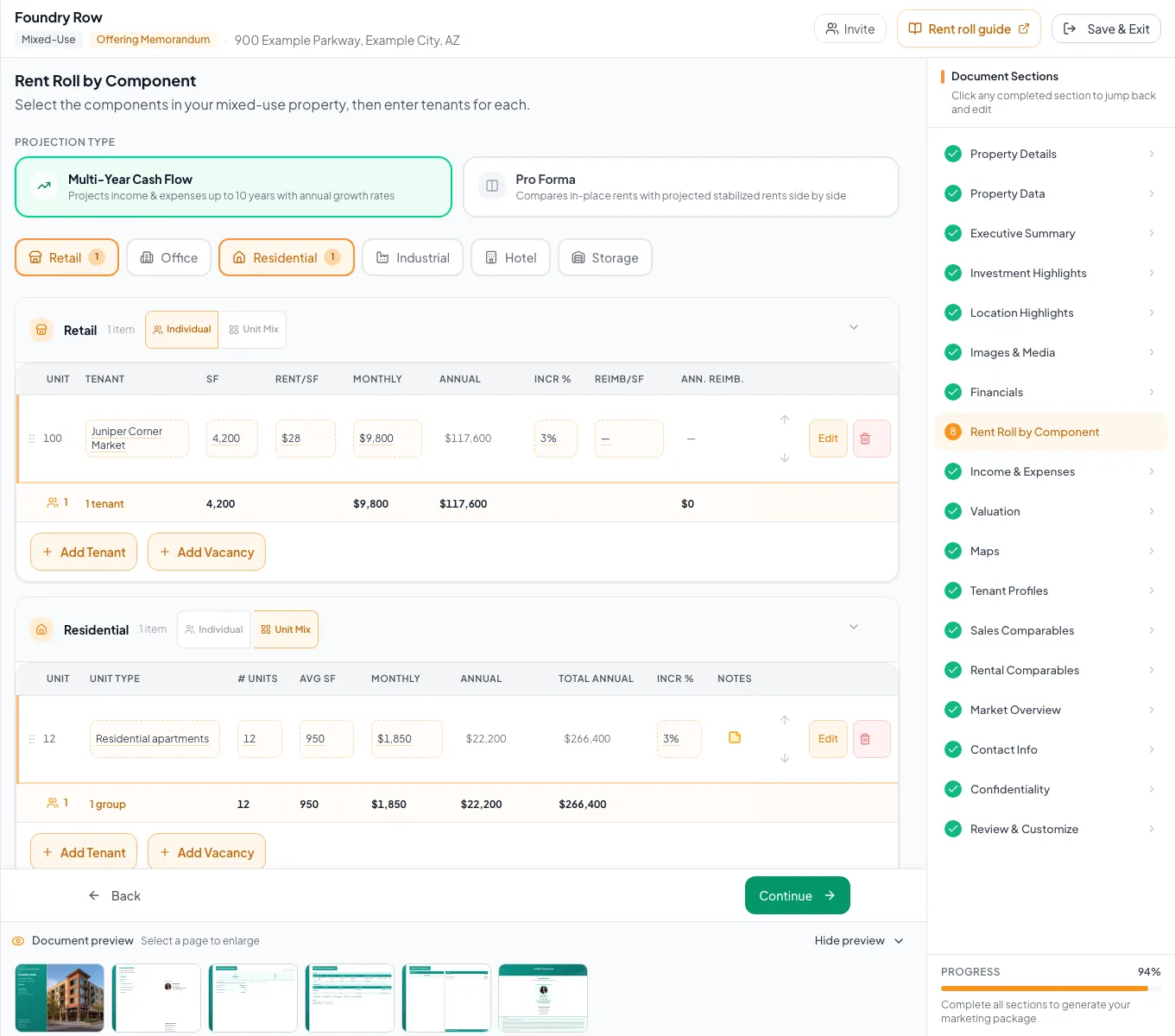
Review the populated mixed use example and verify the units, property facts, and applicable model before preparing your own document. - 10
Choose the component layout
Active component tab > detail layout
Select the detail layout that matches the source when the choice is offered.
Expected result: The component displays the intended row structure.
If this step does not work
Return to the layout choice before entering rows if the structure is wrong.
- 11
Enter component inventory
Active component tabs
Enter the component-specific rows.
Expected result: Each component subtotal reconciles.
If this step does not work
Resolve unassigned legacy rows and verify specialized Hotel data persists.
- 12
Complete combined statement
Income & Expenses
Enter property-level additional income and operating expenses without duplicating component revenue.
Expected result: Combined EGI and NOI reconcile.
If this step does not work
Trace duplicated or missing income by component first.
- 13
Review combined output
Review & Customize
Inspect component headings, subtotals, combined totals, terminology, and page flow.
Expected result: The final document presents one coherent Mixed-Use asset.
If this step does not work
Return to Rent Roll by Component for incorrect tags or totals.
Resolve Mixed-Use classification issues
The property needs separate addresses
Likely cause: It may be a portfolio rather than one Mixed-Use subject.
- Use Multiple Properties.
- Create one building record per address.
- Assign each building its own type.
A component cannot be removed
Likely cause: It owns saved rows.
- Review that component.
- Move or remove its data intentionally.
- Then deselect it.
A component needs a different projection
Likely cause: Mixed-Use allows one global projection.
- Choose the model that best fits the document.
- Explain any component-specific limitation in notes.
- One integrated subject confirmed
- All real components active
- One projection selected
- Component subtotals reconcile
- No relevant unassigned rows
- Combined output reviewed
Related guides
Build a Mixed-Use financial model
Model retail, office, residential, industrial, hotel, and storage income in one rent roll, with each component using the fields that fit it.
Open guideBuild a multi-building or portfolio document
Package several buildings, parcels, or locations into one OM or teaser, with each property on the map and in the order buyers should see them.
Open guideVerify financial pages before publishing
Do a final pass on the financial pages before you send: the right pages, the right labels, and numbers that tie out.
Open guideYour next OM, done this afternoon
Turn your property facts, photos and financials into a polished, branded offering memorandum. Most brokers finish in 30 to 90 minutes.
No credit card required.