Outcome
Your document includes exactly the financial pages your buyer needs, and nothing extra to fill in.
Navigation path
Documents > Open a supported document > Financials Setup
Access
Document creation access
On this page
Before you start
Data, sources, and access to prepare
- A supported document with a Financials Setup step
- A decision about which financial pages the audience needs
Map the setup to wizard steps
Financials Setup is a normal wizard step. It asks up to three questions, shows a summary card of what your document will include, and saves nothing until you select Continue. It never skips ahead on its own, and Back works as usual. Your saved answers, or the recommended answers for a new document, are already selected, so you can review the summary card and select Continue.
Check the financial basis
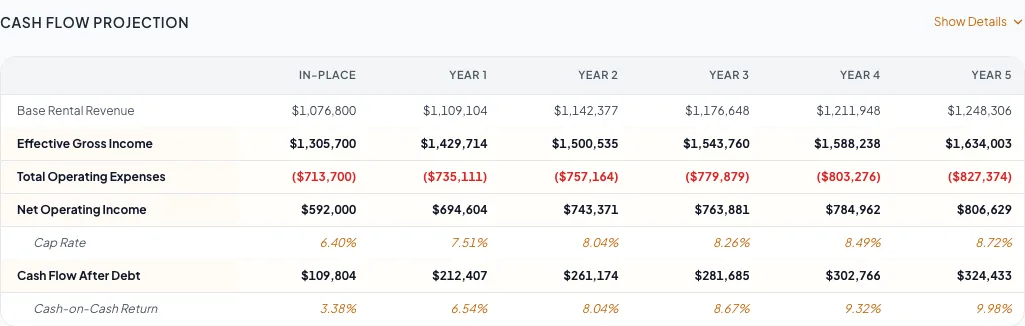
With Full financials, current rows determine NOI and cap rate. With no financial rows, saved positive NOI and cap rate figures can appear; without them NOI and cap rate are left out rather than shown as $0. A saved figure never overrides a computed result when rows exist. Some documents use entered figures instead: Cap rate and NOI only uses the NOI and cap rate you type, and a Broker Opinion of Value uses the NOI and cap rate entered on its Valuation step. A pro forma model with no in-place income uses its pro forma NOI, labeled Pro Forma. A calculated zero or loss appears on the financial statement pages, while the cover, key metrics, emails, your Listing Hub and partner feeds show NOI only when it rounds to at least $1, and a calculated cap rate only beside such an NOI; in Cap rate and NOI only an entered cap rate can appear by itself. Figures round half away from zero: dollars to the nearest dollar and percentages to two decimals, so 6.135% shows as 6.14%. On a cash flow projection each row is rounded separately and totals are calculated before rounding, so the rows shown can differ from a total by a few dollars; when they do, a short rounding note prints on the Cash Flow Projection page itself. Grouped (Unit Mix) rows count each row's size times its number of units in square footage, occupancy and price per SF. Rows without square footage have no Rent/SF figure and do not enter per-SF averages, and a per-SF reimbursement on such a row counts $0 until you enter square footage; when recovery is billed on usable SF, a row without usable SF uses its rentable SF. Lease rates with different units or periods appear as separate ranges.
Financials Setup questions
Question 1 picks the financial pages. Questions 2 and 3 appear only when the choice includes a rent roll.
What financials go in this OM?
Full financials, Rent roll only, Price, NOI & cap rate only, or No financials
How should the rent roll list spaces?
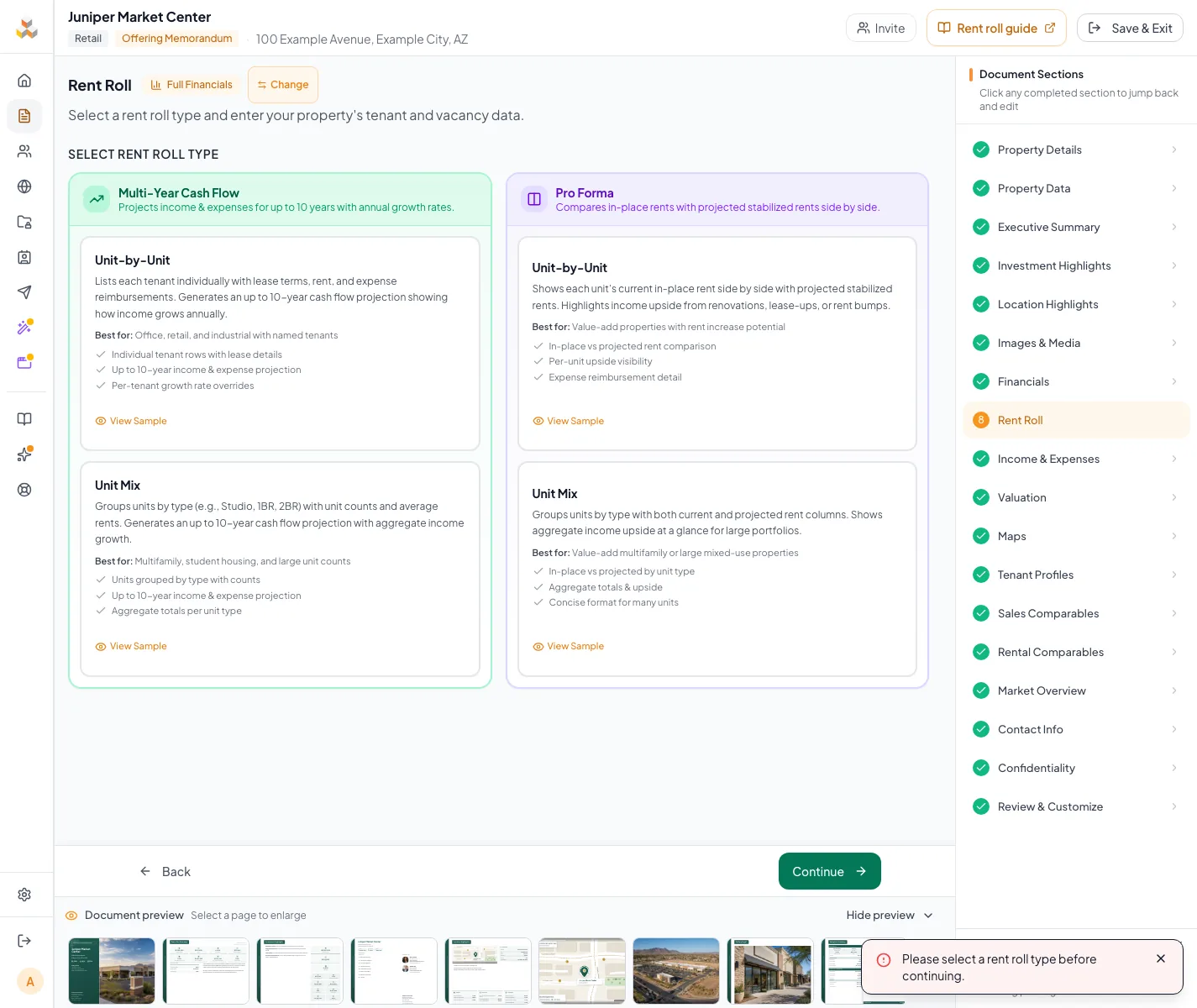
One row each (Unit-by-Unit) or grouped (Unit Mix)
How should income be presented?
Multi-year projection or Current vs. stabilized
Your OM will include
Pages, next steps, and rent-roll setup
- What financials go in this OM?How should the rent roll list spaces?Includes a rent roll
- How should the rent roll list spaces?How should income be presented?
- How should income be presented?Your OM will include
- What financials go in this OM?Your OM will includeNo rent roll
Full financials
- Description in the app
- Rent roll, plus a Valuation Summary that includes the operating statement. A document with its own Income & Expenses page, such as a BOV, reads Rent roll, operating statement and valuation.
- Wizard financial steps
- Financials Setup, Rent Roll, Income & Expenses, Valuation
- Best fit
- Complete cash flow or pro forma
Rent roll only
- Description in the app
- The rent roll without income, expenses or valuation.
- Wizard financial steps
- Financials Setup, Rent Roll
- Best fit
- Tenant, unit, room, or pad roster only
Price, NOI & cap rate only
- Description in the app
- Enter price, NOI and cap rate directly.
- Wizard financial steps
- Financials Setup, Valuation
- Best fit
- Known price plus NOI or cap rate
No financials
- Description in the app
- Leave financial pages out of this document.
- Wizard financial steps
- Financials Setup only
- Best fit
- Marketing package without native financial tables
Read the summary card
- Your OM will include lists the financial pages the current answers produce (the card says BOV or document for other document types).
- Next steps lists the steps you complete next, in wizard order, such as Rent Roll → Income & Expenses → Valuation. On a BOV it also lists Sales Comparables and Rental Comparables, which come before Valuation.
- Rent roll shows the layout and projection, such as Unit-by-Unit · Multi-Year Cash Flow.
- Hospitality, Single Tenant Net Lease, and Mixed-Use add a short note about where rows are entered: Room Inventory, Tenant & Lease, or Rent Roll by Component.
Apply document and property restrictions
Standard supported property
- Full financials
- Available
- Rent roll only
- Available
- Price, NOI & cap rate only
- Available
- No financials
- Available
- Native output behavior
- Full financials can show Rent Roll, Income & Expenses, cash flow or pro forma, and Valuation Summary. Rent roll only keeps Rent Roll. Price, NOI & cap rate only keeps Valuation Summary. No financials hides native financial pages.
BOV, excluding Land and Net Lease
- Full financials
- Available
- Rent roll only
- Not offered
- Price, NOI & cap rate only
- Available and default
- No financials
- Not offered
- Native output behavior
- Full financials can show detailed financial pages plus the BOV Valuation Summary. Price, NOI & cap rate only, described as Lean valuation: cap rate, NOI and opinion of value, keeps the BOV Valuation Summary while hiding Rent Roll, Income & Expenses, and cash flow or pro forma.
Land, non-BOV
- Full financials
- No chooser
- Rent roll only
- No chooser
- Price, NOI & cap rate only
- No chooser
- No financials
- No chooser
- Native output behavior
- The Financials Setup step is hidden. The standard Land workflow excludes Rent Roll, Income & Expenses, Valuation Summary, cash flow or pro forma, and Rental Comparables.
Land BOV
- Full financials
- No chooser
- Rent roll only
- No chooser
- Price, NOI & cap rate only
- No chooser
- No financials
- No chooser
- Native output behavior
- The BOV Valuation Summary is forced into the output for the land sales-comparison and opinion-of-value workflow. Generic Rent Roll, Income & Expenses, cash flow or pro forma, and Rental Comparables remain excluded.
Single Tenant Net Lease, non-BOV
- Full financials
- Available
- Rent roll only
- Not offered
- Price, NOI & cap rate only
- Available
- No financials
- Available
- Native output behavior
- The generic Rent Roll, Income & Expenses, and Valuation Summary pages are excluded. Full financials can show the Net Lease Summary plus cash flow or pro forma. Price, NOI & cap rate only can keep the populated Net Lease Summary but hides the projection. No financials hides both native financial pages.
Single Tenant Net Lease BOV
- Full financials
- Available
- Rent roll only
- Not offered
- Price, NOI & cap rate only
- Available and default
- No financials
- Not offered
- Native output behavior
- The BOV rule keeps Valuation Summary. A populated Net Lease Summary can also appear. Cash flow or pro forma appears only with Full financials.
How to read the matrix
- Available means Question 1 shows that option.
- No chooser means the property workflow determines the financial steps instead of asking.
- Questions 2 and 3 appear only for Full financials or Rent roll only. Hospitality and Single Tenant Net Lease skip both; Mixed-Use asks only Question 3.
- With Rent roll only, Question 3 reads Show projected rents next to current rents? with No, current rents only or Yes, add a projected rent column.
- A custom client template can intentionally change page names or page assembly. Verify the final page list in Review & Customize.
The setup controls native financial content
Changing Financials Setup does not erase saved financial records. It changes which wizard steps and native document pages are used. Always inspect Review & Customize after a change.
Select or change the setup
Rent Roll, Income & Expenses, Valuation, and the hotel, net-lease, and mixed-use editors show one summary bar, such as Full financials · Unit-by-Unit · Multi-Year Cash Flow, with an Edit setup button. Hospitality shows Room inventory, Single Tenant Net Lease shows Single-tenant lease, and Mixed-Use shows By component. Edit setup opens Financials Setup, the one place to change the financial pages, rent-roll layout, or projection.
Financials Setup steps
- 1
Open Financials Setup
Wizard navigation, Financials Setup, or Edit setup in the summary bar
Open Financials Setup.
Expected result: The questions show your saved answers, or the recommended answers for a new document.
If this step does not work
If Edit setup is not shown, open Financials Setup from the wizard navigation.
- 2
Choose the financial pages
Financials Setup, Question 1
Select the option whose description and Steps and Pages lines match the deliverable.
Expected result: The summary card updates to list the pages and next steps.
If this step does not work
If an option is absent, check the BOV, Land, Net Lease, or custom-template restrictions above.

Compare the four financial choices before entering data because the selection determines later steps and output pages. - 3
Answer the rent-roll questions
Financials Setup, Questions 2 and 3
Where shown, choose how the rent roll lists spaces and how income is presented.
Expected result: The summary card shows the rent-roll setup, such as Unit-by-Unit · Multi-Year Cash Flow.
If this step does not work
See the rent-roll model guide if you are unsure which layout or projection fits.
- 4
Select Continue
Bottom of Financials Setup
Select Continue.
Expected result: The setup saves and the wizard moves to the next step.
If this step does not work
Nothing is saved until Continue. Leave with Back or the navigation to keep the previous setup.
- 5
Review the changes
Apply financials changes? dialog
If the document already has financial data, read every line under Here is what changes.
Expected result: Each step, page, and rent-roll change is listed in plain language.
If this step does not work
Select Cancel to save nothing and keep the current setup.
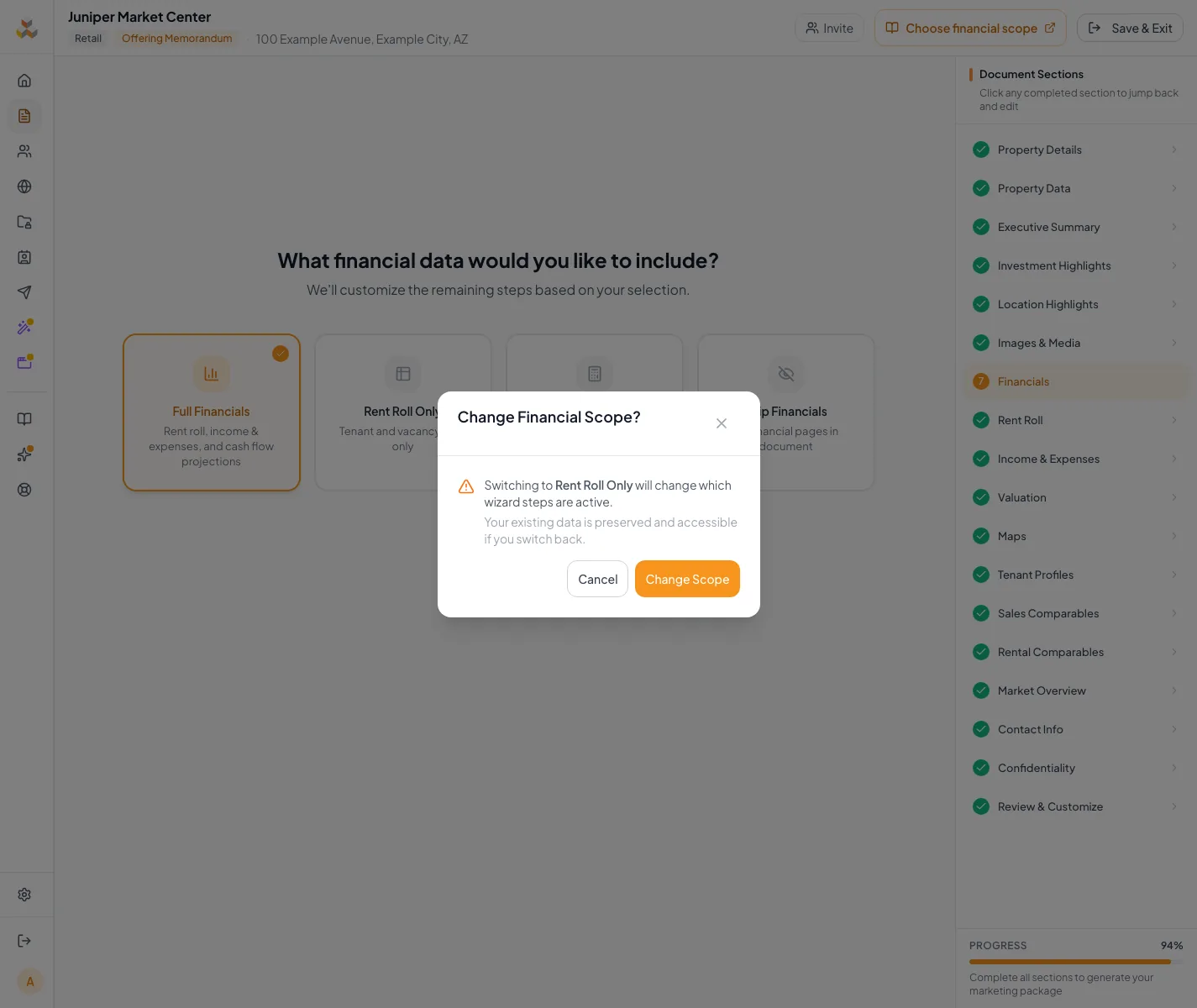
Choose what financials go in the document and review the pages it includes. - 6
Apply the changes
Apply financials changes? > Apply changes
Select Apply changes.
Expected result: The setup saves and the wizard navigation updates to the new step set.
If this step does not work
Select Edit setup on a financial step if the result is not what you intended.
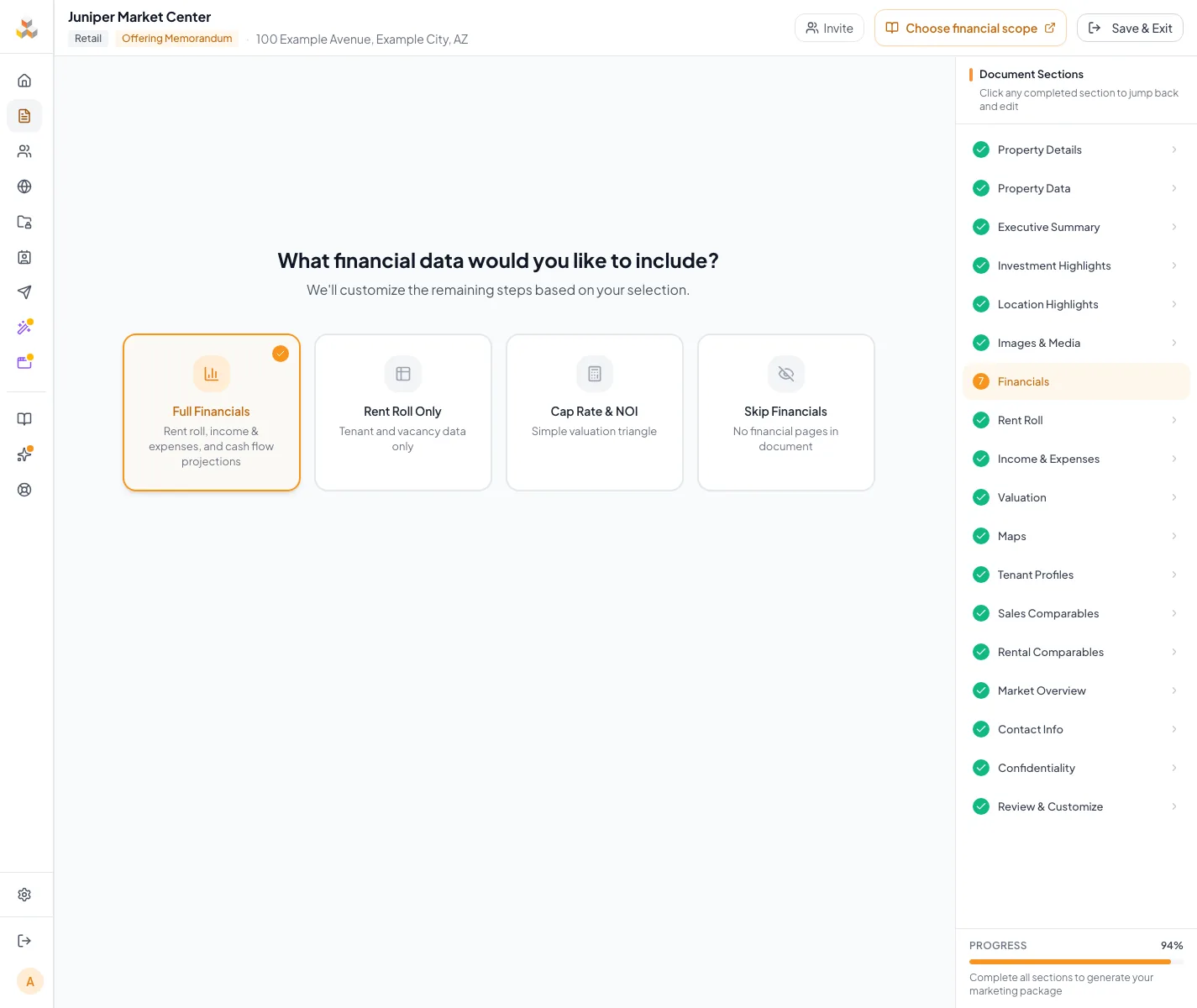
Choose a different financial setup, apply the changes and review the updated wizard sections. - 7
Verify the output
Review & Customize
Compare the visible financial pages with the summary card and the matrix.
Expected result: Only the intended native financial pages remain.
If this step does not work
Wait for pending saves, then reopen the preview. Inspect any custom pages separately.
Examples of lines in Apply financials changes?
- The Income & Expenses and Valuation steps are hidden and their pages are removed from the document. Your entered data is kept.
- Your 4 rows will each become a group of 1. Set the number of units for each group on the Rent Roll. Unit numbers are kept and come back if you switch back.
- Adds a Pro Forma rent column for each of your 4 rows (blank until you fill it).
- Pro Forma rents on 2 rows are kept but hidden.
Resolve setup surprises
Rent roll only is missing
Likely cause: The document is a BOV or the property type is Single Tenant Net Lease.
- Use Full financials if a native rent roll must be shown.
- Use Price, NOI & cap rate only when only headline facts are required.
No financials is missing on a BOV
Likely cause: A BOV offers only Full financials and Price, NOI & cap rate only, because its valuation page is the deliverable.
- Choose Price, NOI & cap rate only for the leanest BOV valuation.
- Choose Full financials for a model-backed NOI.
An expected financial page or step is missing
Likely cause: The Question 1 choice, property type, document type, or template excludes it.
- Open Financials Setup and read the summary card: the page list and Next steps.
- Choose the option that includes the page, then select Continue.
- Confirm the result in Review & Customize.
The rent-roll layout or projection questions are missing
Likely cause: Questions 2 and 3 appear only for Full financials and Rent roll only. Hospitality and Single Tenant Net Lease use their own editors, and Mixed-Use chooses layout per component.
- Choose an option that includes a rent roll.
- For Mixed-Use, choose each component layout on Rent Roll by Component.
An unexpected portfolio financial page remains
Likely cause: Portfolio Financial Summary has separate assembly behavior.
- Inspect the page list in Review & Customize.
- Confirm the final document page set before publishing.
- Contact support if the saved setup and assembled pages disagree.
Done when
- The selected option matches the assignment
- Wizard steps match Next steps on the summary card
- Review & Customize contains the expected pages
- Saved detailed data is not assumed deleted
Related guides
Complete a full financial analysis
Go from rent roll to finished financial pages in one pass: rent roll, income and expenses, valuation, and a cash flow or pro forma your buyers can read.
Open guideVerify financial pages before publishing
Do a final pass on the financial pages before you send: the right pages, the right labels, and numbers that tie out.
Open guideBuild a Land document
Market a site with acreage, zoning, entitlements, utilities, access, and Price/Acre, without rent-roll pages getting in the way.
Open guideYour next OM, done this afternoon
Turn your property facts, photos and financials into a polished, branded offering memorandum. Most brokers finish in 30 to 90 minutes.
No credit card required.