Outcome
Your Room Inventory lists every room type, and weighted ADR, RevPAR, and annual room revenue match your hotel underwriting.
Navigation path
Document wizard > Rent Roll > Room Inventory
Access
A Hospitality document with Rent Roll included
On this page
Before you start
Data, sources, and access to prepare
- A Hospitality property type
- Room type and count schedule
- Current ADR and occupancy assumptions
Understand the hotel calculation
Room revenue calculation
Room count, ADR, and occupancy combine into room revenue.
Room count
Keys in the category
ADR
Average daily rate
Occupancy
Occupied room percentage
RevPAR
ADR x occupancy
Annual room revenue
RevPAR x 365 x rooms
- ADRRevPAR
- OccupancyRevPAR
- RevPARAnnual room revenue
- Room countAnnual room revenue
Complete hotel-specific fields
Hotel uses a dedicated cash-flow editor
Room Inventory feeds a multi-year cash flow with ADR growth. Room revenue already reflects occupancy, so the General Vacancy Factor is not offered for hotels. Pro Forma is not available for Room Inventory.
Room Type Required
The inventory category, such as Standard, Deluxe, or Suite.
- Format
- Plain-text category name
- Units
- Not applicable
- Save behavior
- Saved with the Room Inventory rows when Continue succeeds.
- Downstream effect
- Labels the category in Room Inventory and hotel financial output.
Room Count Required
Keys represented by the category.
- Format
- Positive whole number
- Units
- Rooms or keys
- Save behavior
- Saved with the Room Inventory rows when Continue succeeds.
- Downstream effect
- Adds to Total Rooms and multiplies category RevPAR into annual room revenue.
Average SF Optional
Typical room area.
- Format
- Positive number
- Units
- Square feet per room
- Save behavior
- Saved with the Room Inventory rows when Continue succeeds.
- Downstream effect
- Provides room-size context in inventory output; it does not replace the subject property area.
ADR Required
Average Daily Rate for one occupied room.
- Format
- Positive currency amount
- Units
- Currency per occupied room per day
- Save behavior
- Saved with the Room Inventory rows when Continue succeeds.
- Downstream effect
- Recalculates weighted ADR, RevPAR, and annual room revenue.
Occupancy Rate Recommended
Occupied-room percentage applied to every room category.
- Format
- Percentage
- Units
- Percent of available rooms
- Save behavior
- Saved with the Room Inventory rows when Continue succeeds.
- Downstream effect
- Applies to room categories when calculating RevPAR and annual room revenue.
ADR Growth Rate Optional
Annual ADR growth used by the cash-flow projection.
- Format
- Percentage
- Units
- Percent per projected year
- Save behavior
- Saved with the Room Inventory rows when Continue succeeds.
- Downstream effect
- Compounds room rates in projected cash-flow years.
RevPAR Calculated
ADR multiplied by occupancy.
- Format
- Read-only calculated currency
- Units
- Currency per available room per day
- Save behavior
- No direct entry. Recalculates automatically from saved ADR and occupancy inputs.
- Downstream effect
- Feeds annual room revenue and the hotel analysis summary.
Room Type
- Requirement
- Required
- What it means
- The inventory category, such as Standard, Deluxe, or Suite.
- Format
- Plain-text category name
- Units
- Not applicable
- Save behavior
- Saved with the Room Inventory rows when Continue succeeds.
- Downstream effect
- Labels the category in Room Inventory and hotel financial output.
Room Count
- Requirement
- Required
- What it means
- Keys represented by the category.
- Format
- Positive whole number
- Units
- Rooms or keys
- Save behavior
- Saved with the Room Inventory rows when Continue succeeds.
- Downstream effect
- Adds to Total Rooms and multiplies category RevPAR into annual room revenue.
Average SF
- Requirement
- Optional
- What it means
- Typical room area.
- Format
- Positive number
- Units
- Square feet per room
- Save behavior
- Saved with the Room Inventory rows when Continue succeeds.
- Downstream effect
- Provides room-size context in inventory output; it does not replace the subject property area.
ADR
- Requirement
- Required
- What it means
- Average Daily Rate for one occupied room.
- Format
- Positive currency amount
- Units
- Currency per occupied room per day
- Save behavior
- Saved with the Room Inventory rows when Continue succeeds.
- Downstream effect
- Recalculates weighted ADR, RevPAR, and annual room revenue.
Occupancy Rate
- Requirement
- Recommended
- What it means
- Occupied-room percentage applied to every room category.
- Format
- Percentage
- Units
- Percent of available rooms
- Save behavior
- Saved with the Room Inventory rows when Continue succeeds.
- Downstream effect
- Applies to room categories when calculating RevPAR and annual room revenue.
ADR Growth Rate
- Requirement
- Optional
- What it means
- Annual ADR growth used by the cash-flow projection.
- Format
- Percentage
- Units
- Percent per projected year
- Save behavior
- Saved with the Room Inventory rows when Continue succeeds.
- Downstream effect
- Compounds room rates in projected cash-flow years.
RevPAR
- Requirement
- Calculated
- What it means
- ADR multiplied by occupancy.
- Format
- Read-only calculated currency
- Units
- Currency per available room per day
- Save behavior
- No direct entry. Recalculates automatically from saved ADR and occupancy inputs.
- Downstream effect
- Feeds annual room revenue and the hotel analysis summary.
Required means the field is needed to complete or support this workflow. Some screens allow a draft to save before every required item is complete. The steps and troubleshooting call out controls the product actively blocks.
Enter and save room inventory
Save Room Data saves the inventory without leaving the step, and Continue also saves it. On a phone, select Edit room type to open all fields for that category in a full-width sheet. RevPAR and revenue are calculated, so change the room count, ADR, or occupancy to change them.
Hotel inventory steps
- 1
Set occupancy and growth
Room Inventory header, Occupancy Rate and ADR Growth Rate
Enter the current occupancy percentage and annual ADR growth assumption.
Expected result: Weighted ADR, RevPAR, and projected revenue update.
If this step does not work
If the values look wrong, confirm occupancy is a percentage and ADR is a daily amount.
- 2
Review starter categories
Room Inventory rows
Rename, edit, or remove Standard, Deluxe, and Suite starter rows to match the source inventory.
Expected result: Only relevant room categories remain.
If this step does not work
Do not leave unused starter rows with positive counts or ADR.
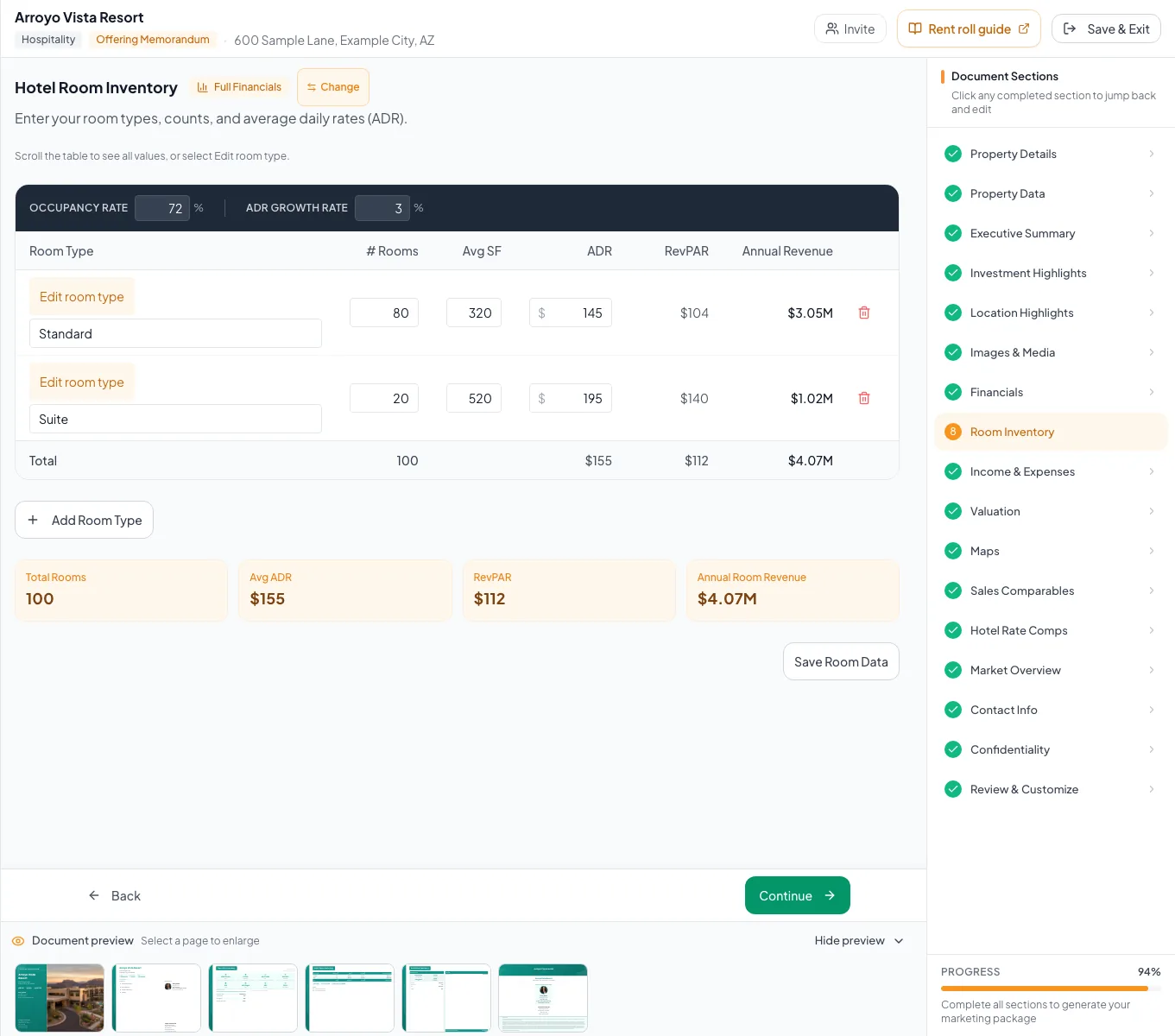
Build the room inventory and confirm that Average Daily Rate, occupancy, and RevPAR values describe the hotel correctly. - 3
Enter every category
Room Inventory rows
For each room type, enter name, count, optional average SF, and ADR.
Expected result: Each valid row displays calculated revenue.
If this step does not work
Rows need a name, room count above zero, and ADR above zero to satisfy Continue.
- 4
Reconcile the summary
Room Inventory totals
Compare total keys, weighted ADR, RevPAR, and annual room revenue with the source underwriting.
Expected result: Displayed metrics reconcile or documented differences are understood.
If this step does not work
Correct category counts, occupancy, or ADR one at a time to isolate the mismatch.
- 5
Continue and persist rows
Bottom of Room Inventory
Select Continue after every required row is complete.
Expected result: Hotel rows save and the wizard advances.
If this step does not work
If nothing happens, inspect each row for a missing name, zero count, or zero ADR.
Resolve hotel inventory problems
Continue does not advance and no message appears
Likely cause: At least one row lacks a name, positive room count, or positive ADR.
- Inspect each row.
- Complete or remove invalid rows.
- Retry Continue.
Revenue is too high
Likely cause: ADR may have been entered as monthly revenue, occupancy may be overstated, or room counts may be duplicated.
- Confirm ADR is per occupied room per day.
- Confirm occupancy percent.
- Reconcile the sum of room counts.
Pro forma is not offered
Likely cause: The dedicated hotel inventory currently forces its cash-flow format.
- Use ADR Growth for the annual projection.
- Use the Income & Expenses and valuation steps for the remaining hotel analysis.
Hotel inventory complete
- Total Rooms matches your key count
- Every category has a positive ADR
- Occupancy Rate matches your underwriting
- RevPAR and Annual Room Revenue tie to your source
Related guides
Build a Hospitality document
Build a hotel OM from room inventory, ADR, and occupancy, with RevPAR, room revenue, hotel rate comps, and Price/Key calculated for you.
Open guideEnter income and operating expenses
Enter other income and operating expenses from your T-12 or budget, and CREBuilder calculates effective gross income and NOI for every page that shows them.
Open guideRead and verify the cash-flow projection
Read the Multi-Year Cash Flow line by line, from base rent to cash flow after debt, so you can explain every number to a buyer.
Open guideYour next OM, done this afternoon
Turn your property facts, photos and financials into a polished, branded offering memorandum. Most brokers finish in 30 to 90 minutes.
No credit card required.