Outcome
Enter a comparable once and bring it into your next document.
Navigation path
Comps Library
Access
CREBuilder account
On this page
Worked example
Before you start
Data, sources, and access to prepare
- Comps Library
Complete the task
- 1
Create a library entry
Comps Library
Use Add comparable in the Sales or Rental tab to enter the property and transaction details before saving the form.
Expected result: The entry appears in the selected library tab.
If this step does not work
Check required fields and retry if the form reports an error.
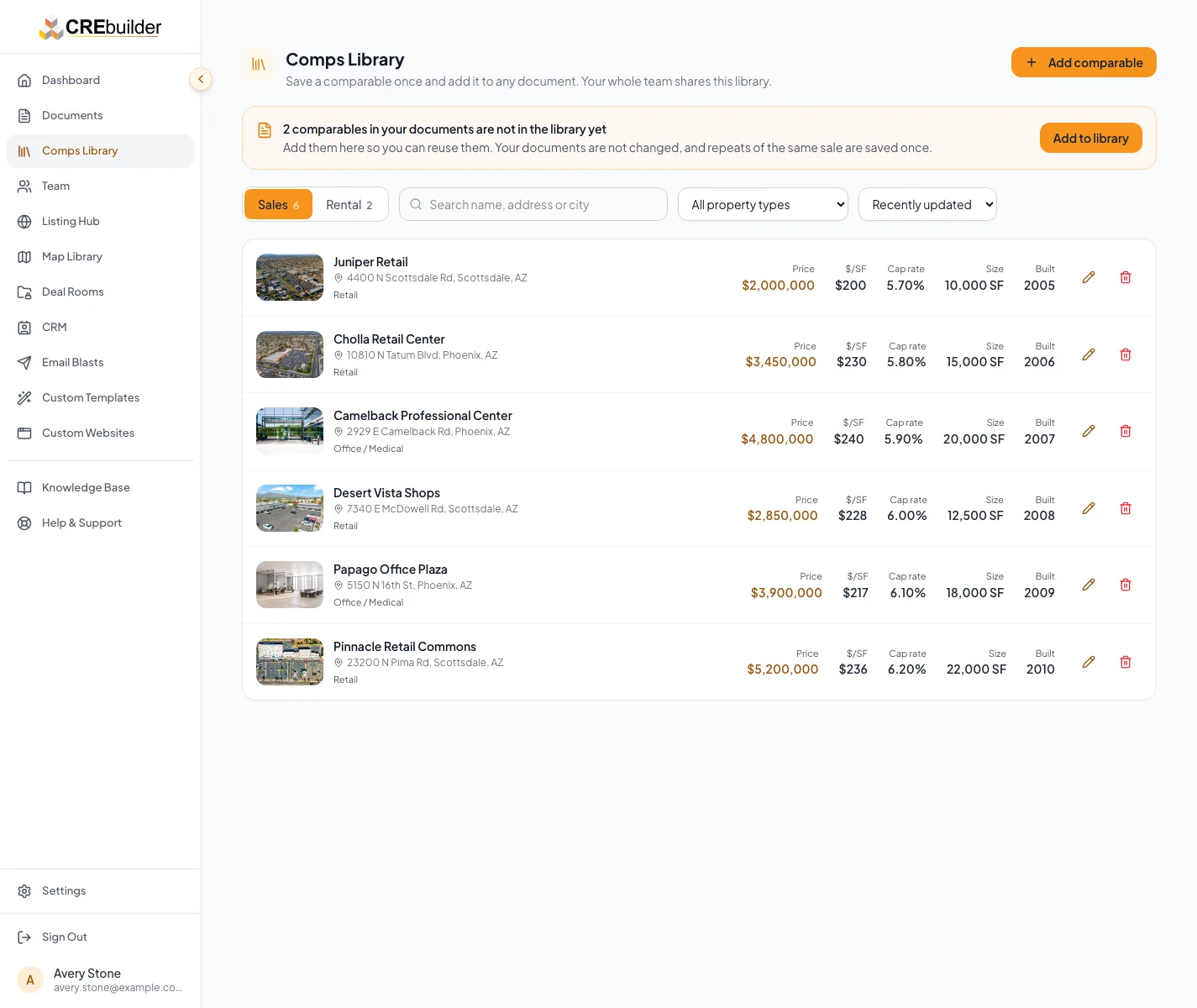
Use Add comparable in the Sales or Rental tab to enter the property and transaction details before saving the form. - 2
Bring entries into a document
Sales Comparables or Rental Comparables
Use Add from library to select entries for Add comparable, or Add 2 comparables when two are selected.
Expected result: The document contains its own copies of the selected entries.
If this step does not work
Already-added entries cannot be selected again; check the document cards.
- 3
Keep a new document comp
Comparable add form
Leave Save to my comps library selected when you want to reuse the new entry.
Expected result: After saving, confirm the entry in Comps Library.
If this step does not work
If the document saves but the library entry is missing, reopen the library before trying again.
- 4
Refresh a document copy
Comparable card: Library has changes. Update
When a library entry changes, choose the Library has changes button on that comparable card to bring those changes into this document.
Expected result: The document copy reflects the updated library facts.
If this step does not work
If another edit conflicts, reload the latest document and review before retrying.
- 5
Choose whether to share an edit
Comparable edit form
Select Also update it in my comps library when your document edit should update the library too.
Expected result: The saved library entry carries the intended change.
If this step does not work
Open the library and confirm the result after saving.
Result check
Verify before you finish
- Open the destination document again. Confirm the saved copy contains the intended information and that a later library edit has not changed it automatically.
Troubleshooting
Create your first entry
- Check required fields and retry if the form reports an error.
Bring entries into a document
- Already-added entries cannot be selected again; check the document cards.
Keep a new document comp
- If the document saves but the library entry is missing, reopen the library before trying again.
Refresh a document copy
- If another edit conflicts, reload the latest document and review before retrying.
Choose whether to share an edit
- Open the library and confirm the result after saving.
Cautions
Library edits do not automatically rewrite documents. Members can add and edit shared entries; only the creator or a team administrator can remove an entry. Removing a library entry leaves document copies intact. Entries with the same complete address, type and sale date can match an existing entry; an incomplete address does not deduplicate. Keep private notes appropriate for your company library.
Verify before you finish
- Open the destination document again. Confirm the saved copy contains the intended information and that a later library edit has not changed it automatically.
Related guides
Add and organize sales comparables
Add sales comps and active listings with photos, and CREBuilder calculates price per SF, unit, or key and the average cap rate for you.
Open guideAdd rental and hotel rate comparables
Back up your rent assumptions with market-rent comps, or ADR, occupancy, and RevPAR comps for hotels.
Open guideYour next OM, done this afternoon
Turn your property facts, photos and financials into a polished, branded offering memorandum. Most brokers finish in 30 to 90 minutes.
No credit card required.