Outcome
Your company is approved for CREBuilder Mail and the current sending agreement is accepted, so you can start sending.
Navigation path
Settings > Email sending > CREBuilder Mail
Access
Included with any paid CREBuilder plan. Saved drafts and send history stay listed if a subscription lapses.
On this page
Before you start
Data, sources, and access to prepare
- A company workspace
- A short description of what you will send and where your recipients came from
- Company authority before accepting legal terms
Prepare a request the reviewer can evaluate
Sending purpose Required
The business reason and kind of message you plan to send
- Format
- Not applicable
- Units
- Not applicable
- Save behavior
- Not a separate field. Include it in the access-request note, which is stored only when Submit request succeeds.
- Downstream effect
- Gives the Mail reviewer the message context needed for the access decision.
Recipient origin Required
How the company collected and obtained permission for the audience
- Format
- Not applicable
- Units
- Not applicable
- Save behavior
- Not a separate field. Include it in the access-request note, which is stored only when Submit request succeeds.
- Downstream effect
- Lets the reviewer evaluate first-party provenance and consent risk.
Useful detail Required
A concise explanation between 20 and 2,000 characters
- Format
- Plain text
- Units
- Characters
- Save behavior
- Stored with the access request when Submit request succeeds.
- Downstream effect
- Supplies the reviewable record used to approve, deny, or clarify hosted sending access.
Compliance readiness Required
Ability to honor consent, unsubscribe, suppression, and lawful business-address requirements
- Format
- Not applicable
- Units
- Not applicable
- Save behavior
- Not a separate field. Describe your process in the submitted request note.
- Downstream effect
- Informs access review but does not replace the product’s agreement, address, suppression, or send-time gates.
Sending purpose
- Requirement
- Required
- What it means
- The business reason and kind of message you plan to send
- Format
- Not applicable
- Units
- Not applicable
- Save behavior
- Not a separate field. Include it in the access-request note, which is stored only when Submit request succeeds.
- Downstream effect
- Gives the Mail reviewer the message context needed for the access decision.
Recipient origin
- Requirement
- Required
- What it means
- How the company collected and obtained permission for the audience
- Format
- Not applicable
- Units
- Not applicable
- Save behavior
- Not a separate field. Include it in the access-request note, which is stored only when Submit request succeeds.
- Downstream effect
- Lets the reviewer evaluate first-party provenance and consent risk.
Useful detail
- Requirement
- Required
- What it means
- A concise explanation between 20 and 2,000 characters
- Format
- Plain text
- Units
- Characters
- Save behavior
- Stored with the access request when Submit request succeeds.
- Downstream effect
- Supplies the reviewable record used to approve, deny, or clarify hosted sending access.
Compliance readiness
- Requirement
- Required
- What it means
- Ability to honor consent, unsubscribe, suppression, and lawful business-address requirements
- Format
- Not applicable
- Units
- Not applicable
- Save behavior
- Not a separate field. Describe your process in the submitted request note.
- Downstream effect
- Informs access review but does not replace the product’s agreement, address, suppression, or send-time gates.
Required means the field is needed to complete or support this workflow. Some screens allow a draft to save before every required item is complete. The steps and troubleshooting call out controls the product actively blocks.
Submit once and wait for review
- 1
Open the request form
Settings > Email sending > CREBuilder Mail
Select Request access only when the loaded status is No request.
Expected result: The request text area and policy explanation appear.
If this step does not work
If status is unavailable, retry the status request first. Do not assume No request.
- 2
Describe purpose and provenance
CREBuilder Mail request form
Enter 20 to 2,000 characters explaining message content and first-party recipient origin.
Expected result: Submit request becomes available and the note gives the reviewer usable context.
If this step does not work
If the audience includes purchased, rented, scraped, or uncertain addresses, stop and clean the list before requesting hosted sending.
- 3
Review the request note
CREBuilder Mail request form
Read the complete purpose and provenance note.
Expected result: The note accurately describes the planned content and first-party audience source.
If this step does not work
Correct an incomplete or inaccurate statement before submission.
- 4
Submit once
Request form > Submit request
Select Submit request once.
Expected result: Status becomes Requested and CREBuilder sends the decision when review completes.
If this step does not work
Do not refresh-submit or create duplicate requests. Preserve any displayed error and retry only when the request clearly failed.
- 5
Respond to the decision
Email sending status and decision email
Follow the next action specified by the access state.
Expected result: Approved access leads to the agreement, while denied or revoked access provides support direction.
If this step does not work
Denied and revoked states do not normally expose a fresh request form. Follow support rather than trying to bypass the decision.
Accept the exact current agreement
Versioned agreement gate
Acceptance applies to one immutable version. A new version requires a new review and acceptance.
Access approved
Current agreement version
Authorized company signer attests
Version accepted
New version published
- Access approvedCurrent agreement version
- Current agreement versionAuthorized company signer attests
- Authorized company signer attestsVersion accepted
- Version acceptedNew version publishedlater
- New version publishedCurrent agreement versionreview again
- 1
Open the current agreement
Email sending > Review sending agreement
Read every displayed commitment and linked terms.
Expected result: The full current version and version number are visible.
If this step does not work
If the page cannot load the agreement, close and retry. Do not accept unseen terms.
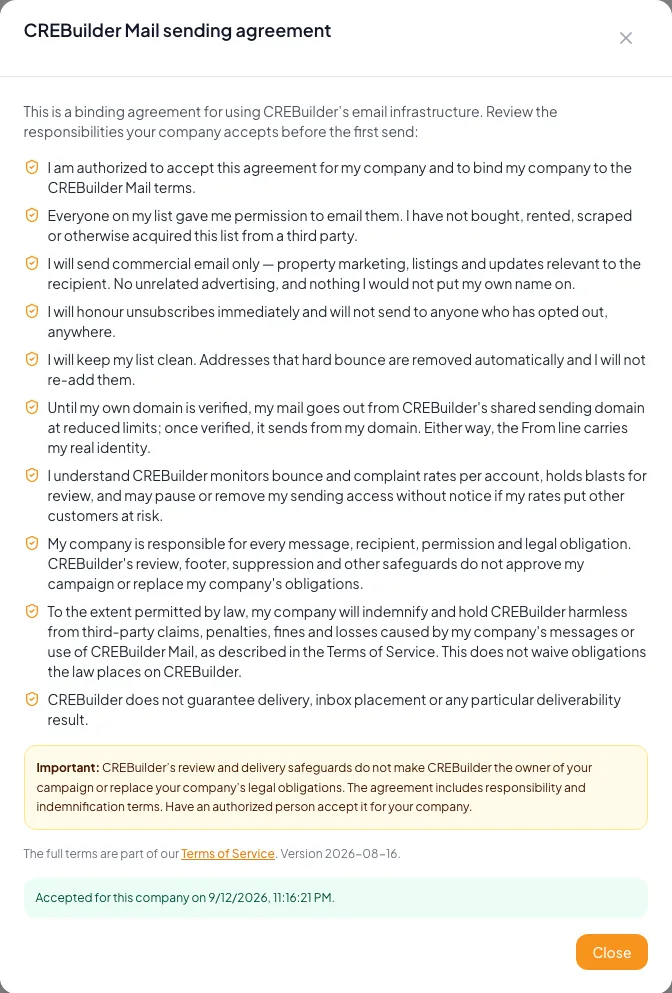
Submit the required request information, review the agreement state, and wait for activation before attempting to send. - 2
Confirm company authority
Agreement dialog > authorization checkbox
Check the statement only if you are authorized to bind the company.
Expected result: The accept control becomes available for the displayed version.
If this step does not work
If you are not authorized, close the dialog and ask the appropriate company signer.
- 3
Accept that version
Agreement dialog > Accept & continue
Select Accept & continue once.
Expected result: The acceptance date and current-version status appear in settings.
If this step does not work
If a stale-version conflict says the agreement changed, reload and review the new version before another acceptance.
- 4
Review the accepted snapshot later
Email sending > Review sending agreement
Open the read-only accepted agreement when an audit requires the exact signed text.
Expected result: The immutable accepted version and date are shown.
If this step does not work
Do not substitute today’s current text for the historical accepted snapshot.
Handle access and agreement edge states
Submit request is disabled
Likely cause: The request note is shorter than 20 useful characters, status is not No request, or a request is already pending.
- Check the access state.
- Write a specific purpose and recipient-origin note.
- Wait if Requested is shown.
The request was denied or access revoked
Likely cause: The deliverability or policy review does not permit hosted sending.
- Read the displayed decision.
- Use the support path for correction or appeal.
- Do not use a different company identity to avoid the decision.
Agreement acceptance returns a version conflict
Likely cause: The agreement changed after the dialog loaded.
- Reload the dialog.
- Read the new version in full.
- Confirm company authority and accept the new version.
Rules or sends stopped after terms were updated
Likely cause: A newer agreement version re-gates hosted delivery and contact-email automation.
- Open Email sending.
- Accept the current version if authorized.
- Re-enable affected automation rules only after readiness is restored.
Final verification
- Email sending > Review sending agreement: The full current version and version number are visible.
- Agreement dialog > authorization checkbox: The accept control becomes available for the displayed version.
- Agreement dialog > Accept & continue: The acceptance date and current-version status appear in settings.
- Email sending > Review sending agreement: The immutable accepted version and date are shown.
- No blocking warning, failed status, or unresolved validation message remains in the completed workflow.
Your next OM, done this afternoon
Turn your property facts, photos and financials into a polished, branded offering memorandum. Most brokers finish in 30 to 90 minutes.
No credit card required.