Outcome
You can read sending readiness and allowance, choose the right property structure, manage drafts safely, and interpret the hub’s latest 50 activity rows.
Navigation path
Email Blasts
Access
Included with any paid CREBuilder plan. Saved drafts and send history stay listed if a subscription lapses.
On this page
Before you start
Data, sources, and access to prepare
- At least one completed document to create a campaign
- Mail readiness for hosted sends, or an external campaign tool for downloaded HTML
Read the hub areas
| Hub area | What it controls |
|---|---|
| + New email | Opens the New email blast chooser for Individual property or Multi-property campaigns |
| Sending status | The company card: Ready to send or the current setup, review, or pause state, the From and Reply-To addresses, recipient sends available today and this month with the reset time, the campaign review state, and an Add sending capacity link to the Sending plan section in Settings |
| Pick up where you left off | Continue draft reopens your most recent autosaved draft |
| Activity filters | All activity, Drafts, Scheduled, In review, Sent, Previews, and Needs attention |
| Drafts | Autosaved campaigns with Edit, Duplicate, and permanent deletion confirmed with Delete draft |
| Recent activity | The latest 50 submissions with subject, sender, status, accepted and suppressed counts, scheduled time, and a historical provider label where applicable |
Know the delivery boundary before composing
Hosted Mail versus Download HTML
The same design can end at two very different responsibility boundaries.
CREBuilder campaign design
CREBuilder Mail
Recipients, suppression, review, schedule, and hosted send
Download HTML
No recipients or delivery
External campaign tool
User imports HTML, adds audience, and sends
- CREBuilder campaign designCREBuilder Mail
- CREBuilder campaign designDownload HTML
- Download HTMLExternal campaign tool
- 1
Review hosted readiness
Email Blasts > sending status card
Read the status title, the From and Reply-To addresses, and the available recipient sends.
Expected result: The card shows Ready to send or the current setup, review, pause, or unavailable state, with Set up sending or View setup where offered.
If this step does not work
If the status cannot load, select Check again. Download HTML stays available either way.
- 2
Compose with CREBuilder Mail
Composer > Content, Audience, Review & send
Keep CREBuilder Mail, the default sender, when CREBuilder should validate recipients, suppress protected addresses, review when required, and deliver separate messages.
Expected result: The Audience step shows recipient controls and the audience sending check.
If this step does not work
If Mail is not ready yet, keep the draft and finish setup. Recipients in the composer receive mail only through CREBuilder Mail.
- 3
Choose Download HTML
Composer footer > Download HTML
Use Download HTML when your own email platform will handle the list, scheduling, and delivery.
Expected result: The composer switches to Download / other apps, moves to Review & send, and the main button reads Download HTML.
If this step does not work
After download, import the file into the external system and perform its full compliance and audience workflow.
Start the right property structure and manage drafts
- 1
Start a new blast
Email Blasts > + New email
Choose Individual property or Multi-property in the New email blast chooser.
Expected result: The completed-document chooser opens in the matching selection mode.
If this step does not work
If no documents load, select Try again. If none are completed, return to Build and finish a listing.
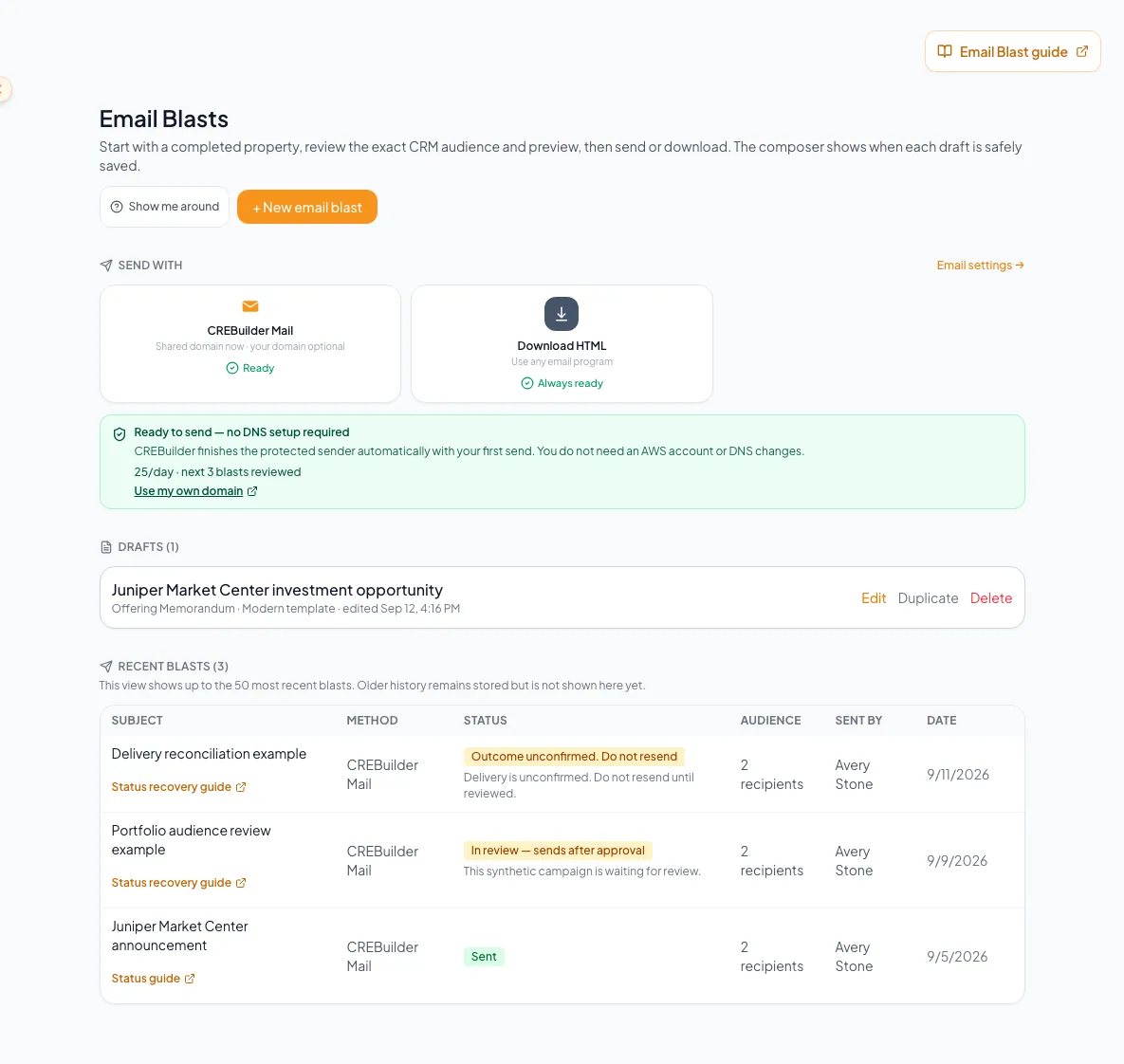
Use the hub to read sending readiness, resume or create a campaign, and filter the available campaign activity by status. - 2
Search completed documents
New email blast property chooser > Search
Enter the property name or address.
Expected result: The chooser narrows its completed-document results.
If this step does not work
The chooser displays up to the current first 100 results, so refine the search when the intended property is not visible.
- 3
Select completed source documents
New email blast property chooser > results
Choose one document for Individual property mode or at least two for Multi-property mode.
Expected result: The composer opens with the selected property data.
If this step does not work
Return to the chooser if an unintended property appears.
- 4
Resume or duplicate a draft
Email Blasts > Continue draft or Drafts
Select Continue draft for your latest draft, or Edit to continue another draft, or Duplicate to create an independent copy.
Expected result: Edit opens the draft; Duplicate adds a separate draft with copied design state.
If this step does not work
Confirm the source properties and current contact data after duplicating.
- 5
Review draft deletion
Drafts > Delete confirmation
Read the complete permanent-delete confirmation.
Expected result: The selected draft and irreversible effect are clear.
If this step does not work
Cancel if the draft or retained content has not been verified.
- 6
Delete the selected draft
Drafts > Delete confirmation
Select Delete draft.
Expected result: The draft leaves the hub without affecting source documents or sent history.
If this step does not work
There is no Trash recovery for this action. Duplicate or export needed content first.
Handle hub limitations and empty states
New email blast is unavailable on an inactive subscription
Likely cause: New campaign creation and hosted delivery require current paid access.
- Review the current subscription state.
- Preserve any past drafts or history that remain visible.
- Restore entitlement before creating or sending new work.
The property chooser is empty
Likely cause: No permitted document is completed, or the request failed.
- Read whether the screen says empty or error.
- Use Try again for an error.
- Complete an eligible source document, then return.
An older blast is not in Recent activity
Likely cause: The hub loads the latest 50 history rows, not an unlimited archive.
- Do not call the list full history.
- Use the status filters and the visible latest records for routine recovery.
- Contact support with subject, date, sender, and operation context when an older record is required.
A history row has a legacy provider label
Likely cause: Past integrations remain labeled historically even though new sends use CREBuilder Mail or HTML download.
- Treat the label as historical evidence.
- Do not expect that provider to be a current sending option.
- Use current Mail setup for new hosted sends.
Needs attention shows a Sent row
Likely cause: The campaign was accepted for some recipients and carries a warning about the rest.
- Read the warning on the row.
- Do not resend to the whole list.
- Follow the send history guide for partial results.
Final verification
- The selected delivery method is CREBuilder Mail for hosted sending or Download HTML for an external platform.
- The composer or resumed draft contains the intended completed source document or documents.
- If you duplicated a draft, the new draft is a separate copy of the intended design.
- If you intentionally deleted an obsolete draft, only that draft leaves the hub; source documents and sent history remain. Drafts you still need remain available.
- Recent history is interpreted within its latest-50-row scope. Opening or saving a draft does not send a campaign.
Your next OM, done this afternoon
Turn your property facts, photos and financials into a polished, branded offering memorandum. Most brokers finish in 30 to 90 minutes.
No credit card required.