Outcome
You can submit one campaign for immediate or scheduled sending, understand any review hold, and follow its recorded outcome without creating a duplicate.
Navigation path
Email Blasts > Composer > Review & send
Access
Included with any paid CREBuilder plan. Saved drafts and send history stay listed if a subscription lapses.
On this page
Before you start
Data, sources, and access to prepare
- A complete campaign design
- A consent-reviewed unique audience of 1 to 500
- Mail settings ready and enough displayed allowance
Confirm everything is ready to send
| Gate | What must be true |
|---|---|
| Paid sending access and readiness | The account has paid sending access and Mail readiness permits a new hosted send. |
| Subject and content | Subject is present and no more than 300 characters; links, images, source facts, and responsive preview were reviewed. |
| Audience | Enter no more than 500 strict-valid unique addresses before suppression. Suppressed addresses are then removed, and at least one recipient must remain. |
| Company sending | Sending is activated or approved, current terms are accepted, and the company is not paused. |
| Compliance address | Street, city, state, and ZIP or postal code are complete. |
| Platform and sender | CREBuilder Mail is available and your shared or verified sender is ready. |
| Audience sending check | The server check reports the audience as ready, with enough available recipient sends for this audience. |
| Allowance | Displayed daily, monthly, and any ramp-adjusted capacity covers the effective audience. |
| Review | The audience and account review policy is accepted, including any hold before sending. |
| Schedule | Send now, or a scheduled time between 5 minutes and 30 days ahead. |
The server checks before and again when you send
The Audience sending check runs the same policy as sending: normalized recipients, duplicates, suppression, provenance, sender, address, agreement, review classification, available capacity, and the requested schedule. When you confirm, CREBuilder runs it again, so a last-minute change or another company send cannot slip through. A passing check is not a promise that transport will succeed later.
Understand review and allowance behavior
New approved CRM sender
- Review behavior
- The first clean CRM campaigns normally go to human review; the screen shows how many remain.
- Allowance behavior
- Uses current displayed account limits.
Uploaded-classified audience
- Review behavior
- Every campaign is held for human review.
- Allowance behavior
- Uses half the displayed allowance.
Always-review account mode
- Review behavior
- Every campaign is held regardless of audience source.
- Allowance behavior
- Uses displayed account and ramp limits.
Verified new domain
- Review behavior
- Review policy still applies.
- Allowance behavior
- Daily capacity can start below the nominal cap and increase over the first weeks.
Platform capacity paused
- Review behavior
- Campaigns cannot send until the pause ends.
- Allowance behavior
- Wait for the displayed recovery rather than retrying around the pause.
What the screen should tell you
- Recipient sends available today and this month, and when the daily allowance resets
- The recipient sends available now for this specific audience, including the imported-list sub-allowance
- Any warm-up restriction is reflected in the displayed daily allowance
- How many upcoming clean campaigns remain in review
- Whether the audience is treated as imported or unconfirmed
- Whether Mail is paused, declined, or unavailable
- Whether a held campaign is waiting for a human decision
Go by the limits on screen
Account overrides, warm-up, recipient provenance, and current platform capacity can change the usable amount. Do not rely on a hard-coded allowance from an older guide.
Submit once and interpret the immediate result
- 1
Run the final content preview
Composer > Desktop, Mobile, and full preview
Read subject, message, every property, image, metric, link, broker identity, signature expectation, and footer context.
Expected result: The final rendered message is accurate at desktop and mobile widths.
If this step does not work
Correct the draft and wait for autosave before continuing.
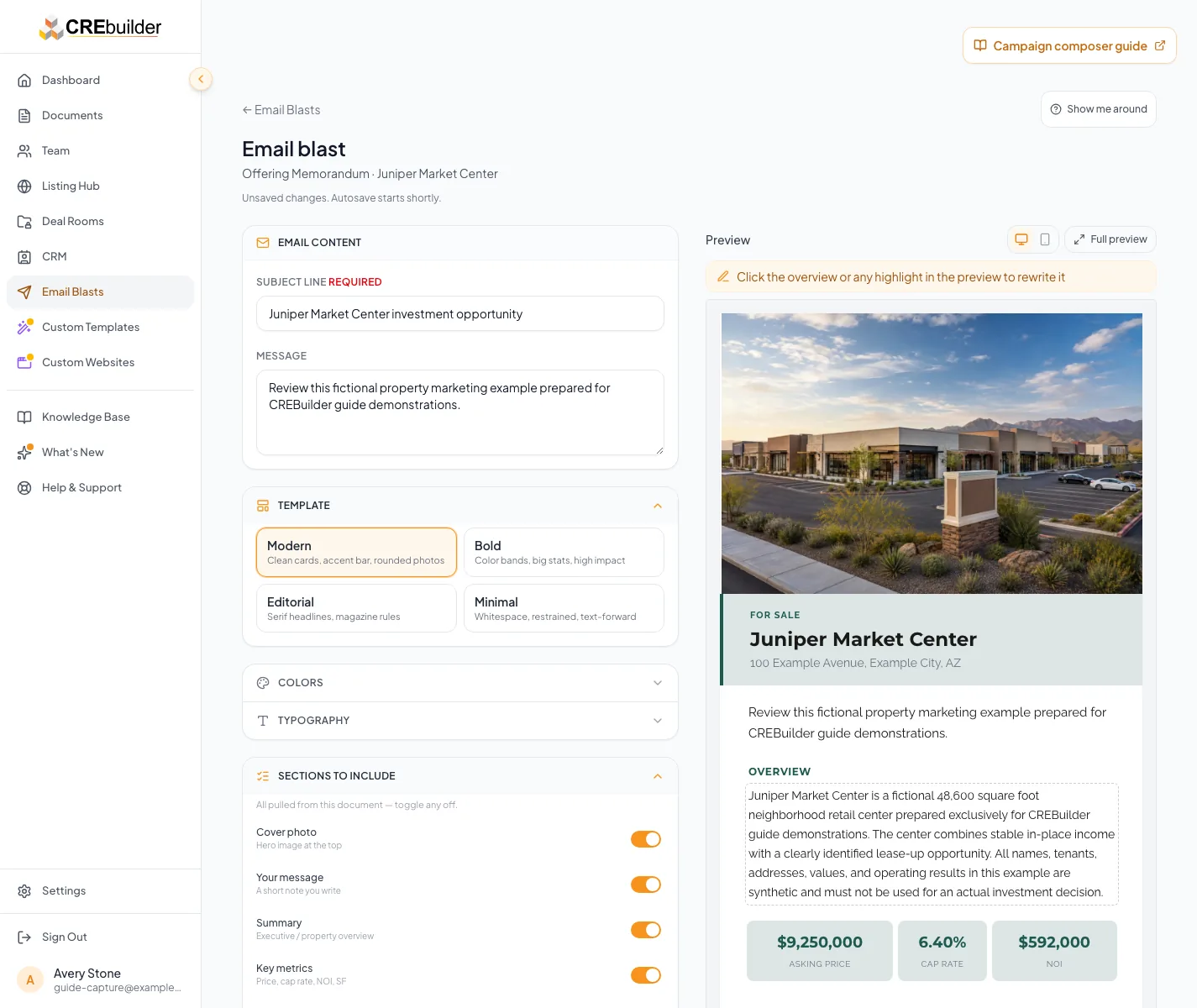
Inspect the full preview, send yourself a preview, then review the displayed recipient count, allowance, schedule, and sending readiness. The server performs its final checks when you submit. - 2
Send yourself the real email
Composer footer > Send preview to me
Select Send preview to me.
Expected result: The provider accepts a preview addressed to your verified account email with the compliance footer and enabled signature, and the hub records it under Previews. Check your inbox and filtering for the message.
If this step does not work
If the button reads Verify email for previews, verify your email in Settings first. You can send up to 10 previews per rolling hour. Each uses one recipient send from the daily and monthly allowance and does not count toward review graduation.
- 3
Open Review & send
Composer > step bar > Review & send
Select Review & send.
Expected result: The step shows the subject, the selected recipient and property counts, Edit audience, the Sending details card, and the audience sending check.
If this step does not work
If the summary says Add a subject in Content, return to Content first.
- 4
Clear every listed blocker
Review & send > Fix items before sending
Open each listed item with its action, such as Open email settings, Review agreement, Open company profile, or Check again.
Expected result: The list disappears and Send from CREBuilder Mail becomes available.
If this step does not work
Fix each listed blocker, starting with the first, then return to check the updated list.
- 5
Run the final audience review
Review & send > summary and Audience sending check
Confirm source classification, unique count, invalid count, suppressed count, consent, review path, available sends, and reset time.
Expected result: The audience is permitted, strict-valid, no more than 500, and understood.
If this step does not work
Remove uncertain or invalid recipients. Re-import any file that disappeared after reload.
- 6
Review Mail state
Review & send > Sending details
Confirm Ready to send, the From name and address, and enough available recipient sends today and this month. The compact card does not show the agreement, Reply-To, or business address.
Expected result: The Send action reflects a current ready state.
If this step does not work
If the status is unavailable, select Check again. Keep the draft and do not submit until the check succeeds.
- 7
Open the confirmation
Review & send > Send from CREBuilder Mail
Select Send from CREBuilder Mail.
Expected result: The Confirm hosted email send dialog shows the sender and Reply-To, business address, recipients after exclusions, subject, Schedule send, and the audience check. Review the current agreement in Settings when needed.
If this step does not work
If the button is unavailable, clear the Fix items list and wait for the audience check first.
- 8
Choose now or a scheduled time
Confirm hosted email send > Schedule send
Set Schedule send only when the campaign should go out at a later local time.
Expected result: Unchecked requests an immediate send, subject to required review. Checked shows Send at your local time for a time between 5 minutes and 30 days ahead.
If this step does not work
Weekends and US holiday blackout windows move the send to the next allowed weekday, potentially at a different clock time. Check the adjusted time shown in history.
- 9
Submit exactly once
Confirm hosted email send > Confirm and send, Submit for review, or Schedule blast
Select the one confirmation button shown one time.
Expected result: The button locks while the campaign submits, so an extra click cannot send a second copy.
If this step does not work
Keep the composer open until the result appears. If your browser blocks site storage, the send stops before anything goes out; allow storage and retry only when the app says nothing was sent.
- 10
Read the returned outcome
Composer result or Email Blasts hub
Read the returned status against the send history guide, including Sent, Scheduled, In review, Not sent: review declined, Canceled, Failed, Sending, and Outcome unconfirmed. Do not resend.
Expected result: The status tells you the next step.
If this step does not work
Held and Scheduled are not sent. Sending or Outcome unconfirmed may already have started sending, so do not create a duplicate send.
One send, one result
Extra clicks and retries resolve to the same send instead of creating a duplicate.
One Send action
One tracked send
Preflight and review gates
Terminal sent, rejected, failed, or held state
Sending or outcome unconfirmed
- One Send actionOne tracked send
- One tracked sendPreflight and review gates
- Preflight and review gatesTerminal sent, rejected, failed, or held state
- Preflight and review gatesSending or outcome unconfirmed
Know what CREBuilder appends and what Sent means
| Behavior | Meaning |
|---|---|
| Separate messages | CREBuilder submits a separate hosted message to each recipient, so no one sees the rest of the list. Suppression and later provider outcomes can reduce what is accepted or delivered. |
| Compliance footer | CREBuilder appends the complete company physical address and a personalized unsubscribe link at send time. |
| Signature | An enabled per-user sanitized signature is appended by hosted composition. |
| CSS inlining | Styles are prepared for email-client compatibility at the send boundary. |
| Sent status | The provider accepted or CREBuilder recorded the send attempts. It does not guarantee inbox placement or reading. |
| Analytics | No open or click analytics are exposed. Property metrics in the composer are listing facts, not engagement metrics. |
| Scheduling | Schedule send holds a hosted campaign for a time between 5 minutes and 30 days ahead. Weekends and US holiday blackout windows move the send to the next allowed weekday. Check the adjusted time in history. Scheduled does not confirm approval: any required human review must be complete, and allowance and suppression checks run again at release. Scheduling does not split a campaign across daily limits. |
| Preview to me | Send preview to me submits the rendered email to your own verified account address only. You can send up to 10 previews per rolling hour. Each counts one recipient against the company allowance, both daily and monthly, is never held for review, and does not count toward review graduation or earned sending volume. An active paid subscription and complete business address are required; provider acceptance does not confirm inbox placement. |
An immediate campaign is held for review
Likely cause: The account is in its clean-send runway, the audience is imported or unconfirmed, or the account uses always-review mode.
- Return to the hub and use the In review filter.
- Wait for the approval or rejection to appear there.
- Do not submit another copy.
The campaign shows Scheduled
Likely cause: You chose Schedule send. The row reserves a time but does not confirm that required human review is complete.
- Check the time shown on the row.
- Only the sender can select Cancel send on the Scheduled row before release if plans change.
- Any required human approval must be complete. Allowance and suppression checks run again at release. If the time passes, check the current outcome without resubmitting.
Preflight removed some recipients
Likely cause: The final suppression check found unsubscribes, hard bounces, or complaints.
- Accept the reduced final audience.
- Do not re-add protected addresses.
- If none remain, stop and rebuild only from permitted contacts.
The immediate outcome is unconfirmed
Likely cause: CREBuilder could not yet confirm whether the messages went out.
- Open Recent activity and retain the operation context.
- Do not resend.
- Wait for reconciliation or contact support with subject, time, sender, and status.
Verify before you finish
- The final subject, rendered content, sender identity, business address, and permitted audience match the intended campaign.
- The entered unique audience is no more than 500 before suppression, at least one allowed recipient remains, and the displayed allowance covers that audience.
- If you submitted a campaign, one history outcome records the result. In review and Scheduled do not prove delivery; any required human approval still applies.
- If you chose Schedule send, the adjusted time in history is acceptable. If you intentionally canceled it, Canceled confirms nothing was sent before you start a replacement email.
- If the outcome is Sending or Outcome unconfirmed, no replacement send has been submitted. Keep the operation context for reconciliation or support.
Your next OM, done this afternoon
Turn your property facts, photos and financials into a polished, branded offering memorandum. Most brokers finish in 30 to 90 minutes.
No credit card required.