Outcome
Settings shows CREBuilder Mail ready, or names the exact access, agreement, address, suspension, capacity, or domain action still required.
Navigation path
Settings > Email sending
Access
Included with any paid CREBuilder plan. Saved drafts and send history stay listed if a subscription lapses.
On this page
Before you start
Data, sources, and access to prepare
- A CREBuilder company workspace
- A complete street, city, state, and ZIP/postal code in the company profile
- Authority to accept the sending agreement when completing that step
Understand the readiness model
Required gates and optional domain upgrade
Hosted sending requires three company gates. CREBuilder provisions the protected sender. A custom domain is optional.
Access approved
Current agreement accepted
Complete physical business address
Protected shared sender ready
Optional custom domain with 3 DKIM CNAMEs
- Access approvedProtected shared sender ready
- Current agreement acceptedProtected shared sender ready
- Complete physical business addressProtected shared sender ready
- Protected shared sender readyOptional custom domain with 3 DKIM CNAMEsoptional upgrade
Read status before taking action
No request
- What it means
- The company has not requested hosted sending access.
- User action
- Describe the sending purpose and list origin, then submit.
Requested
- What it means
- Deliverability review is pending.
- User action
- Wait for the decision email. Do not submit duplicates.
Approved, agreement needed
- What it means
- Access is approved but the current agreement is unsigned or updated.
- User action
- Review and accept the displayed version if authorized.
Approved, address missing
- What it means
- Access and terms are current but company street, city, state, or ZIP/postal code is incomplete.
- User action
- Update the company profile, then reload readiness.
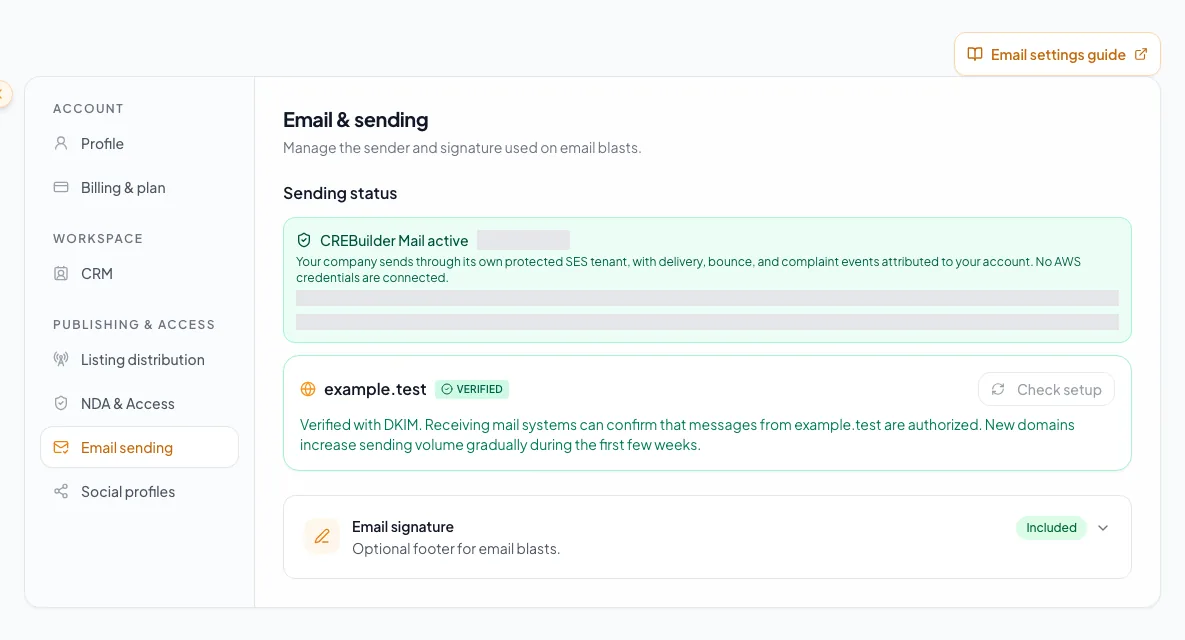
Ready on shared sender
- What it means
- Required gates pass and mail uses mail@send.crebuilder.com with your name and Reply-To.
- User action
- Compose within the displayed limits.
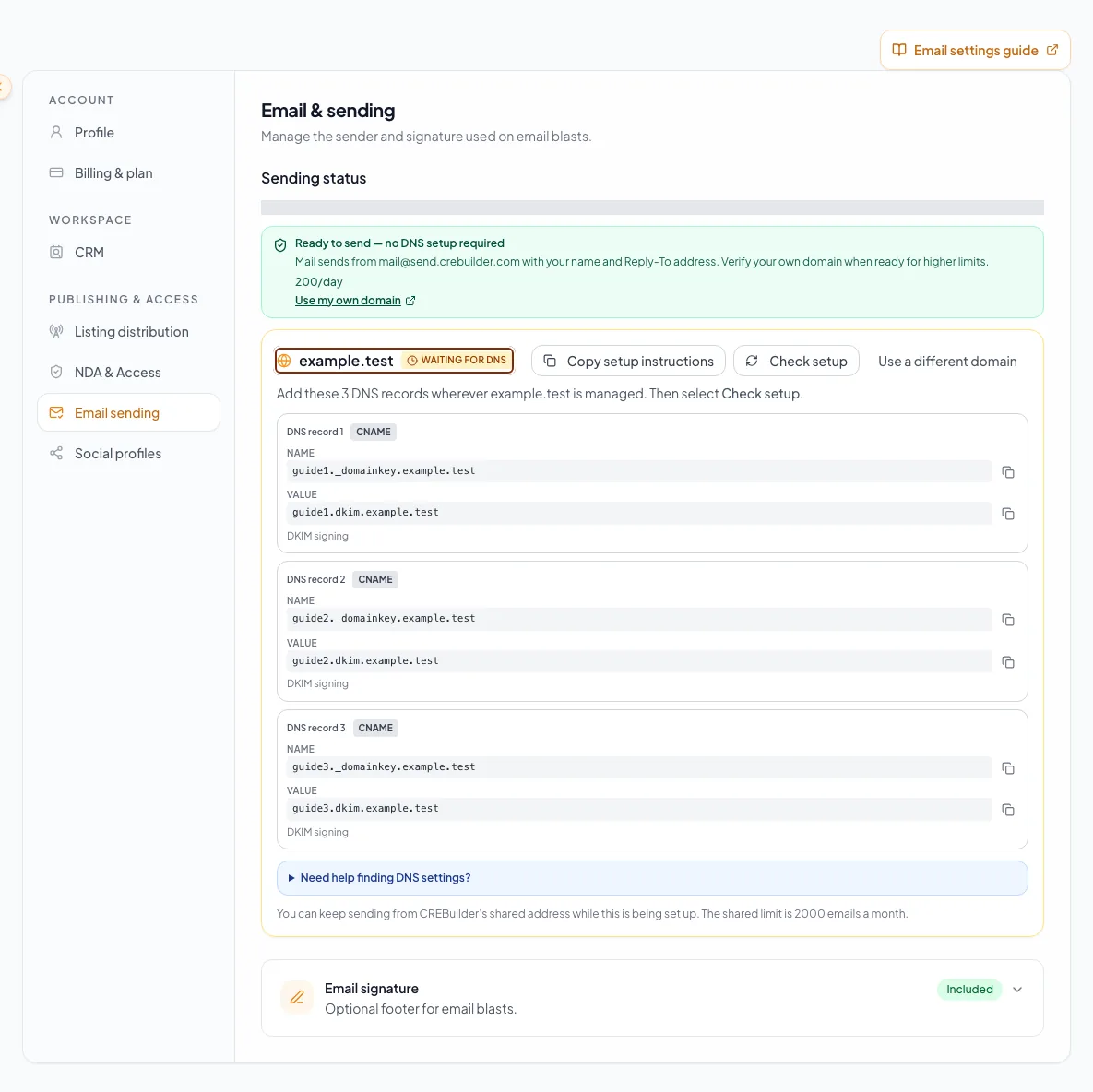
Custom domain pending or failed
- What it means
- Shared sending can continue, but domain authentication is not verified.
- User action
- Correct all three DKIM CNAMEs and check setup again.
Denied or revoked
- What it means
- Hosted access is unavailable for this company.
- User action
- Follow the displayed support path. The normal form does not create another request.
Suspended or temporarily paused
- What it means
- Sending is paused for your company or across CREBuilder Mail.
- User action
- Keep your draft. Resolve the displayed condition or wait for sending to resume.
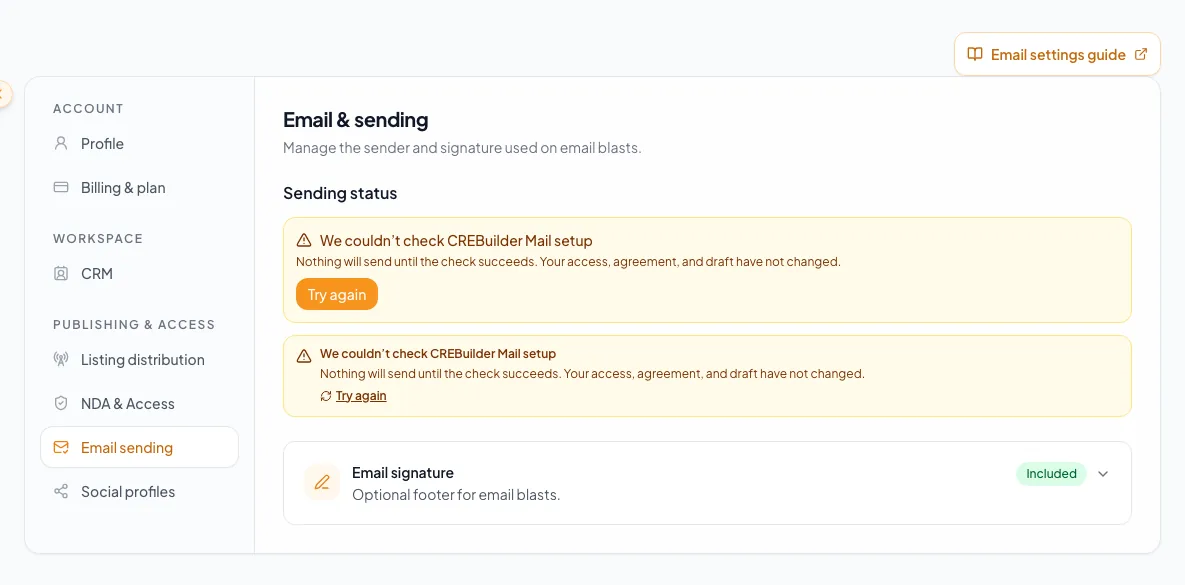
Unavailable
- What it means
- The status check itself failed or the feature cannot report current state.
- User action
- Retry the check. Nothing sends until current state is known.
Complete the required setup
- 1
Open Email sending settings
Main navigation > Settings > Email sending
Wait for the CREBuilder Mail status and checklist to load.
Expected result: The page shows a current access state rather than a placeholder.
If this step does not work
If status is unavailable, select Retry. Do not request access or send based on cached assumptions.
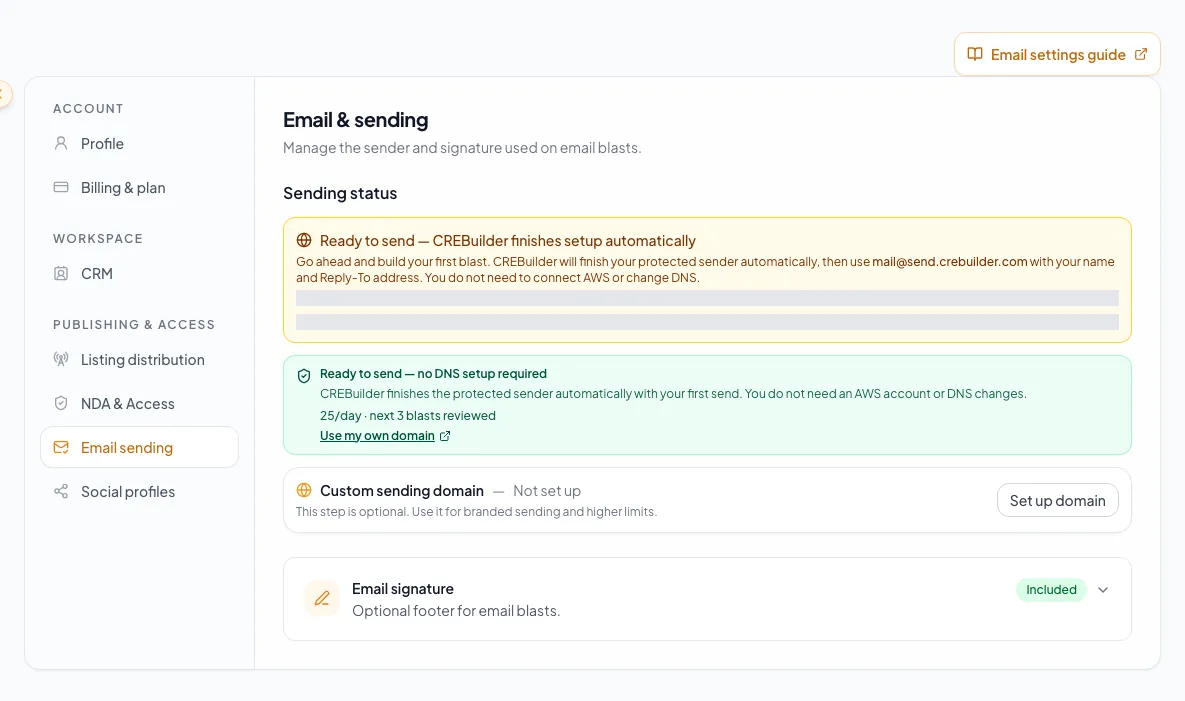
Confirm Email Blast access, sending method, domain status, signature, and account allowance before composing a campaign. - 2
Describe the sending purpose
Email sending > CREBuilder Mail > request form
Enter what you plan to send and where recipients came from.
Expected result: Submit becomes available when the description has 20 to 2,000 useful characters.
If this step does not work
Do not claim a recipient source or consent basis that cannot be verified.
- 3
Submit the access request
CREBuilder Mail request form > Submit request
Select Submit request once.
Expected result: The state changes to Requested and awaits human review.
If this step does not work
Preserve a displayed error before retrying a request that clearly failed.
- 4
Read the current agreement
Email sending > Sending agreement
Review the full displayed terms.
Expected result: The current agreement version and authorization statement are visible.
If this step does not work
If the agreement changed while open, reload and review the new version.
- 5
Confirm company authority
Sending agreement > authorization statement
Check the authorization statement only if you can bind the company.
Expected result: The Accept control becomes available for that version.
If this step does not work
Close the agreement if an authorized company signer must complete it.
- 6
Accept the current agreement
Sending agreement > Accept & continue
Select Accept & continue.
Expected result: The checklist marks the current agreement complete.
If this step does not work
A stale acceptance is rejected, so review the replacement version before another attempt.
- 7
Enter the business address
Company profile or displayed address action
Enter a real street, city, state, and ZIP/postal code.
Expected result: The complete physical address is ready to save.
If this step does not work
A company name alone or partial locality is not sufficient.
- 8
Save the business address
Company profile > Save
Select Save.
Expected result: The source company profile stores the compliance address.
If this step does not work
Correct the source profile rather than editing campaign HTML if validation fails.
- 9
Return to Mail readiness
Main navigation > Settings > Email sending
Open Email sending.
Expected result: Readiness recognizes the complete physical business address for the compliance footer.
If this step does not work
Reload the page once if a newly saved address is not reflected.
- 10
Confirm shared sender readiness
Email sending > setup checklist
Verify the ready message, your Reply-To identity, displayed daily/monthly allowance, review runway, and any ramp limit.
Expected result: Hosted Mail is ready on the protected shared sender.
If this step does not work
If suspended, paused, or capacity-limited, keep the draft and follow the displayed next step.
Verify readiness and recover safely
Ready-to-compose check
- Access says Approved.
- The current agreement is accepted.
- Street, city, state, and ZIP/postal code are complete.
- No suspension or sending pause is shown.
- The displayed allowance covers the planned unique recipients.
- Review requirements are understood.
- Reply-To identity is correct.
- Custom domain is verified or the shared sender is intentionally used.
Settings cannot determine Mail status
Likely cause: The status request failed, which is different from having no access request.
- Select Retry.
- Keep drafts unchanged.
- Do not submit a new access request or send until the status check succeeds.
The agreement was accepted before but sending is blocked
Likely cause: A newer agreement version requires acceptance again.
- Open the updated agreement.
- Read the full current terms.
- Have an authorized person accept the displayed version.
The shared sender is ready but a custom domain is not
Likely cause: Custom DKIM is optional and has a separate verification state.
- Continue on the shared sender if appropriate.
- Finish the three CNAME records separately.
- Do not alter existing MX, SPF, or DMARC records.
Related tasks
Your next OM, done this afternoon
Turn your property facts, photos and financials into a polished, branded offering memorandum. Most brokers finish in 30 to 90 minutes.
No credit card required.