Outcome
Every NDA signer answers your qualification questions, and you know which setting controls questions, access levels, and agreement text.
Navigation path
Settings > NDA & Access
Access
NDA & Access is available to Admins and solo account owners. Questions appear for every listing that uses NDA – Auto Access or NDA – Approval Required.
On this page
What you will accomplish
Questions aren’t signers
The buyer who requests or signs the NDA answers these questions. They don’t add an agent, seller, or other signer. Multiple-signer roles are set up inside a Deal Room that has its own NDA PDF; a company-wide NDA that covers all your listings stays single-signer.
Before you start
Data, sources, and access to prepare
- Admin access, or a solo account
- Your list of qualification questions
- A listing you can switch to an NDA access level for testing
Prepare these details
- Keep questions to what you need to qualify a buyer
- Decide which answers are required
- Write short multiple-choice options
- Check the company confidentiality agreement separately
- Have a test email address ready
Complete the task
- 1
Open NDA & Access
Settings
Select NDA & Access.
Expected result: Your company questions and a short explanation of where they appear load.
If this step does not work
If NDA & Access is not in Settings, ask your Admin.
- 2
Review the existing form
NDA & Access > NDA qualification questions
Read the current questions.
Expected result: You know what new NDA signers are asked today.
If this step does not work
Select Retry before editing if the page says the latest questions could not be loaded.
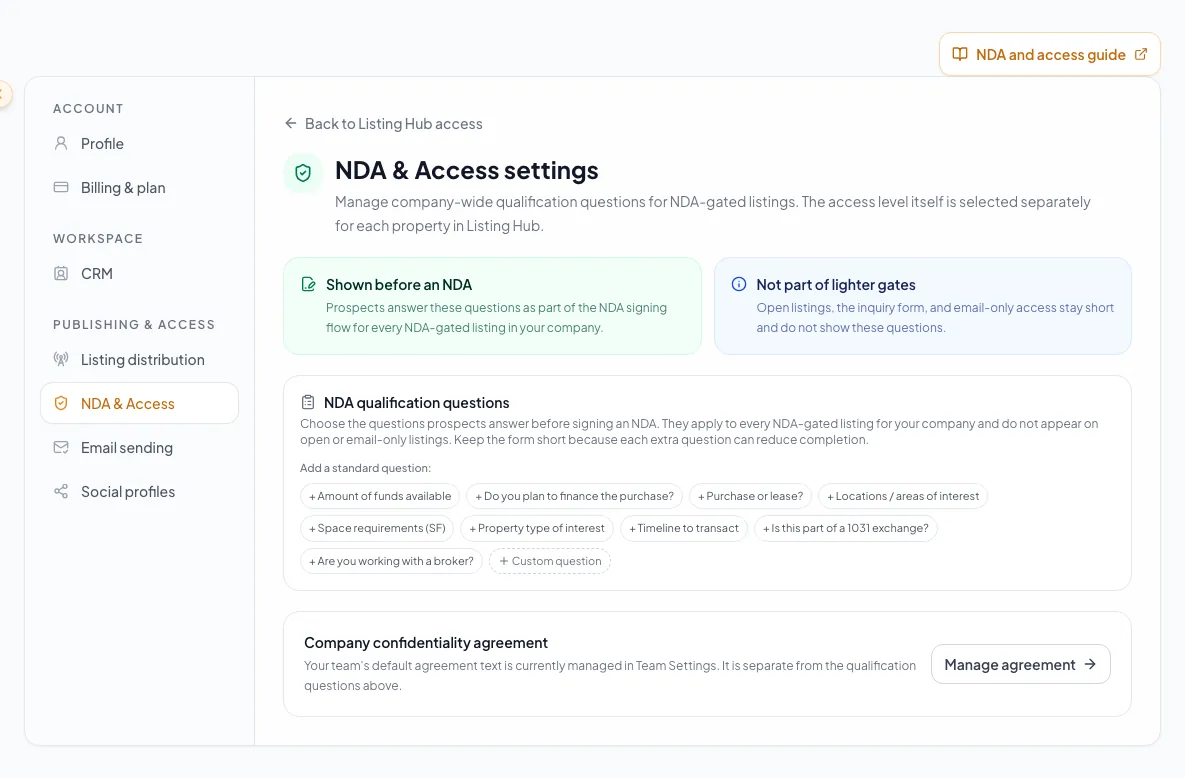
Set reusable NDA and access defaults, then confirm that each published property can still require its own review. - 3
Add a standard question
NDA qualification questions > Add a standard question
Select a preset question.
Expected result: The preset appears in your list.
If this step does not work
Use Custom question when no preset fits.
- 4
Edit the question label
NDA qualification questions > question row
Enter a clear question for buyers.
Expected result: The row states exactly what the signer should answer.
If this step does not work
Split combined questions into two.
- 5
Choose the answer type
Question row > Answer type
Select Text answer, Yes / No, or Multiple choice.
Expected result: The row shows the chosen answer control.
If this step does not work
Prefer Yes / No or Multiple choice for answers you want to compare quickly.
- 6
Enter choice options
Multiple-choice question row > Choices
Enter the options separated by commas.
Expected result: Each option appears in the list.
If this step does not work
Remove empty or duplicate options before saving.
- 7
Set the required state
Question row > Required
Turn Required on for answers you need.
Expected result: The toggle shows the rule.
If this step does not work
Leave nice-to-know questions optional to keep signers moving.
- 8
Remove an unnecessary question
Question row > Remove field
Select Remove on a question you do not need.
Expected result: The question leaves your draft list.
If this step does not work
Reload without saving to undo an accidental removal.
- 9
Save the question list
NDA qualification questions
Select Save NDA questions.
Expected result: A confirmation says new signers will see the saved questions.
If this step does not work
Wait for the save to finish before making another change.
- 10
Review the company agreement
NDA & Access > Company confidentiality agreement
Select Manage agreement.
Expected result: Team opens at the company agreement.
If this step does not work
Ask your Admin if the agreement is locked.
- 11
Set one property access level
Listing Hub > Listings > access menu
Choose NDA – Auto Access or NDA – Approval Required for your test listing.
Expected result: The listing now shows your questions as part of its NDA.
If this step does not work
Free Access and Email Required do not show these questions.
- 12
Test as a new signer
Signed-out property page
Start the NDA with a test email address.
Expected result: Your questions appear before the NDA and required answers are enforced.
If this step does not work
Use a private window if your own session skips the gate.
Question and scope reference
Qualification questions
- Applies to
- Every new NDA signer on your company’s listings
- Where to change it
- Settings > NDA & Access
Access level
- Applies to
- One listing and its Deal Room
- Where to change it
- Listing Hub, or the Deal Room’s Access gate
Company Confidentiality Agreement
- Applies to
- Printed text on team documents
- Where to change it
- Team
Deal Room NDA document
- Applies to
- What buyers sign for one property
- Where to change it
- The Deal Room
Free Access or Email Required
- Applies to
- Lighter gates
- Where to change it
- Does not show NDA questions
Question fields
Question label Required
The question a signer sees
- Format
- Plain text
- Units
- Characters
- Save behavior
- Saved for future NDAs when Save NDA questions succeeds.
- Downstream effect
- Shown to new signers; keep it short and clear.
Text answer Optional
A free-form response
- Format
- Answer type: Text
- Units
- Not applicable
- Save behavior
- The type saves with Save NDA questions; each signer’s answer saves during their NDA.
- Downstream effect
- Captures nuance but takes longer to compare.
Yes / No Optional
A yes-or-no response
- Format
- Answer type: Yes / No
- Units
- Not applicable
- Save behavior
- The type saves with Save NDA questions; each signer’s answer saves during their NDA.
- Downstream effect
- Makes a qualifying condition easy to scan.
Multiple choice Optional
One answer from your options
- Format
- Answer type with comma-separated options
- Units
- Choices
- Save behavior
- The question and options save with Save NDA questions.
- Downstream effect
- Keeps answers consistent across signers.
Required Optional
Whether the signer must answer
- Format
- On or off toggle
- Units
- Not applicable
- Save behavior
- Saved with Save NDA questions.
- Downstream effect
- Stops a new signer from continuing without an answer.
Question label
- Requirement
- Required
- What it means
- The question a signer sees
- Format
- Plain text
- Units
- Characters
- Save behavior
- Saved for future NDAs when Save NDA questions succeeds.
- Downstream effect
- Shown to new signers; keep it short and clear.
Text answer
- Requirement
- Optional
- What it means
- A free-form response
- Format
- Answer type: Text
- Units
- Not applicable
- Save behavior
- The type saves with Save NDA questions; each signer’s answer saves during their NDA.
- Downstream effect
- Captures nuance but takes longer to compare.
Yes / No
- Requirement
- Optional
- What it means
- A yes-or-no response
- Format
- Answer type: Yes / No
- Units
- Not applicable
- Save behavior
- The type saves with Save NDA questions; each signer’s answer saves during their NDA.
- Downstream effect
- Makes a qualifying condition easy to scan.
Multiple choice
- Requirement
- Optional
- What it means
- One answer from your options
- Format
- Answer type with comma-separated options
- Units
- Choices
- Save behavior
- The question and options save with Save NDA questions.
- Downstream effect
- Keeps answers consistent across signers.
Required
- Requirement
- Optional
- What it means
- Whether the signer must answer
- Format
- On or off toggle
- Units
- Not applicable
- Save behavior
- Saved with Save NDA questions.
- Downstream effect
- Stops a new signer from continuing without an answer.
Required means the field is needed to complete or support this workflow. Some screens allow a draft to save before every required item is complete. The steps and troubleshooting call out controls the product actively blocks.
Troubleshooting and next steps
NDA & Access is missing or opens Profile.
Likely cause: Your role does not manage NDA settings.
- Confirm your workspace and role.
- Ask an Admin to update the questions.
Editing is paused.
Likely cause: The latest saved questions could not be loaded.
- Select Retry.
- Avoid rebuilding the list from an incomplete view.
Questions do not appear for a visitor.
Likely cause: The listing uses Free Access or Email Required, or the visitor already has access.
- Switch the listing to NDA – Auto Access or NDA – Approval Required.
- Test with a new email address in a private window.
Final verification
- Every question helps you qualify a buyer
- Only necessary answers are required
- Multiple-choice options are complete
- The save confirmation appeared
- The test listing uses an NDA access level
- A signed-out test showed your questions
- No blocking warning, failed status, or unresolved validation message remains in the completed workflow.
Your next OM, done this afternoon
Turn your property facts, photos and financials into a polished, branded offering memorandum. Most brokers finish in 30 to 90 minutes.
No credit card required.