Outcome
Every team document carries your approved confidentiality language, and you know which control protects what.
Navigation path
Settings > NDA & Access > Agreement
Access
Admins and the account owner set the company agreement. Members and Coordinators see a notice when a company-wide agreement applies to their documents.
On this page
What you will accomplish
Moved from Team
The company agreement is the first section of Settings > NDA & Access. Older links to the Team page agreement open this section automatically, and the Company settings links at the bottom of Team point here.
Before you start
Data, sources, and access to prepare
- A team workspace
- A company manager role and approved agreement text for changes
Prepare these details
- Have your approved agreement text ready
- Decide who may change team-wide defaults
- List the documents and Deal Rooms affected by any staffing change
Complete the task
- 1
Open the company agreement
Settings > NDA & Access > Agreement
Select NDA & Access.
Expected result: The page opens on the Agreement section, where the Company confidentiality agreement editor appears with its template chooser and status line.
If this step does not work
Members and Coordinators see only a notice; ask a company manager to make changes.
- 2
Review the current agreement
NDA & Access > Agreement > Company confidentiality agreement
Read the full agreement.
Expected result: You know the wording on team documents today. The status line reads Company agreement in use or No company override saved.
If this step does not work
Get approved language before editing if it is out of date. If the saved agreement could not load, select Try again before editing.
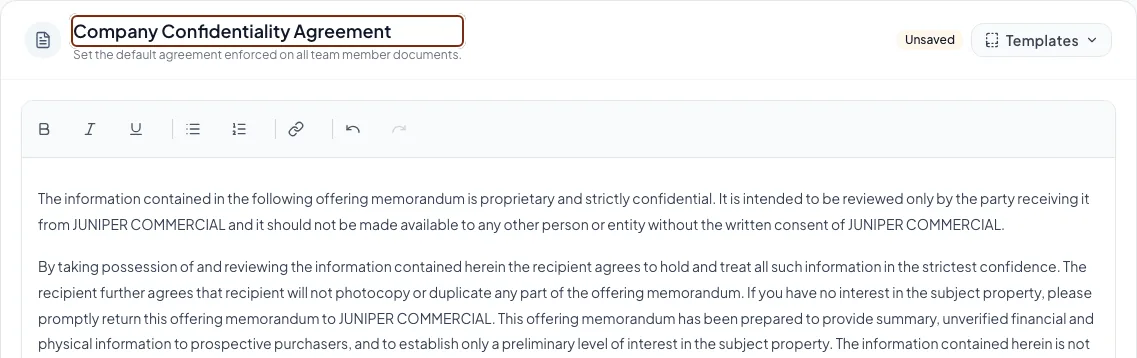
Review the company confidentiality agreement under Settings and confirm how it applies before adding or retaining team access. - 3
Enter approved agreement text
NDA & Access > Agreement > editor
Paste or write the approved agreement.
Expected result: The editor shows the full agreement and the status line reads Unsaved changes.
If this step does not work
Use Choose a template or write your own to start from a built-in or saved agreement.
- 4
Save the agreement
NDA & Access > Agreement > Save agreement
Select Save agreement.
Expected result: The status line reads Agreement saved. The agreement now appears on all team member documents, and members cannot change it.
If this step does not work
Wait for the save to finish before trying again. Leaving with unsaved changes asks you to keep editing or discard.
- 5
Inspect a team document
Document wizard > Confidentiality
Open a team member’s document.
Expected result: The company agreement appears and is locked.
If this step does not work
Refresh the document if it still shows the earlier version.
- 6
Transfer documents before removing a teammate
Documents > Team Docs
Select Transfer on each document the departing teammate owns.
Expected result: Their documents have a new owner. The Team removal flow moves only their CRM book.
If this step does not work
Finish document transfers before selecting Remove member.
- 7
Review property-specific access
Deal Rooms and Documents
Review the collaborators and Deal Room prospects on affected properties.
Expected result: Internal and buyer access still match your policy.
If this step does not work
Revoke or reassign access explicitly where it did not follow the staffing change.
Agreement and access boundaries
Company confidentiality agreement
- Protects
- Printed confidentiality language on team documents
- Managed from
- Settings > NDA & Access > Agreement
NDA qualification questions
- Protects
- What NDA signers answer before signing
- Managed from
- Settings > NDA & Access > Qualification questions
Access level or Access gate
- Protects
- Who can open a listing and its Deal Room
- Managed from
- Listing Hub or the Deal Room, linked from NDA & Access > Property access
Deal Room NDA document
- Protects
- What buyers sign for one property
- Managed from
- The Deal Room
Document collaborator
- Protects
- A teammate’s edit access to one document
- Managed from
- Documents > Share
Select Remove agreement to stop applying a company-wide agreement; a confirmation explains that existing signed records are preserved. Printed confidentiality text does not gate access on its own; use an access level for that.
Troubleshooting and next steps
A member cannot edit confidentiality text.
Likely cause: A company manager has set a company-wide agreement.
- Review the applied agreement.
- Ask a company manager to make the team-wide change under Settings > NDA & Access.
An old Team link opens NDA & Access.
Likely cause: The agreement moved out of Team, and old links are redirected.
- Use the Agreement section that opens.
- Update any saved bookmark to Settings > NDA & Access.
Changing the team agreement did not change a Deal Room NDA.
Likely cause: Each Deal Room has its own NDA document.
- Open that Deal Room.
- Change its NDA document there.
Final verification
- The agreement text is complete
- The save was confirmed
- A team document shows the agreement
- Buyer access settings were not confused with the printed agreement
- Departing teammates’ documents and access were reviewed
- No blocking warning, failed status, or unresolved validation message remains in the completed workflow.
Your next OM, done this afternoon
Turn your property facts, photos and financials into a polished, branded offering memorandum. Most brokers finish in 30 to 90 minutes.
No credit card required.