Outcome
You will understand your accepted reward terms, share the correct link, and distinguish pending, available and used credit.
Navigation path
Refer a broker > Overview > Credits
Access
The referral program must be open to your account. The current billing-account owner manages customer credit redemption.
On this page
What your referral workspace shows
Refer a broker appears when the program is available to your account. An invitation or application does not activate a link by itself. Your account needs owner approval and your acceptance of its exact agreement. The displayed agreement controls the reward amount, timing and exclusions; there is no universal public offer on this page.
From introduction to a confirmed reward
A new billing account follows one acquisition path. Collected cash creates a reward under its accepted agreement. Review and final fulfillment are separate stages.
Referral link or accepted code
New billing account
Collected Pro payment
Agreement and review hold
Confirmed credit or payout
- Referral link or accepted codeNew billing account
- New billing accountCollected Pro payment
- Collected Pro paymentAgreement and review hold
- Agreement and review holdConfirmed credit or payout
Before you start
Data, sources, and access to prepare
- A verified CREBuilder account
- Access to a customer referral program
- Billing authority for credit use
- The agreement offered to your account
Find your agreement and referral link
- 1
Open the referral workspace
Main navigation
Select Refer a broker.
Expected result: Your enrollment or its application instructions appear.
If this step does not work
If this navigation item is absent, the program is not available to your account yet.
- 2
Read the offered agreement
Refer a broker > Agreement
Select Agreement.
Expected result: The full terms and the version assigned to your enrollment are visible.
If this step does not work
Ask CREBuilder about unclear terms before accepting an agreement.
- 3
Confirm acceptance
Agreement
Select the acceptance checkbox after reading the terms.
Expected result: The acceptance action becomes available for an enrollment that is not paused or rejected.
If this step does not work
If the terms changed before submission, reload the agreement before deciding again.
- 4
Accept your agreement
Agreement
Select Accept agreement when you agree to the displayed terms.
Expected result: An accepted date appears for that exact version.
If this step does not work
If approval is still pending, wait for the owner decision shown in your workspace.
- 5
Open your active link
Refer a broker
Select Overview.
Expected result: An active enrollment with tracking enabled shows Your referral link.
If this step does not work
A waiting message means approval or tracking is still closed.
- 6
Copy your link
Overview > Your referral link
Select Copy link.
Expected result: The complete CREBuilder referral URL is copied for your own message.
If this step does not work
If clipboard access is unavailable, select the visible URL to copy it manually.
- 7
Inspect a referral cohort
Refer a broker
Select Referrals.
Expected result: Date, content and channel filters show anonymous signup and payment progress.
If this step does not work
A missing visit can result from declined tracking; it is not proof that a person did not visit.
Use a confirmed credit
Credits stay with the original billing account. Starter accounts can keep a balance until a supported Pro renewal invoice exists. Monthly and annual Pro renewals use the same scoped invoice flow. Credits cannot be withdrawn as cash and do not pay for Mail or custom services. An existing discount, mixed-service invoice or invoice that is no longer a draft can make an invoice unavailable.
- 1
Open your credit balance
Refer a broker
Select Credits.
Expected result: Earned, in-review, available and previously used amounts appear separately.
If this step does not work
A refund or dispute can reduce the available balance without creating a new card charge.
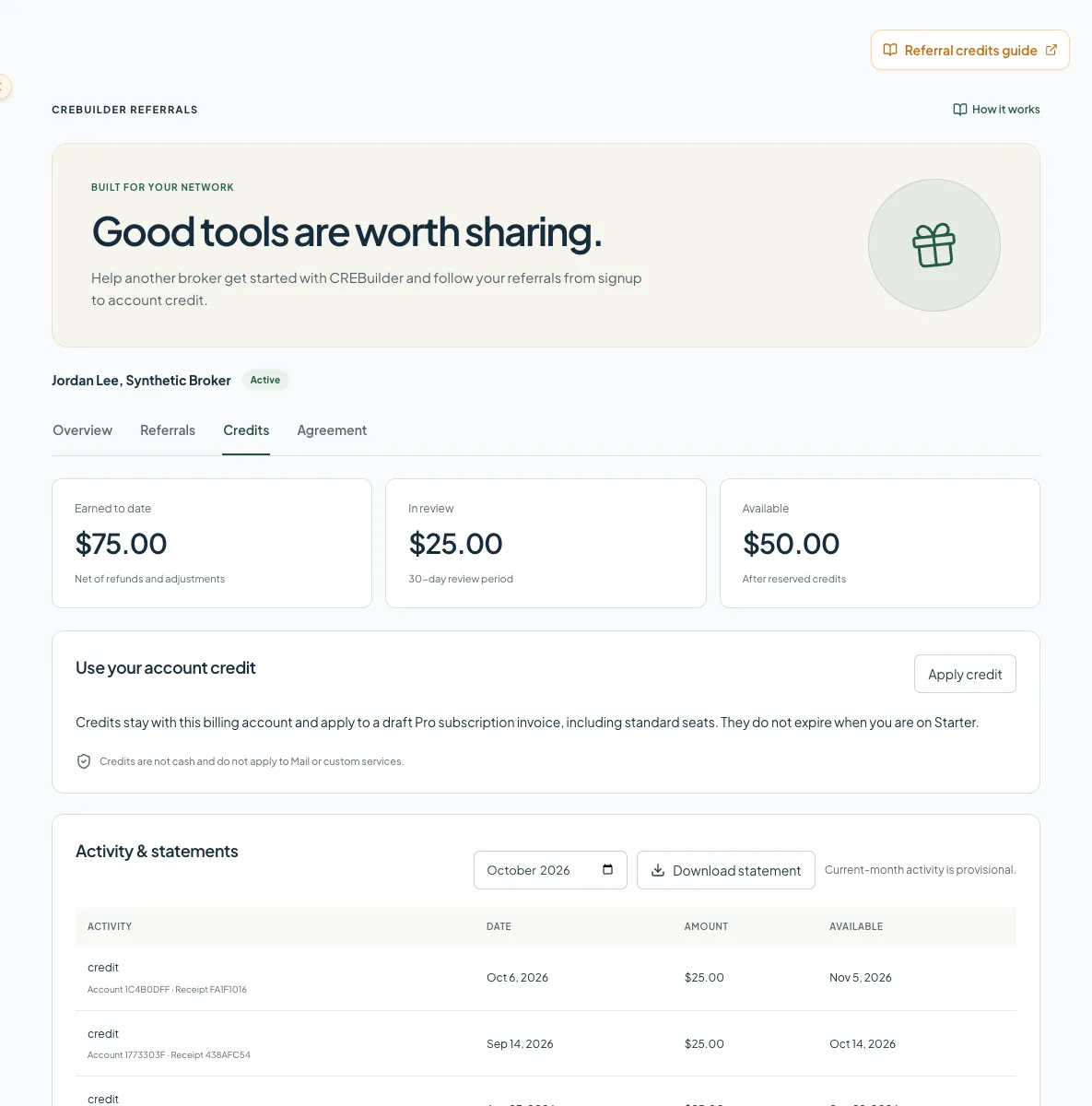
Keep pending rewards, available account credit and confirmed invoice usage separate when planning the next Pro renewal. - 2
Choose credit application
Credits > Use your account credit
Select Apply credit when it is enabled.
Expected result: The available draft Pro renewal invoices appear.
If this step does not work
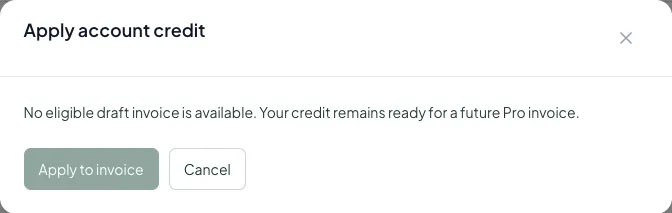
When no invoice is available or application is closed, the balance remains recorded.
- 3
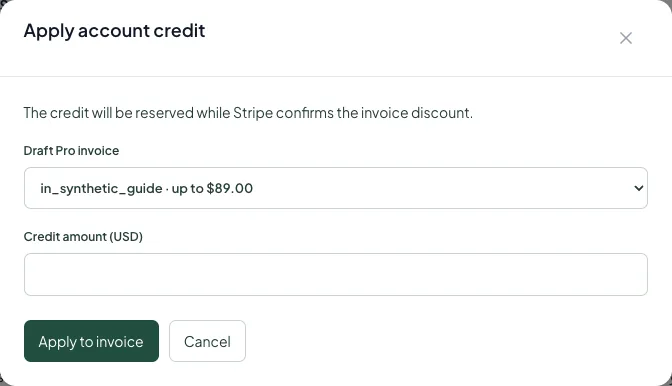
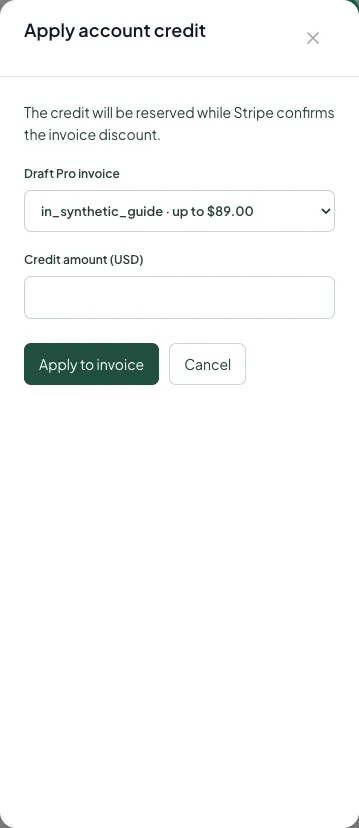
Choose the invoice
Apply account credit
Select the intended Draft Pro invoice.
Expected result: Its maximum eligible amount is displayed.
If this step does not work
Do not select an invoice for another company; only the current billing account is supported.
- 4
Enter the amount
Apply account credit
Enter the credit amount in USD.
Expected result: The amount is within the available balance and eligible subtotal.
If this step does not work
Reduce the amount if it exceeds the invoice subtotal or account balance.
- 5
Apply the selected credit
Apply account credit
Select Apply to invoice.
Expected result: A reservation appears while the provider verifies the exact invoice discount.
If this step does not work
If the result is uncertain, use Check status on the retained operation before attempting another application.

Download and check your record
- 1
Choose the reporting month
Credits > Activity & statements
Choose the Statement month.
Expected result: The selected month identifies the UTC reporting period.
If this step does not work
Choose a closed month for a permanent statement; the current month is provisional activity.
- 2
Download your statement
Credits > Activity & statements
Select Download statement.
Expected result: A CSV records rewards, reversals and credit reservation movements for your account.
If this step does not work
If the download fails, refresh the workspace before trying again.
- A later code may replace provisional link attribution before the first paid conversion. Paid ownership remains fixed.
- Team invitations and additional members are not new billing-account acquisitions.
- A review or rejected status does not reveal another customer’s private details. Contact CREBuilder for a review of your own reward record.
My link is waiting for approval
Likely cause: Enrollment acceptance, owner approval and tracking availability are separate.
- Open Agreement and inspect its accepted date.
- Check the enrollment status on Overview.
- Contact CREBuilder if your approved enrollment still has no active link.
No invoice is available for my credit
Likely cause: Only supported draft Pro renewal invoices can receive this credit.
- Keep your recorded balance for the next supported renewal.
- Check Billing for the current account and subscription.
- Use Check status for an existing operation before attempting another credit application.
A referred signup is missing
Likely cause: Declined tracking, an expired link, an existing company or a different acquisition owner can prevent attribution.
- Check the selected signup date range.
- Confirm that your link used your active tracking name.
- Ask CREBuilder to review your reward record without requesting another customer’s private account information.
Final verification
- The agreement displays your accepted version and date.
- Your active referral URL uses crebuilder.com.
- Available credit excludes existing reservations and used credits.
- An uncertain operation remains visible until it is reconciled.
- The selected statement month matches the file you downloaded.
Related guides
Manage your creator partnership and earnings
Use your creator workspace for content, tracked links, accepted terms, referral results and confirmed commission payments.
Open guideManage billing and subscription access
See your plan, renewal date, seats, card, and invoices in one place, and make plan changes with the exact terms in front of you.
Open guideYour next OM, done this afternoon
Turn your property facts, photos and financials into a polished, branded offering memorandum. Most brokers finish in 30 to 90 minutes.
No credit card required.