Outcome
Your personal and company details are saved once and reused across documents, listings, and hosted email, with a clean headshot and logo.
Navigation path
Settings > Profile or Company profile
Access
Everyone can update their own Profile. Company profile is editable by Admins and by the account owner, including a solo account. On a team, Members and Coordinators read the company details and see who manages them.
On this page
What you will accomplish
Where saved profile data can appear
Save Profile and Company profile once, then check your most important existing work.
Saved Profile and Company profile
Documents
Public listings
Email identity and footer address
Public profile
- Saved Profile and Company profileDocuments
- Saved Profile and Company profilePublic listings
- Saved Profile and Company profileEmail identity and footer address
- Saved Profile and Company profilePublic profile
Two pages, two scopes
Profile holds what belongs to you: name, photo, phone, title, license, bio, public listing contact email, password, and account deletion. CRM time zone is under Settings > CRM > Preferences. Company profile, under the Company group in Settings, holds what the whole company shares: name, logo, license, office phone, website, business mailing address, and office time zone. Saving one page never changes the other.
Before you start
Data, sources, and access to prepare
- A CREBuilder account
- Your current broker and company details
- A headshot and logo you have the right to use
Prepare these details
- Use a clear headshot that crops well to a circle
- Use a high-resolution logo with good contrast
- Confirm license and company information
- Choose the time zone for your CRM due dates
- Save open work before changing your password or deleting your account
Complete the task
- 1
Open Profile settings
Settings > Account > Profile
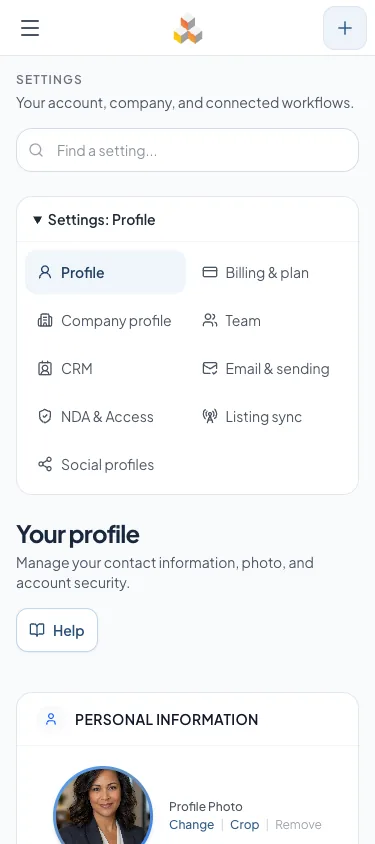
Select Profile.
Expected result: Personal Information appears, with a link to Company logo, address, and office details.
If this step does not work
Sign in again if Settings is unavailable.
- 2
Choose a profile photo
Profile > Personal Information > Profile Photo
Select a photo file.
Expected result: The crop dialog opens with your headshot.
If this step does not work
Use a JPG, PNG, GIF, or WebP file if the image is rejected.
- 3
Position the profile crop
Crop profile photo dialog
Position the circular crop around your face.
Expected result: The preview shows your face clear and centered.
If this step does not work
Adjust the crop position and zoom if your face is clipped or too small.
- 4
Save the profile crop
Crop profile photo dialog
Select Apply Crop.
Expected result: The circular profile preview updates after upload. The photo is kept with the Save profile step below.
If this step does not work
Wait for the upload to finish before reopening Crop.
- 5
Enter personal details
Profile > Personal Information
Complete your name, contact, title, license, and bio.
Expected result: Required name fields are valid and your details are ready to save.
If this step does not work
Fix the message beside any field before saving.
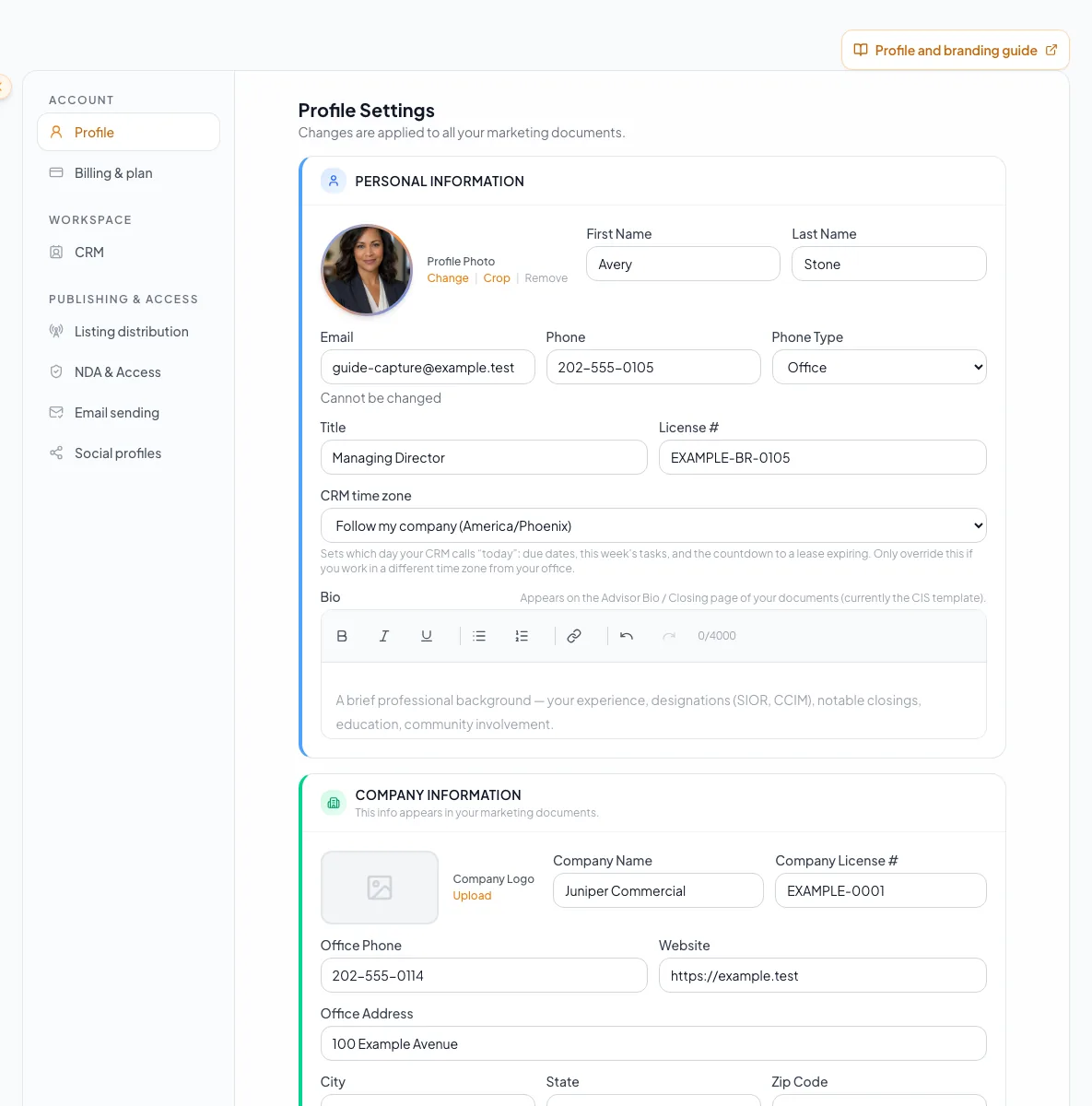
Maintain accurate personal details in Profile and company logo, address, and office information in Company profile for generated customer materials. - 6
Set the public listing contact email
Profile > Personal Information > Public listing contact email
Enter the email address you want shown for your synced contact on public property pages, or leave it blank to use the saved contact email.
Expected result: After Save profile, public property pages use that address. Login, PDF contact details and inquiry notification recipients keep their existing addresses.
If this step does not work
If the address remains hidden, check Listing Hub > Leads & access > Public broker email. The company visibility setting still applies; custom document contacts keep their own email.
- 7
Save profile changes
Profile form
Select Save profile.
Expected result: CREBuilder confirms your profile is saved. Company details are untouched.
If this step does not work
Fix any validation message, then save again.
- 8
Open Company profile
Settings > Company > Company profile
Select Company profile, or the Company logo, address, and office details link on Profile.
Expected result: Identity and branding, Business mailing address, and Office time zone appear.
If this step does not work
If the page says your company administrator manages these details, read them here and ask that person for changes.
- 9
Enter company details
Company profile > Identity and branding
Complete the company name, license number, office phone, and website.
Expected result: The company identity is ready to save.
If this step does not work
Company name cannot be empty.
- 10
Choose a company logo
Company profile > Identity and branding > Upload a logo
Select your logo file.
Expected result: The crop dialog opens with your logo.
If this step does not work
Use an image with padding and contrast if the mark is hard to read. Use Remove logo to clear it.
- 11
Position the logo crop
Crop company logo dialog
Position the crop around the whole mark.
Expected result: The preview excludes extra blank space.
If this step does not work
Adjust the crop position and zoom if any part of the mark is cut off.
- 12
Save the logo crop
Crop company logo dialog
Select Apply Crop.
Expected result: The logo preview updates once the upload finishes. Save company details keeps the uploaded logo on the company profile.
If this step does not work
If the upload fails, the page says so and keeps your other edits.
- 13
Enter the business mailing address
Company profile > Business mailing address
Complete street, city, state or province, and ZIP or postal code.
Expected result: The complete address is ready to save. It appears in the required footer of every hosted email.
If this step does not work
Hosted email setup requires all four address parts to be saved before sending can be activated.
- 14
Choose the office time zone
Company profile > Office time zone
Select your company’s time zone.
Expected result: Teammates who follow the company zone use your office day.
If this step does not work
Confirm the office location with your Admin if you have several offices.
- 15
Save company details
Company profile > Save company details
Select Save company details.
Expected result: The page reads Company details saved, and documents, listings, and email setup pick up the change.
If this step does not work
Company name is required to save. Other text fields may be blank, but hosted sending requires a complete business mailing address. Leaving with unsaved changes asks you to keep editing or discard.
- 16
Set your CRM time zone
Settings > CRM > Preferences
Select your personal time zone.
Expected result: The selected zone is ready to save.
If this step does not work
Choose Follow company if you want to use the office setting.
- 17
Save your CRM time zone
Settings > CRM > Preferences
Select Save time zones.
Expected result: CRM due dates and Today labels use your working day.
If this step does not work
Resolve any validation message before leaving.
- 18
Inspect one downstream item
An existing document or listing
Open an important document or listing.
Expected result: Your updated identity and branding appear, or you can see the item needs its own refresh.
If this step does not work
Refresh or edit the item directly if it kept earlier contact details.
- 19
Enter the current password
Profile > Change Password
Type your current password.
Expected result: The current-password field is complete.
If this step does not work
Use account recovery if you do not know your current password.
- 20
Enter a compliant new password
Profile > Change Password
Type the new password in both new-password fields.
Expected result: Both entries match and meet the password rules.
If this step does not work
Use at least eight characters with uppercase, lowercase, and a number.
- 21
Submit the password change
Profile > Change Password
Select Change Password.
Expected result: A Password updated confirmation appears.
If this step does not work
Wait for the request to finish before trying again.
- 22
Review the deletion warning
Profile > Delete Account
Expand Delete My Account only when you intend to delete the account permanently.
Expected result: The page shows what deletion requires and removes.
If this step does not work
Close the panel without entering credentials to keep your account.
Prepare and connect your CREBrokerList profile
Open CREBrokerList in Profile settings to prepare your broker directory details. Saving professional details keeps them private in CREBuilder until you turn on Prepare my CREBrokerList profile. A successful sync prepares a private profile on CREBrokerList. Claim it, complete its publication requirements, and submit it for review there.
From saved expertise to a public broker profile
Each stage has its own action and status.
Save professional details
Prepare my CREBrokerList profile
Claim on CREBrokerList
Submit for publication review
Approved public profile
- Save professional detailsPrepare my CREBrokerList profile
- Prepare my CREBrokerList profileClaim on CREBrokerList
- Claim on CREBrokerListSubmit for publication review
- Submit for publication reviewApproved public profile
- 1
Enter your professional expertise
Profile > CREBrokerList > Markets and professional expertise
Open Basics for optional background, Markets for the places you serve, and Expertise for property types or described specialties.
Expected result: The private profile preview updates as you edit, using your saved CREBuilder identity and draft expertise. The Markets summary shows your places. Recommended-detail links open the matching field or expertise section, and Add profile photo returns to the photo control above. Company website opens Company settings for administrators; other members see that their company administrator manages it. The preview does not save or publish anything. Publication needs a property type or a described specialty of at least three characters; a transaction focus alone does not qualify. A company office address does not fill service markets or license state.
If this step does not work
Choose a US state for each market. Use an HTTPS LinkedIn /in/ profile URL; tracking parameters are removed. Leave experience blank if unknown; zero means zero years.
- 2
Save professional details
Markets and professional expertise
Select Save professional details.
Expected result: The saved version persists. Saving alone does not enable sync or publish your profile. If sync is already enabled, CREBuilder queues that saved version for delivery.
If this step does not work
Keep your draft if saving fails. Preview labels distinguish unsaved drafts, saved details and retained source drafts. If another tab saved first, load the newer saved details before trying again.
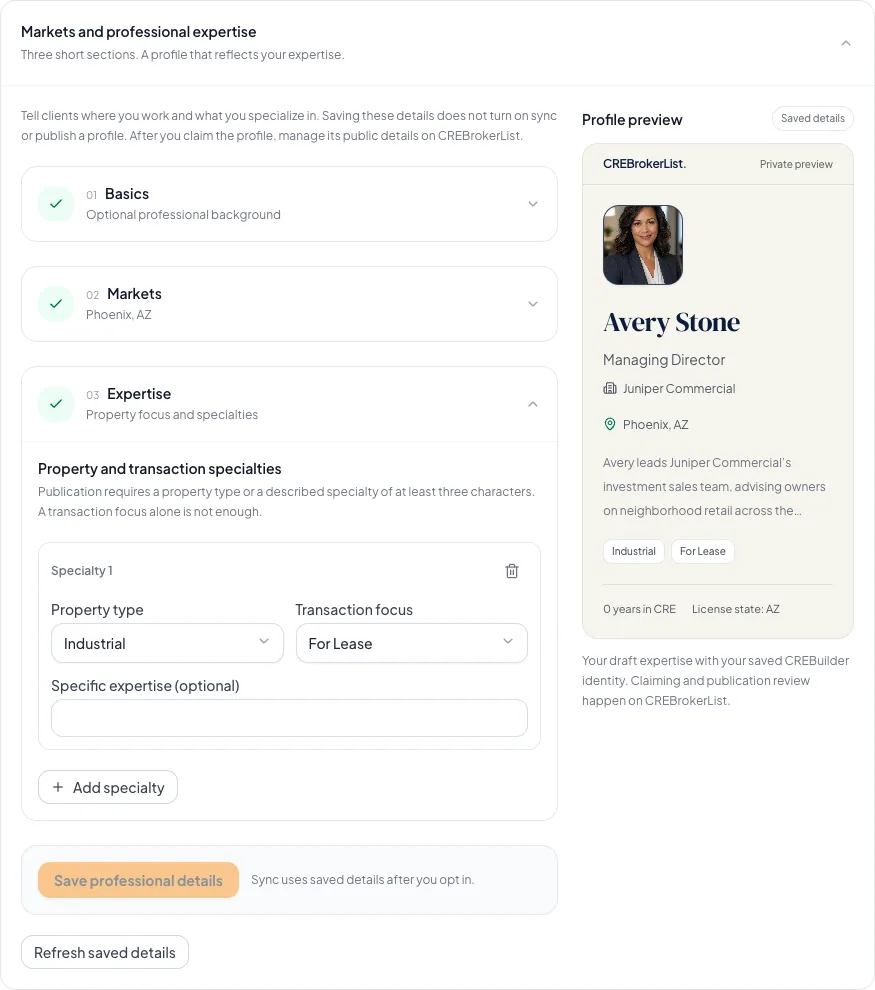
Save your professional details and expertise, then prepare your CREBrokerList profile. Claiming and publication are separate steps. - 3
Recover a changed saved version
Markets and professional expertise > newer saved version notice
Choose Keep my draft for another save to retain your edits, or Discard this draft and load the saved details to replace them.
Expected result: The editor uses the latest saved version for your next deliberate save. Refresh saved details checks for newer saved work, keeps an open draft, and updates a clean editor automatically.
If this step does not work
Review the other saved edits before choosing to replace them. If a save says another update is in progress, keep the draft and try saving again.
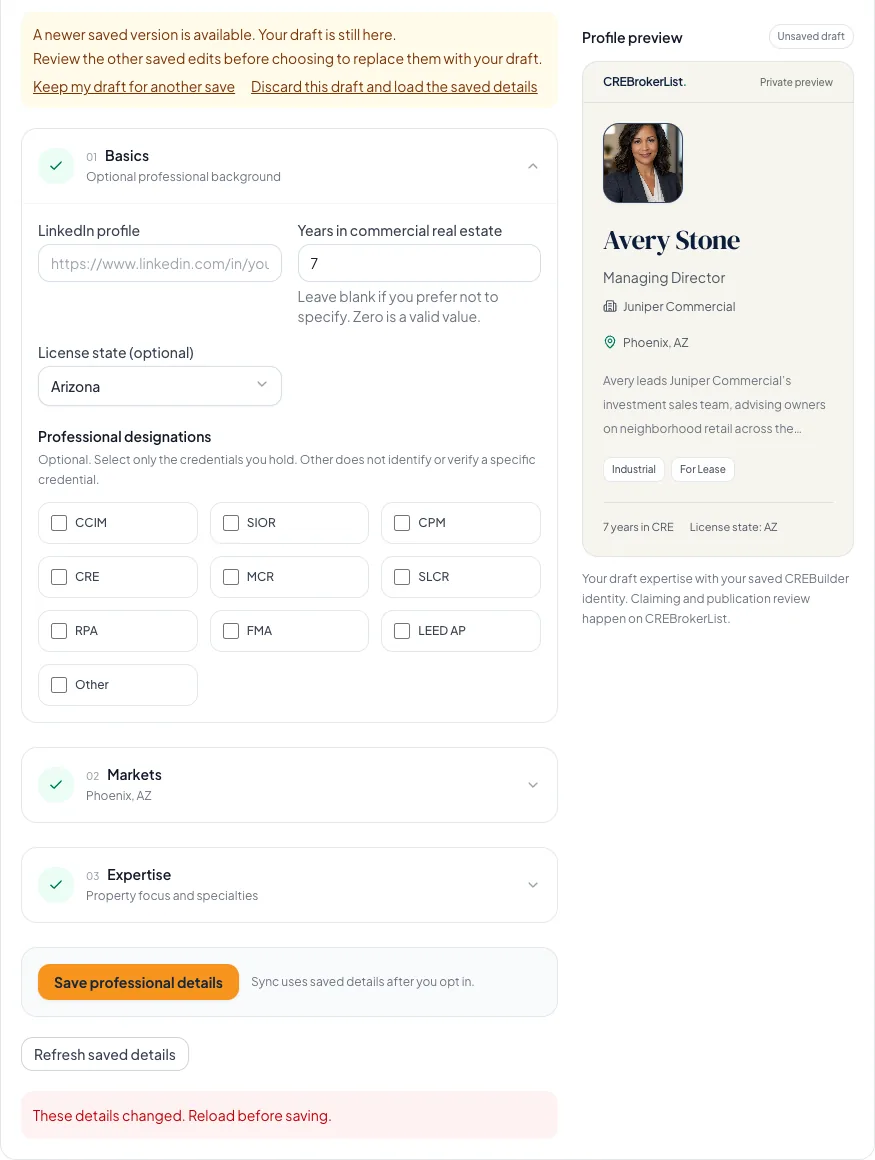
A newer saved version is available. Keep your draft for another save, or discard it and load the saved details. - 4
Enable profile sync
Profile > CREBrokerList
Turn on Prepare my CREBrokerList profile after saving your personal and professional details.
Expected result: CREBuilder records your opt-in and prepares a private profile. The card shows delivery and claim status.
If this step does not work
Save any open edits first. During a pause, existing opt-ins and saved changes stay queued. New opt-ins reopen when profile delivery resumes. Withdrawal requests continue during the pause.
- 5
Claim your prepared profile
CREBrokerList > Claim your profile
Select Claim on CREBrokerList after the latest saved version finishes syncing.
Expected result: CREBrokerList asks for the matching account email and sends the one-time claim link. Complete the claim while signed in there with that email.
If this step does not work
If the link is withheld, save your edits and wait for sync. Use Check status after completing the claim when delivery is running; the Check status action is hidden while paused and returns after delivery resumes.
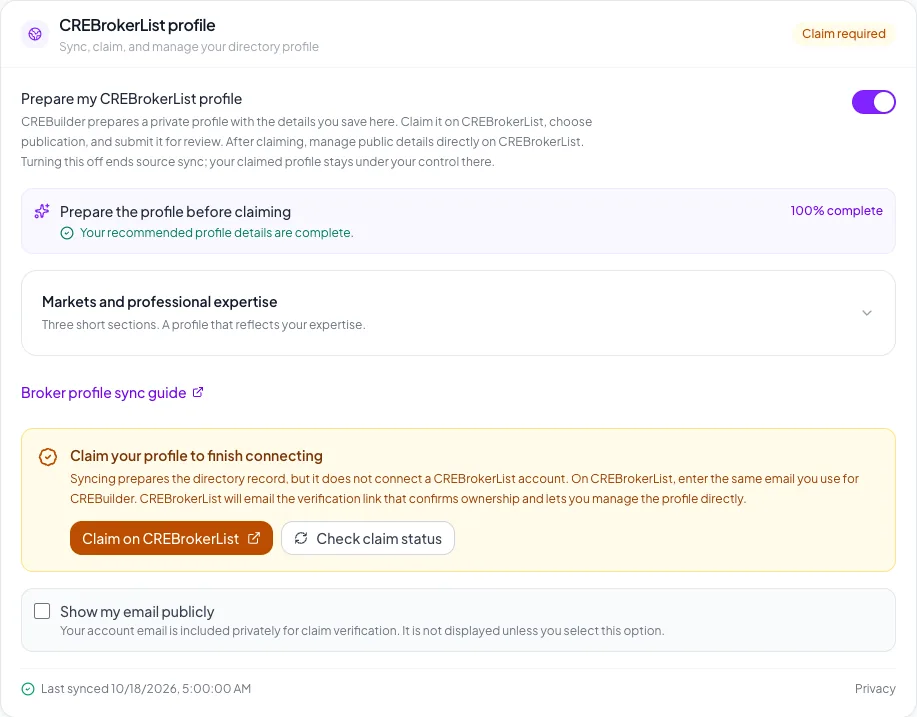
After your saved details finish syncing, claim your profile to finish connecting. - 6
Submit your profile for publication review
CREBrokerList account > Profile
Complete the required profile details, directory consent, and publication review submission on CREBrokerList.
Expected result: CREBuilder shows Connected after the claim is confirmed. A public-profile link appears only after CREBrokerList confirms publication.
If this step does not work
Manage claimed details directly on CREBrokerList. If ownership changes while you edit, use Dismiss retained draft after reviewing your read-only draft. For an ownership dispute, contact its support team.
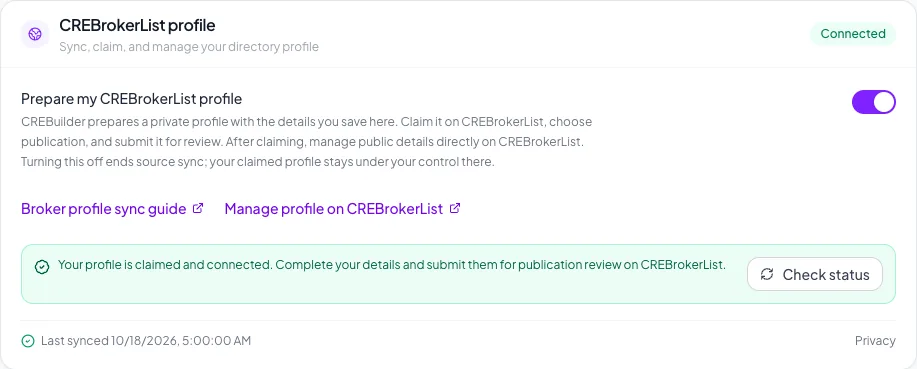
Your profile is claimed and connected. Manage your details and publication review on CREBrokerList. - 7
Turn off future profile sync
Profile > CREBrokerList
Turn off Prepare my CREBrokerList profile when you want to withdraw this integration.
Expected result: CREBuilder queues a withdrawal. An unclaimed prepared profile is suppressed; a claimed profile stays under its owner’s control on CREBrokerList.
If this step does not work
Manage an already claimed profile and its visibility in your CREBrokerList account.
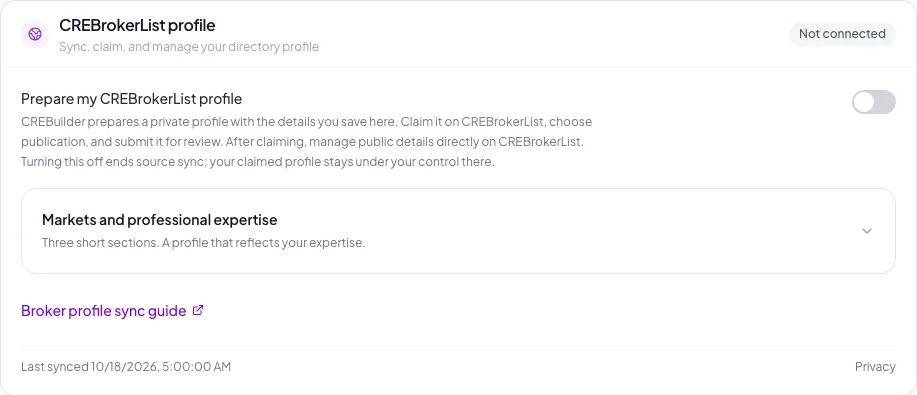
Profile preparation is off. A claimed CREBrokerList account remains available to its owner.
Saved details, consent, and publication are separate
The Basics, Markets and Expertise sections share one Save professional details button. The preview uses saved personal details, so save changes above before relying on them in the preview. The bio and other personal fields use Save profile. Show my email publicly is optional. Claiming, directory consent, and publication review happen on CREBrokerList. Claimed or disputed professional details stay managed there even after you turn source sync off. Internal CREBuilder accounts are excluded from profile sync.
Profile-field and security reference
Account deletion is permanent
Deletion requires your email and password. Export anything you need first and be sure the account should not be kept.
Important fields
First name and last name Required
Your name on the account
- Format
- Plain text
- Units
- Not applicable
- Save behavior
- Saved when Profile Save profile succeeds.
- Downstream effect
- Labels your account and broker identity.
Phone, title, license, and bio Recommended
Professional contact and credential details
- Format
- Formatted phone plus plain-text details
- Units
- Not applicable
- Save behavior
- Saved when Profile Save profile succeeds.
- Downstream effect
- Fills contact, credential, and bio content in documents, listings, and your public profile.
CRM time zone Recommended
Your working day
- Format
- Selected time zone
- Units
- Not applicable
- Save behavior
- Saved from Settings > CRM > Preferences > Save time zones.
- Downstream effect
- Controls CRM due-date grouping, Today labels, and lease countdowns for you.
Company details and logo Recommended
Your brokerage identity
- Format
- Plain text plus uploaded logo
- Units
- Not applicable
- Save behavior
- Saved with Company profile Save company details after any logo upload finishes. Only the company fields are written; nobody’s personal details change.
- Downstream effect
- Brands documents and listings for the whole team; Members and Coordinators on a team read the company version.
Business mailing address Required
The physical company address, required before any hosted email can send
- Format
- Street, city, state or province, ZIP or postal code
- Units
- Not applicable
- Save behavior
- Saved with Company profile Save company details, or from the address fields in Email & sending setup.
- Downstream effect
- Appears in the required footer of hosted campaigns, conversations, NDA invitations, and automated email.
Office time zone Recommended
Your company’s default time zone
- Format
- Selected time zone
- Units
- Not applicable
- Save behavior
- Saved with Company profile Save company details, or from Settings > CRM > Preferences when you can edit the company zone.
- Downstream effect
- Sets the working day for teammates who follow the company setting.
New password Optional
Your sign-in password
- Format
- At least 8 characters with uppercase, lowercase, and a number
- Units
- Characters
- Save behavior
- Saved only when Change Password succeeds; Profile Save Changes does not submit it.
- Downstream effect
- Replaces the password you use to sign in.
First name and last name
- Requirement
- Required
- What it means
- Your name on the account
- Format
- Plain text
- Units
- Not applicable
- Save behavior
- Saved when Profile Save profile succeeds.
- Downstream effect
- Labels your account and broker identity.
Phone, title, license, and bio
- Requirement
- Recommended
- What it means
- Professional contact and credential details
- Format
- Formatted phone plus plain-text details
- Units
- Not applicable
- Save behavior
- Saved when Profile Save profile succeeds.
- Downstream effect
- Fills contact, credential, and bio content in documents, listings, and your public profile.
CRM time zone
- Requirement
- Recommended
- What it means
- Your working day
- Format
- Selected time zone
- Units
- Not applicable
- Save behavior
- Saved from Settings > CRM > Preferences > Save time zones.
- Downstream effect
- Controls CRM due-date grouping, Today labels, and lease countdowns for you.
Company details and logo
- Requirement
- Recommended
- What it means
- Your brokerage identity
- Format
- Plain text plus uploaded logo
- Units
- Not applicable
- Save behavior
- Saved with Company profile Save company details after any logo upload finishes. Only the company fields are written; nobody’s personal details change.
- Downstream effect
- Brands documents and listings for the whole team; Members and Coordinators on a team read the company version.
Business mailing address
- Requirement
- Required
- What it means
- The physical company address, required before any hosted email can send
- Format
- Street, city, state or province, ZIP or postal code
- Units
- Not applicable
- Save behavior
- Saved with Company profile Save company details, or from the address fields in Email & sending setup.
- Downstream effect
- Appears in the required footer of hosted campaigns, conversations, NDA invitations, and automated email.
Office time zone
- Requirement
- Recommended
- What it means
- Your company’s default time zone
- Format
- Selected time zone
- Units
- Not applicable
- Save behavior
- Saved with Company profile Save company details, or from Settings > CRM > Preferences when you can edit the company zone.
- Downstream effect
- Sets the working day for teammates who follow the company setting.
New password
- Requirement
- Optional
- What it means
- Your sign-in password
- Format
- At least 8 characters with uppercase, lowercase, and a number
- Units
- Characters
- Save behavior
- Saved only when Change Password succeeds; Profile Save Changes does not submit it.
- Downstream effect
- Replaces the password you use to sign in.
Required means the field is needed to complete or support this workflow. Some screens allow a draft to save before every required item is complete. The steps and troubleshooting call out controls the product actively blocks.
Troubleshooting and next steps
Professional details changed in another tab.
Likely cause: The saved version is newer than your draft.
- Review the newer saved details.
- Choose Keep my draft for another save to retain your edits, or Discard this draft and load the saved details to replace them.
- Apply your intended edits and save again.
The profile is connected but not public.
Likely cause: Claiming connects the account. Publication also requires completed details, directory consent, submission, and approval on CREBrokerList.
- Open your CREBrokerList account.
- Complete its profile checklist and submit for review.
- Use Check status in CREBuilder after publication.
Company profile fields cannot be edited.
Likely cause: On a team, Members and Coordinators read the company details. An Admin or the account owner edits them.
- Ask your company manager to make the company-wide change.
- Update your personal fields in Profile.
Company details could not be saved.
Likely cause: A field was too long, the company name was empty, or the office time zone was not recognized.
- Read the message under the form; your edits stay on the page.
- Shorten or correct the named field and save again.
A saved logo or photo looks wrong.
Likely cause: The crop cut off part of the image, or the source has low contrast.
- Open Crop again.
- Choose a clearer image if recropping does not fix it.
An existing document still shows old contact details.
Likely cause: The document saved its own copy of your details.
- Open the document editor.
- Refresh or edit the contact content directly.
The password is rejected.
Likely cause: The current password is wrong or the new one misses a rule.
- Confirm your current password.
- Use at least eight characters with uppercase, lowercase, and a number.
- Make both new-password entries identical.
Final verification
- Your saved name is correct
- The headshot and logo are not clipped
- Personal and office time zones are right
- The business mailing address is complete
- Read-only company fields are managed by the right company manager
- An important document or listing shows your updated details
- Password and deletion controls were used only when intended
- No blocking warning, failed status, or unresolved validation message remains in the completed workflow.
Your next OM, done this afternoon
Turn your property facts, photos and financials into a polished, branded offering memorandum. Most brokers finish in 30 to 90 minutes.
No credit card required.