Outcome
You will keep a live property current, or take it off partner networks and your hub in the right order.
Navigation path
Listing Hub > Listings
Access
Requires edit access to the listing.
On this page
What you will accomplish
Withdraw a property deliberately
Availability, partner distribution, and hub visibility are separate decisions.
Set correct Availability
Turn off Sync if distribution should stop
Turn off Listed if the public page should close
Check public and network state
- Set correct AvailabilityTurn off Sync if distribution should stop
- Turn off Sync if distribution should stopTurn off Listed if the public page should close
- Turn off Listed if the public page should closeCheck public and network state
Before you start
Data, sources, and access to prepare
- A listed or synced property
- An approved change or withdrawal
Prepare these details
- Decide whether this is a content edit, a status change, a distribution withdrawal, or a full unpublish
- Note the current Listed, Sync, and Availability values
- List any links you already sent out
Complete the task
- 1
Correct the source document
Documents > document wizard
Change the field or content item.
Expected result: The section reports Saved.
If this step does not work
Restore the earlier value if the change is not yet approved.
- 2
Hide the asking price
Document wizard > Property Details > Selling Price
Select Hide for the asking-price display.
Expected result: After saving and refreshing, the public page and listing cards omit the asking price. Show displays the amount; Negotiable displays that label. The stored amount stays available for calculations.
If this step does not work
Wait for Saved before opening the public preview. If the old price still shows after refreshing, contact Support with the public listing link.
- 3
Review the changed public page
Listing Hub > View live site > property
Open the property page after saving.
Expected result: The page shows your updated content.
If this step does not work
Allow a moment for the page to refresh, then reload.
- 4
Set the inventory status
Listing row > Availability
Select the current real-world status.
Expected result: The row and public page show the status.
If this step does not work
Keep the listing visible with an accurate status rather than unlisting it, when you want a sold or leased badge to stay public.
- 5
Stop external distribution
Listing Hub > Listing sync > property
Turn off Sync.
Expected result: The row shows the listing is coming off partner networks.
If this step does not work
Allow network processing time before following up on a listing that is still visible.
- 6
Remove CREBuilder visibility
Listing row > Website visibility
Turn off Listed.
Expected result: The property leaves your public Listing Hub.
If this step does not work
Keep Listed on and choose All published properties in Design & display when unavailable properties should remain in the initial directory.
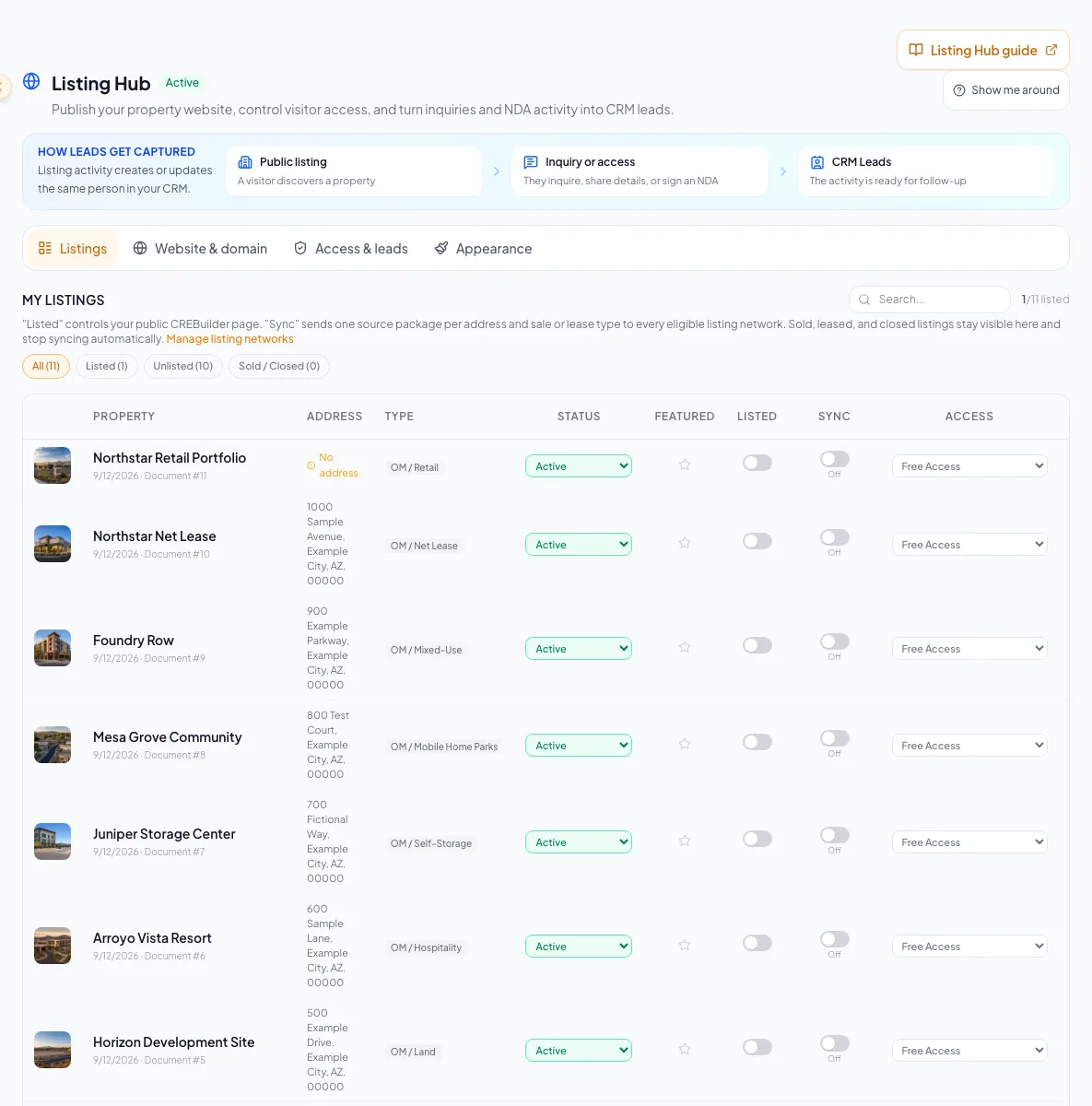
Update or unpublish a listing deliberately, verify the public result, and recover when status or content does not synchronize. - 7
Test the hub state
Signed-out browser
Open your Listing Hub URL.
Expected result: The hub matches your decision.
If this step does not work
Use a private window before concluding that an old state persists.
- 8
Test the property state
Signed-out browser
Open the property URL.
Expected result: The property page matches your decision.
If this step does not work
Check Listed and Availability again if the page does not match.
Public content and maintenance decisions
Flyer labels do not change listing status
Cover Label in Review > Design > Cover Page changes only the flyer cover and newly generated PDFs. Typing Just Sold or Just Leased does not change Listed, Sync, Availability, or public badges. To retire active inventory, set Availability to Sold or Fully leased: the property remains Listed, appears when all properties are shown, and Sync stops, so partner networks remove it after their next feed update. Returning to Active does not turn Sync back on automatically.
Highlights on a For Sale Flyer, For Lease Flyer, Leasing Package, or BOV
- Where to edit it
- The document’s Property Highlights step
- What to check
- Saved highlights appear on the public page unless the section is hidden or the listing is confidential
Highlights on an Offering Memorandum or Sales Teaser
- Where to edit it
- The document’s highlights step
- What to check
- Saved highlights appear when the section is visible and the listing is not confidential
Public photo captions
- Where to edit it
- Images & Media in the document
- What to check
- Written captions show; camera filenames and placeholder captions do not
Single-page photo without a written caption
- Where to edit it
- Property Name in Property Details, or the caption in Images & Media
- What to check
- The public gallery uses the property name when no caption is written
Correct content while still marketing
- Availability
- Keep accurate
- Sync
- Keep as is
- Listed
- On
Show a completed deal publicly
- Availability
- Sold, Fully leased, or Closed
- Sync
- Turns off automatically; returning to Active does not turn it back on
- Listed
- Keep on; select All published properties to include completed inventory by default
Announce a listing with flyer wording only
- Availability
- Unchanged by Cover Label
- Sync
- Unchanged by Cover Label
- Listed
- Unchanged by Cover Label
Stop partner distribution only
- Availability
- Keep accurate
- Sync
- Off
- Listed
- Can stay on
Remove the public CREBuilder listing
- Availability
- Set accurately first
- Sync
- Off
- Listed
- Off
Troubleshooting and next steps
The public page still shows old content.
Likely cause: The change may not have saved, or the browser is showing a cached page.
- Confirm the field shows Saved.
- Open the public page in a private window.
- Check that you edited the document that owns the listing.
Highlights are missing from a sale flyer’s public page.
Likely cause: The section may be blank, hidden, or protected by Confidential mode.
- Open Property Highlights in the flyer and confirm the text is saved.
- Check that the highlights section is included in the document.
- Check the Confidential setting.
- Contact Support with the document link if saved, visible highlights are still missing.
A photo has no caption or shows the property name.
Likely cause: The stored caption is a camera filename or placeholder rather than written text.
- Enter a descriptive caption in Images & Media.
- Confirm Property Name for single-page photos.
- Check the public gallery and its enlarged view after saving.
A partner network still shows the listing after Sync is off.
Likely cause: Networks process removals on their own schedule.
- Confirm Sync is off in Listing Hub.
- Wait for the network’s next feed update.
- Contact Support with the property and network if it remains.
Final verification
- Source changes are saved
- Availability is accurate
- Sync matches the distribution decision
- Listed matches the hub decision
- The signed-out hub and property page were checked
- Network processing time was allowed
- No blocking warning, failed status, or unresolved validation message remains in the completed workflow.
Your next OM, done this afternoon
Turn your property facts, photos and financials into a polished, branded offering memorandum. Most brokers finish in 30 to 90 minutes.
No credit card required.