Outcome
Run each listing from one page: open its OM, public listing, Deal Room, leads, and Email Blasts without hunting through menus.
Navigation path
Documents > Property Hub
Access
The document workspace is available to permitted users. Listing Hub, Deal Rooms, CRM, and Email Blasts follow current plan access.
On this page
What you will accomplish
One property, connected workflows
Property Hub links to the records. It does not create separate copies of them.
Property Hub
Public listing
Deal Room
CRM activity
Email Blast
- Property HubPublic listing
- Property HubDeal Room
- Property HubCRM activity
- Property HubEmail Blast
Before you start
Data, sources, and access to prepare
- A saved CREBuilder document
- Access to the document
Prepare these details
- Identify the one property campaign you want to manage
- Know whether the next task concerns content, publication, confidential files, a prospect, or outreach
- Confirm access to any paid feature required for the task
Complete the task
- 1
Open the property
Documents
Select the property name or Property Hub action for the intended document.
Expected result: Property Hub opens with the matching property identity.
If this step does not work
Return to Documents and compare the address if the wrong property opens.
- 2
Review campaign status
Dashboard property card or Property Hub header
Read Listed, Sync, and the separate Inventory label.
Expected result: The switches show public listing visibility and your saved Sync choice. The Sync status shows delivery or attention separately.
If this step does not work
Use Retry publishing status if loading fails; Unavailable does not mean the property is unlisted.
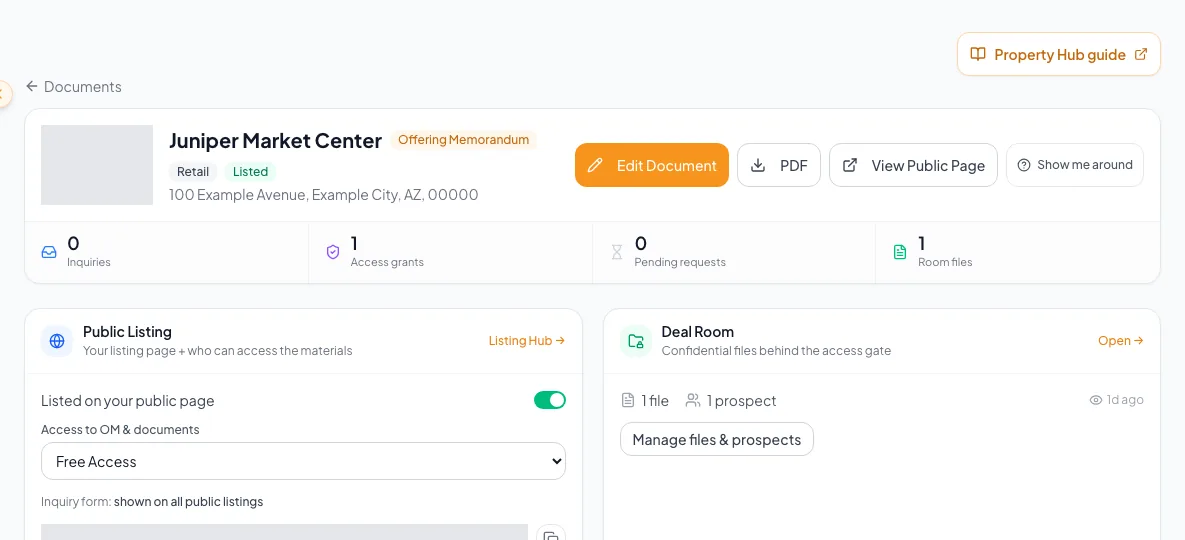
Control public listing visibility and Sync separately in the property header; read Inventory independently from publishing status. - 3
Publish the property
Property Hub header > Listed
Turn on Listed.
Expected result: The property appears on your public listing page. Sync remains a separate choice.
If this step does not work
Read the disabled reason. Finish incomplete packages, request edit access, or review your plan as needed.
- 4
Request listing-site distribution
Property Hub header > Sync
Turn on Sync.
Expected result: A confirmation explains distribution and any source replacement before saving.
If this step does not work
List the property first. You can withdraw saved consent even if delivery is paused.
- 5
Open the connected workspace
Property Hub > selected card
Select the card for the one task you need to complete.
Expected result: CREBuilder opens the linked document, listing, Deal Room, CRM, or Email Blast workflow.
If this step does not work
Use the reference table to choose the correct card if two areas appear similar.
- 6
Return to Property Hub
Connected feature
Use the property or browser navigation to return after saving.
Expected result: The property workspace reflects the saved connected state.
If this step does not work
Reopen Property Hub from Documents if the connected feature does not provide a return link.
Connected feature reference
| Need | Open |
|---|---|
| Correct property content or regenerate the PDF | Document wizard |
| Toggle Listed or Sync | Dashboard property card or Property Hub header |
| Change inventory Status, domain, or appearance | Listing Hub |
| Set visitor access | Property Hub Public Listing card or Listing Hub |
| Manage confidential files, NDA, approvals, or room activity | Deal Room |
| Qualify a person, add requirements, or set follow-up | CRM |
| Build, validate, or send a property campaign | Email Blasts |
Troubleshooting and next steps
Sync is checked but says paused or needs attention.
Likely cause: Your saved Sync choice is still on, but delivery cannot currently proceed.
- Open Publishing details to read the issue.
- You can turn Sync off even while delivery is paused.
- Turning off Listed also stops Sync after confirmation.
A feature card is locked or absent.
Likely cause: The current plan, role, or property state does not provide the feature.
- Review the access message shown by CREBuilder.
- Ask the document owner or account administrator to verify entitlement.
A connected status looks stale.
Likely cause: The linked operation may still be processing or the page may predate the change.
- Open the connected workspace and check its status there.
- Return to Property Hub after the change finishes.
Final verification
- The property name and address match the campaign
- The connected feature shows the expected underlying record
- The saved change is visible after returning to Property Hub
- No blocking warning, failed status, or unresolved validation message remains in the completed workflow.
Your next OM, done this afternoon
Turn your property facts, photos and financials into a polished, branded offering memorandum. Most brokers finish in 30 to 90 minutes.
No credit card required.