Outcome
Your listings are live where buyers look: on your hosted Listing Hub, inside your company website, or at a branded address such as listings.yourcompany.com.
Navigation path
Listing Hub > Website & embed
Access
Website & embed is available to Admins and solo account owners. Connecting a custom domain also requires access to that domain’s DNS settings.
On this page
What you will accomplish
Public-address choices
Pick one primary experience. The hosted link always keeps working.
CREBuilder Listing Hub
Hosted CREBuilder link
Embedded on your website
Your own subdomain
- CREBuilder Listing HubHosted CREBuilder link
- CREBuilder Listing HubEmbedded on your website
- CREBuilder Listing HubYour own subdomain
Before you start
Data, sources, and access to prepare
- At least one listed property
- For embedding, edit access to your website
- For a custom domain, DNS access or your DNS administrator
Prepare these details
- Decide whether buyers should visit CREBuilder directly, your company website, or your own subdomain
- Pick the subdomain to use, such as listings.yourcompany.com
- Know who manages DNS for the domain
- Decide whether the domain should open your full hub or one property
Complete the task
- 1
Open Website & embed
Listing Hub
Select Website & embed.
Expected result: Share a link, Add to my website and Use my domain are offered as separate paths.
If this step does not work
Ask your team Admin if you only see Listings and Listing sync.
- 2
Test the hosted URL
Website & embed > Share a link
Open your hosted Listing Hub link in a private window.
Expected result: Your public hub loads with your listed properties.
If this step does not work
Turn on Listed for at least one property if the hub is empty.
- 3
Open the embed setup
Website & embed
Select Add to my website.
Expected result: The real preview, embed type and website platform controls appear.
If this step does not work
Use Share a link if your website editor does not support custom embeds.
- 4
Choose the embed type
Add to my website > Embed type
Select Full Listing Hub or Featured properties.
Expected result: The preview and generated snippet follow the selected mode.
If this step does not work
Full Listing Hub contains the complete grid, list and map directory. Featured properties is a separate available-property spotlight.
- 5
Choose your website platform
Add to my website > Your website platform
Select Squarespace, WordPress, Webflow or Other.
Expected result: The screen explains the current editor and plan requirements with an official instructions link.
If this step does not work
Ask your website administrator if you cannot add iframe and script tags.
- 6
Choose embed branding
Add to my website > Advanced embed options
On Pro, select Hide the Powered by CREBuilder link if you want to remove it.
Expected result: The generated embed requests branding removal for this website. Existing embeds keep their current appearance until you replace their code.
If this step does not work
The option requires active paid-plan access. Removing it restores the link in the generated code.
- 7
Copy the generated embed
Add to my website
Select Copy embed code.
Expected result: The complete snippet is on your clipboard. Copying it has not installed or published anything.
If this step does not work
Copy it again from CREBuilder rather than editing the URL by hand.
- 8
Install the embed
Your website editor
Paste the complete snippet into the supported HTML or code block.
Expected result: The editor holds the complete iframe and resize script, ready for publication.
If this step does not work
Keep the full reported resize height; negative margins or cropping wrappers can cut off content. If your site has a fixed header, set data-scroll-offset to its height in pixels. If the frame is blocked, allow the CREBuilder frame in your site settings.
- 9
Publish your website page
Your website editor
Publish or update the page containing the embed.
Expected result: The public page can load the saved listing design and grow to fit its content.
If this step does not work
Open the published address outside the editor; a saved draft or script placeholder does not prove installation.
- 10
Open a property in the embed
Your published website page
Open one property.
Expected result: The property opens inside the same embedded experience.
If this step does not work
Test from the published page outside your website editor.
- 11
Return to the embedded directory
Your published website page > property
Select Back to Listings.
Expected result: You return to the same embedded directory with no second company header.
If this step does not work
If the frame is clipped, preserve the complete resize script and remove cropping wrappers.
- 12
Open domain setup
Website & embed
Select Use my domain.
Expected result: The existing domain statuses and Connect domain form appear.
If this step does not work
Ownership verification and HTTPS readiness are separate from your account plan.
- 13
Enter the custom domain
Website & embed > Use my domain > Domain you own
Enter the subdomain, such as listings.yourcompany.com.
Expected result: The hostname is ready to connect. Enter only the hostname, without https:// or a page path.
If this step does not work
Root domains such as yourcompany.com are not supported. Use a subdomain such as listings.yourcompany.com or www.propertyname.com.
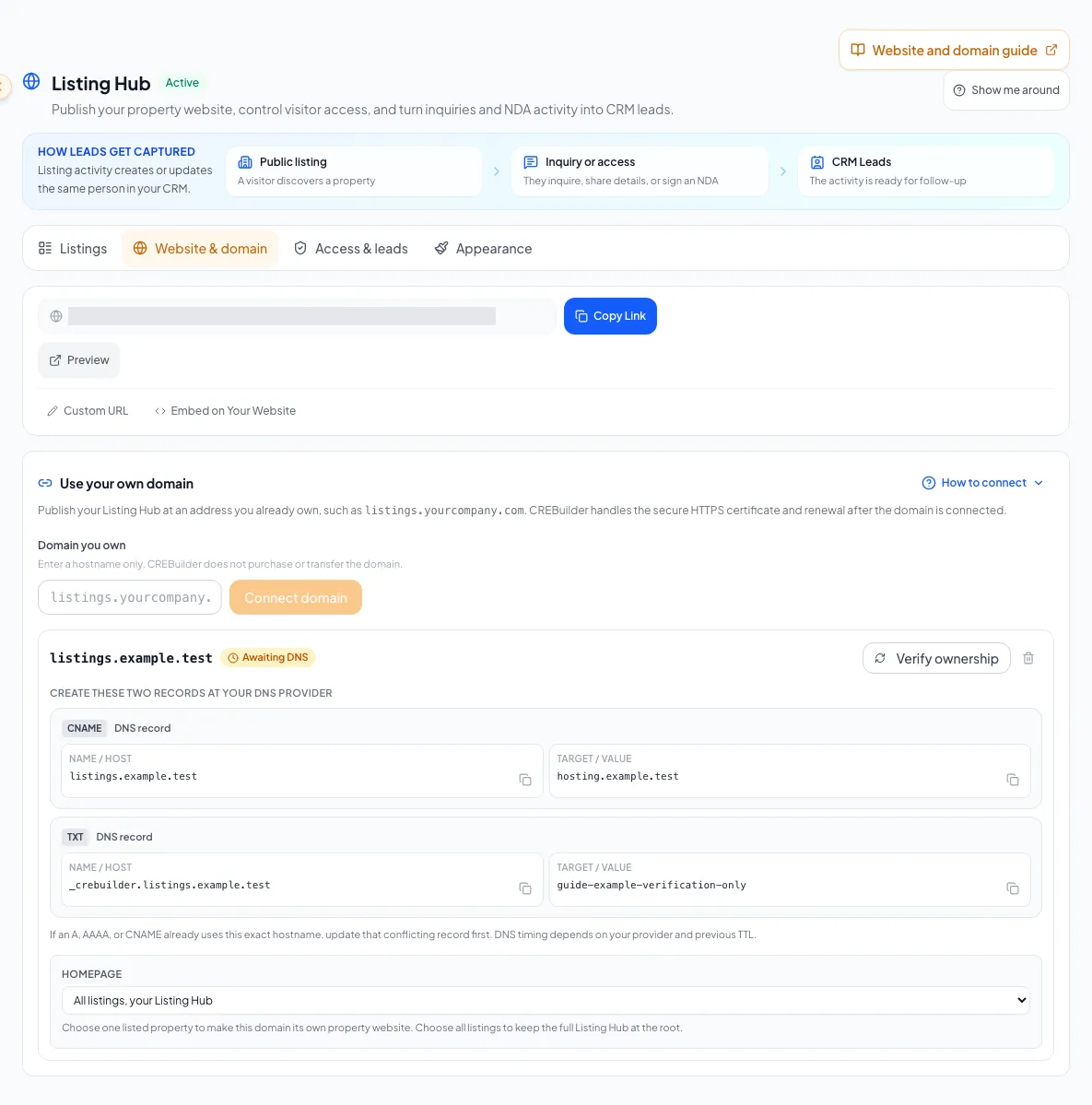
Choose Share a link, Add to my website or Use my domain; domain ownership and HTTPS readiness are shown separately. - 14
Connect the domain
Website & embed > Use my domain
Select Connect domain.
Expected result: The domain appears with an Awaiting DNS badge and the two records to create: one CNAME and one TXT.
If this step does not work
Check the spelling if the domain is rejected.
- 15
Add the CNAME record
Your DNS provider
Create the CNAME record exactly as shown.
Expected result: The record points your subdomain to the CREBuilder target shown in the panel.
If this step does not work
If an A, AAAA, or CNAME record already uses this hostname, update that record instead of adding a second one. Leave MX, nameserver, and email records alone.
- 16
Add the TXT record
Your DNS provider
Create the TXT verification record exactly as shown.
Expected result: The record name starts with _crebuilder-verify and the value matches the panel.
If this step does not work
If your provider adds your root domain automatically, enter only the relative host, such as _crebuilder-verify.listings.
- 17
Verify the domain
Website & embed > your domain
Select Verify ownership.
Expected result: The badge changes to HTTPS provisioning. CREBuilder issues the HTTPS certificate and renews it for you.
If this step does not work
If the record is not found yet, wait a few minutes and verify again. DNS changes often appear within minutes but depend on your provider and previous TTL.
- 18
Confirm HTTPS is live
Website & embed > your domain
Select Check HTTPS status.
Expected result: The badge reads Live with HTTPS and an Open https:// link for your domain appears.
If this step does not work
Keep the CNAME record in place; the certificate renews through it.
- 19
Choose the root experience
Website & embed > your domain > Homepage
Select All listings, your Listing Hub, or one listed property.
Expected result: Your domain opens the full hub or that property page directly.
If this step does not work
If that property is unlisted later, the menu marks it as no longer listed. Switch back to All listings, your Listing Hub.
Delivery options and DNS reference
Saved design, portfolio filters, ordering and visible facts update existing full Listing Hub embeds automatically. Replace the snippet after changing the embed type, sticky-header offset or branding option. Advanced embed options also stores the published page address used by branded property share links.
| Platform | Installation requirements |
|---|---|
| Squarespace | Use an HTML Code block with Display Source off. JavaScript and iframes require Core, Plus, Advanced or a supported legacy plan. Basic does not support this embed. |
| WordPress | Paste into a Custom HTML block. WordPress.com needs a plugin-enabled plan with hosting features activated; self-hosted sites need an editor and user permissions that preserve iframe and script tags. |
| Webflow | Use Code Embed with an active Site plan or a Core, Growth, Agency or Freelancer Workspace. Publish the site to check scripts outside the Designer. |
| Other | Use a custom HTML area that preserves both the iframe and script. Publish before testing the public page. |
Platform requirements were checked October 26, 2026. The platform selector links to the official Squarespace Code blocks, WordPress.com Add code and Webflow Custom code embed instructions for your current account.
Hosted link
- Best when
- You want a public listings page today
- What you need
- At least one Listed property
Embed
- Best when
- Your company website should show your inventory
- What you need
- Access to your website editor
Custom domain
- Best when
- You want a branded address such as listings.yourcompany.com
- What you need
- DNS access for a subdomain
CNAME
- Name (host)
- Your subdomain, for example listings
- Value
- The CREBuilder target shown in the panel
TXT
- Name (host)
- _crebuilder-verify plus your subdomain, for example _crebuilder-verify.listings
- Value
- The verification value shown in the panel
| Badge | Meaning |
|---|---|
| Awaiting DNS | CREBuilder has not found the records yet |
| HTTPS provisioning | Ownership is verified and the secure certificate is being issued |
| Live with HTTPS | Your domain is serving your listings securely |
| Failed | Read the message under the records and correct them |
Use the TTL your provider suggests (Auto or the default). Once several domains are live, Make primary chooses which one CREBuilder uses as your branded link. CREBuilder does not purchase or transfer domains; you keep ownership.
Want a fully custom website?
Website & embed also links to Request a custom website, where you can brief the team on a site built around your brokerage.
Troubleshooting and next steps
Verification stays at Awaiting DNS.
Likely cause: DNS may still be propagating, or the record name, type, or value differs from the panel.
- Compare both records with the panel character by character.
- Remove a doubled root domain from the record name.
- Wait for your provider’s propagation window and verify again.
The badge stays at HTTPS provisioning.
Likely cause: Certificate issuance can take a little longer after ownership is verified.
- Keep the CNAME record in place.
- Select Check HTTPS status again shortly.
The embed is blank or clipped.
Likely cause: Your website may block frames or use a small fixed container.
- Replace the complete previous embed, including its resize script.
- Allow the CREBuilder frame in your site settings.
- Remove cropping wrappers and negative bottom margins; preserve the full reported resize height.
Final verification
- The hosted hub works in a signed-out window
- If you embedded the hub, it fits your page on desktop and mobile
- Both Back to Listings controls return to the embedded inventory without a second company header
- With active Pro access, the branding link matches the option in your installed embed code
- If you connected a custom domain, it shows Live with HTTPS
- Hub and property links stay on your chosen address
- Your email and existing website still work
- No blocking warning, failed status, or unresolved validation message remains in the completed workflow.
Your next OM, done this afternoon
Turn your property facts, photos and financials into a polished, branded offering memorandum. Most brokers finish in 30 to 90 minutes.
No credit card required.