Outcome
You will send a clear website brief the team can scope and quote quickly.
Navigation path
Custom Websites
Access
Scope, pricing, and timing are confirmed after the team reviews your brief.
On this page
Before you start
Data, sources, and access to prepare
- Authority to request a site for your company or domain
- A clear audience
- Up-to-date contact details in your Profile
Prepare these details
- Know your audience and what you want them to do
- List the pages and workflows you need
- Note your current website and who manages the domain
- Collect a few sites you like (links only, never logins)
- Update your Profile contact details
Complete the task
- 1
Open Custom Websites
Main navigation > Custom Websites
Open the website request page.
Expected result: New request shows the brief form. My requests lists earlier submissions.
If this step does not work
Check you are in the right workspace if earlier requests are missing.
- 2
Name the project
Custom Websites > Project name
Enter a recognizable project name.
Expected result: The project is easy to find later.
If this step does not work
Use the company, market, or site purpose.
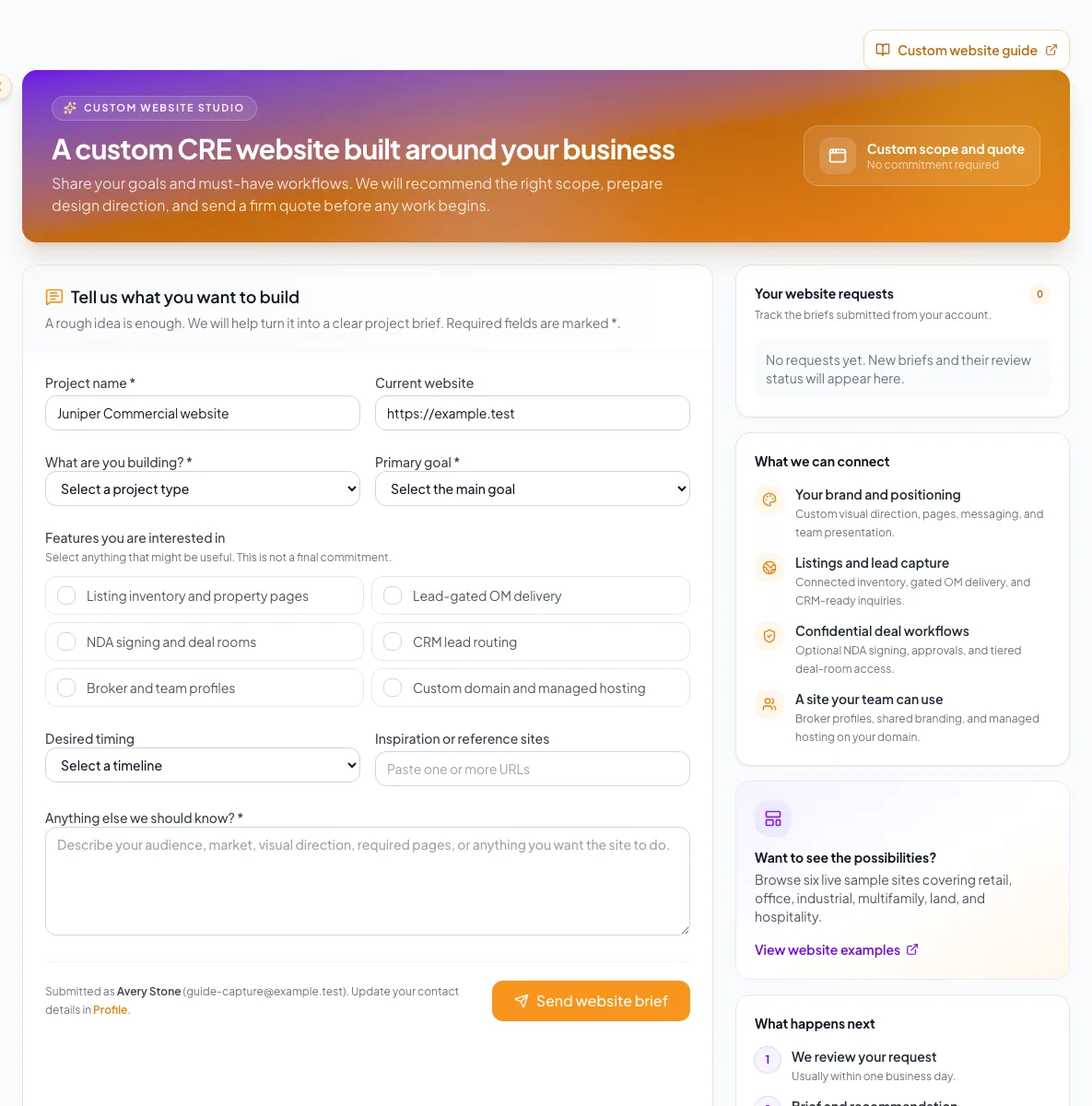
Request a custom commercial real estate website with clear goals, content sources, branding, and contact details. - 3
Enter the current site
Custom Websites > Current website
Enter your current public website if you have one.
Expected result: The team sees where you are starting from.
If this step does not work
Leave it blank rather than entering a private admin URL.
- 4
Choose the project type
Custom Websites > What are you building?
Select the project type.
Expected result: The type appears in your brief.
If this step does not work
Pick the closest type and explain the rest in your notes.
- 5
Choose the primary goal
Custom Websites > Primary goal
Select the main business goal.
Expected result: The brief has one clear priority.
If this step does not work
Add secondary goals in your notes.
- 6
Select one feature
Custom Websites > Features
Select each feature that supports your main goal.
Expected result: The features appear selected.
If this step does not work
Put nice-to-haves in your notes instead.
- 7
Add timing and inspiration
Custom Websites > Timing and references
Select your timing or enter a reference site.
Expected result: The brief includes timing or visual direction.
If this step does not work
Use public links only.
- 8
Write the required notes
Custom Websites > Anything else
Describe your audience, pages, look, and key workflows.
Expected result: The notes complete the brief.
If this step does not work
List open questions plainly; the team will help answer them.
- 9
Submit the brief
Custom Websites form
Select Send website brief.
Expected result: My requests opens with a confirmation and your project highlighted.
If this step does not work
Your entries stay in the form if sending fails. Retry after a clear error to avoid duplicates.
- 10
Review request history
Custom Websites > My requests
Find your project row.
Expected result: Its review status is visible.
If this step does not work
Refresh if it has not appeared yet.
Website brief fields
Project name Required
The name of the request
- Format
- Plain text
- Units
- Not applicable
- Save behavior
- Saved with the brief when Send website brief succeeds.
- Downstream effect
- Identifies the project in confirmations and My requests.
Current website Optional
Your existing public site
- Format
- Public domain or URL
- Units
- Not applicable
- Save behavior
- Saved with the brief when Send website brief succeeds.
- Downstream effect
- Shows the team your current brand and site.
Project type Required
The kind of website you want
- Format
- One option from the project-type menu
- Units
- Not applicable
- Save behavior
- Saved with the brief when Send website brief succeeds.
- Downstream effect
- Frames how the team reads the rest of the brief.
Primary goal Required
The main business outcome
- Format
- One option from the primary-goal menu
- Units
- Not applicable
- Save behavior
- Saved with the brief when Send website brief succeeds.
- Downstream effect
- Sets the priority for scoping.
Features Optional
Capabilities that support the goal
- Format
- Selected feature options
- Units
- Not applicable
- Save behavior
- Saved with the brief when Send website brief succeeds.
- Downstream effect
- Tells the team what to scope; final features are agreed during review.
Notes Required
Audience, market, pages, workflows, brand, and constraints
- Format
- Plain text
- Units
- Characters
- Save behavior
- Saved with the brief when Send website brief succeeds.
- Downstream effect
- Gives the detail needed to scope and quote.
Project name
- Requirement
- Required
- What it means
- The name of the request
- Format
- Plain text
- Units
- Not applicable
- Save behavior
- Saved with the brief when Send website brief succeeds.
- Downstream effect
- Identifies the project in confirmations and My requests.
Current website
- Requirement
- Optional
- What it means
- Your existing public site
- Format
- Public domain or URL
- Units
- Not applicable
- Save behavior
- Saved with the brief when Send website brief succeeds.
- Downstream effect
- Shows the team your current brand and site.
Project type
- Requirement
- Required
- What it means
- The kind of website you want
- Format
- One option from the project-type menu
- Units
- Not applicable
- Save behavior
- Saved with the brief when Send website brief succeeds.
- Downstream effect
- Frames how the team reads the rest of the brief.
Primary goal
- Requirement
- Required
- What it means
- The main business outcome
- Format
- One option from the primary-goal menu
- Units
- Not applicable
- Save behavior
- Saved with the brief when Send website brief succeeds.
- Downstream effect
- Sets the priority for scoping.
Features
- Requirement
- Optional
- What it means
- Capabilities that support the goal
- Format
- Selected feature options
- Units
- Not applicable
- Save behavior
- Saved with the brief when Send website brief succeeds.
- Downstream effect
- Tells the team what to scope; final features are agreed during review.
Notes
- Requirement
- Required
- What it means
- Audience, market, pages, workflows, brand, and constraints
- Format
- Plain text
- Units
- Characters
- Save behavior
- Saved with the brief when Send website brief succeeds.
- Downstream effect
- Gives the detail needed to scope and quote.
Required means the field is needed to complete or support this workflow. Some screens allow a draft to save before every required item is complete. The steps and troubleshooting call out controls the product actively blocks.
Troubleshooting and next steps
The form will not submit.
Likely cause: A required field is missing: project name, project type, goal, or notes.
- Read each inline message.
- Complete the named field.
- Submit again.
My requests will not load.
Likely cause: History may be temporarily unavailable even though your brief was saved.
- Keep the confirmation.
- Refresh later instead of submitting again.
Final verification
- Project type and primary goal are selected
- Notes describe the audience and key workflows
- No passwords or logins are included
- Your Profile contact details are current
- The brief appears in My requests
- No blocking warning, failed status, or unresolved validation message remains in the completed workflow.
Your next OM, done this afternoon
Turn your property facts, photos and financials into a polished, branded offering memorandum. Most brokers finish in 30 to 90 minutes.
No credit card required.