Outcome
The right teammate gets the right access, ownership changes only when you mean it to, and connected work keeps an owner.
Navigation path
Documents > Document action menu
Access
Users with edit access can Share a document with teammates. Admins also see Transfer, and Coordinators see Reassign owner, for every company document.
On this page
Before you start
Data, sources, and access to prepare
- A team workspace
- Access to the action you need
- The teammate who should get access or ownership
Prepare these details
- Decide whether ownership should change
- Confirm the teammate’s name and email
- Note current collaborators and whether the property is listed
- When someone is leaving, list their documents, listings, and Deal Rooms
Complete the task
- 1
Open the document menu
Documents > document row
Open the document’s action menu.
Expected result: The actions available to you appear.
If this step does not work
Ask an Admin if Transfer is missing; Members see Share only.
- 2
Choose the access action
Document action menu
Select Share, Transfer, or Reassign owner.
Expected result: The matching dialog opens and explains the effect.
If this step does not work
Cancel if the dialog changes ownership and you only need help editing.
- 3
Verify the teammate before sharing
Share dialog > teammate row
Check the teammate’s name and email.
Expected result: You have identified the intended person before changing access.
If this step does not work
Leave the row unchanged if the identity is unclear.
- 4
Share without changing ownership
Share dialog > teammate row
Toggle the verified teammate on or off.
Expected result: Each toggle saves the access change immediately. Done closes the dialog; it is not a save button.
If this step does not work
Wait for the row to finish saving. If the result is uncertain, reopen Share before toggling again.
- 5
Choose a new owner when transferring
Transfer dialog > New owner
Select the new owner.
Expected result: The intended owner is selected; ownership has not changed yet.
If this step does not work
Cancel if you only intended to share editing access.
- 6
Choose your retained editing access
Transfer dialog > Keep me as an editor on this document
Set Keep me as an editor on this document to the access you want to retain.
Expected result: The checkbox reflects your editing access after the transfer.
If this step does not work
Keep it selected if you still need to help edit the document.
- 7
Confirm the ownership change
Transfer dialog > Transfer Ownership
Select Transfer Ownership.
Expected result: Ownership changes after the request succeeds.
If this step does not work
Refresh Documents before retrying an uncertain request.
- 8
Open the document as the target
Teammate’s workspace
Open the shared or transferred document.
Expected result: The teammate can do the work you intended.
If this step does not work
Ask an Admin to check their role if the document opens read-only.
- 9
Review connected workflows
Property Hub
Open the property workspace after an ownership change.
Expected result: The document, listing, Deal Room, leads, and campaigns all have a clear owner.
If this step does not work
Reassign tasks or records explicitly if they did not follow the document.
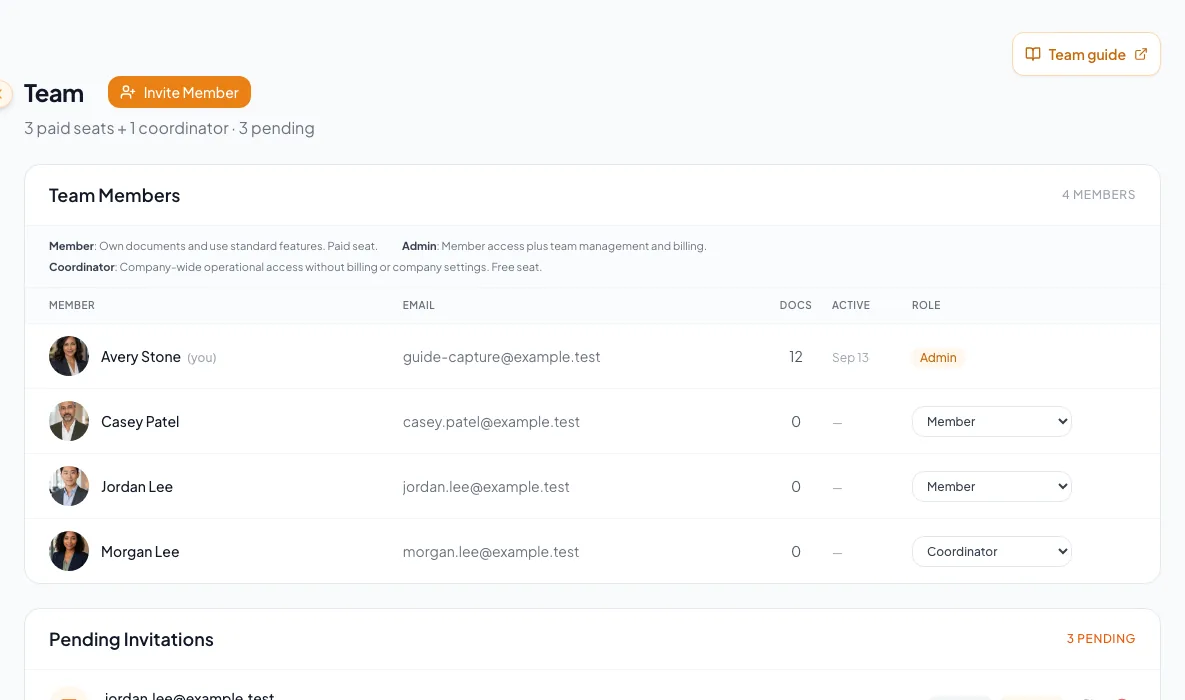
Coordinate record ownership and transfers without implying that shared views can expand a person's actual access. - 10
Transfer an offboarded book
Settings > Team > Remove member
Choose the teammate who receives the CRM book when removing someone.
Expected result: Their CRM records move before the person is removed. Documents do not move with the book.
If this step does not work
Transfer documents first; see the remove-a-teammate steps in the team invitations guide.
Access-action reference
A teammate helps edit
- Action
- Share
- Who sees it
- Users with document edit access
- Ownership
- Stays with the current owner
Responsibility permanently changes
- Action
- Transfer
- Who sees it
- Admins
- Ownership
- Moves to the selected teammate
A Coordinator built work for a broker
- Action
- Reassign owner
- Who sees it
- Coordinators
- Ownership
- Moves to the intended broker
A teammate is removed with CRM records
- Action
- Transfer & remove in Settings > Team
- Who sees it
- Admins
- Ownership
- CRM records move to the replacement owner
Troubleshooting and next steps
The teammate cannot edit.
Likely cause: The action, role, or document access may give less than you expected.
- Confirm whether Share or Transfer completed.
- Ask an Admin to check the teammate’s role.
A teammate cannot be removed yet.
Likely cause: They still own CRM records that need a new owner.
- Choose a teammate in Move their book first.
- Select Transfer & remove.
Final verification
- The right teammate received access
- Ownership changed only when intended
- The teammate can do the expected work
- Connected tasks and CRM work have owners
- Listings and Deal Rooms were reviewed
- No blocking warning, failed status, or unresolved validation message remains in the completed workflow.
Your next OM, done this afternoon
Turn your property facts, photos and financials into a polished, branded offering memorandum. Most brokers finish in 30 to 90 minutes.
No credit card required.