Outcome
Every property appears in order with the right data, labels, totals, and map pin, on readable pages.
Navigation path
Document wizard > Review & Customize
Access
Review & Customize access for a multi-property document
On this page
Before you start
Data, sources, and access to prepare
- Completed building records and content
- Final building order
- Completed financial review when financial pages are included
Know how structure changes labels
Structure-aware output
Portfolio mode and building types determine reader-facing headings and total labels.
Saved Structure
Campus or portfolio
Building Types
All Land, mixed, or other
Summary Labels
Building, Parcel, Property, or Portfolio
Layout
Combined, columnar, or transposed
Final PDF
Readable and internally consistent
- Saved StructureSummary Labels
- Building TypesSummary Labels
- Summary LabelsLayout
- LayoutFinal PDF
Campus, all Land
- Section title
- Parcel Financial Summary
- Total label
- Total
Campus, mixed building types
- Section title
- Property Financial Summary
- Total label
- Total
Campus, non-Land
- Section title
- Building Financial Summary
- Total label
- Total
Portfolio
- Section title
- Portfolio Financial Summary
- Total label
- Portfolio Total
Inspect combined and large-portfolio layouts
- Offering Memorandum uses one combined portfolio rent-roll page sequence rather than one native rent-roll page per building.
- Rent-roll content still breaks records out by building or component inside the combined presentation.
- Portfolio Financial Summary is dynamically added to multi-property Offering Memorandums and is part of the Sales Teaser page registry.
- Campus summary collapses to one consolidated Total column because the site is framed as one asset.
- A true portfolio keeps per-building columns until the document has more than six buildings, then uses a transposed building-row layout.
- Financial category pagination repeats a continued title and puts portfolio-wide totals on the final continuation page.
- Missing coordinates prevent a property from appearing on Portfolio Map and from contributing to the demographics centroid.
Inspect scope changes manually
Portfolio Financial Summary has assembly behavior outside several standard financial-mode page lists. After choosing Skip Financials or Rent Roll Only, verify whether the summary remains and whether that result matches the intended document.
Perform the final multi-property review
Multi-property output review
- 1
Review the property index
Review & Customize, portfolio property pages
Compare names, addresses, types, photos, and sequence with Buildings & Properties.
Expected result: Every record appears once and in the order you set.
If this step does not work
Return to Buildings & Properties for identity or sequence corrections.
- 2
Review maps and geography
Portfolio Map and demographic pages
Confirm every intended marker and the overall geographic framing.
Expected result: All geocoded properties appear in the correct location.
If this step does not work
Repair address or coordinates for any omitted property.
- 3
Review building sections
Document preview
Check that each fact, photo, description, and tenant row appears under the correct building or parcel.
Expected result: No content is attached to the wrong record.
If this step does not work
Return to the relevant building accordion and correct ownership.
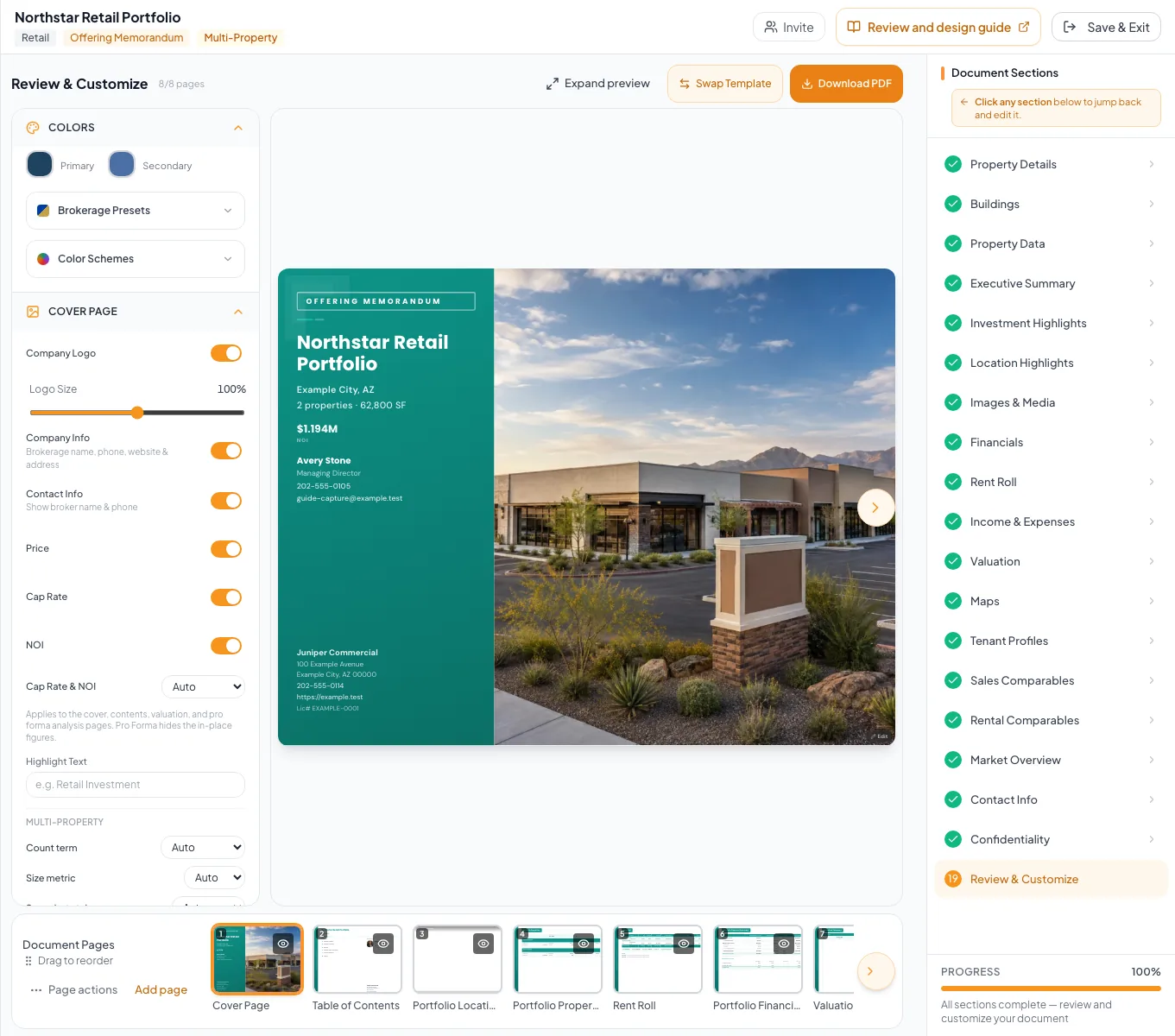
Review combined and per-property pages, check totals and labels, and confirm the output tells one coherent portfolio story. - 4
Reconcile rent roll
Combined Rent Roll pages
Compare building subtotals and Portfolio Total with the wizard.
Expected result: The combined roster reconciles and remains readable.
If this step does not work
Correct orphan or misassigned rows before continuing.
- 5
Reconcile financial summary
Portfolio Financial Summary
Check label, layout, building EGI, expenses, NOI, allocations, and combined total.
Expected result: The summary agrees with your model and structure.
If this step does not work
Trace differences to building rows, vacancy factor, or unlinked pool allocation.
- 6
Check continuation pages
Document preview and exported PDF
Inspect repeated titles, column headings, totals placement, footnotes, and page clipping.
Expected result: Every building and category remains visible across pages.
If this step does not work
Shorten labels, or contact support if a page still clips.
- 7
Verify output scope
Review & Customize page list
Confirm that only intended financial and supporting pages are enabled.
Expected result: The page list matches the deliverable you planned.
If this step does not work
Reopen Financial Scope if any required page is unavailable or unexpected.
- 8
Generate the final PDF
Review & Customize > Download PDF
Select Download PDF.
Expected result: The exported file matches the preview.
If this step does not work
Return to page review before retrying if any portfolio financial page is unexpected.
Resolve final-output failures
A summary says Building when the records are Land parcels
Likely cause: The document type mix or saved portfolio mode may not resolve as all-Land campus.
- Verify every building property type.
- Verify campus versus portfolio mode.
- Reopen the preview.
A property is missing from the map but present in tables
Likely cause: The table can use text address while the map requires coordinates.
- Search and save the exact address or parcel.
- Confirm latitude and longitude populate.
- Regenerate the map.
Large portfolio rows clip
Likely cause: The summary should switch layouts and paginate, but unusually long labels or content can still need review.
- Inspect every continuation page.
- Shorten reader-facing names where accurate.
- Report persistent clipping before export.
Portfolio NOI differs from building expectations
Likely cause: Unlinked rows or the General Vacancy Factor % may be allocated into the summary.
- Review Portfolio-wide financial rows.
- Review vacancy assumptions.
- Check the gross-rent allocation shares and combined total.
An allocated value looks too high or low
Likely cause: Allocated Value Per Property uses each building's share of gross rent, not NOI.
- Compare each building's expense load.
- Explain the allocation basis in a Valuation Summary footnote, or present an NOI-based allocation separately.
Ready to export
- Property order correct
- Labels match structure
- Maps complete
- Building content correctly owned
- Rent totals reconcile
- NOI and allocations reconcile
- Continuation pages readable
- Scope and page list confirmed
Related guides
Build a multi-building or portfolio document
Package several buildings, parcels, or locations into one OM or teaser, with each property on the map and in the order buyers should see them.
Open guideBuild multi-property rent rolls and financials
Enter rent rolls and operating statements building by building, and CREBuilder rolls them up into a Portfolio Financial Summary with building and portfolio NOI.
Open guideVerify financial pages before publishing
Do a final pass on the financial pages before you send: the right pages, the right labels, and numbers that tie out.
Open guideYour next OM, done this afternoon
Turn your property facts, photos and financials into a polished, branded offering memorandum. Most brokers finish in 30 to 90 minutes.
No credit card required.