Outcome
Each building shows its own rent, EGI, expenses, and NOI, and the portfolio totals tie out.
Navigation path
Document wizard > Buildings & Properties > Rent Roll > Income & Expenses > Valuation
Access
A multi-property Offering Memorandum with Full Financials or Rent Roll included
On this page
Before you start
Data, sources, and access to prepare
- A multi-property Offering Memorandum
- Completed building records
- Rent roll and operating statement separated by building
Use one model with building ownership
Portfolio financial ownership
The model choice is document-wide, while most rows belong to a building.
One Rent Roll Type
Shared Cash Flow or Pro Forma and detail model
Building A
Tenants, vacancies, income, expenses
Building B
Tenants, vacancies, income, expenses
Portfolio-Wide Pool
Unlinked legacy income and expenses
Portfolio Financial Summary
Per-building values and combined total
- One Rent Roll TypeBuilding A
- One Rent Roll TypeBuilding B
- Building APortfolio Financial Summary
- Building BPortfolio Financial Summary
- Portfolio-Wide PoolPortfolio Financial SummaryProrated
| Area | Current behavior |
|---|---|
| Rent-roll model | One document-level type shared by all buildings |
| Field labels | Adapt to each building property type |
| Rent Roll totals | Per-building summary plus Portfolio Total |
| Expense category creation | Adding a category for one building seeds zero-value rows for other buildings |
| Legacy unlinked rows | Shown in Portfolio-wide, not assigned to a building |
| Output allocation | Unlinked rent, income, and expenses are prorated by linked gross-rent share, or equally when no linked rent exists |
Understand the combined summary
- Gross Potential Rent includes linked tenant and vacancy rent for each building.
- Explicit vacancy and the document-level vacancy factor both affect Portfolio Financial Summary when configured.
- Tenant reimbursements and building additional income add to EGI.
- Building operating expenses subtract from EGI to produce building NOI.
- Portfolio totals sum all building results after any unlinked pool allocation.
- Campus mode consolidates the summary to one Total column, while a portfolio keeps per-building columns when space permits.
- Portfolios with more than six buildings use a transposed layout.
- The Valuation Summary's Allocated Value Per Property panel splits the asking price by each building's share of gross rent (occupied plus vacant base rent). Expenses are not considered, so buildings with different expense loads end up with different implied cap rates. For 1031, tax, or release-price allocations, use an NOI-based or appraised allocation.
No general Building Selector for legacy financial rows
The current Portfolio-wide income and expense area exposes unlinked rows but does not provide a reassignment selector. Resolve ownership before entry whenever possible and document any unavoidable allocation.
Enter and reconcile by building
Portfolio financial steps
- 1
Complete Buildings first
Buildings & Properties
Verify every building name, type, address, and order.
Expected result: The financial accordions have reliable owners and labels.
If this step does not work
Return here before financial entry if a record is missing.
- 2
Choose the shared rent-roll model
Rent Roll, model selector
Select the one Cash Flow or Pro Forma and Unit-by-Unit or Unit Mix structure used by the document.
Expected result: All building accordions use the selected type with property-specific columns.
If this step does not work
The model cannot vary by building. Choose the best common representation.
- 3
Open one building rent roll
Rent Roll building accordions
Expand the intended building.
Expected result: The active accordion identifies the building that will own new rows.
If this step does not work
Compare the active accordion name before adding data.
- 4
Enter the building rent roll
Expanded Rent Roll building accordion
Add only that building’s tenants, vacancies, units, rooms, or pads.
Expected result: The building summary reconciles and Portfolio Total updates.
If this step does not work
Remove a row immediately if it was added under the wrong building.
- 5
Inspect unassigned rent rows
Rent Roll, unassigned rows warning
Review every legacy row without building ownership.
Expected result: Each unassigned row is identified as required or invalid.
If this step does not work
Compare uncertain rows with your source before changing them.
- 6
Remove an invalid unassigned row
Rent Roll, unassigned rows warning
Delete one row confirmed to be invalid.
Expected result: The invalid orphan row no longer affects the portfolio.
If this step does not work
The current area does not reassign rows. Re-enter required data under the correct building instead of deleting it.
- 7
Enter building statements
Income & Expenses building accordions
Add additional income and expenses for each building in the displayed model columns.
Expected result: Building statement totals reconcile.
If this step does not work
Expect a newly added expense category to appear as zero in sibling buildings. Complete or leave intentional zero values.
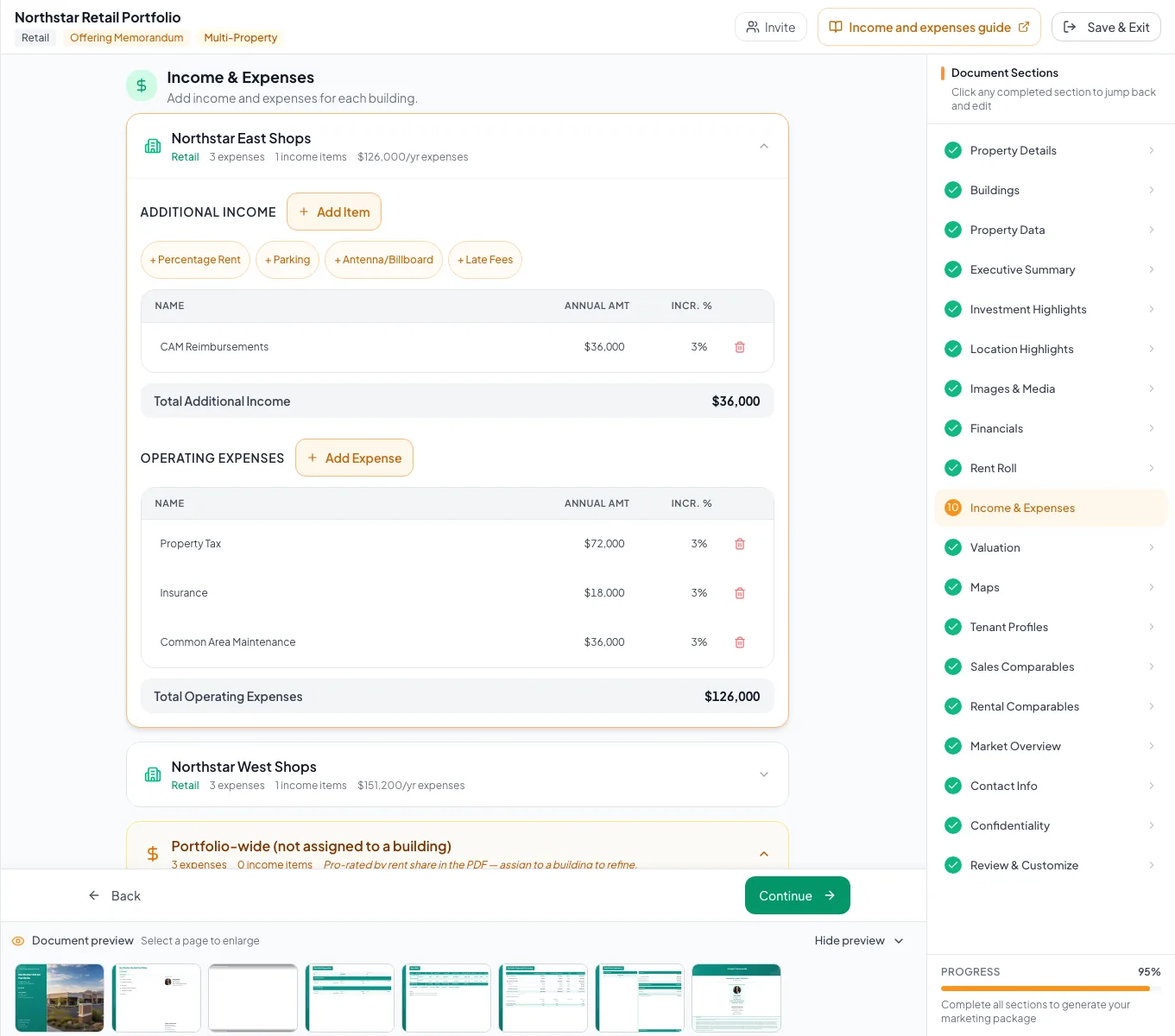
Enter property-level financial data and verify the combined portfolio statement without inventing unsupported building selectors. - 8
Review Portfolio-wide rows
Income & Expenses, Portfolio-wide
Compare every unlinked income and expense row with your source.
Expected result: Any final allocation is intentional and documented.
If this step does not work
There is no current reassignment control. Re-enter under buildings and remove the unlinked row only when safe.
- 9
Verify the combined analysis
Valuation and Review & Customize
Compare building totals, Portfolio Total, vacancy, EGI, expenses, and NOI across wizard and output.
Expected result: The combined model reconciles.
If this step does not work
Trace the first difference to a building row or legacy allocation.
Resolve portfolio financial issues
Different buildings need different rent-roll types
Likely cause: The current type is document-wide.
- Choose the common model that best fits the deliverable.
- Use property-specific labels within each accordion.
- Explain exceptions in notes.
A row is unassigned
Likely cause: It may be legacy document-level data or created before the building model existed.
- Identify its correct owner from source data.
- Re-enter it under the building if necessary.
- Remove the unlinked row only after verifying totals.
A portfolio total differs from the sum expected
Likely cause: Unlinked rows, explicit vacancy, or the vacancy-factor assumption may be included.
- Check Portfolio-wide rows.
- Check vacancy records by building.
- Check the document vacancy factor.
- Recalculate EGI and NOI.
Portfolio model ready
- One shared type accepted
- Every building roster reconciled
- Every building statement reconciled
- Unassigned rows explained
- Portfolio-wide rows explained
- Portfolio Total NOI checked
Related guides
Manage building and parcel data
Give each building or parcel its own facts, so every property section in your document shows the right size, units, and details.
Open guideComplete a full financial analysis
Go from rent roll to finished financial pages in one pass: rent roll, income and expenses, valuation, and a cash flow or pro forma your buyers can read.
Open guideReview multi-property document output
Do a final pass on your portfolio or campus document: labels, combined rent roll, financial summary, maps, and page breaks.
Open guideYour next OM, done this afternoon
Turn your property facts, photos and financials into a polished, branded offering memorandum. Most brokers finish in 30 to 90 minutes.
No credit card required.