Outcome
Your personal and company details are saved once and reused across documents and listings, with a clean headshot and logo.
Navigation path
Settings > Profile
Access
Everyone can update their own details. On a team, Members and Coordinators use the company details set by the team Admin.
On this page
What you will accomplish
Where saved profile data can appear
Save your Profile once, then check your most important existing work.
Saved Profile
Documents
Public listings
Email identity
Public profile
- Saved ProfileDocuments
- Saved ProfilePublic listings
- Saved ProfileEmail identity
- Saved ProfilePublic profile
Before you start
Data, sources, and access to prepare
- A CREBuilder account
- Your current broker and company details
- A headshot and logo you have the right to use
Prepare these details
- Use a clear headshot that crops well to a circle
- Use a high-resolution logo with good contrast
- Confirm license and company information
- Choose the time zone for your CRM due dates
- Save open work before changing your password or deleting your account
Complete the task
- 1
Open Profile settings
Settings
Select Profile.
Expected result: Personal Information and Company Information appear.
If this step does not work
Sign in again if Settings is unavailable.
- 2
Choose a profile photo
Profile > Personal Information > Profile Photo
Select a photo file.
Expected result: The crop dialog opens with your headshot.
If this step does not work
Use a JPG, PNG, GIF, or WebP file if the image is rejected.
- 3
Position the profile crop
Crop Profile Photo dialog
Position the circular crop around your face.
Expected result: The preview shows your face clear and centered.
If this step does not work
Reset the crop if your face is clipped or too small.
- 4
Save the profile crop
Crop Profile Photo dialog
Select Save Changes.
Expected result: The circular profile preview updates.
If this step does not work
Wait for the upload to finish before reopening Crop.
- 5
Enter personal details
Profile > Personal Information
Complete your name, contact, title, license, and bio.
Expected result: Required name fields are valid and your details are ready to save.
If this step does not work
Fix the message beside any field before saving.
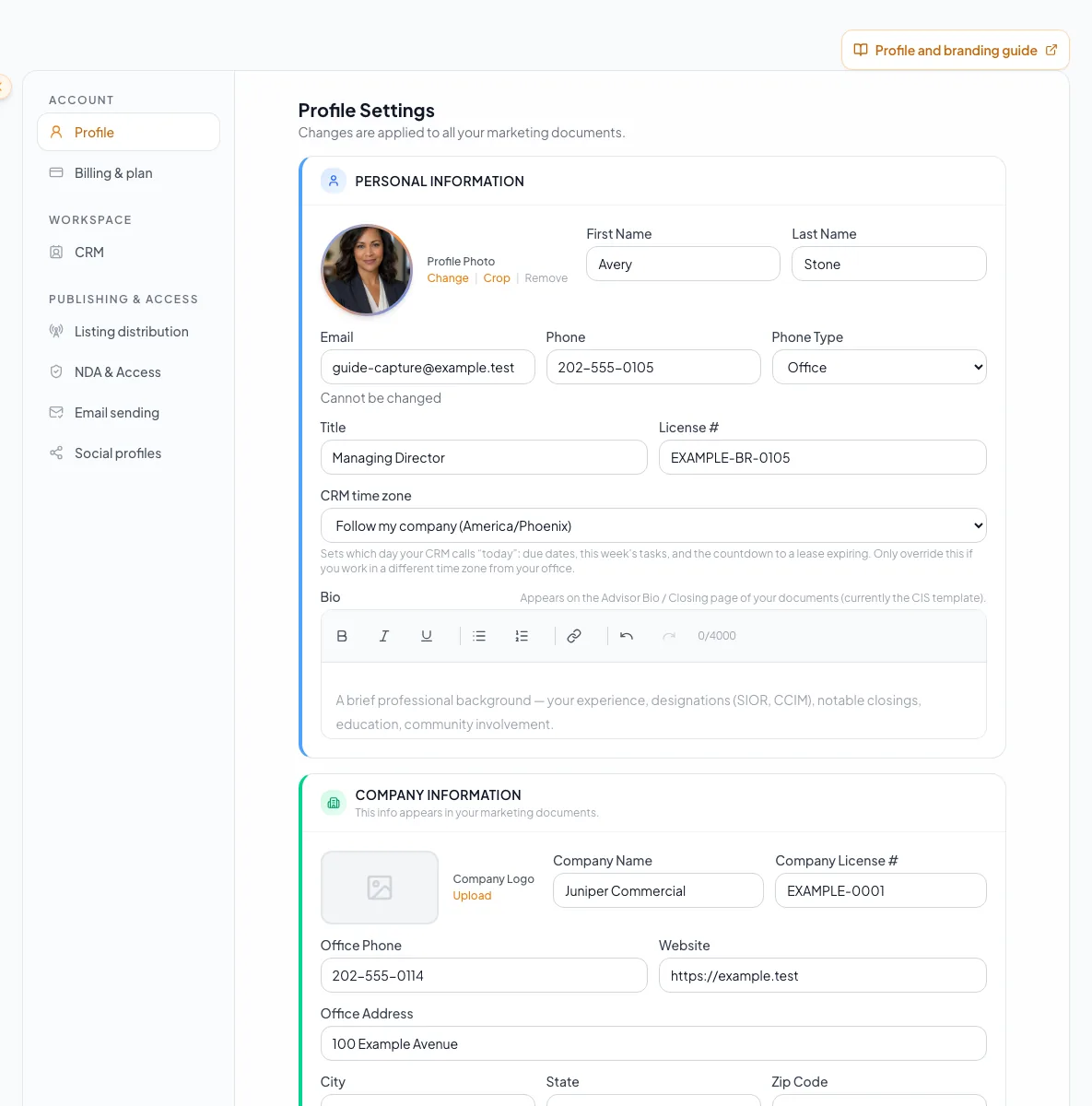
Maintain accurate profile, contact, logo, and company information that appears across generated customer materials. - 6
Choose the CRM time zone
Profile > Personal Information > CRM time zone
Select the time zone for your working day.
Expected result: CRM due dates and Today labels use your zone.
If this step does not work
Choose the follow-company option to use the office time zone.
- 7
Enter company details
Profile > Company Information
Complete the company fields you can edit.
Expected result: Company name, license, contact, address, and website are ready to save.
If this step does not work
Ask your team Admin to update locked company fields.
- 8
Choose a company logo
Profile > Company Information > Company Logo
Select your logo file.
Expected result: The crop dialog opens with your logo.
If this step does not work
Use an image with padding and contrast if the mark is hard to read.
- 9
Position the logo crop
Crop Company Logo dialog
Position the crop around the whole mark.
Expected result: The preview excludes extra blank space.
If this step does not work
Reset the crop if any part of the mark is cut off.
- 10
Save the logo crop
Crop Company Logo dialog
Select Save Changes.
Expected result: The logo preview updates.
If this step does not work
Wait for the upload to finish before reopening Crop.
- 11
Choose the office time zone
Profile > Company Information > Office time zone
Select your company’s time zone.
Expected result: Teammates who follow the company zone use your office day.
If this step does not work
Confirm the office location with your Admin if you have several offices.
- 12
Save profile changes
Profile form
Select Save Changes.
Expected result: CREBuilder confirms your profile is saved.
If this step does not work
Fix any validation message, then save again.
- 13
Inspect one downstream item
An existing document or listing
Open an important document or listing.
Expected result: Your updated identity and branding appear, or you can see the item needs its own refresh.
If this step does not work
Refresh or edit the item directly if it kept earlier contact details.
- 14
Enter the current password
Profile > Change Password
Type your current password.
Expected result: The current-password field is complete.
If this step does not work
Use account recovery if you do not know your current password.
- 15
Enter a compliant new password
Profile > Change Password
Type the new password in both new-password fields.
Expected result: Both entries match and meet the password rules.
If this step does not work
Use at least eight characters with uppercase, lowercase, and a number.
- 16
Submit the password change
Profile > Change Password
Select Change Password.
Expected result: A Password updated confirmation appears.
If this step does not work
Wait for the request to finish before trying again.
- 17
Review the deletion warning
Profile > Delete Account
Expand Delete My Account only when you intend to delete the account permanently.
Expected result: The page shows what deletion requires and removes.
If this step does not work
Close the panel without entering credentials to keep your account.
Profile-field and security reference
Account deletion is permanent
Deletion requires your email and password. Export anything you need first and be sure the account should not be kept.
Important fields
First name and last name Required
Your name on the account
- Format
- Plain text
- Units
- Not applicable
- Save behavior
- Saved when Profile Save Changes succeeds.
- Downstream effect
- Labels your account and broker identity.
Phone, title, license, and bio Recommended
Professional contact and credential details
- Format
- Formatted phone plus plain-text details
- Units
- Not applicable
- Save behavior
- Saved when Profile Save Changes succeeds.
- Downstream effect
- Fills contact, credential, and bio content in documents, listings, and your public profile.
CRM time zone Recommended
Your working day
- Format
- Selected time zone
- Units
- Not applicable
- Save behavior
- Saved when Profile Save Changes succeeds.
- Downstream effect
- Controls CRM due-date grouping, Today labels, and lease countdowns for you.
Company details and logo Recommended
Your brokerage identity
- Format
- Plain text plus uploaded logo
- Units
- Not applicable
- Save behavior
- Saved with Profile Save Changes after any logo upload finishes.
- Downstream effect
- Brands documents and listings for the whole team; Members and Coordinators on a team use the Admin’s version.
Office time zone Recommended
Your company’s default time zone
- Format
- Selected time zone
- Units
- Not applicable
- Save behavior
- Saved with Profile Save Changes.
- Downstream effect
- Sets the working day for teammates who follow the company setting.
New password Optional
Your sign-in password
- Format
- At least 8 characters with uppercase, lowercase, and a number
- Units
- Characters
- Save behavior
- Saved only when Change Password succeeds; Profile Save Changes does not submit it.
- Downstream effect
- Replaces the password you use to sign in.
First name and last name
- Requirement
- Required
- What it means
- Your name on the account
- Format
- Plain text
- Units
- Not applicable
- Save behavior
- Saved when Profile Save Changes succeeds.
- Downstream effect
- Labels your account and broker identity.
Phone, title, license, and bio
- Requirement
- Recommended
- What it means
- Professional contact and credential details
- Format
- Formatted phone plus plain-text details
- Units
- Not applicable
- Save behavior
- Saved when Profile Save Changes succeeds.
- Downstream effect
- Fills contact, credential, and bio content in documents, listings, and your public profile.
CRM time zone
- Requirement
- Recommended
- What it means
- Your working day
- Format
- Selected time zone
- Units
- Not applicable
- Save behavior
- Saved when Profile Save Changes succeeds.
- Downstream effect
- Controls CRM due-date grouping, Today labels, and lease countdowns for you.
Company details and logo
- Requirement
- Recommended
- What it means
- Your brokerage identity
- Format
- Plain text plus uploaded logo
- Units
- Not applicable
- Save behavior
- Saved with Profile Save Changes after any logo upload finishes.
- Downstream effect
- Brands documents and listings for the whole team; Members and Coordinators on a team use the Admin’s version.
Office time zone
- Requirement
- Recommended
- What it means
- Your company’s default time zone
- Format
- Selected time zone
- Units
- Not applicable
- Save behavior
- Saved with Profile Save Changes.
- Downstream effect
- Sets the working day for teammates who follow the company setting.
New password
- Requirement
- Optional
- What it means
- Your sign-in password
- Format
- At least 8 characters with uppercase, lowercase, and a number
- Units
- Characters
- Save behavior
- Saved only when Change Password succeeds; Profile Save Changes does not submit it.
- Downstream effect
- Replaces the password you use to sign in.
Required means the field is needed to complete or support this workflow. Some screens allow a draft to save before every required item is complete. The steps and troubleshooting call out controls the product actively blocks.
Troubleshooting and next steps
Company fields cannot be edited.
Likely cause: On a team, Members and Coordinators use the company details set by the Admin.
- Ask your team Admin to make the company-wide change.
- Update your personal fields.
A saved logo or photo looks wrong.
Likely cause: The crop cut off part of the image, or the source has low contrast.
- Open Crop again.
- Choose a clearer image if recropping does not fix it.
An existing document still shows old contact details.
Likely cause: The document saved its own copy of your details.
- Open the document editor.
- Refresh or edit the contact content directly.
The password is rejected.
Likely cause: The current password is wrong or the new one misses a rule.
- Confirm your current password.
- Use at least eight characters with uppercase, lowercase, and a number.
- Make both new-password entries identical.
Final verification
- Your saved name is correct
- The headshot and logo are not clipped
- Personal and office time zones are right
- Locked company fields are managed by the right Admin
- An important document or listing shows your updated details
- Password and deletion controls were used only when intended
- No blocking warning, failed status, or unresolved validation message remains in the completed workflow.
Your next OM, done this afternoon
Turn your property facts, photos and financials into a polished, branded offering memorandum. Most brokers finish in 30 to 90 minutes.
No credit card required.