Outcome
Download a polished PDF in a few clicks, then pick the channel that gets it to buyers: a file, a public listing, a protected Deal Room, or a campaign.
Navigation path
Document Wizard > Review & Customize
Access
PDF, Listing Hub, Deal Rooms, CRM, and Email Blast capabilities follow the current plan and role.
On this page
What you will accomplish
Choose the delivery channel
The final audience and access requirement determine the channel.
Reviewed document
PDF copy
Public listing
Confidential Deal Room
Email Blast
- Reviewed documentPDF copyFile delivery
- Reviewed documentPublic listingPublic marketing
- Reviewed documentConfidential Deal RoomProtected files
- Reviewed documentEmail BlastAudience outreach
Before you start
Data, sources, and access to prepare
- A finished, proofread document
- Who should receive it, and whether it is public or confidential
- Access to the channel you plan to use
Prepare these details
- Who receives the document
- Whether the content is public or confidential
- Whether recipients need a file, a live page, a protected room, or a campaign
Complete the task
- 1
Download the PDF
Review & Customize
Select Download PDF.
Expected result: The button shows Generating... and the new PDF downloads.
If this step does not work
Wait for Auto-saved before you start, and open the new file to page through it. The PDF guide covers failed or out-of-date downloads.
- 2
Choose the channel
Delivery plan
Pick the channel from the table below that fits your audience.
Expected result: You know whether you are sending a file, publishing a listing, opening a Deal Room, or sending a campaign.
If this step does not work
Use a Deal Room rather than a public listing for confidential diligence files.
- 3
Open the owning workflow
Property Hub or Documents
Open Property Hub for a listing, Deal Room, or Email Blast, or Documents > More for Share.
Expected result: The controls for that channel appear.
If this step does not work
Property Hub links to every connected workflow for the property.
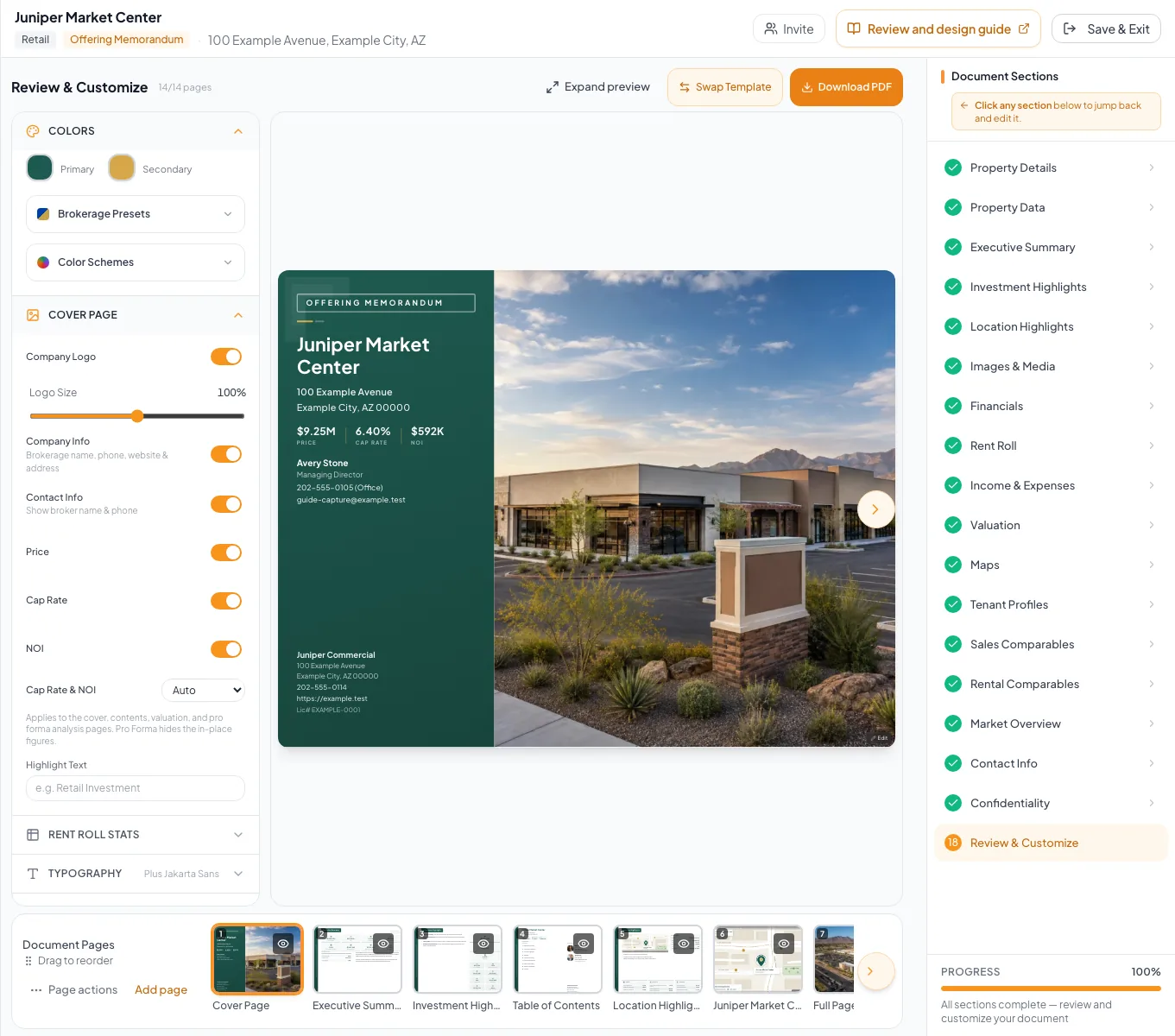
Choose the appropriate export, sharing, or publishing action only after the final review checklist is complete. - 4
Start the selected output
Selected workflow
Select Listed, Create Deal Room, Email Blasts, or Share for the channel you chose.
Expected result: CREBuilder starts that workflow.
If this step does not work
Use the channel table below to find the right starting screen if the control is missing.
- 5
Test as the audience
Downloaded file or a signed-out browser
Open the output the way your recipient will see it.
Expected result: The content and access match your plan.
If this step does not work
Fix the source or the access setting before you send the link or file.
Delivery-channel reference
Send a fixed file
- Channel
- Key distinction
- A snapshot that does not update after download
Let a teammate edit
- Channel
- Share collaborator access
- Key distinction
- Grants app access rather than public delivery
Market the property publicly
- Channel
- Listing Hub
- Key distinction
- Listed, Sync, Status, and access are separate controls
Share confidential diligence
- Channel
- Deal Room
- Key distinction
- Identity, NDA, approval, and file controls
Send a campaign
- Channel
- Email Blast
- Key distinction
- Requires recipient validation, review, and delivery status
Troubleshooting and next steps
The expected output action is unavailable.
Likely cause: The role, plan, document state, or package may not support it.
- Read the access or eligibility message.
- Ask the owner or administrator to verify permission.
The audience sees stale content.
Likely cause: A prior PDF or publication may predate the latest source edit.
- Confirm the source save.
- Generate or publish a new output.
- Retest the exact distributed artifact.
Final verification
- The PDF or output came from the latest saved document
- The channel matches the audience
- Public and confidential material are kept separate
- You tested access the way a recipient sees it
- No blocking warning, failed status, or unresolved validation message remains in the completed workflow.
Your next OM, done this afternoon
Turn your property facts, photos and financials into a polished, branded offering memorandum. Most brokers finish in 30 to 90 minutes.
No credit card required.