Outcome
Catch the mismatched number, the stray placeholder, or the soft photo before a buyer does, in one focused pass through facts, financials, media, design, and contacts.
Navigation path
Document Wizard > Review & Customize
Access
Available to anyone who can open the document in Review & Customize.
On this page
Before you start
Data, sources, and access to prepare
- All source sections saved
- Your original property and financial source files
Prepare these details
- Close unrelated editing tasks
- Open the latest source files beside CREBuilder
- Use a desktop-sized preview
- Ask a colleague for a second read when your team requires one
Complete the task
- 1
Review factual identity
Review & Customize > cover and summaries
Compare the property name, address, transaction, price, and headline facts with your source files.
Expected result: The identity is consistent across opening pages.
If this step does not work
Return to the owning wizard field for any conflict.
- 2
Review calculations
Review & Customize > financial pages
Compare one financial page at a time with your rent roll and operating statement.
Expected result: Totals, periods, units, and calculated metrics reconcile.
If this step does not work
Correct inputs in the financial wizard instead of typing over output.
- 3
Review narrative
Review & Customize > narrative pages
Read one page as the intended audience.
Expected result: Claims are specific, supportable, and free of unresolved placeholders.
If this step does not work
Edit the narrative source and save it before continuing.
- 4
Review media
Review & Customize > visual pages
Inspect every image, map, logo, and plan at normal viewing size.
Expected result: Media is sharp, relevant, correctly cropped, and correctly attributed.
If this step does not work
Replace or remove the source asset when quality is inadequate.
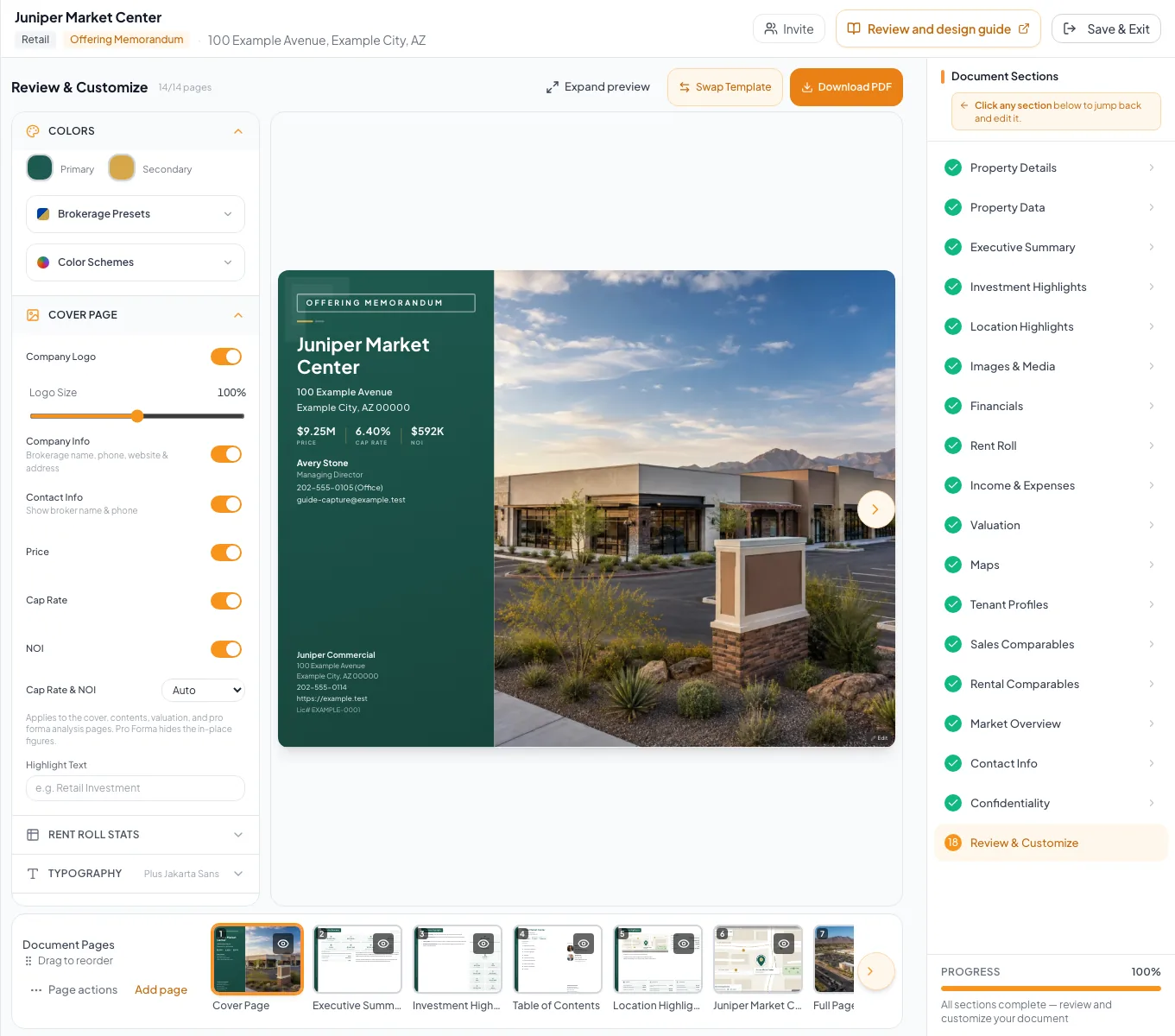
Inspect every visible page for content accuracy, design consistency, permissions, and required compliance language. - 5
Review contacts and disclosures
Review & Customize > contact and legal pages
Compare names and required wording with your current records.
Expected result: The intended contacts and disclosures are present.
If this step does not work
Update Profile, Contacts, or Confidentiality as appropriate.
- 6
Review the page sequence
Review page strip
Read the visible page titles from first to last.
Expected result: The sequence is complete and coherent.
If this step does not work
Restore a required hidden page or move an out-of-sequence page.
- 7
Finish on a saved document
Review & Customize
Wait for Auto-saved before you download or share.
Expected result: The document is ready for a fresh PDF.
If this step does not work
Repeat any check affected by a later edit.
Final quality matrix
| Review area | Fail condition |
|---|---|
| Facts | Conflicting names, addresses, dates, areas, prices, or statuses |
| Financials | Unreconciled totals, wrong periods, or mixed units |
| Narrative | Placeholders, unsupported claims, or duplicated copy |
| Media | Broken, blurry, irrelevant, confidential, or wrongly cropped assets |
| Design | Overflow, unreadable contrast, accidental hidden pages, or broken order |
| Delivery | Old PDF, untested link, or incorrect public access |
Troubleshooting and next steps
Edits keep coming in after your proofread.
Likely cause: A teammate may still be editing, or an issue was found late.
- Treat the earlier proofread as out of date.
- Wait for Auto-saved.
- Repeat the checks affected by the change.
The source of an incorrect value is unclear.
Likely cause: The template may reuse structured data across several pages.
- Use the page edit action when available.
- Search the wizard for the matching field label before altering narrative.
Final verification
- Facts, narrative, media, and delivery checks are complete
- Every issue was fixed at its source
- The page order is correct
- The footer shows Auto-saved
- You will download a fresh PDF or recheck the listing next
- No blocking warning, failed status, or unresolved validation message remains in the completed workflow.
Your next OM, done this afternoon
Turn your property facts, photos and financials into a polished, branded offering memorandum. Most brokers finish in 30 to 90 minutes.
No credit card required.