Video walkthrough
Read the written stepsRead the transcript
Before you watch
- Have the prepared Executive Summary, Investment Highlights and Location Highlights copy ready.
- The recordings show prepared financial figures. When using your own data, verify narrative numbers against the completed analysis before distribution.
Outcome
You will produce clean, property-specific narrative that fits the selected template and remains readable in the final PDF.
Navigation path
Documents > Open document > Executive Summary or narrative section
Access
Available when the selected document exposes a rich-text narrative section.
On this page
Before you start
Data, sources, and access to prepare
- Verified property facts
- Approved positioning
- The correct document and narrative section
Prepare these details
- List the three to five facts that matter most to the intended reader
- Remove claims that cannot be supported
- Choose one consistent voice and tense
Complete the task
- 1
Open the narrative section
Document Wizard navigation
Select the intended narrative section.
Expected result: The rich-text editor loads the saved content.
If this step does not work
Confirm the document and section name if unexpected copy appears.
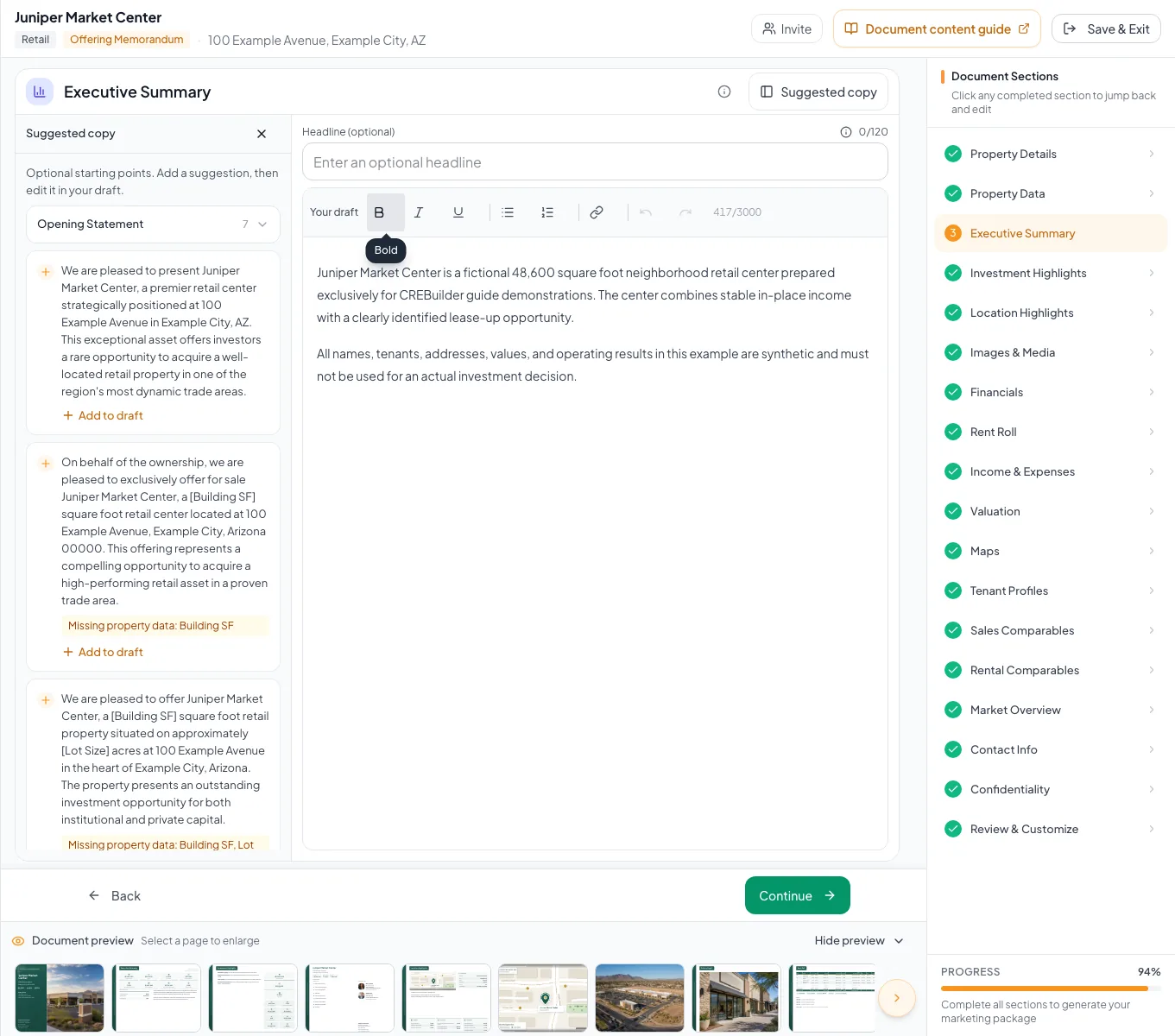
Write in Your draft and use the optional headline only when needed. Body and headline changes save automatically. - 2
Write the opening point
Narrative editor
Enter one concise paragraph in Your draft that states the property and opportunity.
Expected result: The reader can identify the asset and purpose immediately.
If this step does not work
Remove background detail that delays the primary point.
- 3
Add supporting evidence
Narrative editor
Add one verified fact or benefit at a time.
Expected result: Each claim is tied to a concrete property fact.
If this step does not work
Replace unsupported adjectives with a measurable or observable fact.
- 4
Apply formatting
Rich-text toolbar
Apply bold, italic, underline, a list, or a link to the selected content using the available toolbar.
Expected result: The selected content uses the intended structure.
If this step does not work
Use Undo immediately if the format affects more content than selected.
- 5
Confirm the automatic save
Narrative editor
Wait for the automatic save to finish.
Expected result: The saved indicator confirms the current draft and optional headline.
If this step does not work
Keep the draft open and select Retry save if an error appears; do not reload while the edit is unsaved.
- 6
Check the assembled page
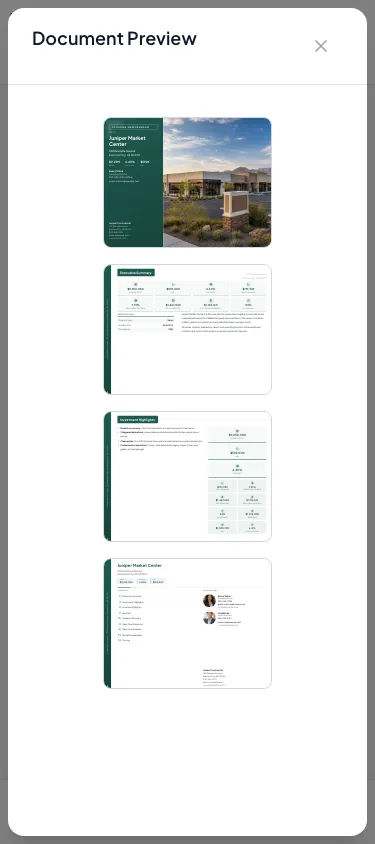
Review & Customize
Inspect the narrative page at normal reading size.
Expected result: The copy fits without awkward overflow, sparse space, or broken structure.
If this step does not work
Shorten or reorganize the source narrative rather than shrinking it into unreadable copy.
Narrative structure and example
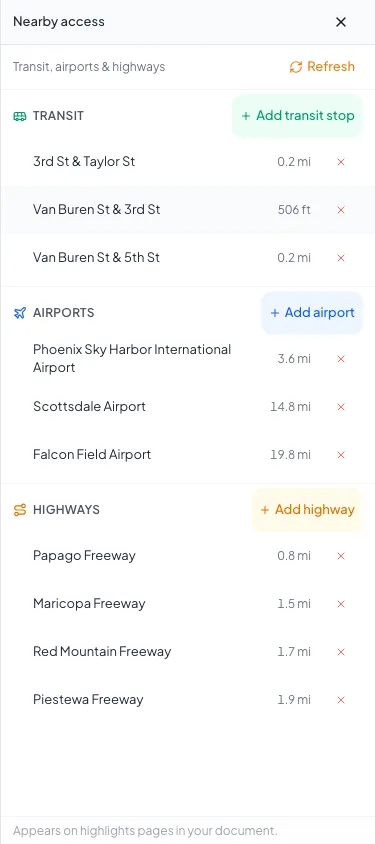
Your draft is the editable document text. On a wide workspace, Suggested copy appears on the left and Key metrics or Nearby access appears on the right, so both can stay visible while you write. Each panel has its own labeled button and close control. On smaller screens, these buttons show each panel in its own drawer.
The Executive Summary Headline is optional and limited to 120 characters. Enter an optional headline is placeholder guidance, not saved document text. Leave the field blank to omit the extra heading. The headline and body save automatically.
Investment Highlights separates calculated Key metrics from editable custom metrics. The three-dot action button beside each metric provides custom-value editing, ordering and visibility controls. Correct a calculated value in its property or financial source. Location Highlights puts transit, airports and highways in Nearby access. The printed location table uses the property address automatically. Older documents with a custom display address show a notice; Use property address removes that display override without changing the map location or other document settings.
Executive Summary
- Reader question
- What is being offered and why should I continue?
- Useful structure
- Identity, opportunity, strongest evidence, next step
Property Overview
- Reader question
- What is the physical and operating context?
- Useful structure
- Description, configuration, condition, use
Investment Highlights
- Reader question
- What supports the investment thesis?
- Useful structure
- Short evidence-led bullets
Location Highlights
- Reader question
- Why does this location matter?
- Useful structure
- Access, demand, demographics, anchors, verified context
Troubleshooting and next steps
Text overflows or creates an extra page.
Likely cause: The narrative is too long or heavily formatted for the selected layout.
- Remove repetition.
- Convert dense paragraphs into shorter evidence-led points.
- Check the result in Review & Customize.
Formatting behaves unexpectedly.
Likely cause: The selection may include hidden structure from pasted content.
- Undo the change.
- Paste as plain text when possible and reapply only necessary formatting.
Final verification
- Every number agrees with structured data
- Every claim is supportable
- Headings and lists have a consistent hierarchy
- Links are correct
- The final page remains readable
- No blocking warning, failed status, or unresolved validation message remains in the completed workflow.
Your next OM, done this afternoon
Turn your property facts, photos and financials into a polished, branded offering memorandum. Most brokers finish in 30 to 90 minutes.
No credit card required.